An Xbox controller that keeps disconnecting usually points to weak power, a stuck wireless session, pairing confusion, firmware, Bluetooth, or interference. Start with the quick fixes first, because fresh batteries and a clean restart solve the most common dropouts.
These steps cover Xbox Series X|S, Xbox One controllers, Windows PCs, mobile Bluetooth, remote play, and the Xbox Wireless Adapter. The Bluetooth steps apply only to Bluetooth-capable controllers, so check yours before following them. Work through them in order and stop when the controller stays connected.
Why your Xbox controller keeps disconnecting
The most common reason is weak or unstable power. Microsoft recommends replacing the AA batteries or fully recharging the battery pack even when the controller still shows some charge, because low batteries cause connection and functionality issues.
Pairing confusion is next. An Xbox Series X|S controller can switch between a Bluetooth device and its most recent Xbox Wireless connection, so it can look disconnected when it has moved back to another paired device.
Firmware also matters when the controller is used across Xbox, Windows, and Bluetooth devices. On a console, controller updates sit under Profile & system, Settings, Devices & connections, Controllers & headsets, the controller, ..., and Firmware version.
Refresh the batteries and restart the controller
This fixes disconnects caused by low power or a stuck controller session.
Open the battery compartment and replace the AA batteries with fresh AA batteries.
Fully recharge the rechargeable battery pack before testing again.
Press and hold the Xbox button for 6 seconds to turn the controller off.
Press the Xbox button again to turn it back on.
Use the controller from your normal seat and confirm the Xbox button stays lit.
Power cycle the Xbox console
Hold the Xbox button on the front of the console for about 10 seconds until the console powers off.
Unplug the console power cable.
Wait 30 seconds.
Plug the power cable back in.
Press the Xbox button to restart the console.
Turn the controller back on and test it from your usual playing position.
Run this full restart before changing firmware or Bluetooth settings.
Try USB to separate wireless problems from controller failure
A wired test tells you whether the dropout comes from the wireless link or from the controller, cable, port, or device. Use a USB-C cable for newer Xbox Wireless Controllers, or a USB to micro-USB cable for Xbox One controllers.
The cable must support data transfer, not charging only. Connect it directly to the Xbox console or Windows PC and check whether the controller stays connected.
If it works over USB, focus on pairing, Bluetooth, interference, or the Xbox Wireless Adapter. If it disconnects over USB, test another data cable, another USB port, and another device before requesting service.
Update the controller firmware
This fixes disconnects tied to outdated controller firmware or a failed wireless update.
On Xbox, press the Xbox button to open the guide.
Go to Profile & system, then Settings.
Open Devices & connections, then Controllers & headsets.
Select the controller and choose ....
Select Firmware version when Update appears, then follow the prompts.
Keep the controller connected until the update finishes.
On Windows 10 or Windows 11, install or open Xbox Accessories from the Microsoft Store, connect the controller by USB or the Xbox Wireless Adapter, open the controller tile, and follow the update prompt. Firmware updates over Bluetooth are not supported.
Re pair the controller to your Xbox
Turn on the console and the controller. Press and release the console Pair button, then press and hold the controller Pair button within 20 seconds until the Xbox button flashes and stays lit.
On Xbox Series X, the Pair button is on the front right above the USB port. On Xbox Series S, it is on the front left beside the USB port.
On Xbox One X and Xbox One S, the Pair button is on the front right below the power button. On the original Xbox One, it is the circular button on the side around the corner from the disc tray.
You can also pair through Profile & system, Settings, Devices & connections, Controllers & headsets, and Connect a device.
Fix Windows Bluetooth and adapter dropouts
The most common PC cause is an unstable Bluetooth or adapter connection.
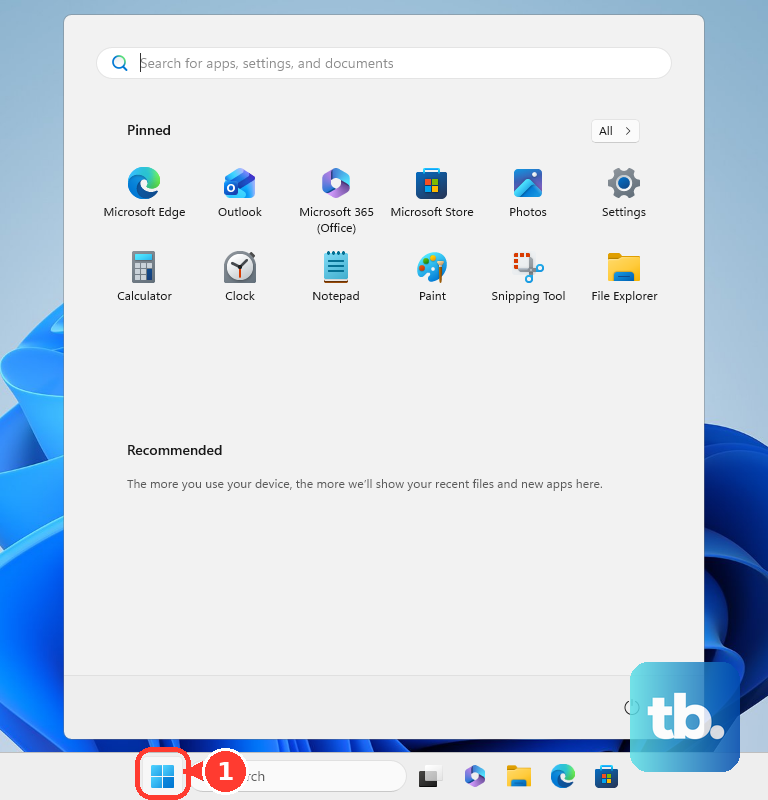
On Windows 11, open Start, Settings, Bluetooth & devices, turn Bluetooth off, wait a few seconds, and turn it back on.
Open the taskbar quick settings area and make sure Airplane mode is off.
Remove the controller through Start, Settings, Bluetooth & devices, Devices, the controller's More options, Remove device, and Yes.
Pair it again through Add device, Bluetooth, Xbox Wireless Controller or Xbox Elite Wireless Controller, and Done.
If the controller does not appear, open Start, Settings, Bluetooth & devices, Devices, and set Bluetooth devices discovery to Advanced.
For the Xbox Wireless Adapter, keep the controller within 6 meters, maintain line of sight, and use the USB extender to bring the adapter closer to the controller.
If the adapter stops responding after sleep, open Device Manager, Network adapters, Xbox Wireless Adapter for Windows, Properties, Power Management, select Allow this device to wake the computer, and choose OK.
Move away from wireless interference
This applies when the controller works nearby but drops from your usual seat, or when it disconnects around a PC, TV stand, hub, or crowded desk. Move closer to the console or PC and keep a clear path between the controller and the receiver.
Move cell phones, other Bluetooth devices, metallic objects, and unshielded USB devices away from the console, PC, or adapter. Unshielded USB devices near USB 3.0 ports interfere with wireless receivers.
For the Xbox Wireless Adapter, unplug it, reboot the Windows device, and plug it back into another USB 2.0 or USB 3.0 port. When the adapter partly installed or does not connect, reinstall it through Device Manager, Network adapters, Xbox Wireless Adapter for Windows, Properties, Driver, and Uninstall Device, then reboot and reconnect it.
Skip USB selective suspend workarounds. Microsoft strongly recommends leaving selective suspend enabled, so use the adapter extender, alternate USB ports, Wake on Wireless, and adapter driver reinstall instead.
Handle mobile and remote play disconnects
Use this method when the controller disconnects from Android, iPhone, iPad, Meta Quest, or Xbox remote play. Pairing steps differ by device, but each starts by putting the controller into pairing mode.
These Bluetooth steps need a Bluetooth-capable controller. On Bluetooth controllers, the plastic around the Xbox button is part of the faceplate. On controllers without Bluetooth, including earlier Xbox One controllers, that plastic is part of the top where the bumpers are, so connect those by USB or the Xbox Wireless Adapter instead.
On Android, press the controller Xbox button, hold Pair for 3 seconds, then open Apps, Settings, Connected devices, Pair new device, and select Xbox Wireless Controller.
On iPhone or iPad, open Settings, Bluetooth, make sure Bluetooth is enabled, put the controller in pairing mode, and select Xbox Wireless Controller.
For Meta Quest 2, Meta Quest Pro, Meta Quest 3, and Meta Quest 3S, press the controller Xbox button, hold Pair for 3 seconds, then open Quick settings, Bluetooth, Pair new device, select Xbox Wireless Controller, and choose Pair.
For Xbox remote play, use a 5 GHz Wi-Fi network instead of 2.4 GHz, stay on the same network while playing, disable VPN, avoid custom DNS, and avoid Wi-Fi extenders.
On Android remote play, open Settings, Apps, Xbox app, Storage, and Clear cache.
For unstable remote play sessions, start remote play at xbox.com/remoteplay, press the controller Xbox button from the connected device, then go to Profile & system, Power, and Restart console.
Reverse a bad firmware update or request service
Use firmware reversion when the controller started disconnecting after the last controller firmware update, especially with Bluetooth on non-Xbox devices.
On Xbox, open Profile & system, Xbox Support, Get help, Help topics, Hardware & networking, Controllers, My Xbox controller has connection issues after the last update, and Check your controller's firmware.
Follow the Xbox Accessories firmware reversion screen when it opens.
On Windows, install Xbox Accessories and use xboxaccessories://firmwareupdate/?legacyDowngrade=true.
If the controller still disconnects, request an Xbox controller replacement and use the 14-character serial number inside the battery compartment below the barcode. On the Xbox Elite Wireless Controller Series 2, the serial number is in the lower center on the back of the controller instead.
Register the Xbox console or accessory to check warranty status and track service requests.
Xbox 360 fixes are legacy guidance for Xbox 360 controllers and consoles only.
For current Xbox Wireless Controllers, use the battery, pairing, firmware, USB, Bluetooth, adapter, and service steps above.
Frequently Asked Questions
Why does my Xbox controller keep disconnecting even with new batteries?
Test it with a USB data cable. If it stays connected over USB, the problem is pairing, Bluetooth, interference, or the Xbox Wireless Adapter.
Can I update an Xbox controller over Bluetooth on Windows?
No. Controller firmware updates on Windows require USB or the Xbox Wireless Adapter through the Xbox Accessories app.
Why does my Xbox controller disconnect when I switch devices?
Xbox Series X|S controllers switch between Bluetooth and Xbox Wireless pairings. Double-press the Pair button to return to the most recent Xbox Wireless connection, or hold Pair to reconnect to the recent Bluetooth device.
When should I replace the controller?
Request service or replacement after fresh batteries, USB testing with another data cable, firmware updates, re-pairing, and wireless interference fixes fail.