Your SD card should appear quickly, but the card slot, reader, Finder settings, or the card's file system can stop it from showing up. Start with the fast physical checks, then move to Finder and Disk Utility only if the card still stays hidden. These fixes cover current macOS behavior, including Mac laptops with Apple silicon.
Reseat the SD card carefully
Remove the SD card from the Mac or card reader. Insert it again with the metal contacts facing down and pointing toward the computer. Push it in gently, and do not force it if it does not slide in normally.
If it still does not mount, remove it and insert it again at a steady speed. Apple says inserting a card too slowly or too quickly can stop it from mounting. Tip: miniSD and microSD cards need an SD adapter before they go into a Mac SD slot.
Confirm the card type and lock switch
Macs with built-in SDXC card slots support MMC, Default Speed, High Speed, UHS-I, and supported UHS-II cards. SDIO cards are not supported, and cards thicker than 2.1 mm should not be used.
UHS-II support applies to Mac Studio introduced in 2022 or later, MacBook Pro introduced in 2021 or later, iMac introduced in 2020, and iMac Pro.
If macOS says the card cannot be modified, eject it, remove it, move the physical lock slider to the unlocked position, and insert it again. Check the slider on a full-size SD adapter too.
Allow the card when macOS asks
This fixes SD cards and USB readers blocked by Mac accessory approval. Unlock your Mac if it is locked. Connect the SD card reader or insert the SD card. When macOS asks whether to connect the USB accessory or SD card to this Mac, click Allow.
To change future prompts on an Apple silicon Mac laptop, open Apple menu, then System Settings, then Privacy & Security, then Accessories. Choose an option under Allow accessories to connect: Always ask, Ask for new accessories, Automatically allow when unlocked, or Always allow.
Make Finder show the SD card
A mounted card can be working while Finder keeps it out of view. Open Finder. Choose Finder, then Settings. Click General and select the external disk items you want on the desktop.
Click Sidebar. Under Locations, select the items you want to see in the Finder sidebar.
Connect the reader directly
If your Mac does not have a built-in SD slot, connect the reader with the cable that came with it. Use the right adapter when the connector does not fit your Mac.
When the reader is connected through a hub or chain, plug it directly into the Mac. If macOS shows USB Devices Disabled, disconnect and reconnect the reader, try another Mac port, or use a self-powered hub connected to AC power.
To check hardware detection, hold Option and choose Apple menu, then System Information. Look under Hardware for the reader or device.
Mount the card in Disk Utility
Open Disk Utility. Choose View, then Show All Devices. Look for the physical SD card, its container or partition, and its volume in the sidebar.
Select the SD card volume. Click Mount. If the card does not appear there, disconnect and reconnect the card or reader, then test another reader, port, or direct connection.
Repair the card with First Aid
This fixes repairable formatting or directory-structure errors on a card that appears in Disk Utility. Open Disk Utility. Choose View, then Show All Devices.
Select a volume on the SD card. Click First Aid. Click Run. Click Done.
Repeat First Aid for each volume, each container, and then the storage device itself. If Disk Utility cannot repair the card, back up what you can, reformat it, and replace physically damaged media.
Erase the card only after backup
Erasing can make a visible but unusable SD card work again, but it deletes the files on the card. Back up anything you can access before you continue.
In Disk Utility, choose View, then Show All Devices. Select the SD card storage device at the top of its hierarchy, click Erase, choose GUID Partition Map when that option appears, pick a format, enter a name, click Erase, then click Done.
Choose APFS for Mac-only use, MS-DOS (FAT) for Windows-compatible volumes 32 GB or less, or ExFAT for Windows-compatible volumes over 32 GB. If the card is visible in Finder, Control-click it in the sidebar or on the desktop, choose Erase Disk, choose a file system format, and click Erase.
If formatting fails, try another reader or port, then run Apple Diagnostics when the slot, port, or logic board is the likely failure point.
Try deeper Mac checks
Use these checks when the card, adapter, and reader look right but your Mac still will not detect the SD card.
Restart from Apple menu, then Restart. If the Mac will not restart normally, hold the power button, or Touch ID on supported laptops, for up to 10 seconds until it turns off, then turn it on again.
Open Apple menu, then System Settings, then General, then Software Update, and install updates available for your Mac.
Start in safe mode as an isolation test. On Apple silicon, shut down, hold the power button until startup options load, select Macintosh HD, hold Shift, click Continue in Safe Mode, and log in. On Intel, turn on or restart, immediately hold Shift until the login window appears, then log in.
If safe mode points to startup software, open Apple menu, then System Settings, then General, then Login Items & Extensions. Make a list of items in Open at Login, remove them, restart, then add them back one at a time.
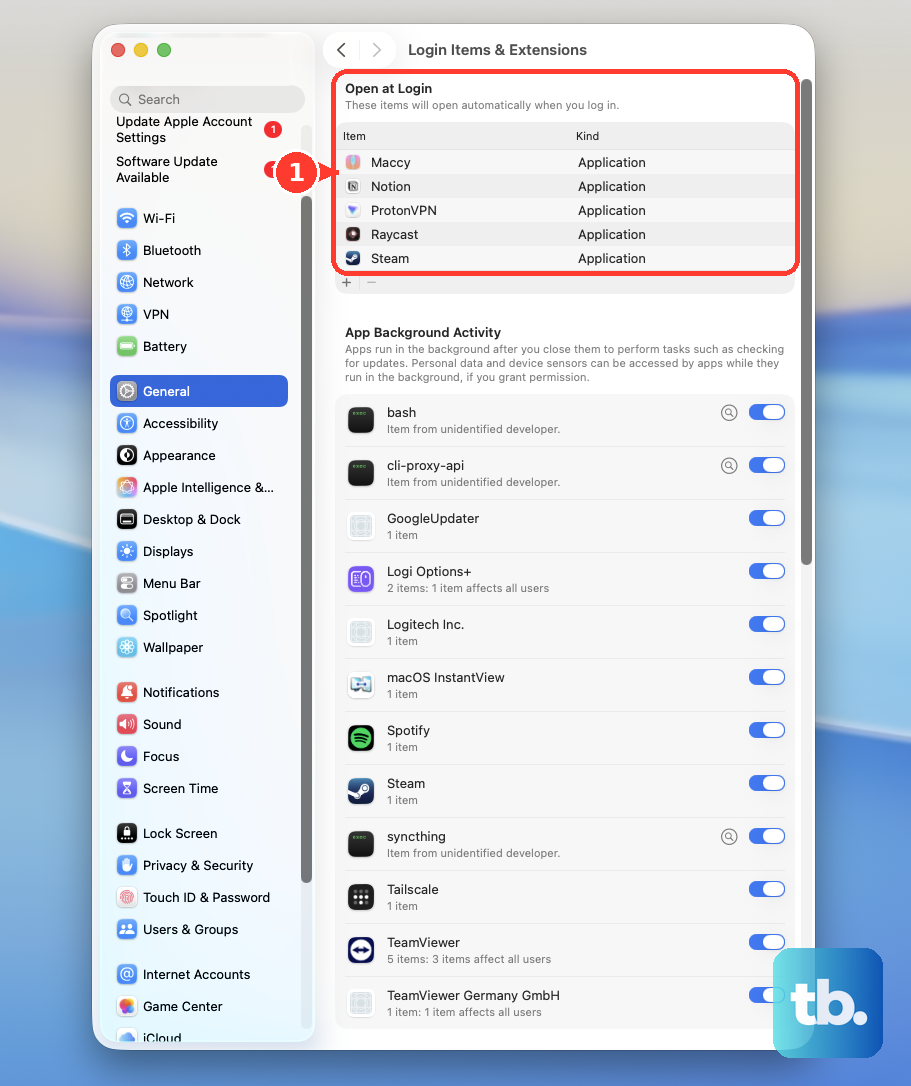
Uninstall third-party storage, security, VPN, antivirus, or card-reader utilities only when they plausibly affect external storage. Open Finder, then Applications, use the app's uninstaller when it has one, or drag the app to Trash.
Run Apple Diagnostics after cards and readers fail across ports and System Information or Disk Utility do not detect them. On Apple silicon, shut down, hold the power button until Options appears, then hold Command-D. On Intel, turn on the Mac and immediately hold D, or Option-D if needed.
Import photos without Finder autoplay
Finder does not have to open an import window for the card to be usable. Open Photos, choose File, then Import, select the photos or videos, and click Review for Import. Click Import All New Photos or select items and click Import Selected, then choose Delete Items or Keep Items when prompted and eject the card.
Image Capture is another supported import path. Open Image Capture, connect the card reader, select the device under Devices or Shared, then click Download or Download All. To make it open automatically for that device, use the Action button and the Connecting this device opens menu.
Current macOS uses Photos, Image Capture, and Disk Utility First Aid; iPhoto and the old repair-permissions workflow are not current fixes. If imports still fail, check whether the card appears in Disk Utility or System Information, then test a different reader or port.
Frequently Asked Questions
Why is my SD card not showing up on my Mac but working in my camera?
Finder may be hiding mounted external disks, macOS may be waiting for accessory approval, the reader may need a direct connection or more power, or the card may need First Aid in Disk Utility.
Can I fix an SD card that appears in Disk Utility but not Finder?
Yes. In Disk Utility, use Show All Devices, select the card volume, and click Mount. If it still stays unavailable, run First Aid before erasing anything.
Will erasing the SD card delete everything?
Yes. Disk Utility Erase and Finder Erase Disk delete the files on the card. Back up anything you can access before formatting.
Should I reset NVRAM or SMC for an SD card problem?
Use those only where they apply. NVRAM reset is for Intel Macs only. Manual SMC reset is also for Intel Macs; Apple silicon handles the equivalent through restart or shutdown.