Your iPhone XR won't activate, and you're stuck before reaching the Home Screen. The next move depends on what's on the screen: a server error, a SIM warning, or a request for the owner's Apple Account. Start with these quick checks, then jump to the fix that matches your message.
Check Apple's activation service and your connection
Start here before changing settings or restoring your phone.
- 1.Open Apple's System Status page and check iOS Device Activation. If it's unavailable, wait until service returns before retrying activation.
- 2.During setup, select a working Wi-Fi network instead of using cellular data.
- 3.If the activation server is temporarily unreachable, wait a few minutes and retry activation.
- 4.If Wi-Fi isn't working, move within router range, then try another Wi-Fi network. If other devices also cannot connect, restart your router and modem. Contact your internet provider if the outage continues.
Resolve an iPhone Locked to Owner message
iPhone Locked to Owner means the XR has Activation Lock. Enter the linked Apple Account and password at the onscreen prompts, or enter the device passcode if that option appears.
For a used phone linked to someone else's account, ask the previous owner to remove the lock. Have them sign in to Find Devices on iCloud, select the XR, and choose Remove This Device.
If the linked account is yours but you've forgotten its password, open Apple's password-reset page and complete the account verification and password-reset prompts. Allow additional time if the account requires recovery.
If you need Apple's help and have proof of purchase, open Apple's Activation Lock removal page and follow its support-request link. Submit the requested information and purchase documentation; submission does not guarantee approval.
Restart the XR before trying again
A force restart addresses a frozen setup screen; a normal restart lets you retry activation. Hold the side button and either volume button until the power slider appears. Drag the slider to turn off the phone. Wait 30 seconds.
Hold the side button until the Apple logo appears. Retry activation once the phone starts. If the screen is unresponsive, start a force restart by quickly pressing and releasing Volume Up.
Quickly press and release Volume Down. Hold the side button until the Apple logo appears, then release it. A force restart does not erase the phone.
Sort out SIM errors with your carrier
A carrier lock blocks activation with an unsupported carrier's SIM. For an unsupported-SIM message, ask the current carrier to confirm whether the XR needs unlocking. Only that carrier can authorize the unlock.
If you can access Settings, check Settings > General > About > Carrier Lock. No SIM restrictions means the phone is unlocked.
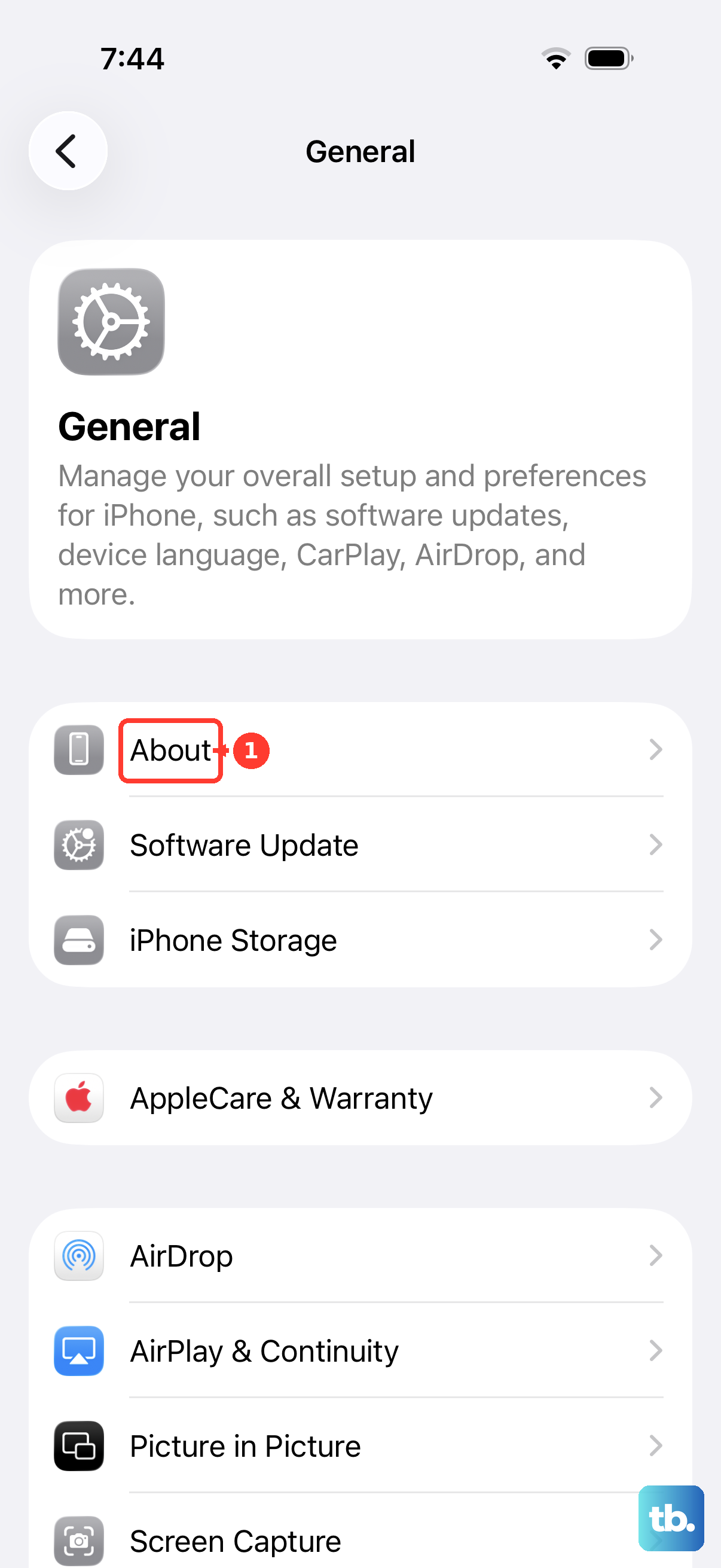
For No SIM or Invalid SIM, ask the carrier to confirm that your plan is active and the SIM or eSIM is valid for this phone. For a physical SIM, remove the SIM tray. Reseat the SIM in the correct XR tray. Close the tray fully, making sure it isn't loose.
If the error remains, try another compatible SIM. If you don't have one, ask a carrier store to test a SIM and replace yours if necessary.
When Settings is accessible, open Settings > General > About to check for a carrier settings update. Accept OK or Update if prompted.
If device setup is complete but an eSIM line won't activate, open Settings > Cellular. eSIM support depends on your XR's regional model and carrier. Select the affected line if it's listed. Turn the line off.
Turn the line back on. If eSIM activation still fails, contact the carrier with the error message, phone number, and IMEI or EID from Settings > General > About. Keep the eSIM installed unless the carrier instructs you to delete it.
Try activating with a computer
An internet-connected Mac or Windows PC gives you another way to complete activation.
- 1.Open Finder on a Mac running macOS Catalina or later, or Apple Devices on a compatible Windows PC.
- 2.Connect the XR with a USB cable that supports both data and charging.
- 3.Accept Allow on the Mac and Trust on the iPhone when those prompts appear.
- 4.Select your iPhone in the app's sidebar and wait for activation.
- 5.Check the result. A choice to set up the phone or restore a backup means activation succeeded. An incompatible-SIM error requires carrier help.
Repair network settings when Settings is accessible
These steps apply to a configured XR with connection problems and access to Settings. If setup blocks that access and activation on a computer reports that the activation information was invalid or could not be obtained, move to the recovery-mode section. Apple also documents recovery mode when your computer doesn't recognize the XR, the Apple logo sits for several minutes with no progress bar, or the phone shows the computer-and-cable screen.
Open Settings and turn off Airplane Mode. Open Wi-Fi. Turn on Wi-Fi. Select your network.
If you've installed VPN or security software, uninstall it. Restart the iPhone after removing the software. Test the Wi-Fi connection again. If Wi-Fi now works, consult the software provider before reinstalling its app.
For a managed network, consult your IT team before resetting network settings. If the connection problem persists, open Settings > General > Transfer or Reset iPhone > Reset > Reset Network Settings. This resets saved network credentials and cellular, VPN, and APN settings.
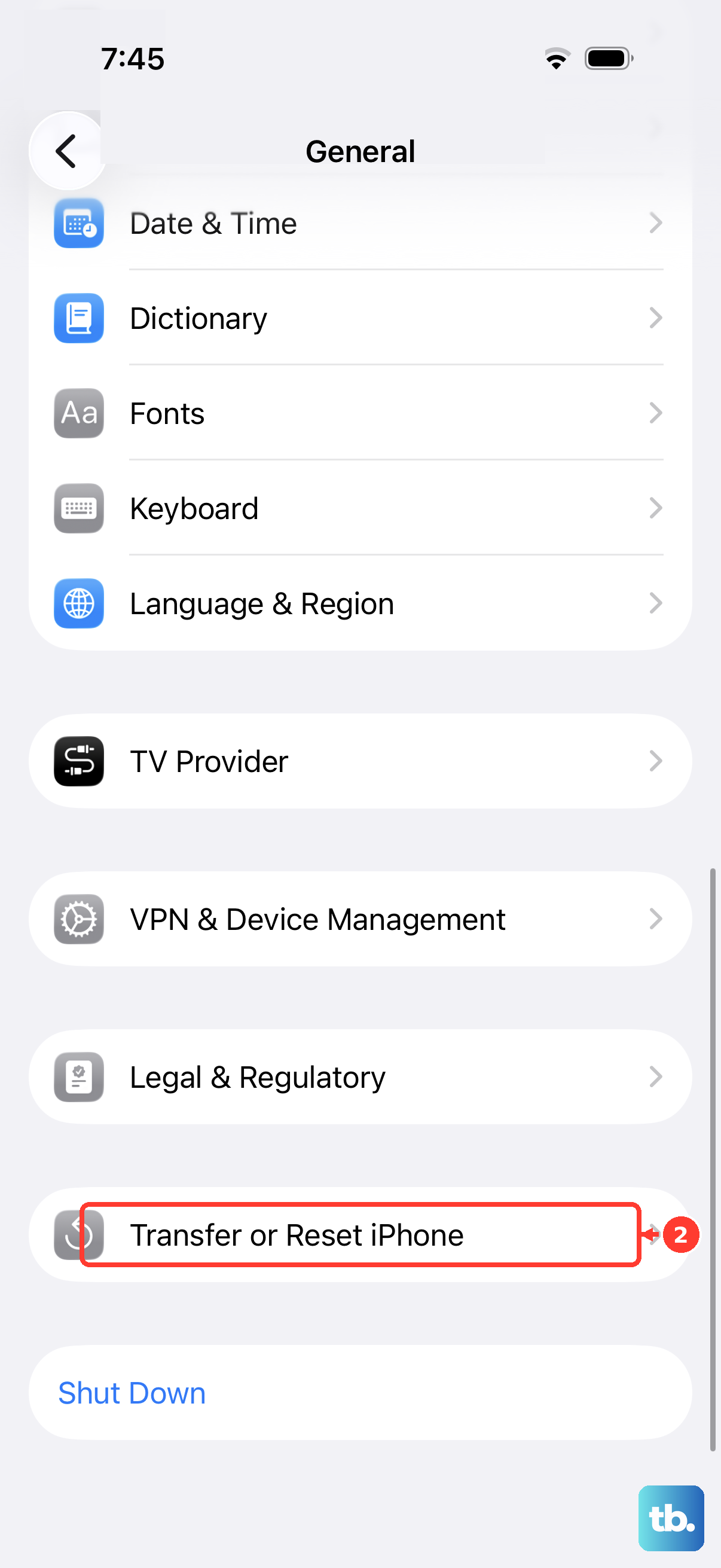
Rejoin your Wi-Fi network after the reset. Before updating iOS, back up the XR. Connect the phone to power. Connect it to Wi-Fi.
Open Settings > General > Software Update. Select Download and Install if an update is offered, then complete the prompts. Install the compatible iOS 18 update offered to your XR.
Use recovery mode for a persistent activation failure
Back up the phone if you can before proceeding. Restore erases its data. Connect the XR to your computer. Open Finder on Mac or Apple Devices on Windows.
Quickly press and release Volume Up on the iPhone. Quickly press and release Volume Down. Hold the side button through the Apple logo until the computer-and-cable screen appears. Keep holding past the point where you'd release it during a force restart.
Select the iPhone on your computer. Choose Update first if you haven't already tried it, unless the error says activation information is invalid or could not be obtained. For either of those activation-information errors, choose Restore.
If the download takes more than 15 minutes and the phone leaves recovery mode, let the download finish. Repeat the recovery-mode button sequence if the phone left recovery mode during the download. Keep the erasure warning in mind before choosing Restore, especially if you couldn't make a backup.
Get help when activation still fails
If your computer cannot detect the XR, test another cable that supports data and charging. Try another USB port. Test the connection with another computer. Check the Lightning port for debris.
For a work or school iPhone, contact the organization's IT team about managed network problems or Activation Lock. Consult IT before resetting network settings on a managed network.
If these checks fail and recovery still won't complete, the required buttons don't work, or SIM errors persist after carrier testing, request diagnosis from Apple or an Apple Authorized Service Provider. Follow Get service on Apple's recovery page or SIM troubleshooting page to arrange help.
Frequently Asked Questions
Does an update-required message mean my iPhone XR has a hardware fault?
The message alone does not establish a specific hardware fault. Neither does a missing IMEI. Request a diagnosis if the applicable software update or recovery procedure fails.
Will restoring my iPhone XR with a computer delete its eSIM?
Apple's factory-restore procedure using Finder or Apple Devices erases the phone's content and installs compatible software, but it does not delete the eSIM.
Does turning off Beta Updates remove an installed iOS beta?
No. Turning off Beta Updates stops future beta updates. Removing the installed beta requires a recovery-mode restore to public software, which erases the phone. For an expired-beta update alert, use Settings > General > Software Update if Settings is accessible.
Where do I download Apple Devices for Windows?
Open https://support.apple.com/en-us/118290 and follow Apple's Microsoft Store link for Apple Devices. Install available app updates through Microsoft Store.