Your iPhone HDMI adapter should mirror video to a TV, monitor, or projector, but the wrong adapter, a bad HDMI cable, a blocked app, or the wrong display input stops the connection cold. Start with the hardware path, then move into app, software, and content-protection fixes only when the basics check out.
Match the adapter to your iPhone
The adapter has to match the connector on your iPhone. Lightning iPhone models use Apple’s Lightning Digital AV Adapter, while supported USB-C iPhone models use a USB-C to HDMI adapter or cable.
Apple lists external display support for iPhone 15 models, iPhone 16 models except iPhone 16e, and iPhone 17 models except iPhone 17e. Apple’s USB-C Digital AV Multiport Adapter is one supported option, and its extra USB-C port lets you charge the iPhone while the display stays connected.
For 4K at 60Hz from a USB-C iPhone, use an HDMI 2.0-capable USB-C adapter or cable. If the adapter matches your iPhone and the screen stays blank, check the HDMI cable and display input next.
Check the HDMI input and cable
Connect the adapter to your iPhone, connect the HDMI cable to the adapter, and plug the other end into the TV, monitor, or projector. On the display, choose the matching HDMI input for the port you used.
Disconnect the adapter from the iPhone and from the display, then reconnect both ends firmly. A half-seated adapter or HDMI cable breaks the whole path.
Try another known-working HDMI cable between the adapter and the display. Remove HDMI extensions, converter chains, and accessories that convert HDMI to DVI, Composite, or Component video.
Rebuild the connection from scratch
Use this clean test when the display stays black after the first checks.
- 1.Unplug the adapter from the iPhone and unplug the HDMI cable from the adapter.
- 2.Plug the HDMI cable directly into the TV, monitor, or projector without an extension cable or converter.
- 3.Connect the HDMI cable to the iPhone adapter.
- 4.Connect the adapter to your iPhone.
- 5.Select the matching HDMI input on the display and wait for the image to appear.
Fix video with no sound
Use this when the iPhone picture appears on the display but the audio is missing. The video path has to support sound.
VGA does not carry audio, so use an HDMI Digital AV adapter when you need sound through the TV or display.
For FaceTime and other telephony apps over HDMI audio output, use Apple’s USB-C Digital AV Multiport Adapter.
If the adapter has HDMI and audio still fails, test a different HDMI cable before changing app or iPhone settings.
Handle HDCP and app restrictions
An HDCP alert means the movie, show, or app requires a protected digital path. Use a compatible HDMI connection and avoid non-HDCP paths such as Apple VGA Adapter.
Some streaming and video apps limit adapter output. When only one app fails, check that app’s info page in the App Store for compatibility or contact the developer.
AirPlay is Apple’s supported alternative when the wired adapter path is incompatible, though some video apps do not support AirPlay either; if a video app blocks it, check the App Store on your Apple TV to see whether that app is available there. Connect the iPhone and Apple TV, AirPlay-compatible smart TV, or Mac to the same Wi-Fi network, then tap the app’s AirPlay button or open Control Center, tap Screen Mirroring, and choose the TV or Mac.
Refresh the affected app
This fixes HDMI output problems caused by one frozen or malfunctioning video app.
Open the App Switcher.
Swipe right to find the affected app.
Swipe up on the app to close it.
Reopen it from the Home Screen or App Library.
Test the HDMI output again.
If the same app still fails, open the App Store.
Tap the My Account button or your picture at the top right.
Tap App Updates.
Tap Update beside the app, or tap Update All.
When the app keeps failing, touch and hold it on the Home Screen.
Tap Remove App.
Tap Delete App, then tap Delete to confirm.
Redownload the app from the App Store; this step risks losing app-stored data.
Clean dirty or wet connectors
The most common connector cause to rule out is debris or moisture keeping the adapter from seating properly.
Disconnect all cables and turn off the iPhone before cleaning.
Use a soft, slightly damp, lint-free cloth for general cleaning, and keep moisture out of openings.
Clean the Lightning or USB-C connector with a soft, dry, lint-free cloth. Do not use liquids, cleaning products, compressed air, or force the connector into the port.
If a liquid-detection alert appears, unplug the cable from the iPhone and unplug the other end from the accessory.
Tap the iPhone gently against your hand with the connector facing down, then leave it in a dry area with airflow.
Try the accessory again after at least 30 minutes. If the alert remains, drying can take up to 24 hours.
Update iPhone software
Open Settings > General > Software Update. If an update is available, tap Download and Install and follow the onscreen instructions.
To update with a computer, connect the iPhone by cable. On a Mac with macOS 10.15 or later, select the iPhone in the Finder sidebar and click General; on macOS 10.14 or earlier or Windows, open iTunes, click the iPhone button, then click Summary.
Click Check for Update, then click Update when an update is available. Apple lists iOS 26 support for iPhone 11 and later, iPhone SE 2nd generation and later, and listed iPhone 12 through iPhone 17 family models.
Restart and check managed devices
This fixes a stuck iPhone; the profile check handles app or update behavior controlled by device management.
On iPhone 8 and later, including iPhone SE (2nd generation) and later, press and quickly release Volume Up.
Press and quickly release Volume Down.
Press and hold the Side button.
Release the Side button when the Apple logo appears.
On iPhone 7 or iPhone 7 Plus, press and hold the Side button and Volume Down together until the Apple logo appears.
On iPhone 6s and earlier, press and hold the Home button and the Side button or Top button together until the Apple logo appears.
On a personal iPhone with a removable profile, open Settings > General > VPN & Device Management.
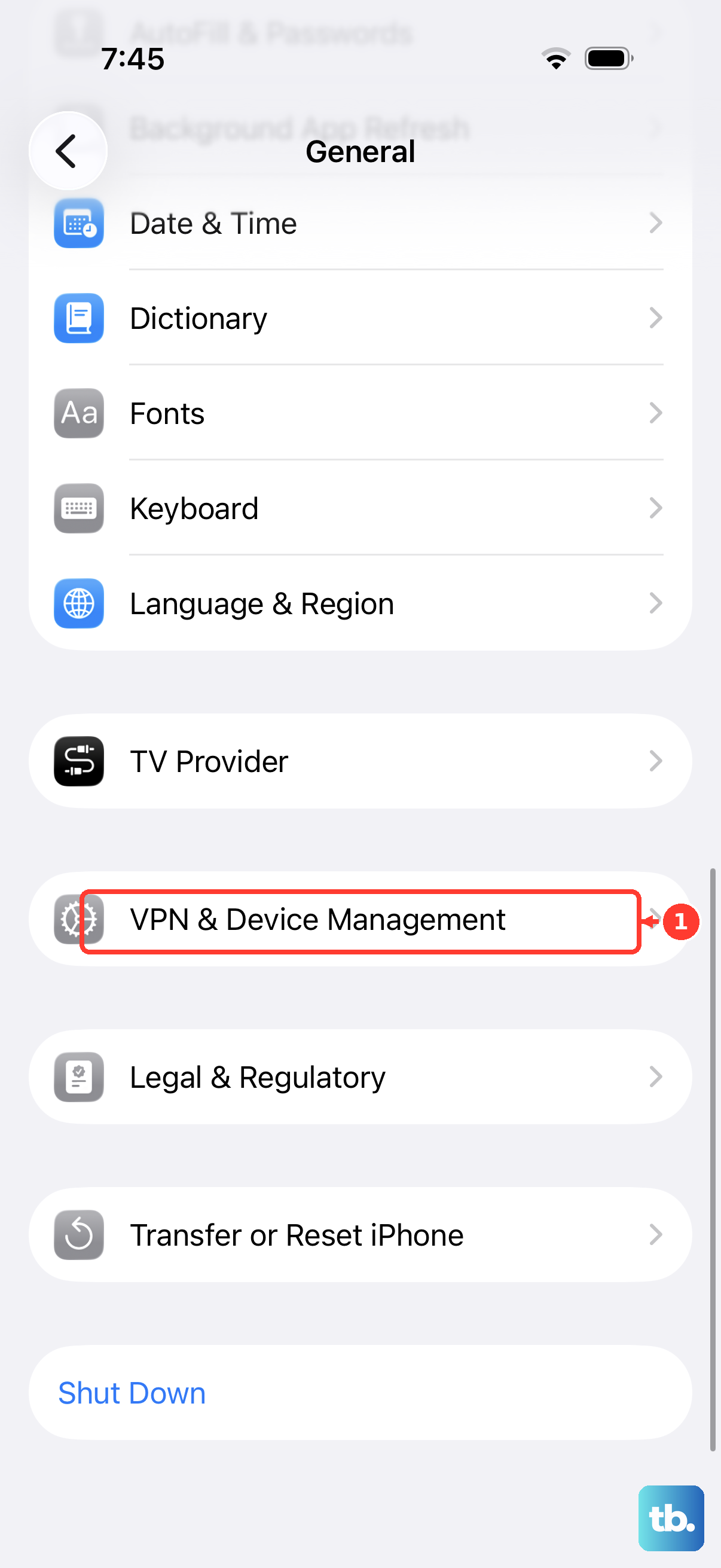
Select the configuration profile.
Tap Remove Profile.
For device management, select the management entry.
Tap Remove Management.
For a work or school iPhone, contact the administrator.
Frequently Asked Questions
Which iPhones support USB-C HDMI output?
Apple lists external display support for iPhone 15 models, iPhone 16 models except iPhone 16e, and iPhone 17 models except iPhone 17e.
Do I need a special USB-C HDMI adapter for 4K at 60Hz?
Yes. Use a USB-C to HDMI adapter or cable that supports HDMI 2.0. Apple says its USB-C Digital AV Multiport Adapter can output up to 4K at 60Hz on supported displays.
Can a 30-pin adapter fix a current iPhone HDMI problem?
No. Apple lists 30-pin adapters only for older devices with a matching 30-pin connector. Current iPhones use Lightning or supported USB-C display adapters.
Is AirPlay a real fix if HDMI still will not work?
AirPlay is Apple’s supported alternative when the wired adapter setup fails or your iPhone model has no supported USB-C display output, as long as the destination and the app both support it. Apple notes that some video apps do not support AirPlay, so it does not bypass an app’s own output restrictions; if a video app blocks AirPlay, check the App Store on your Apple TV to see whether that app is available there.