Your iPad charge port looks dead, but the port is not always the part that failed. A weak charger, damaged cable, dirty connector, temperature hold, charge limit, or iPadOS issue can stop charging in the same way.
Start with the quick checks that prove where the failure is, then move through cleaning, settings, restarts, updates, and repair options.
1. Confirm the charging setup first
Use the simplest wired setup before blaming the iPad port.
Connect the iPad to a USB charging cable, preferably the cable that came with it.
Plug the cable into a USB power adapter connected to a working power source.
Use a computer only when its USB port supports USB 2 or later and the computer is on and awake.
Check for the lightning bolt on the battery icon or the large battery icon on the Lock Screen.
For a USB-C iPad, connect the included USB-C cable to the iPad, connect it to a compatible USB-C power adapter, then plug the adapter into a wall outlet.
For faster charging, use a higher-wattage USB-C power adapter, including one that came with a Mac laptop.
2. Swap the cable adapter and outlet
Disconnect the current charger.
Next, try a different charging cable.
Then try a different USB power adapter.
Move to another working wall outlet.
Stop using damaged cables, bent connectors, or damaged adapters.
This separates a real iPad charge port problem from a bad accessory.
If the iPad charges with another cable or adapter, replace the failed accessory. The iPad port passed the test.
3. Inspect the port and clean safely
Debris in the connector keeps the cable from seating cleanly.
Unplug the USB cable, look inside the iPad charging port, and inspect the cable connector for debris or damage.
Remove visible debris only when it comes out gently.
Do not scrape, force tools into the port, or keep using a damaged connector.
For a Lightning cable or Lightning connector, disconnect the iPad from power and wipe the connector with a soft, dry, lint-free cloth.
Do not use liquids or cleaning products on the Lightning connector.
For the cable body, unplug both ends first.
Wipe the cable with a soft, slightly damp, lint-free cloth, keep moisture away from both connectors, then let the cable dry overnight before using it again.
Skip compressed air, aerosol sprays, harsh cleaners, rice, heat, cotton swabs, and paper towels inside the connector.
Apple’s current handling guidance points to unplugging the device, keeping moisture out of openings, using soft lint-free cloths, and getting service when liquid or damage is involved.
4. Clear a frozen charging state
Restart the iPad before deeper troubleshooting. It clears software states that stop charging from showing correctly.
- 1.Open Settings > General > Shut Down.
- 2.Drag the slider to turn off the iPad.
- 3.Press the top button to turn it back on.
You can also open Control Center, touch and hold the Power button in the top-right corner, drag the slider, then turn the iPad back on.
If the screen is frozen, use a force restart.
On an iPad without a Home button, press and quickly release the volume button closest to the top button, press and quickly release the volume button farthest from the top button, then hold the top button until the iPad restarts.
On an iPad with a Home button, hold the top or side button and the Home button until the Apple logo appears.
5. Fix Slow Charger and 80% Limit
Settings > Battery is the place to check first.
If Slow Charger appears, switch to a charger that delivers more power; Apple says wired charging is slow when a charger provides 7.5 watts or less.
If the iPad charges but stops at 80 percent, a charge limit is likely on.
This control appears only on supported models, including iPad mini (A17 Pro), iPad (A16), iPad Air 11-inch and 13-inch (M2, M3, M4), and iPad Pro 11-inch and 13-inch (M4, M5).
On those models, open Settings > Battery > Battery Health, turn off 80% Limit, then tap Allow Until Tomorrow for a temporary override or Set Limit to 100% for a persistent change.
You can also open Settings > Battery and tap Charge to 100%.
6. Let Charging On Hold finish
Move a hot iPad to a cooler place away from direct sunlight.
Move a cold iPad to a warmer place.
Lock the screen or put the iPad to sleep while the temperature normalizes.
Charge the iPad between 32° and 95° F, or 0° and 35° C.
Remove the case when the iPad heats up while charging.
When the Lock Screen or Settings > Battery shows Charging On Hold, the iPad has paused charging because of temperature.
Charging resumes when the iPad returns to a normal temperature.
7. Update iPadOS and handle accessory alerts
For an accessory warning, start with iPadOS and compatibility.
Open Settings > General > Software Update.
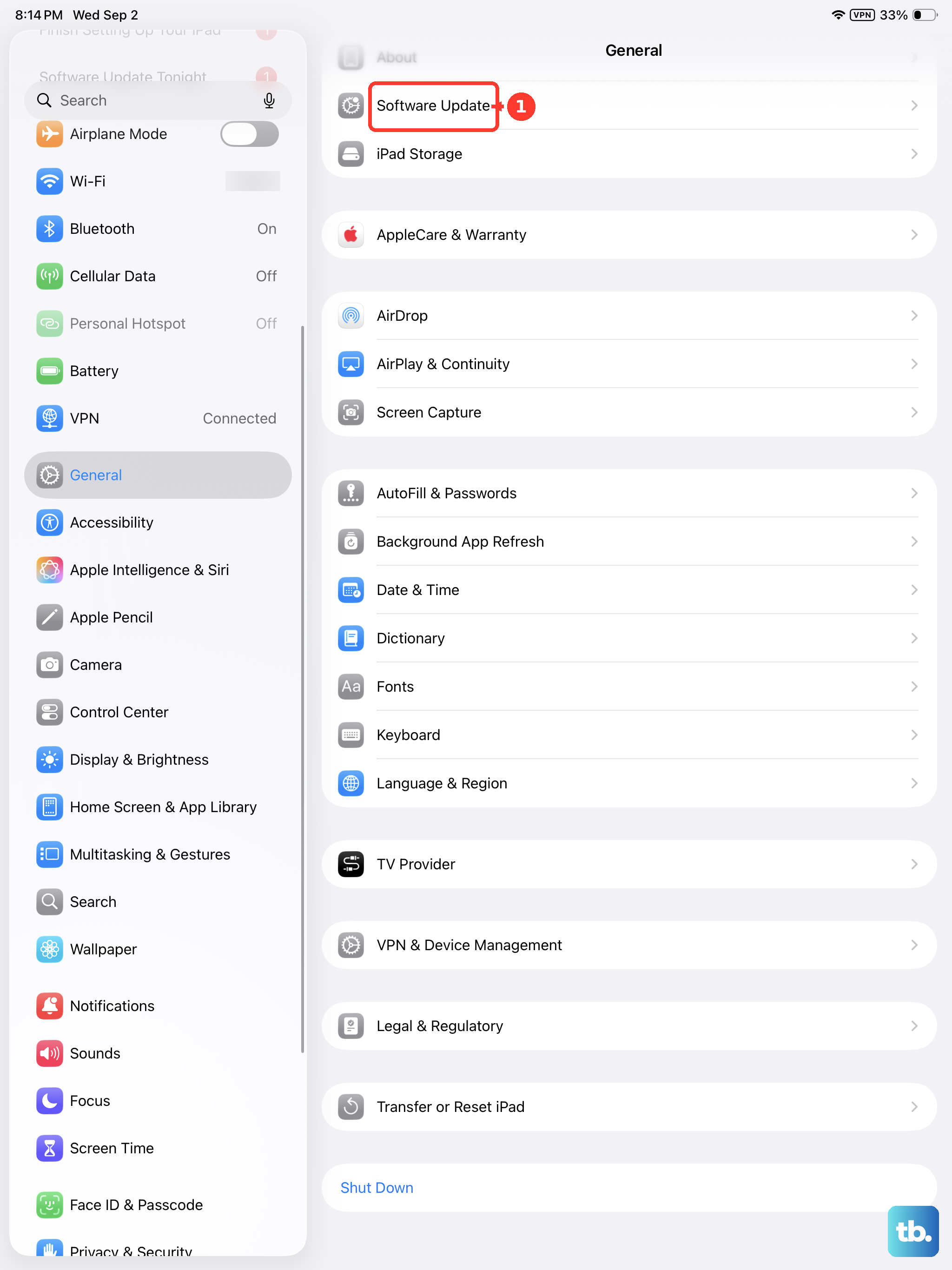
Tap Download and Install when an update appears.
Confirm the accessory works with your iPad model.
Disconnect and reconnect the accessory.
Check the accessory connector and iPad connector for damage or debris.
For docks, computers, Thunderbolt accessories, and other accessories that need data communication, unlock the iPad before connecting it.
If it is still not recognized, disconnect it, unlock the iPad, then reconnect.
To adjust accessory access, open Settings > Privacy & Security > Wired Accessories.
USB-C iPads offer Always Ask, Ask for New Accessories, Automatically Allow When Unlocked, and Always Allow.
Lightning iPads offer Automatically Allow When Unlocked and Always Allow.
A USB power adapter charges as usual while the iPad is locked, so this setting is for computers, docks, and accessories.
If an accessory alert appears with no accessory connected, use service.
8. Book repair when the port still fails
Use Apple’s iPad service flow, select Get started, describe the charging issue, then choose an available service option.
Apple lists Genius Bar service, Apple Authorized Service Provider service, and mail-in repair.
Bring the iPad and the charging accessory you want checked.
Stop home troubleshooting when the cable feels loose, the port looks damaged, debris stays stuck, an accessory alert appears with no accessory connected, or the iPad still does not charge after the checks above.
Before service, back up the iPad, confirm iCloud syncing in Settings > [your name] > iCloud, and turn off Find My in Settings > [your name] > Find My > Find My [Device].
If the iPad is unresponsive, complete the steps that still work.
Experienced repairers handling an out-of-warranty repair can use Apple Self Service Repair by reading the repair manual for the exact iPad model first, then using the manual ID to order genuine parts and rent or buy professional-grade tools.
For a school or work iPad, ask the organization’s admin about accessory connection restrictions for docks or computers.
Frequently Asked Questions
Why does my iPad only charge when I hold the cable at an angle?
The connection is not seating correctly. Test another cable, inspect the connector and iPad port for debris or damage, and get service if the cable still feels loose.
Can I clean my iPad charging port with compressed air?
No. Apple’s iPad cleaning guidance says not to use compressed air. Unplug the iPad, keep moisture out of openings, use soft lint-free cloths where Apple recommends them, and use service for stuck debris or damage.
Why does my iPad say Slow Charger?
Open Settings > Battery. Slow Charger means the charger is not delivering enough power. Apple says wired charging is slow at 7.5 watts or less, so use a higher-power compatible charger.
Does Wired Accessories stop a normal wall charger from charging my iPad?
No. Apple says a USB power adapter charges as usual while the iPad is locked. Wired Accessories matters for computers, docks, Thunderbolt accessories, and accessories that need data communication.