Your HP laptop camera won't work, and you've got a call to join. Start with the privacy controls and camera permissions, then use the preview to narrow down the problem before touching drivers. The Windows 11 fixes come first, with HP Chromebook steps at the end.
Check HP’s camera privacy controls first
If the camera shows a black image or isn't detected, start with the laptop's privacy controls. Follow the instructions for whichever controls your HP has.
For a mechanical cover above the lens, move the slider until the lens is uncovered. HP specifies sliding right on applicable models; follow your laptop’s markings.
For an electronic webcam switch beside the camera or on the laptop’s side, slide it away from the camera-disable icon.
For a keyboard shutter key, press the key with the camera symbol, holding Fn at the same time if your keyboard requires it. On HP’s documented shutter keys, an illuminated LED means the webcam is off.
Find out whether the camera works outside your calling app
Close other video-call apps, camera utilities, and browser tabs using video. Then search Start for Camera. Open Camera to check the preview. A working picture points toward a problem in the calling app.
Restart the laptop if the preview does not work. Open only Camera after the restart to test again.
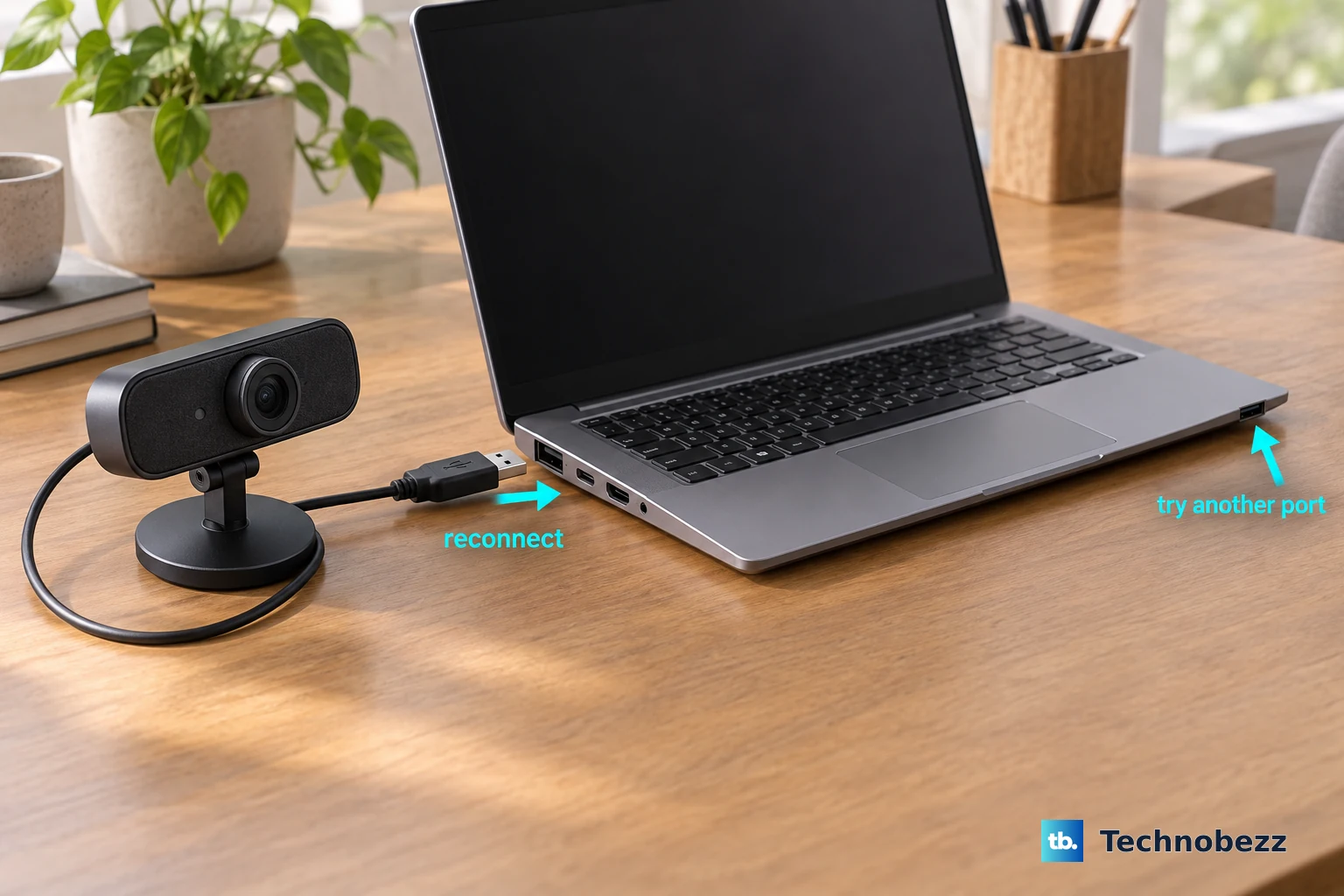
For an external USB webcam, reconnect its USB cable. Try another USB port if reconnecting does not help. Test the external webcam on another computer if it still fails. Keep track of which apps show a working preview so you can focus on the ones that fail.
Give Windows and your apps camera access
Blocked camera permissions stop an app from using an otherwise working webcam. Open Start > Settings > Privacy & security > Camera. Turn on Camera access.
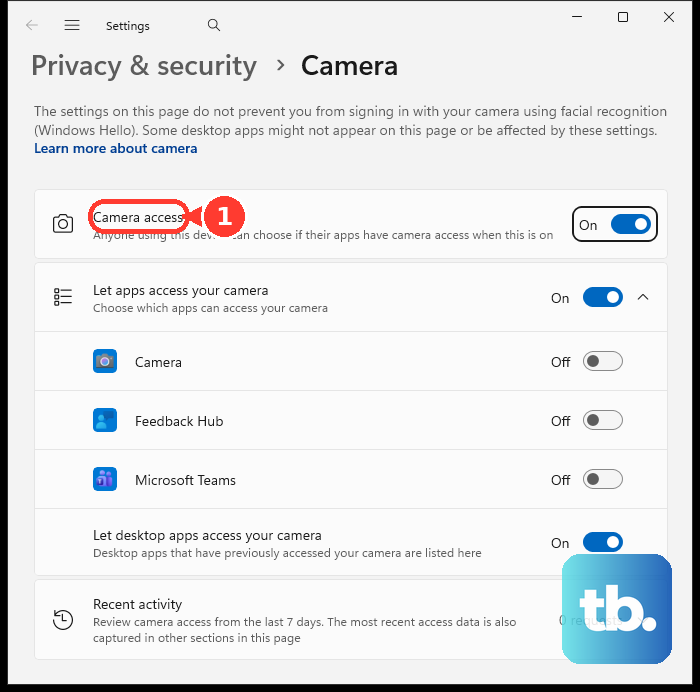
Enable Let apps access your camera. Turn on the affected app’s switch in the app list. For browsers and desktop calling software, enable Let desktop apps access your camera. This is a shared setting, with no individual switch here for each desktop app.
If the camera is disabled in Windows, open Start > Settings > Bluetooth & devices > Cameras. Re-enabling it requires administrator access and applies to cameras listed on this page. Select your camera under Disabled cameras. Choose Enable.
If work or school restrictions prevent changes to camera access or browser permissions, contact your IT team.
If only one app fails, check its camera settings
If the Windows Camera preview works but your call does not, move to the calling app’s settings. Use the instructions for your app or browser below.
In Zoom, select Start Video if video is off. Open the arrow beside Start Video or Stop Video. Open Video Settings > Camera. Select your physical webcam.
In Teams Free, select the built-in camera instead of a virtual camera in the video settings or meeting pre-join screen. Turn off Blur or other background effects in Teams Free if you see only the background.
For Google Meet, open More > Settings > Video. Select your HP webcam under Camera to check its preview.
In Chrome, open More > Settings > Privacy and security > Site settings > Camera. Choose the intended camera from the dropdown. For a blocked Chrome site, select it under Not allowed to use your camera or microphone. Change Camera to Allow.
In Edge, open Settings > Privacy, search, and services > Site permissions > All permissions > Camera. Enable Ask before accessing (recommended). Revisit the calling site. Approve its camera request.
For a remembered block in Firefox, select the address-bar permissions icon. Click X beside Blocked or Blocked Temporarily. Visit the site again. Select Allow when Firefox requests camera access.
If one app still fails, open Start > Settings > Apps > Installed apps. Open the app’s More menu. Choose Advanced options > Repair if available. Some apps do not offer these controls.
Use Reset if repair fails. Resetting can clear the app’s settings and data.
Install Windows and HP updates
Start the Windows update check at Settings > Windows Update > Check for updates. Select applicable driver updates under Advanced options > Optional updates. Choose Download and install. Restart after installation.
For model-specific updates, open HP Support Assistant > My Dashboard. Select your computer. Open Updates and let the scan finish.
Install applicable HP updates. Restart if requested. This workflow requires HP Support Assistant 8 or later; it is unavailable in Windows S mode, where you should use Windows Update.
Restore a missing or broken camera driver
If the camera fails across apps, check Device Manager. When the trouble started after a driver change, try a rollback before reinstalling.
Open Device Manager from the right-click menu on Start. Look for the webcam under Cameras, Imaging devices, or Sound, video and game controllers. For a disabled webcam, select Enable device from its right-click menu if offered. If the webcam is missing, select Action > Scan for hardware changes.
Restart the laptop after the scan. Test the camera again in Camera. To undo a recent driver change, open the webcam’s Properties > Driver from its right-click menu. Select Roll Back Driver if a previous driver is available.
Select Yes. Restart after the rollback. To check for an update instead, choose Update driver from the webcam’s right-click menu. Select Search automatically for drivers.
If the camera still fails, choose Uninstall device from its right-click menu. Select Uninstall. Restart the laptop. Windows attempts to reinstall the camera driver.
If automatic reinstallation fails, try the HP Software and Driver Downloads page: select Laptop, identify your exact model and matching operating system, and download the applicable driver. Follow its installer instructions. HP does not offer a separate webcam driver for every model.
Try camera diagnostics and an HP power reset
If permissions, app settings, and driver fixes haven't restored the camera, run Microsoft’s automated diagnostics. Follow those with an HP power reset if the camera still fails.
Open Microsoft’s camera troubleshooting page. Select Run the troubleshooter in Get Help. Follow the diagnostic prompts.
To begin an HP power reset, shut down the laptop. This is different from a Windows factory reset; models with removable batteries and some business laptops require their own model-specific procedure. Disconnect AC power. Disconnect nonessential peripherals.
Remove removable media. Hold the Power button for approximately 15 seconds. Reconnect AC power.
Start the laptop. Test the webcam in Camera.
Check the webcam’s hardware connection
HP’s UEFI Webcam Connection Test checks for a camera connection problem. Start the laptop. Press Esc repeatedly during startup. Press F2 to open HP PC Hardware Diagnostics UEFI.
Select Component Tests > Webcam Connection. This test is offered on supported systems and is unavailable in the Windows version of HP’s diagnostics. Select Run once. Choose the webcam if the test detects more than one.
If diagnostics produces a failure ID, open the HP PC Hardware Diagnostics repair page. Enter the Failure ID code. Enter your Product number. Select your Location.
Select Submit to start the repair process. Contact HP for service if the camera remains undetected after these checks.
For an HP Chromebook, use ChromeOS camera controls
Select the time. Open Settings > Privacy and security > Privacy controls on ChromeOS versions that include this page. Turn on Camera access. Enable the intended app’s camera permission.
Refresh the app or webpage. For an Android app, select the launcher beside the app in Privacy controls to open its Android preference controls. Allow the Android app’s Camera permission.
Turn the Chromebook off if the camera still fails. Turn it back on. Test the camera in another app, such as Google Meet.
If only one app fails, uninstall that app. Reinstall it from its original official source.
Before a hardware reset, back up files in Downloads, because the reset can remove some files. The following procedure applies to most HP Chromebook laptops; special hardware requires its own reset procedure. Turn off the Chromebook. Hold Refresh while tapping Power.
Release Refresh when startup begins. Use the Chrome permission steps above too if the camera works in apps but fails on a calling website.
Frequently Asked Questions
Why is my HP camera working but the picture is dark or blurry?
Clean the lens, remove obstructions, and improve the lighting. For image adjustments, open Settings > Bluetooth & devices > Cameras > Connected cameras and select your camera. Adjust the available Brightness, Contrast, Saturation, or Sharpness controls while watching the preview. Controls depend on the camera and Windows version, and calling apps can override these defaults. Check network quality if video is choppy.
Can Norton block my HP laptop camera?
Yes. Norton products with SafeCam include webcam blocking controls. Open Privacy > SafeCam > Open. Under App permissions, change your trusted calling app from Blocked to Allowed. Under Select your preferred mode, choose a mode other than Block access to webcam and microphone.
Should I switch my camera driver to USB Video Device?
Only use this option for a UVC-compatible camera that offers USB Video Device in its available driver list. It is not a universal fix for integrated HP webcams. Switching can remove manufacturer features, including some Windows Hello functionality.
Does an HP Chromebook camera problem require a factory reset?
Powerwash is a last resort for a personal Chromebook after the less disruptive fixes fail. It erases local user data, so back up local files first. Managed Chromebooks require administrator assistance.