Your Epson printer won't recognize an ink cartridge, even after you've put it back in. Start with the cartridge code and packaging, then work through seating and gentle contact cleaning. Use the instructions for your exact model, because Epson printers don't all use the same replacement controls or cartridge seals.
Check the cartridge code before buying another
An incompatible cartridge triggers a recognition error even when it fits into the holder. Check the cartridge label for EPSON branding and its product code.
Compare that code with the cartridges listed for your exact printer model in its user guide or Epson store. Codes vary by model and market, so matching the shape isn't enough. Replace an incompatible cartridge with the specified genuine Epson cartridge. If the code matches, continue with the installation checks before buying more ink.
Open the replacement controls for your model
Start with your printer's replacement controls. On the XP-4200 and XP-4205, follow Home > Maintenance > Ink Cartridge Replacement > Next > Start. On the WF-2960 and XP-5200, follow Home > Maintenance > Ink Cartridge(s) Replacement > Next > Start.
On the WF-4820 and WF-4830, select How to at an expended-ink message. Otherwise, follow Home > Maintenance > Ink Cartridge(s) Replacement > Start.
The XP-8800 uses Home > Maintenance > Ink Cartridge Replacement > Next. For another model, use its user guide for the replacement controls and button timings.
Inspect a new cartridge's packaging
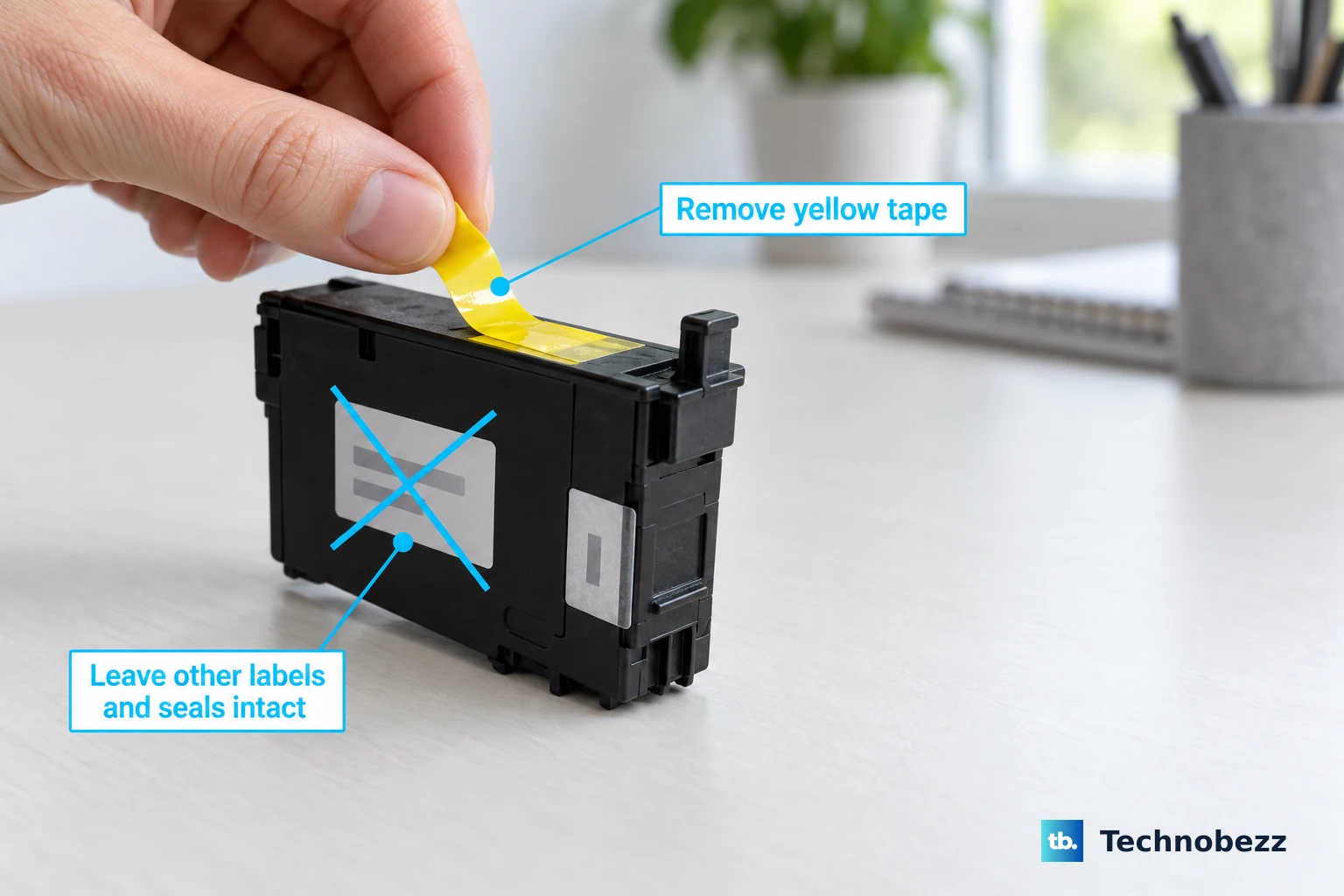
A new cartridge isn't ready to install until you've removed the packaging specified for it. That doesn't mean peeling off every seal.
Remove the affected cartridge using your model's replacement instructions. Remove the yellow protective tape if your cartridge's instructions specify it.
For a new XP-8800 cartridge, remove the cap. Leave its other labels and seals in place. For a new WF-110 cartridge, remove both the yellow tape and the cap.
On cartridges with a printer-pierced bottom plastic film, check whether installation pierced it. Reinstall a cartridge with unpierced film so the printer pierces it as designed. If the packaging check doesn't clear the error, check the cartridge's slot and seating next.
Seat each cartridge in the correct slot
This fixes cartridges in the wrong color slot or left partly seated. Match the cartridge to the holder's color-coded label.
Press it into place until it clicks and sits level with the other cartridges. On the XP-980, a second click isn't required for a cartridge that's already seated.
For the WF-4820 and WF-4830, remove all cartridges using their replacement procedure. Have a new cartridge ready for any low or expended one, because Epson says a removed low or expended cartridge can't be reinstalled and used. Reinsert those cartridges individually until each clicks, installing a new cartridge in place of any low or expended one.
Lower the scanner unit after installation. Select Completed on the WF-4820 or WF-4830. Wait approximately 90 seconds for ink charging to finish on those models. Select OK when charging finishes.
For other models, follow their completion prompts. Let charging finish before checking whether the error has cleared.
Gently clean the chip and holder contacts
Give the contact surfaces a careful clean:
- 1.Remove the affected cartridge using your model's replacement procedure.
- 2.Gently wipe the cartridge's green chip with a dry, lint-free cloth. Avoid touching the chip otherwise.
- 3.Inspect the holder's gold contacts for debris or dried ink.
- 4.If the holder contacts need cleaning, gently wipe them with a lint-free cloth.
- 5.Reinstall the cartridge correctly and finish the printer's replacement procedure.
Address firmware and ReadyPrint errors separately
If third-party cartridges stop being recognized after a firmware update, Epson directs you to compatible genuine Epson replacements. Install the genuine cartridge specified for your printer in that situation. A firmware update isn't a universal fix for cartridge-recognition errors.
ReadyPrint Flex has a separate remedy for its Cannot recognize Ink Cartridge message. Epson specifies reinstallation and a firmware update for this case. Follow the displayed Next and Dismiss prompts. Reinstall the cartridge as directed on the screen.
On Windows, open Epson Software Updater. Select your printer. Check Firmware Updater. Click Install item(s).
Select Yes if Windows requests permission. Select Agree > OK > Start through the updater's prompts. Keep the printer powered and connected until the update finishes. Select Finish > OK to close the updater.
For a Mac, open Epson's macOS firmware-update instructions for the corresponding Epson Software Updater procedure.
ReadyPrint error 950142 calls for an account check. Check that the printer has internet access.
Sign in to your ReadyPrint account. Check whether your monthly payment was received. Resolve any payment problem shown in the account before expecting subscription supplies to work.
For ReadyPrint error 950143, restart the printer. Ensure its Wi-Fi connection has internet access. Retry printing. If the error persists, check your ReadyPrint account for a canceled plan or missing registration.
Re-register with the same account and printer where Epson directs you to do so. Complete a firmware update if Epson's troubleshooting instructions require it.
European ReadyPrint Flex subscription cartridges require an active plan. After the final paid billing cycle ends, install compatible retail cartridges on Flex printers that support them. This switching option doesn't apply to subscription-only EcoTank hardware.
Try a new cartridge before contacting Epson
Still seeing the error after cleaning and correct reinstallation? Replace the unrecognized genuine cartridge with a new, compatible genuine Epson cartridge.
Prepare the new cartridge according to your model's packaging instructions. Install it using that printer's replacement procedure. Let ink charging finish. If the new compatible cartridge also triggers the red ink light or an LCD recognition error, contact Epson support for printer diagnosis.
Frequently Asked Questions
Can I print in black while a color cartridge is unrecognized?
Epson's temporary black-only printing option for the XP-8800 applies to an expended color cartridge, not a missing or unrecognized cartridge. Selecting black or grayscale doesn't authorize an unrecognized cartridge.
Why won't a setup cartridge work as a replacement?
On the XP-8800 and models that distinguish initial cartridges from replacements, cartridges supplied for initial setup cannot be used as replacement cartridges. Install the compatible replacement cartridge specified for your printer.
Will head cleaning or disabling ink alerts fix recognition?
No. Head cleaning, nozzle checks, and Power Cleaning address print-quality problems. Disabling low-ink reminders changes notifications. Neither action makes an unrecognized cartridge usable.
Does this apply to Epson EcoTank ink bottles?
No. Ordinary EcoTank ink bottles and ink-level resets are separate from cartridge-recognition troubleshooting. A maintenance-box recognition error also requires different troubleshooting.