When Alexa will not connect to WiFi, the cause is usually the selected network, the Alexa app setup, a weak signal, or a saved password that no longer matches your router. Start with the fast checks, then use the deeper reset and account fixes only if your Echo still stays offline.
These fixes cover Echo speakers, Echo Show, Echo Spot, Echo Hub, and many Alexa-enabled devices that use the Alexa app or an on-screen network menu for Wi-Fi setup.
Restart the Echo and test your network
Use this first when Alexa was online before and suddenly cannot reach the internet. It refreshes the Echo connection without changing your settings.
Unplug your Echo device or its power adapter from the wall outlet, then plug it back in.
If your Alexa-enabled device has removable batteries, remove the batteries and reinsert them.
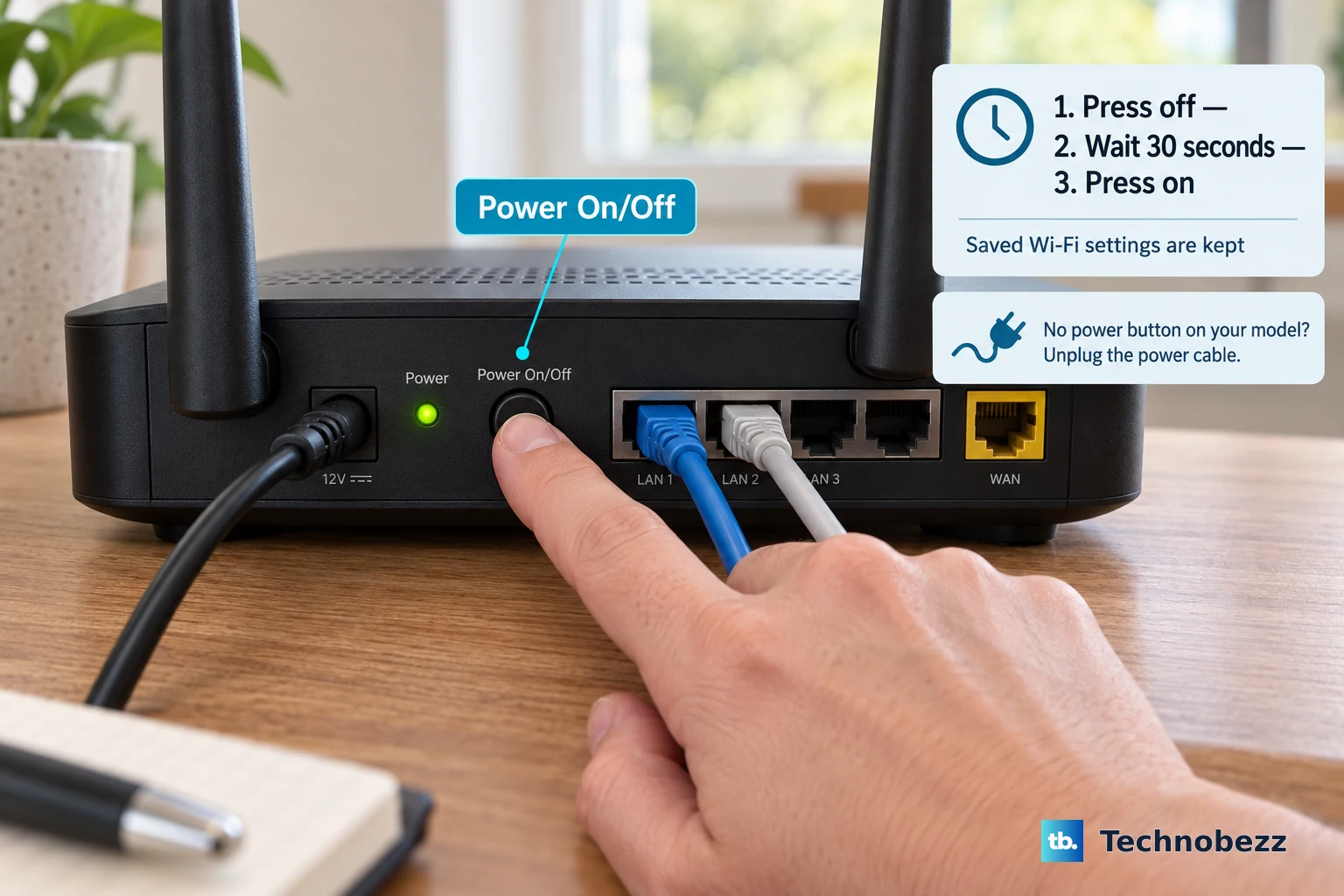
After the restart, test another phone, tablet, or computer on the same Wi-Fi. If other devices cannot connect, restart your router.
When the router comes back online, unplug the Echo for 30 seconds, plug it back in, and let it reconnect.
Prepare the Alexa app
The Alexa app is required for setup and Wi-Fi changes on Echo speakers and many Alexa-enabled devices. Amazon notes that you can only change Wi-Fi network settings in the Alexa app for Amazon and Matter devices, so set up other third-party Wi-Fi devices in the manufacturer’s app first. On Android, open Google Play, search for Amazon Alexa, then select Install or Update.
On iPhone or iPad, open the App Store, search for Amazon Alexa, then select Get or Update. The current iPhone listing requires iOS 17.0 or later, and the iPad listing requires iPadOS 17.0 or later.
Open Amazon Alexa and sign in with your Amazon account before changing Wi-Fi. If your Echo is missing from the app, run setup again from Devices instead of using older browser-based Alexa Wi-Fi pages.
Check the network Alexa is using
Use the Alexa app to confirm the Echo is connected to the Wi-Fi network you expect.
- 1.Open the Alexa app.
- 2.Select Devices.
- 3.Select your Echo or Alexa-enabled device.
- 4.Select the gear icon in the top right.
- 5.Check Wi-Fi Network and confirm the correct network is shown.
Update the Wi-Fi password
The most common cause after a router replacement or Wi-Fi name change is that the Echo still has the old network or password saved.
For Echo speakers without screens, open the Alexa app and select Devices.
Choose your device, open Device Settings, then select Change or remove a Wi-Fi network.
Connect to one of your previously connected Wi-Fi networks.
If the network you want is missing, select Join another Wi-Fi Network and follow the instructions in the Alexa app.
Enter the Wi-Fi password carefully. If password problems continue during setup, contact your internet service provider.
Fix an Echo Show or Echo Spot
This fixes screen-based Echo devices that need Wi-Fi changed directly on the device.
Say Go to Settings, or open settings on the Echo screen.
If you use Alexa+, select the Menu icon.
Select Settings.
If you use the original Alexa interface, swipe down from the top of the screen.
Select Settings.
Select Device Options.
Select Network.
Turn on the Wi-Fi toggle.
Select your Wi-Fi network and follow the on-screen prompts.
If the network is missing, select Refresh or scroll to Preferences for advanced Wi-Fi options.
Improve the signal around the Echo
The most common signal problem is simple distance from the router.
Move the Echo within 30 feet, or 10 meters, of your wireless router, then try setup or reconnection again.
Move the Echo away from interference sources such as microwaves, baby monitors, and other electronic devices.
If your router has separate 2.4 GHz and 5 GHz Wi-Fi names, move the Echo from one band to the other.
Use a home Wi-Fi network that supports 2.4 GHz or 5 GHz with 802.11a/b/g/n. Echo devices cannot connect to ad-hoc or peer-to-peer networks.
In a crowded home, temporarily turn off a few other Wi-Fi devices, then check whether the Echo connects.
Run Echo setup again
If the Echo still will not connect, put it through the current standard setup flow in the Alexa app.
- 1.Plug in your Echo device.
- 2.Open the Alexa app.
- 3.Select Devices.
- 4.Select the plus icon, then select Add Device.
- 5.Select Amazon Echo, then select Echo, Echo Dot, Echo Pop and more.
- 6.Follow the app instructions to finish setup.
Try a hotspot or eero setup
A phone hotspot separates an Echo problem from a router or internet service problem. After updating the Alexa app, restarting the Echo, and trying the Wi-Fi fixes above, run setup again using your phone as a Wi-Fi hotspot.
If the Echo connects to the hotspot but not your home Wi-Fi, focus on the router, password, or internet service. If multiple home devices have connection trouble, contact your internet service provider.
For compatible Echo devices on an eero mesh network, open the eero app and go to Amazon Connected Home. The two vendors document two different routes to it, so use whichever one your version of the eero app shows: Amazon’s instructions say to select Discover, then Amazon Connected Home, while eero’s own instructions say to tap Settings in the bottom-right corner, tap Advanced networking, then tap Amazon Connected Home under Integrations.
Select Connect to Amazon and sign in with your Amazon account to link the accounts. Then return to Amazon Connected Home by the same route, select eero Built-in, and turn on eero Built-in.
Compatible eero Built-in Echo models include Echo Pop, Echo Dot 4th and 5th Generation, Echo 4th Generation, Echo Dot with Clock 4th and 5th Generation, Echo Dot Max, and Echo Studio 2025 release.
Use reset and account fixes last
This fixes stubborn setup loops, saved password problems, and account registration issues after the normal Wi-Fi steps fail.
To remove saved Wi-Fi passwords from your Amazon account, go to Manage Your Content and Devices.
Open Preferences.
Find Saved Wi-Fi Passwords.
Select Delete.
Run Wi-Fi setup again on the Echo.
To refresh account registration, sign in and visit Devices.
Choose your device.
Select Deregister.
Register the device again with your Amazon account. Deregistering temporarily removes account access and disconnects Amazon services until registration is complete.
Use a factory reset only after the other fixes fail. On Echo Dot 2nd through 5th Generation, hold Action for 20 seconds to reset while keeping smart home connections, or hold Volume down and Microphone off for 20 seconds to erase all settings.
On Echo Pop, hold Volume down and Volume up for 15 seconds to reset while keeping smart home connections, or hold Volume down and Microphone off for 25 seconds to erase all settings.
On Echo devices with a screen, hold Microphones & Camera Disable/Enable and Volume Down until the Amazon logo appears, about 15 seconds, then follow the on-screen setup instructions. Amazon documents this button reset for Echo devices with a screen and says the steps also work with Echo Spot.
Amazon’s model-specific pages reset the newest screen devices from the on-screen menu instead, so use that route if your device has no such button pair or the button combination does nothing. On Echo Spot (2024 Release), open Settings, select Device Options, select Factory Reset, then choose Reset, but Retain Smart Home Device Connections or Reset to Factory Defaults. On Echo Hub, open Settings, select Device Options, select About the Device, then select Reset to Factory Defaults.
Skip older instructions that use More, Add a Device, a generic orange-light reset, or alexa.amazon.com for Wi-Fi changes. Use the current Devices path in the Alexa app, model-specific reset buttons, or the on-screen network settings instead.
Frequently Asked Questions
Why does Alexa say it can't connect to the internet when my Wi-Fi works?
The Echo may be on the wrong Wi-Fi network, using an old password, too far from the router, or affected by interference. Check the network in the Alexa app, then restart the Echo and move it closer to the router.
Can Alexa connect to both 2.4 GHz and 5 GHz Wi-Fi?
Echo devices support most home 2.4 GHz and 5 GHz 802.11a/b/g/n networks. If your router has separate 2.4 GHz and 5 GHz names, switch the Echo from one band to the other.
Can I change Echo Wi-Fi from a browser?
Use the Alexa app for Echo speakers and the on-screen settings menu for Echo devices with screens. Older alexa.amazon.com Wi-Fi instructions are not the current setup path.
Will factory resetting my Echo delete smart home connections?
It depends on the reset option for your Echo model. Some Echo Dot and Echo Pop resets keep smart home connections, while full reset options erase personal information and smart home connections.