Your AirPods show battery, but the sound stays silent, drops to another speaker, fails in one ear, or never connects. Start with the fastest checks, because a charged case does not prove both earbuds are charging, selected, and receiving audio. Follow these fixes in order, from output and balance checks to Bluetooth, cleaning, firmware, reset, and service.
Check the silent AirPod before changing settings
Use this when one AirPod is charged but has no sound, or when the battery pop-up looks normal and one side still seems dead. The first check is simple: confirm the case and both earbuds are charging, then test the silent AirPod by itself.
Make sure the charging case is fully charged. Place both AirPods inside the case for 30 seconds. Then open the case near your iPhone or iPad and check the charge status on the screen.
Put the AirPod that is not working in the correct ear. Leave the other AirPod in the case and close the lid. Play audio to test the silent side by itself.
Choose AirPods as the sound output
This fixes connected, charged AirPods that are not selected as the active audio output.
On iPhone or iPad, open Control Center. Tap the AirPlay button on the Now Playing screen, the Lock Screen, or in Control Center. Choose your AirPods from the list, then turn up the device volume.
On Mac, click Control Center in the menu bar. Open Bluetooth and choose your AirPods. If sound still comes from the Mac speakers, open Control Center again and make sure your AirPods are selected as the output device.
On Apple Watch, press the side button to open Control Center. Tap the Playback Destination button and choose your AirPods.
On Apple TV, press and hold the TV or Control Center button on the Siri Remote. Open the General Settings tab, select the Audio Controls button, and choose your AirPods.
Move the balance slider back to center
The most common setting-related cause of one charged AirPod sounding quiet or silent is a shifted left-right audio balance.
On iPhone or iPad, open Settings. Go to Accessibility, then Audio/Visual, then Balance. Move the Balance slider to the middle.
Play audio again with both AirPods in your ears. Then test the side that was quiet.
Stop audio from jumping to another device
If your AirPods work for a moment and then the sound moves somewhere else, change the automatic switching setting. On iPhone or iPad, wear the connected AirPods and go to Settings, Bluetooth, the More Info button next to your AirPods, Connect to This iPhone or Connect to This iPad, then choose When Last Connected to This Device.
You can also open Settings, choose your AirPods, open Connect to This iPhone or Connect to This iPad, and choose When Last Connected to This Device.
On Mac, wear the connected AirPods and go to Apple menu, System Settings, Bluetooth, the Options button next to your AirPods, Connect to This Mac, then choose When Last Connected to This Mac.
When an iPhone or iPad moves audio to a car or speaker, open Settings, General, AirPlay & Continuity, and turn on Keep Audio with Headphones.
Restart Bluetooth and pair again
This fixes charged AirPods that do not appear, refuse to connect, or fail as a Bluetooth audio route.
On iPhone or iPad, open Settings. Open Bluetooth and turn Bluetooth on. If Bluetooth is already on, turn it off, wait about 5 seconds, and turn Bluetooth back on.
Put both AirPods in the charging case and make sure both AirPods are charging. If your AirPods do not appear or do not connect, close the lid for 15 seconds. Then open the lid again.
For AirPods 4 or AirPods Pro 3, double-tap the front of the case until the status light flashes white. For AirPods 1, AirPods 2, AirPods 3, AirPods Pro 1, or AirPods Pro 2, press and hold the setup button on the back until the status light flashes white.
Hold the open case near your iPhone, iPad, or Mac and follow the onscreen steps. On Windows 11, open Start, Settings, and Bluetooth & devices.
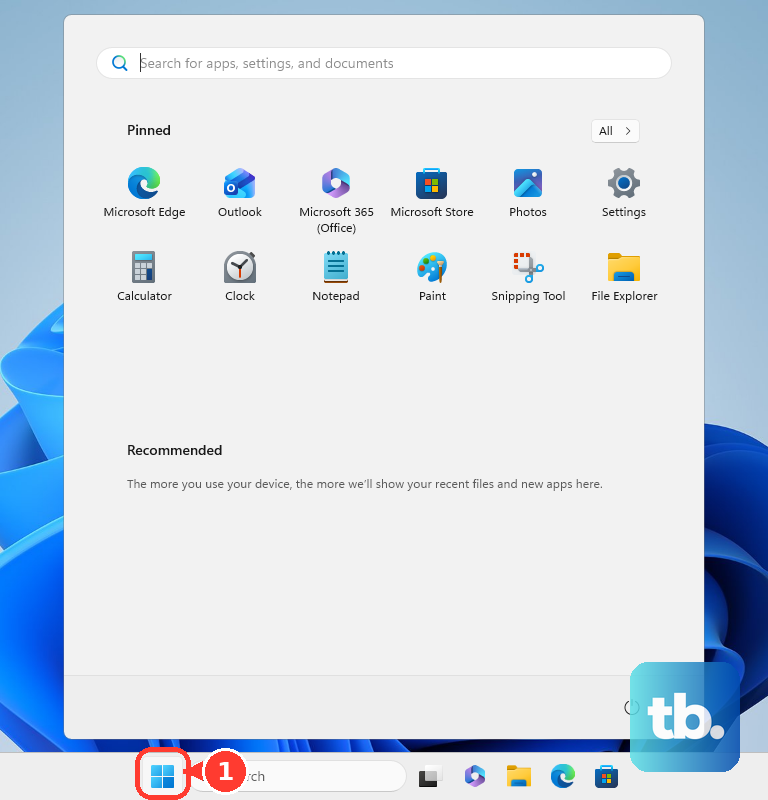
Turn Bluetooth on and put the AirPods in pairing mode. Open Devices and select Add device. Choose your AirPods when they appear.
Give the AirPods a quick restart
A restart is different from a factory reset, and it keeps the existing pairing in place. For AirPods and AirPods Pro, put the AirPods in the case, then close the lid for at least 10 seconds.
For AirPods Max, press and hold the Digital Crown and the listening mode button at the same time until the status light next to the charging port flashes amber, which takes around 10 seconds, then release both buttons immediately.
If the restart fails, clean the AirPods, update firmware and device software, then use a factory reset.
Clean the earbuds and case contacts
Clean the parts that affect charging and sound, then let everything dry before testing again.
- 1.Wipe the AirPods body with a cloth slightly dampened with fresh water, then dry it with a soft, dry, lint-free cloth.
- 2.Let the AirPods dry completely for at least two hours before placing them in the case or using them.
- 3.Clean the charging case with a soft, dry, lint-free cloth, and dampen the cloth slightly with isopropyl alcohol only when necessary.
- 4.Remove debris from the charging port with a clean, dry, soft-bristled brush.
- 5.For AirPods Pro, pull off the ear tips, rinse the tips with water only, wipe them with a soft, dry, lint-free cloth, and make sure they are completely dry before reattaching.
Do not use soap or household cleaners on AirPods Pro ear tips. For AirPods Pro 3, the supported optional water-cleaning step is to seal the ear tip hole, immerse each AirPod in a bowl of water for 10 seconds while shaking lightly, dab the ear tip on a dry lint-free cloth for 10 seconds, and dry it with a lint-free cloth.
Update firmware and device software
Use this when the AirPods connect but behave inconsistently, or when pairing and routing look right and the problem returns. AirPods firmware updates happen automatically, and these steps create the required update conditions.
Make sure your iPhone, iPad, or Mac is updated to the latest iOS, iPadOS, or macOS. Make sure Bluetooth is on and connect the AirPods to the device over Bluetooth. Connect the iPhone, iPad, or Mac to Wi-Fi.
Connect the charging case to power and put the AirPods in the case. Close the lid and keep the case closed and within Bluetooth range for at least 30 minutes. Open the lid afterward to reconnect.
For AirPods Max, plug the charging cable into the bottom-right earphone and connect the other end to a USB charger or port. Keep AirPods Max in Bluetooth range for at least 30 minutes.
On iPhone or iPad, update the device through Settings, General, and Software Update. On Mac, use Apple menu, System Settings, General, and Software Update.
Reset only after the simple fixes fail
A reset is the last consumer fix before service because it removes the pairing and forces a fresh setup. On iPhone or iPad, go to Settings, Bluetooth, tap the More Info button next to your AirPods, tap Forget This Device, and confirm.
For AirPods 1, AirPods 2, AirPods 3, AirPods Pro 1, or AirPods Pro 2, put the AirPods in the case, close the lid, and wait 30 seconds. Open the lid, press and hold the setup button on the back of the case for about 15 seconds until the status light flashes amber and then white, and follow the onscreen steps to reconnect.
For AirPods 4, AirPods 4 with ANC, or AirPods Pro 3, put the AirPods in the case, close the lid, and wait 30 seconds. Open the lid, double-tap the front of the case while the status light is on, double-tap again when it flashes white, double-tap a third time when it flashes faster, then reconnect after the light flashes amber and white.
Do not use a setup-button reset for AirPods 4, AirPods 4 with ANC, or AirPods Pro 3. The setup-button reset applies to AirPods 1, AirPods 2, AirPods 3, AirPods Pro 1, and AirPods Pro 2.
For AirPods Max, charge them to at least 50 percent when possible, then press and hold the listening mode button and the Digital Crown for 15 seconds until the LED flashes amber and then white, and reconnect.
If reset does not fix the problem, get Apple service or a replacement. For work or school iPhones and iPads, Bluetooth changes can be restricted on supervised devices, so ask the administrator to allow Bluetooth changes before treating the AirPods as failed hardware.
Frequently Asked Questions
Why are my AirPods charged but silent?
Audio can be routed to another output, the balance slider can be shifted to one side, one AirPod can fail its charging check, or the earbuds can need cleaning, firmware, restart, reset, or service.
Can AirPods be connected but play through the phone speaker?
Yes. Open Control Center, tap the AirPlay button, choose your AirPods, and raise the volume. On a Mac, confirm AirPods are selected as the output device in Control Center.
Should I reset my AirPods first?
No. Try output selection, balance, Bluetooth, restart, cleaning, and firmware steps first. Reset removes the existing pairing, so use it after the simpler fixes fail.
Can Apple remove Find My Lock from used AirPods?
No. If used AirPods are still linked to another Apple Account, the previous owner must remove them from Find My before you use them normally.