A Windows Update diagnostic that fails to run leaves you stuck before troubleshooting even begins. Start with the current Get Help diagnostic, then work through app repairs and Windows recovery options if it still refuses to open. These steps focus on Windows 11, with Windows 10 paths included where they differ.
Start with the current Get Help diagnostic
An old MSDT troubleshooting shortcut points to a deprecated platform instead of the current Get Help diagnostic. Open Start and search for Get Help.
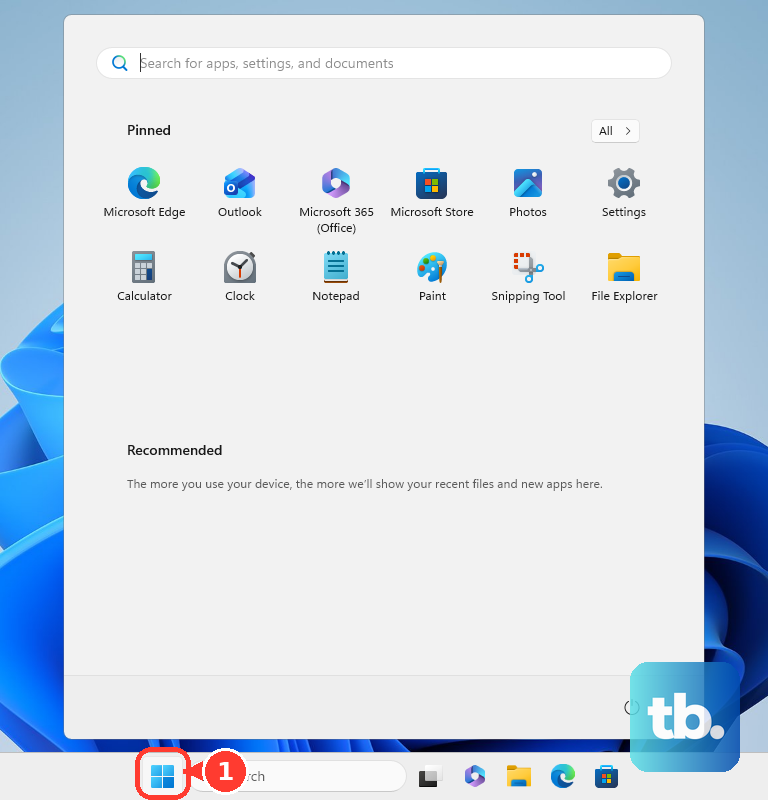
Open Get Help. Enter windows update troubleshooter in the app’s search box, then follow the diagnostic prompts.
For the Windows 11 Settings entry point, open Start > Settings > System > Troubleshoot > Other troubleshooters. Select Run beside Windows Update. This uses the same troubleshooting platform, so switching entry points does not bypass a broken Get Help app.
Complete the diagnostic prompts, then restart your PC. Open Settings > Windows Update and select Check for updates.
Skip instructions built around MSDT or downloaded .diagcab packages. Microsoft has deprecated MSDT and moved Windows Update troubleshooting to Get Help. Windows 11 version 22H2 and older, Windows 10, and earlier releases are exempt from the MSDT troubleshooter retirement, so on Windows 10 you can still try Start > Settings > Update & Security > Troubleshoot > Additional troubleshooters > Windows Update when the Get Help diagnostic is unavailable.
If Get Help freezes or will not start
If the app hangs or refuses to open, start with a fresh launch. The connection and clock checks below address underlying access problems, rather than this diagnostic error specifically.
Close Get Help using X, then reopen Get Help from Start. Retry the Windows Update diagnostic.
If it still fails, save your work. Restart through Start > Power > Restart, choosing Update and restart instead when offered to complete pending updates.
For a disconnected Wi-Fi connection, open Settings > Network & Internet > Wi-Fi. Reconnect to your Wi-Fi network. Next, open Settings > Time & language > Date & time.
Enable Set time automatically and Set time zone automatically. Select Sync now if the clock needs syncing.
Repair Get Help before resetting it
On Windows 11, open Start > Settings > Apps > Installed apps. Open More (…) > Advanced options beside Get Help. On Windows 10, use Settings > Apps > Apps & features > Get Help > Advanced options instead.
If Advanced options is absent, continue to the Microsoft Store section below. Select Repair when available, then reopen Get Help and retry the Windows Update diagnostic.
If repair fails or Repair is missing, return to the app’s Advanced options. Select Reset when available. This clears the app’s local data.
Launch Get Help again and repeat the diagnostic. Use repair and reset for app problems; neither resolves every cause of a diagnostic failure.
Update or restore the app through Microsoft Store
Use Microsoft Store to update Get Help or reinstall it when it is missing.
- 1.Open Microsoft Store.
- 2.Select Library > Get updates and let available updates install. Store layouts change independently of Windows; use this path when those controls appear in your version.
- 3.If the app is missing, locate Get Help in Library and select Install when offered. Sign in with your Microsoft account if prompted. Microsoft’s Get Help product page also provides access to its Store listing. Installation eligibility depends on your device and organizational restrictions.
- 4.Open Get Help and retry the Windows Update diagnostic.
A Store cache reset for blocked downloads
This reset targets Store access problems that block Get Help updates or installation. Press Windows+R to open Run, then enter wsreset.exe.
Select OK. Wait for the temporary command window to close and Microsoft Store to reopen, then retry the Get Help update or installation.
Open Get Help and try the Windows Update diagnostic again.
Repair Windows files when app fixes do not help
Damage to Windows components or protected system files requires repair at the Windows level. Search for Command Prompt in Start. Right-click Command Prompt and select Run as administrator.
Select Yes at the permission prompt. Run DISM.exe /Online /Cleanup-image /Restorehealth by entering it and pressing Enter. After DISM completes successfully, run sfc /scannow.
Wait for the scan to finish, then close Command Prompt. Retry the Windows Update diagnostic in Get Help.
If DISM cannot obtain repair files through Windows Update, have an administrator supply a prepared, compatible local repair source. An arbitrary Windows ISO is not a substitute for that source.
Consider a Windows repair reinstallation
For persistent problems on Windows 11, open Start > Settings > System > Recovery. Select Reinstall now under Fix problems using Windows Update. This reinstalls your current Windows version while preserving files, apps, and settings.
Select OK to proceed. Keep the PC connected to power and the internet throughout installation. Restart after installation finishes, then try the Windows Update diagnostic again.
Check eligibility before using this option: it requires Windows 11’s 2022 annual update with the February 2024 optional update or later, and update management restricts its availability on organizational devices.
When you need further help
If Get Help opens but the diagnostic keeps failing, describe the problem in the app. When offered, select Contact Support, choose the affected product or service, and select Confirm. For Microsoft personal-account users, available chat and callback options depend on the support scenario.
To report a diagnostic defect, select Give Feedback > Report a problem in Get Help and include the exact error. Feedback reports a bug; it does not immediately repair the app or open a general support case.
On a work or school PC, ask IT for help if app installation is restricted or Fix problems using Windows Update is missing. Organizational update management also controls access to that recovery option.
Frequently Asked Questions
Can Microsoft’s website run the diagnostic without Get Help installed?
No. The Run the troubleshooter in Get Help link on Microsoft’s Windows Update Troubleshooter page launches the installed Windows app. It does not repair the PC entirely through your browser.
Should I clear the Windows Update cache if the diagnostic will not launch?
Reserve cache and service resets for underlying Windows Update component problems. They are not a routine first step for a Get Help launch failure.
Will resetting Windows keep my installed apps?
No. Reset PC removes installed apps and settings even when you choose Keep my files. Back up your files and retain your BitLocker recovery key before resetting.
Is there a separate diagnostic for background download problems?
Yes. If other Get Help diagnostics still run and the background-transfer service is implicated, open Get Help and search for Background Intelligent Transfer Service troubleshooter. Follow its prompts, then retry Windows Update troubleshooting.