Kohl's not loading in Chrome can derail a quick order fast, especially when sign-in, cart, rewards, or checkout stops responding. Start with the fixes that protect your saved data, then move into the Chrome settings that control cookies, JavaScript, extensions, and site permissions.
Use the steps in order, because the early checks tell you whether Chrome is the problem or Kohl's needs to handle it on their side.
Rule Out a Kohl's Only Problem
Open Chrome and go to https://www.kohls.com/, then try another website in the same tab. If other pages load normally, test Kohl's again in another browser or on another device.
When only Kohl's fails everywhere you try it, stop changing Chrome settings and use Kohl's site support or contact options. Reinstalling Chrome does not fix a site-side problem.
If Kohl's works somewhere else but not in Chrome, reload the page next.
Reload the Page Cleanly
The most common cause is a page session that stalled while Chrome was loading scripts, images, or account data.
Click Reload in the address bar, or press Ctrl+R on Windows, Linux, or ChromeOS.
On a Mac, press Command+R. On some keyboards, press F5.
For a stronger desktop reload, press Ctrl+Shift+R or Shift+F5 on Windows, Linux, or ChromeOS. On a Mac, press Command+Shift+R, then try Kohl's again.
Restart Chrome and Your Connection
Close every Chrome window, reopen Chrome, and revisit https://www.kohls.com/.
On desktop, type chrome://restart in the address bar to relaunch Chrome without hunting through menus.
If the page still hangs, close Chrome and restart your computer, phone, or tablet. Reconnect to Wi-Fi or cellular, open Chrome, and load Kohl's again.
When other sites fail too, restart the router or modem and look for a network sign-in page before testing Kohl's again.
Try Incognito Before Deleting Anything
Use this when Kohl's loads partly, loops during sign-in, loses your cart, or breaks only after you are signed in. Incognito tests Chrome without most extensions and without the current site's regular cookies.
On desktop, open Chrome's More menu and choose New Incognito Window.
You can also press Ctrl+Shift+N on Windows, Linux, or ChromeOS. On Mac, press Command+Shift+N.
Go to https://www.kohls.com/ in that Incognito window. On iPhone or iPad, open a New Incognito Tab and try the same site there. On Android, tap More and choose Open in a new Incognito window; Android tablets may show New Incognito window instead.
If Kohl's works in Incognito, fix cookies, cache, extensions, or settings in your regular Chrome profile next.
Clear Kohl's Cookies or Cached Site Data
The most common cause is corrupted site data, especially when one retailer breaks but the rest of the web still works.
On desktop, remove only Kohl's data first. Go to Chrome Settings, open Privacy and security, choose Third-party cookies, then select See all site data and permissions.
Search for kohls.com, then to the right of the site choose Delete, and choose Delete again to confirm.
Reload Kohl's and sign in again. Cookies and site data store parts of the browsing and account session, so rebuild your cart after the cleanup if needed.
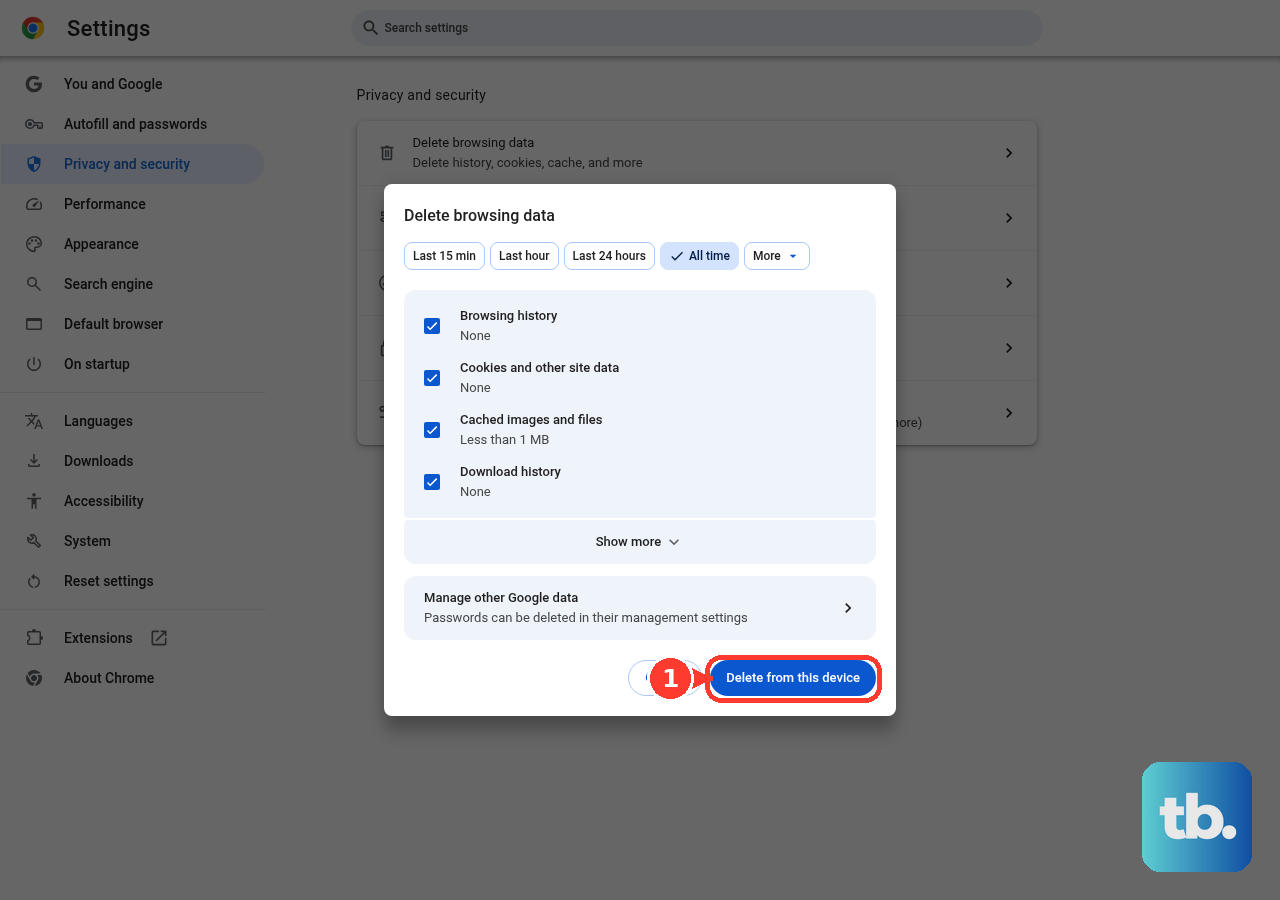
If the problem affects many sites, open Chrome's More menu, choose Delete browsing data, pick All time, select Cookies and other site data and Cached images and files, then choose Delete data.
Allow Cookies and JavaScript for Kohl's
Retail sites need cookies and JavaScript for navigation, sign-in, carts, rewards, payment, and checkout. If either one is blocked, Kohl's can load badly or stop at a blank, frozen, or looping page.
For cookies on desktop, go to Chrome Settings, open Privacy and security, choose Third-party cookies, then use Sites allowed to use third-party cookies.
Select Add, enter https://www.kohls.com, and choose Add again.
Next, go to Chrome Settings, open Privacy and security, choose Site settings, then open JavaScript and select Sites can use JavaScript. For a Kohl's-only exception, add https://www.kohls.com under Allowed to use JavaScript.
If Kohl's still will not behave after cookies and JavaScript are allowed, test extensions next.
Turn Off Extensions That Interfere With Shopping Sites
Open Chrome's More menu.
Choose Extensions, then open Manage Extensions.
Turn off extensions one at a time, starting with ad blockers, coupon tools, privacy blockers, VPN or proxy extensions, script blockers, and shopping extensions.
Reload https://www.kohls.com/ after each change.
When you find the extension that breaks the site, select Remove to uninstall it, or open Details and change Site access to On select or On specific sites.
Keep only the extensions you need enabled on checkout pages.
Fix Checkout Windows and Site Permissions
The most common cause is a blocked pop-up, redirect, or stale permission after a sign-in, coupon, payment, or checkout window tries to open.
Allow pop-ups and redirects for Kohl's on desktop by going to Chrome Settings, opening Privacy and security, choosing Site settings, and selecting Pop-ups and redirects.
Under Allowed to send pop-ups and use redirects, choose Add, enter https://www.kohls.com, and choose Add.
On Android, use Site settings and Pop-ups and redirects.
If permissions are tangled, open https://www.kohls.com/, click View site information next to the address, open Site settings, then choose Reset permissions. Reload the page and accept the prompts Kohl's needs.
Update or Reset Chrome When the Browser Is the Problem
Use this after the fast fixes fail, especially if Chrome freezes, shows page errors, renders a blank page, or the issue follows your normal Chrome profile.
On desktop, open Chrome's More menu, choose Help, then open About Google Chrome. Let Chrome check for updates, choose Relaunch, and retry the site.
On Android, open the Play Store, tap your profile icon, choose Manage apps & device, open Updates available, then update Chrome.
On iPhone or iPad, open the App Store, tap the My Account button or your photo, choose App Updates, then tap Update next to Chrome.
If Chrome still feels broken, run Safety Check from Chrome Settings and Privacy and security, then follow its recommendations for updates, Safe Browsing, and extensions. Skip Chrome Cleanup Tool instructions from older Windows guides; Google ended that tool, so use your device's security tools and Chrome Safety Check.
For a deeper reset on desktop, go to Chrome Settings, open Reset settings, choose Restore settings to their original defaults, then select Reset settings. This resets startup page, new tab page, search engine, pinned tabs, content settings, cookies and site data, extensions, and themes without deleting bookmarks, passwords, or history.
If a work, school, or family-administered device says Your browser is managed by your organization in Chrome settings or at chrome://management, contact the administrator. Policy can force blocked URLs, cookies, JavaScript, extensions, DNS, proxy, or certificate settings.
Frequently Asked Questions
Why does Kohl's work in Incognito but not normal Chrome?
That points to your regular Chrome profile: cookies, cached files, extensions, or site settings. Clear Kohl's site data first, then disable extensions one at a time.
Will resetting Chrome delete my saved passwords?
No. Chrome's reset does not delete bookmarks, passwords, or history, but it resets content settings, cookies and site data, extensions, themes, startup page, new tab page, search engine, and pinned tabs.
Why does the Kohl's cart or checkout page keep failing?
Retail checkout flows need cookies, JavaScript, pop-ups, and redirects. Allow those for https://www.kohls.com, then reload and sign in again.
Should I reinstall Chrome to fix one broken website?
Start with site checks, Incognito, Kohl's site data, extensions, updates, and reset settings. Reinstall Chrome only after those fixes fail.