Your touchpad stops moving the pointer, ignores clicks, or refuses to scroll. Start with the enable switch and your laptop's shortcut, then move through restarts and driver repairs. If the pointer still moves, go straight to the gesture settings; if the failure started after a driver update, use the rollback instructions in the final section.
Get control of your laptop first
Connect a USB mouse or use an already-paired wireless mouse to operate the troubleshooting controls. Test it to check whether the problem affects only the touchpad.
Clean dirt, grease, and moisture from the touchpad following your laptop manufacturer's cleaning instructions. Test with clean, dry fingers, especially when movement is erratic or touches are missed.
A raised touchpad, swelling, or difficult physical clicking needs hardware inspection. Contact your laptop manufacturer before continuing with software troubleshooting.
Check whether the touchpad was switched off
A disabled touchpad stops input, so check its switch before changing drivers.
Open Start > Settings > Bluetooth & devices > Touchpad.
Set the Touchpad switch to On. If the switch is missing, continue to the device and driver checks below.
Without a mouse, press Windows+Q.
Type touchpad settings.
Press Enter to open the settings page.
Press Tab until the Touchpad switch is selected.
Press Space to turn it on if it is off.
If input stops when you connect a mouse, expand Touchpad on the same settings page.
Select Leave touchpad on when a mouse is connected. Windows also treats some wireless mouse receivers as connected mice.
If the Windows switch does not restore input, try the shortcut for your laptop. Follow its touchpad icon or model manual because there is no universal key combination.
On ASUS notebooks with a touchpad hotkey, press the touchpad-icon key, usually F6 or F9, together with Fn if the model's function-key mode requires it.
On Samsung PCs covered by Samsung's touchpad guidance, press Fn+F5.
On applicable Acer models, press F10 or Fn+F10. Older models use the touchpad-icon key, including F2, F6, or F7, with Fn.
On Lenovo models, press the touchpad-icon hotkey or Fn+M, according to the model's manual.
On MSI notebooks, press the touchpad-icon function key, commonly F4, with Fn when required.
On LG's 2025 gram models, press Fn+F4. Covered 2024 and earlier models use Fn+F5; follow the model manual for other LG laptops.
On HP notebooks equipped with the corner toggle, double-tap the touchpad's upper-left corner to enable it.
For a convertible or detachable device, return it to its laptop configuration or reattach the keyboard. Windows 11 changes tablet behavior automatically.
If movement works but clicking or scrolling does not
When the pointer moves but a gesture fails, check that gesture's setting first. These controls apply to compatible touchpads that expose them.
Open Settings > Bluetooth & devices > Touchpad > Taps.
Enable the option matching the failed action: Tap with a single finger to single-click, Tap with two fingers to right-click, Tap twice and drag to multi-select, or Press the lower right corner of the touchpad to right-click.
For scrolling or zooming problems, open Settings > Bluetooth & devices > Touchpad > Scroll & zoom.
Enable Drag two fingers to scroll for missing two-finger scrolling.
Enable Pinch to zoom for missing pinch gestures.
Change Scrolling direction if scrolling moves the wrong way.
For sluggish pointer movement, adjust Cursor speed on the main Touchpad page.
For accidental input or input suppressed after typing, adjust Touchpad sensitivity under Taps.
If those adjustments fail, expand Touchpad on the main touchpad settings page.
Select Reset to restore touchpad settings and gestures. If the button is unavailable, change a touchpad setting first.
If resetting the settings does not restore the failed action, continue to the Windows and driver updates below.
Restart and test without connected accessories
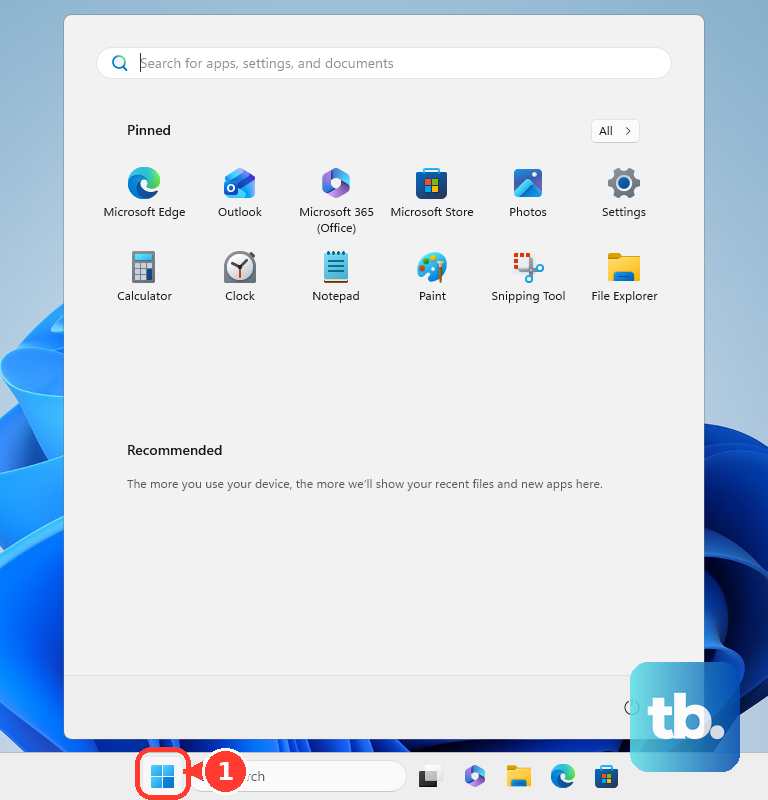
Select Start > Power > Restart.
Keep your fingers off the touchpad until startup finishes to allow startup calibration to complete.
If input still fails, shut down the laptop.
Disconnect peripherals and undock the laptop, leaving AC power connected.
Start the laptop.
Test the touchpad.
Reconnect the devices one at a time.
Test the touchpad after each reconnection to identify which accessory or dock brings the problem back.
Install Windows and optional driver updates
Updates address touchpad-driver problems; Microsoft recommends Windows Update first.
Open Start > Settings > Windows Update.
Select Check for updates.
Install the available updates.
Restart when requested.
Return to Settings > Windows Update > Advanced options > Optional updates > Driver updates.
Select the relevant driver updates offered for your laptop.
Choose Download & install.
Restart after installation.
Restore the touchpad device and its driver
If settings and updates have not restored input, check the touchpad in Device Manager.
- 1.Right-click Start and open Device Manager.
- 2.Expand Human Interface Devices and identify the touchpad. Some laptops list it under Mice and other pointing devices instead.
- 3.Right-click the identified touchpad and select Enable device if it is disabled. This option appears only for a disabled device.
- 4.If input still fails, right-click the touchpad and choose Update driver, then the automatic search option, labeled Search automatically for drivers or Search automatically for updated driver software. If Windows finds no newer package, continue below.
- 5.If updating does not help, right-click the identified touchpad and select Uninstall device, then confirm with Uninstall. Follow your manufacturer's procedure for any optional driver-package removal.
- 6.Restart the laptop so Windows can attempt to reinstall the driver.
When the problem persists or began after a driver update
If the failure began immediately after a driver update, restore the previous driver first. Rollback requires administrator access and a retained previous driver.
In Device Manager, right-click the touchpad and open Properties > Driver > Roll Back Driver.
Choose the reason for rolling back.
Select Yes.
Restart if requested.
If Windows has not restored a working driver, download the package matching your exact laptop model, Windows version, and processor architecture from the manufacturer's support page. Depending on the model, the relevant package is a touchpad, chipset, or input-controller driver. If no touchpad driver is listed for your model, the manufacturer may supply it through Windows Update instead; use the Windows Update steps above or follow the manufacturer's support guidance.
Run the package's installer, using administrator access when requested.
For a touchpad that remains unresponsive, run the manufacturer's hardware diagnostic. On supported Dell notebooks, open the SupportAssist menu.
Select Support > Test my hardware > Get started > HID-compliant touch pad > Run Test > Start. Menu availability depends on the installed SupportAssist version.
Complete the test.
Report Done or Fail as appropriate.
On HP notebooks equipped with the firmware touchpad test, press Esc repeatedly during startup.
Press F2 to open the diagnostics.
Open Component Tests > Mouse/Touchpad.
Choose the test.
Select Run once.
For a work or school laptop, ask IT to handle blocked driver installations. Device-installation restrictions can block the touchpad or its controller.
If diagnostics fail or these software fixes do not restore input, contact the laptop manufacturer for hardware inspection or replacement. Use an external mouse while arranging support.
Frequently Asked Questions
Does a touchpad failing in Safe Mode prove it is broken?
No. Safe Mode starts Windows with a limited set of files and drivers, so a touchpad that depends on a driver outside that set may not respond there. Failure there alone does not establish a hardware fault.
Why does my haptic touchpad move the pointer but have no click sensation?
Haptic feedback has separate controls on supported hardware. Open Settings > Bluetooth & devices > Touchpad > Gestures & interaction. Check Touchpad feedback, then adjust Haptic intensity.
Can I use an on-screen touchpad while troubleshooting?
Yes, on a Windows 11 touchscreen device. Open Settings > Personalization > Taskbar > System tray icons. Set Virtual Touchpad to On, then select its taskbar icon.
Should I reset Windows to fix the touchpad?
Resetting Windows is a last resort after settings checks, driver repairs, and hardware diagnostics. Back up your data and retain your BitLocker recovery key if applicable. The Keep my files option still removes installed applications and resets settings.