A Steam game that will not open points to a stuck process, unfinished update, damaged install, missing runtime, or security setting blocking launch. Start with the fastest fixes, then move into repair, driver, and reinstall steps only when the game still refuses to start. These steps cover the current Steam desktop client, Windows, macOS, Linux, and Steam Deck where noted.
Restart Steam and your computer
This fixes a Steam launch state that is stuck before the game opens.
Close the game window. Exit Steam completely. Restart your PC, Mac, Linux computer, or Steam Deck.
After the restart, open Steam. Select Play for the game.
End a stuck Steam or game process
When Steam says the game is running and no window appears, a crashed background process is blocking the next launch.
On Windows, right-click Start, open Task Manager, select the game, Steam, or Steam Client WebHelper, then choose End task. Reopen Steam and launch the game again.
On Mac, press Option-Command-Esc, select the unresponsive app, and click Force Quit. You can also open the Apple menu, choose Force Quit, select the app, and click Force Quit.
If the game still will not open after the stuck process is gone, repair its local files next.
Repair the installed game files
Use Steam's file check when a game starts to launch, crashes immediately, or stopped opening after an update.
- 1.Open Library in Steam.
- 2.Right-click the game, or select the gear icon on the game page.
- 3.Choose Properties.
- 4.Open Installed Files.
- 5.Select Verify integrity of game files and let Steam finish before launching the game again.
Update Steam and the game
This fixes launch failures caused by an outdated Steam client or a game update that has not finished installing.
Open the Steam menu and choose Check for Steam Client Updates.... Install the Steam update, then restart Steam when prompted.
Open Steam, then Settings, then Downloads. Confirm game updates are allowed to download. Open Library, then Downloads, and start or resume the pending update for the affected game.
Clear download cache and repair the library
Use this when the game stopped opening after an install, patch, drive move, or failed download. These Steam tools target the local download cache and library folder state before you uninstall anything.
Open Steam, then Settings, then Downloads. Choose Clear Download Cache.
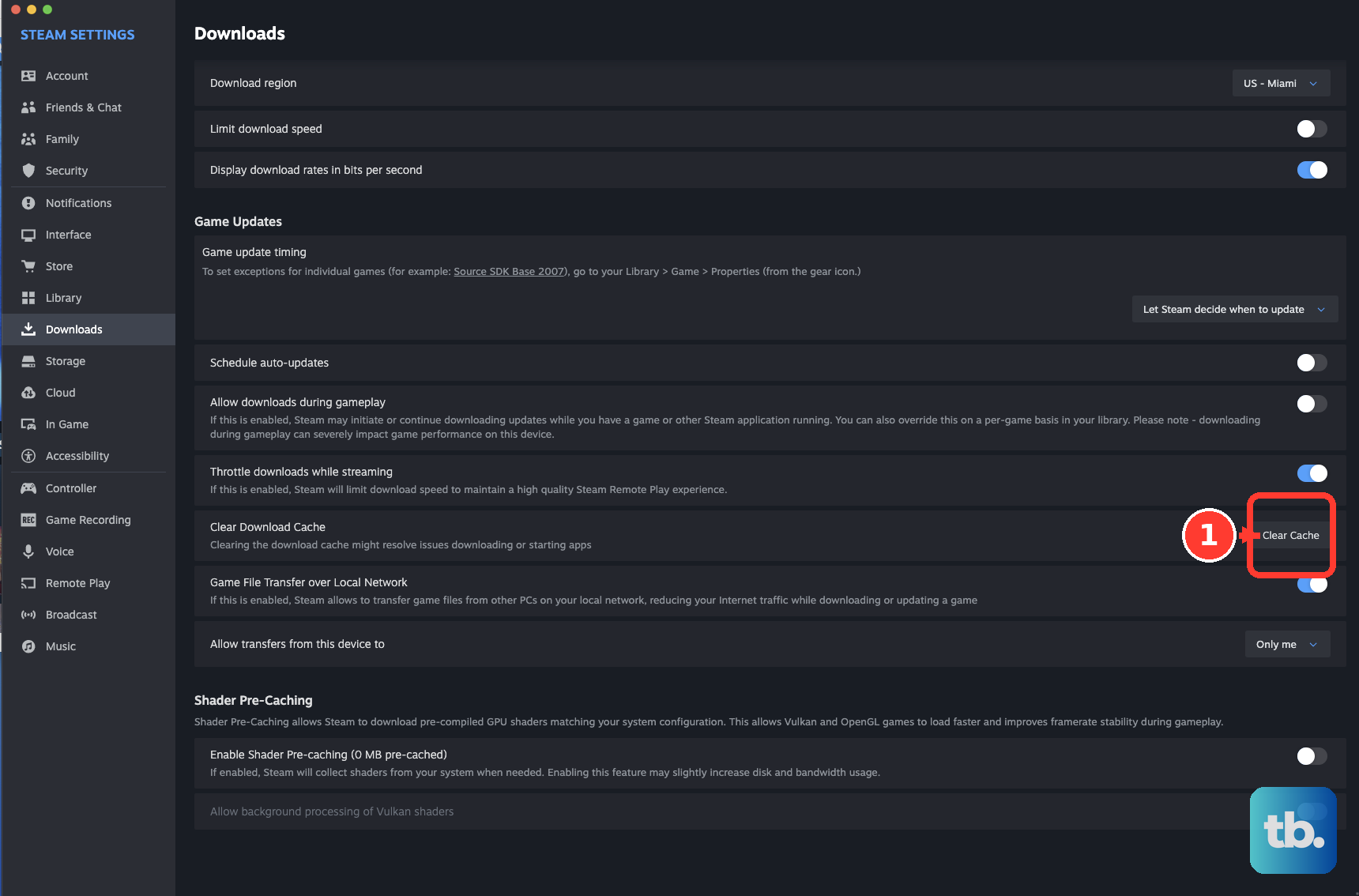
Confirm the prompt. Sign back in when Steam asks. Open Steam, then Settings, then Storage. Select the drive or library folder.
Open the three-dots menu and choose Repair Library. If Steam no longer detects the installed game, return to Settings, then Storage. Add or select the correct library folder. Start Install for the game so Steam discovers the existing files.
Check Windows or macOS updates and drivers
This fixes games that fail because the operating system, graphics driver, audio driver, controller driver, network driver, or storage driver is outdated or damaged.
On Windows 11, open Start, then Settings, then Windows Update. Select Check for updates. Choose Download & install when updates appear. Restart when prompted.
For Windows driver updates, right-click Start and open Device Manager. Expand Display adapters or the relevant device category. Right-click the device, choose Update driver, and select Search automatically for updated driver software.
On Windows 11, open Start, then Settings, then Windows Update, then Advanced options, then Optional updates. Select Driver updates. Choose Download and install. Restart afterward.
On Mac, open the Apple menu, then System Settings, then General, then Software Update. Select Update, Upgrade, or Restart Now when macOS offers it.
If the launch problem started right after a Windows driver update, right-click Start and open Device Manager. Open the device's Properties, then choose Driver. Select Roll Back Driver when a previous driver is available.
Remove launch options and overlay conflicts
Open the game's page in Library. Right-click the game and choose Properties. Open General. Delete custom text from Launch Options, unless Valve or the game's publisher documents that exact option for that game.
For supported Valve or Source games with video or display trouble, use documented launch options such as -safe or -autoconfig.
To test the Steam Overlay globally, open Steam, then Settings, then In Game. Turn off Enable the Steam Overlay while in-game.
To test it for one game only, open Library, right-click the game, choose Properties, then General. Turn off Enable the Steam Overlay while in-game.
Skip random cache-file deletion and broad launch flags; Steam's current fixes are file verification, download cache clearing, library repair, and game-specific launch options.
Allow Steam through security software
Security software blocks some games, launchers, and online components before a window appears. Close, disable, or uninstall non-essential background tools such as VPNs, anti-virus apps, firewalls, anti-spyware tools, download accelerators, web or FTP servers, IP filtering tools, and overlays, then restart Steam and test again.
For Windows Firewall, open Windows Security, then Firewall & network protection, then Allow an app through firewall, then Change settings. Check the app, or choose Allow another app, enter the app path, select the network types, and choose OK.
For Microsoft Defender Antivirus, add an exclusion only when you trust the file and have a confirmed false positive, because exclusions reduce protection. Open Windows Security, then Virus & threat protection, then Virus & threat protection settings, then Manage settings, then Exclusions, then Add or remove exclusions, then Add an exclusion, and choose File, Folder, File type, or Process.
If Controlled folder access is enabled, open Windows Security, then Virus & threat protection, then Manage settings, then Controlled folder access, then Manage controlled folder access, then Allow an app through Controlled folder access, then Add an allowed app. Choose Recently blocked apps or Browse all apps.
Reinstall only after Steam repairs fail
Use reinstalling as the last normal fix after restart, updates, file verification, cache clearing, and library repair. Before reinstalling, open the game's Steam Store page, scroll to System Requirements, and compare the listed OS, CPU, memory, GPU, DirectX, storage, and other requirements with your device.
To reinstall one game, open Library. Right-click the game and choose Manage, then Uninstall. Confirm the uninstall.
Select the game again. Choose Install.
If the current drive is full, slow, failing, or restricted, open Steam, then Settings, then Storage. Select the game. Use Move to transfer it to another Steam library folder or drive.
On Windows, exit Steam. Open the Steam installation folder. Delete everything except steamapps and userdata. Run the official Steam installer.
On Mac, open the Steam menu and choose Quit Steam so the client is fully closed. Open Applications. Drag Steam to the Trash.
Open ~/Library/Application Support/Steam. Delete Steam files except the SteamApps folder when preserving installed games. Reinstall Steam from the official Steam page.
For Steam Deck or Linux, update the system before testing Proton for Windows games. On Steam Deck, press the Steam button, open Settings, then System, and install updates under Software Updates.
For Proton, open the game, choose the gear icon or right-click it, open Properties, then Compatibility. Enable Force the use of a specific Steam Play compatibility tool. Choose Proton Experimental or another recommended Proton version. Leave the Steam Linux Runtime entries for native Linux games that call for them; they do not replace Proton for Windows games.
Frequently Asked Questions
Why does Steam say a game is running when nothing is open?
A stuck game, Steam, or Steam Client WebHelper process is keeping the launch state active. End it in Task Manager on Windows or Force Quit on Mac, then reopen Steam.
Will verifying Steam game files delete my saves?
No. Steam's verify tool checks installed game files and replaces damaged or missing files. It is not the same as uninstalling the game.
Should I turn off my antivirus to make a Steam game open?
Do not leave protection turned off. Test by closing non-essential security tools, then use a scoped firewall allow rule or Microsoft Defender exclusion only for trusted files.
What should I do if only one Steam game will not open?
Focus on that game's files, updates, launch options, DLC, beta branch, system requirements, and publisher support page. A single-game failure is usually game-specific.