A windows update red screen usually means the update stalled, Windows failed during restart, a driver clashed with the update, or a display setting changed the colors after sign-in. Start with the fixes that keep Windows intact. If the PC cannot reach the sign-in screen, move into Windows Recovery Environment and use the repair tools in order.
Restart and check the update again
The most common update-side cause is a stuck or interrupted Windows Update session.
Select Start > Power > Restart.
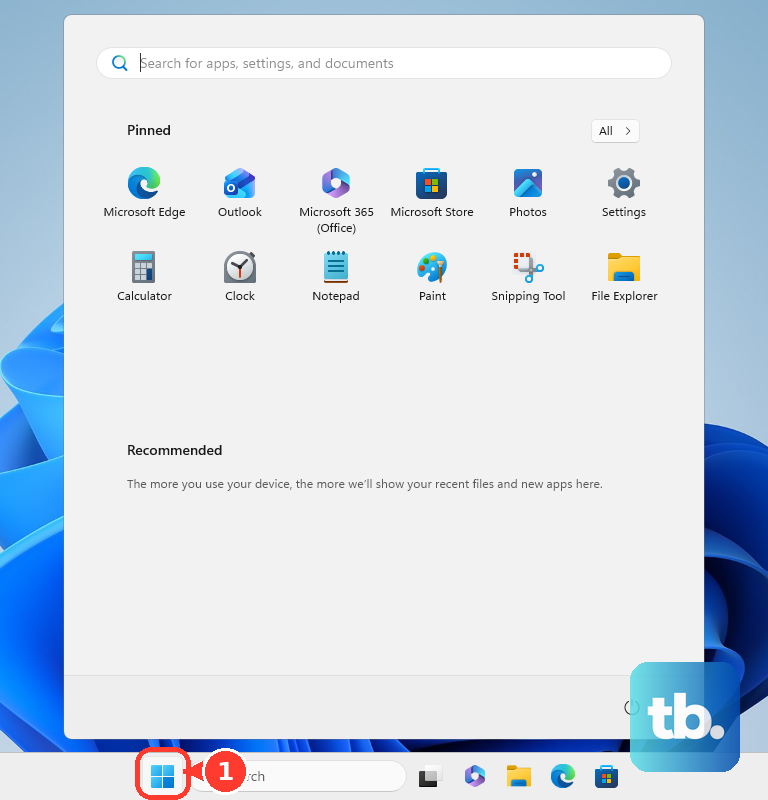
After the reboot, select Start > Settings > Windows Update > Check for updates.
Install every available update.
If Windows Update was stuck at 0% or 100%, select Start > Settings > Network & Internet > Wi-Fi and confirm the network status.
Reconnect to Wi-Fi or Ethernet, then run Windows Update again.
Turn off the VPN from its app or from the Windows VPN control, then select Start > Settings > Windows Update > Check for updates.
Shut down the PC, remove recently added hardware and nonessential external devices, restart, and run Windows Update again.
Run the Windows Update troubleshooter
Use this method when Windows still opens after the red screen. It fits Windows 11 PCs where the update system loads but the update fails, loops, or refuses to install.
Select Start > Settings > System > Troubleshoot > Other troubleshooters.
Under Most frequent, select Run next to Windows Update.
Restart your device when the troubleshooter finishes.
Select Start > Settings > Windows Update > Check for updates.
Use the Windows 11 path above on a current consumer PC. On Windows 11, Microsoft tells you to start with the automated Windows Update troubleshooter in the Get Help app, then fall back to the Settings path above when Get Help cannot fix the problem. Windows 10 free support ended on October 14, 2025, so older Update & Security instructions belong to legacy Windows 10 troubleshooting.
Open recovery when Windows will not load
Start your device and wait for the Windows logo or manufacturer logo.
Press and hold the power button until the device shuts down.
Turn the device on again and wait for the logo.
Press and hold the power button until the device shuts down again.
Turn the device on a third time.
At Automatic Repair, select Advanced options.
Keep the BitLocker recovery key nearby on BitLocker-encrypted PCs before opening repair tools.
Use Startup Repair before deeper recovery
The most common boot-side cause is a startup failure after the update reboot.
From Windows Recovery Environment, select Troubleshoot > Advanced options > Startup Repair > Restart.
If Startup Repair returns the PC to the sign-in screen, sign in and run Windows Update again.
If the PC returns to the red screen, go back to Advanced options.
Select Startup Settings > Restart.
After the reboot, choose an available startup option with the number keys or function keys F1-F9, such as Safe Mode.
Remove the latest update from recovery
This fixes a red screen that began right after a quality or feature update and keeps Windows from starting normally.
Enter Windows Recovery Environment.
Select Troubleshoot > Advanced options > Uninstall Updates.
Select Uninstall latest quality update or Uninstall latest feature update.
Follow the prompts. Some updates cannot be uninstalled.
If update removal does not fix the red screen and restore points exist, return to Advanced options.
Select System Restore.
Select the restore point you want to use.
Select Scan for affected programs to review what the restore point changes.
Select Next > Finish.
Keep Reset this PC as the last recovery option after repair, update removal, restore, and driver fixes fail.
From Windows Recovery Environment, select Troubleshoot > Reset this PC.
Choose the reset option shown, then follow the on-screen instructions.
Free up space and clear the update cache
Use this when the red screen follows a stuck update, low disk space, or a corrupted Windows Update cache.
- 1.Select Start > Settings > System > Storage.
- 2.Turn on Storage Sense.
- 3.Select Cleanup recommendations, review the suggested files, then select Clean up.
- 4.Press Windows logo key + R, type services.msc, press Enter, then right-click Windows Update and select Stop.
- 5.Open C:\Windows\SoftwareDistribution and delete all files and folders inside it.
- 6.Return to Services, right-click Windows Update, and select Start.
Repair services and system files
Third-party services, startup apps, and component corruption stop Windows Update from completing.
Sign in as an administrator.
In the taskbar search box, type msconfig and select System Configuration.
Open the Services tab.
Select Hide all Microsoft services.
Select Disable all, then select Apply.
Open the Startup tab and select Open Task Manager.
In Task Manager > Startup, select each Enabled startup item and select Disable.
Close Task Manager.
On the Startup tab of System Configuration, select OK.
Restart and run Windows Update again.
When the test finishes, take the PC back out of clean boot. Open System Configuration, open the General tab, and select Normal startup.
Open the Services tab, clear Hide all Microsoft services, select Enable all, then select Apply.
Open Task Manager > Startup, re-enable every startup item you disabled for the test, select OK in System Configuration, and restart.
Open Start, type Command Prompt, right-click Command Prompt, and select Run as administrator.
Run DISM.exe /Online /Cleanup-image /Restorehealth.
Run sfc /scannow.
Close Command Prompt, then run Windows Update again.
If this method fails, use Fix problems using Windows Update before choosing Reset this PC.
Reinstall the current Windows version
The most common reason to use this repair is that Windows still opens but the update system stays broken after restart, troubleshooting, cache cleanup, and system-file repair.
The Fix problems using Windows Update option reinstalls the current Windows version on Windows 11. It requires Windows 11 version 22H2 or later plus the February 2024 optional update or later.
Select Start > Settings > System > Recovery.
Under Fix problems using Windows Update, select Reinstall now.
In the Fix problems using Windows Update window, choose whether to allow the PC to automatically restart 15 minutes after installation completes, then select OK.
Restart when complete.
On work or school managed PCs, contact IT if Fix problems using Windows Update is missing.
Use Reset PC only after repair, update removal, restore, and driver fixes fail.
Select Start > Settings > System > Recovery.
Under Recovery options, select Reset PC.
Choose from the reset options shown, then follow the on-screen instructions.
Fix drivers and red display settings
If Windows reaches the desktop but the screen stays red-tinted or the update failure points at display corruption, check the driver path first. Right-click Start, select Device Manager, expand Display adapters or another affected category, right-click the device, select Update driver, then select Search automatically for updated driver software.
If a newly installed driver triggered the problem, use the rollback path in the same app. Right-click the device, select Properties > Driver > Roll Back Driver, choose a reason, select Yes, and restart when Windows prompts you.
For driver updates delivered through Windows Update, select Start > Settings > Windows Update > Advanced options, turn Receive updates for other Microsoft products on, open Optional updates, select driver updates, and choose Download and install. On a Surface, open the Surface app, expand Help & support, select Check for updates, or select Get help when the app detects an issue.
If the desktop is red-tinted instead of stuck on an update screen, press Windows logo key + U, select Color filters, and turn the Color filters switch off. For a contrast-theme color shift, press left Alt + left Shift + Print screen, or open Start > Settings > Accessibility > Contrast themes.
Frequently Asked Questions
Why does a red screen appear during Windows Update?
Treat it by what the PC does next: stuck update, startup failure, driver or display corruption, or a red-tinted accessibility color setting.
Can I uninstall the update that caused the red screen?
Yes. From Windows Recovery Environment, use Troubleshoot > Advanced options > Uninstall Updates, then choose the latest quality update or feature update. Some updates cannot be uninstalled.
What if Windows Recovery Environment asks for a BitLocker key?
Use the BitLocker recovery key before continuing into Startup Repair, Startup Settings, System Restore, or Reset this PC.
What should I do on a work or school PC?
Report whether the red screen followed a quality update, feature update, or driver update. Managed PCs can receive update timing, driver delivery, and rollback actions from IT.