Your PS5 controller microphone can go silent when the controller is muted, PS5 is listening to another mic, voice chat is muted, or controller software needs an update. Start with the quick controls first, then move through chat settings, account restrictions, updates, and a controller reset.
Check the mute button first
Use this when the mic suddenly stops during a party, game chat, broadcast, or Discord call. The DualSense and DualSense Edge controllers both use the controller Mute button to silence and restore the mic.
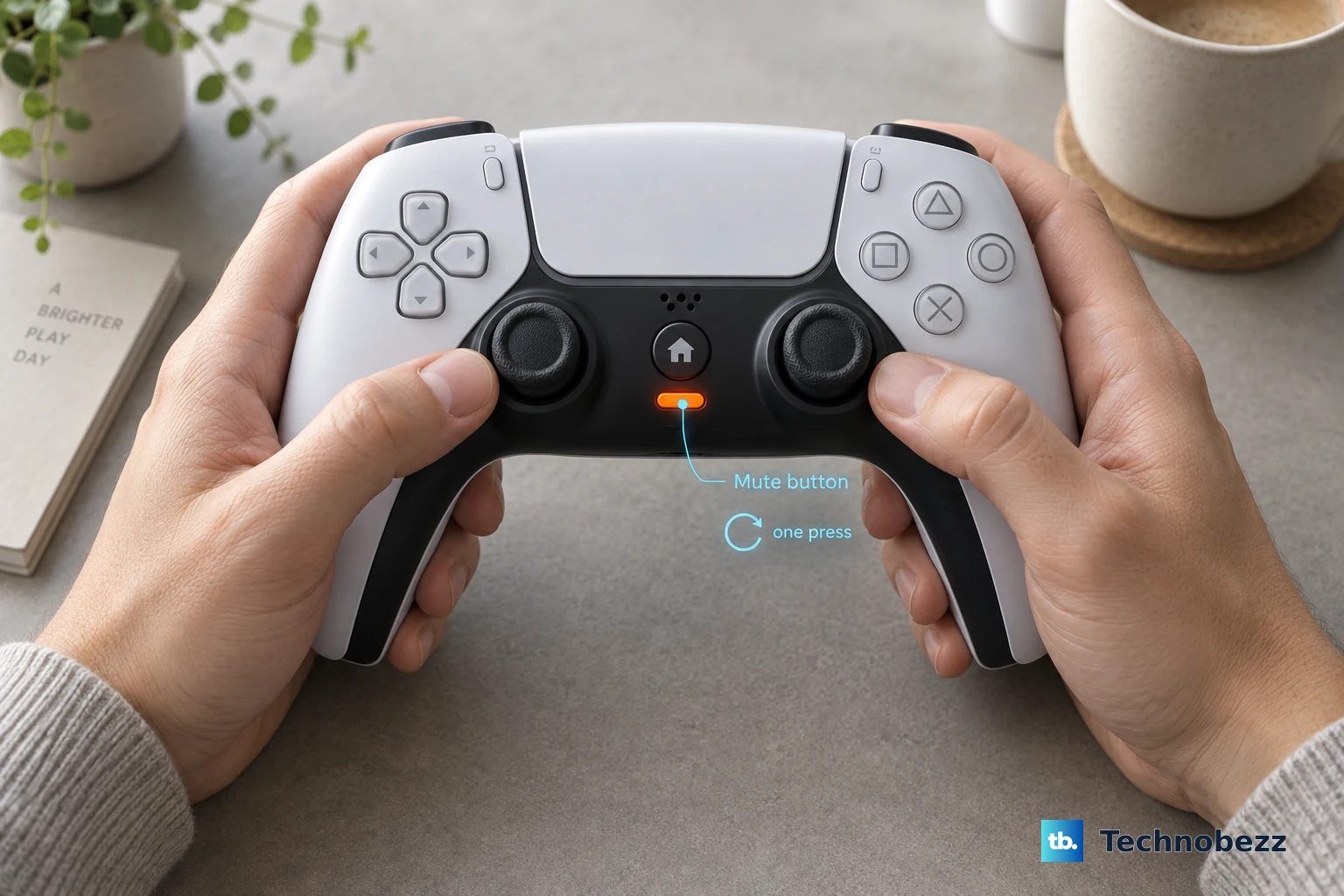
Press the controller Mute button once to unmute the mic. When the button is orange, the microphone is muted.
If you pressed and held Mute, you also muted sound output to all speakers. Press Mute again to return the controller to its original state.
Pick the controller mic on PS5
Press the PS button to open the Control Center, then select Mic. This menu controls the input device, mute state, and microphone level.
Open Input Device and choose the controller microphone from the available mic list.
You can also go to Settings > Sound > Microphone. From there, select Input Device or Adjust Microphone Level.
Raise the microphone level
Press the PS button to open the Control Center.
Select Mic.
Choose Adjust Microphone Level.
Speak into the controller microphone and raise the level until your input volume reaches the Good range.
If the meter responds only after you choose another mic, return to Input Device and select the controller microphone again.
Stop PS5 from muting you at login
The most common cause is a default mic setting that turns your microphone off as soon as you sign in.
Press the PS button, open the Control Center, and select Mic.
Choose Microphone Status When Logged In.
Set the microphone status to on instead of Mute so voice input works immediately after login.
Open Microphone Status When Starting Voice Chat or Broadcast.
Change it away from Switch to Mute so PS5 does not silence the mic when voice chat or a broadcast starts.
Make sure you are in the right chat
A working controller mic seems broken when your voice is going to the wrong chat.
Press the PS button, go to the Control Center, and select Game Base.
Select your party from the list.
To switch between party chat and game chat, use the drop-down menu on the voice chat card in the Control Center.
If game chat is silent or unavailable, press the PS button, open Sound, and toggle Mute Game Voice Chat so game voice chat is not muted.
If this method fails, check Input Device and Adjust Microphone Level again before moving on to software updates.
Fix Discord voice chat on PS5
Use this when the controller mic works in normal party chat but not in Discord. Discord voice chat appears as a voice chat card in the PS5 Control Center after you start or join a voice channel.
To join from the console, open the Control Center, select Game Base, and open the Discord tab.
Choose Direct Voice Chats or a server, select the player, group, or voice channel, then choose Start Voice Chat or Join.
If you started from the Discord app on mobile or computer, choose the option to join on PlayStation and select your PS5 console.
On PS5, select View Discord Voice Chat from the notification or open the voice chat card from the Control Center.
To adjust the mic inside Discord, select the voice chat card, open More, choose Voice Chat Settings, and select Adjust your microphone level.
Update the console and controller
This fixes microphone problems tied to PS5 system software or DualSense device software.
Open Settings.
Select System.
Choose System Software, then open System Software Update and Settings.
If Update Available appears, select Update System Software.
Next, go to Settings, open Accessories, and select Controller (General).
Choose DualSense Wireless Controller Device Software.
For DualSense Edge, go to Settings > Accessories > DualSense Edge Wireless Controller, then select DualSense Edge Wireless Controller Device Software.
Check account restrictions
The most common cause here is a child-account communication setting that blocks voice chat instead of a microphone fault.
On PS5, go to Settings > Family and Parental Controls > Family Management.
Select the child account, open the parental control options, and make sure Communication and User-Generated Content is not set to Restrict when voice chat should be allowed.
From the PlayStation Family app, select the child and tap the Settings icon next to the child’s name.
Open Parental Controls > Online Communication, then manage Restrict Communication and User-Generated Content, communication requests, and games with communication allowed.
For privacy settings online, go to Account Management > Privacy settings, choose a feature, and select Edit.
On PS5, go to Settings > Users and Accounts > Privacy, then choose Adjust Privacy Settings by Choosing a Profile or View and Customize Your Privacy Settings.
Reset the DualSense controller
Reset the controller only after the mute, input, chat, account, and update checks are done.
- 1.Turn off your PS5 console.
- 2.Disconnect the DualSense wireless controller from the official USB cable.
- 3.Find the reset button inside the small hole next to the Sony logo on the back of the controller.
- 4.Use a pin or similar tool to press and hold the reset button for at least 5 seconds.
- 5.Connect the controller to the PS5 with the official USB cable that came with it, then press the PS button.
If the controller microphone still fails after setup, updates, and reset, use the PlayStation Repairs diagnostic tool for hardware service options.
Frequently Asked Questions
Why is the mute button on my PS5 controller orange?
An orange mute button means the controller microphone is muted. Press the controller Mute button once to return it to the original state.
Why does my PS5 controller mic work in party chat but not game chat?
You are probably still in party chat. Press the PS button, select the voice chat card in the Control Center, and switch to the game voice chat from there. Mute Game Voice Chat under Sound affects only the game chat audio you hear, not your outgoing mic, so if your voice still does not reach the other players, join that game's own voice chat and check its in-game voice chat settings, because how game voice chat works depends on the game.
Can I update my DualSense controller without using the PS5 menus?
Yes. Sony provides the PlayStation Accessories app for Windows, which updates DualSense controller firmware from a PC.
Can parental controls stop PS5 voice chat?
Yes. If Communication and User-Generated Content is set to Restrict for a child account, voice chatting with other players is disabled.
What should I do if the mic still does not work after a reset?
After checking settings, updating the system and controller, and resetting the DualSense, use the PlayStation Repairs diagnostic tool for hardware service options.