A pink laptop screen points to a color setting, display profile, graphics driver, HDR setting, or screen hardware fault. Start with the fast color controls, then move through drivers and hardware checks. These fixes cover Windows laptops, MacBooks, and Chromebooks.
Turn Off Night Light And Color Filters First
This fixes pink, warm, or tinted colors caused by nighttime modes and accessibility filters.
On Windows 11, open Start, go to Settings, choose System, select Display, open Night light, and turn Night light off.
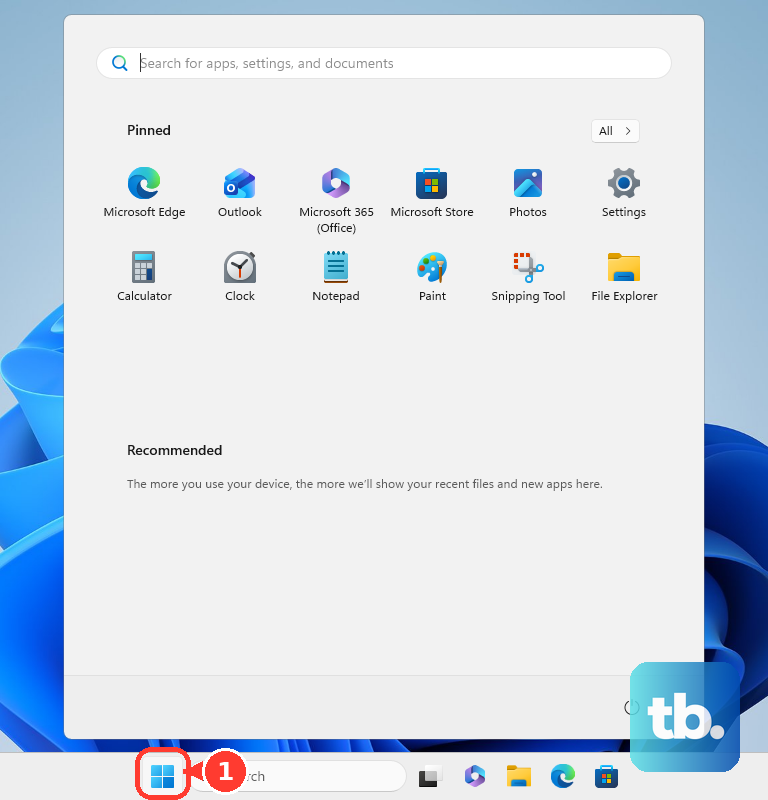
Open Start, go to Settings, choose Accessibility, select Color filters, and turn Color filters off.
On a Mac, open the Apple menu, choose System Settings, select Displays, open Night Shift, and turn it off or move Color Temperature less warm.
Open the Apple menu, choose System Settings, select Accessibility, choose Display, open Color Filters, and turn Color filters off.
On a Chromebook, select the time at the bottom right, open Settings, choose Device, select Displays, and turn Night Light off.
Open Settings, choose Accessibility, open Display and magnification, and turn off Color correction and Color inversion.
Fix A Bad Display Profile
A wrong display profile shifts the whole screen color even when brightness and Night Light are correct. On Windows 11, open Settings, then System, then Display, then Color profile.
Select the laptop display, expand the profile that looks wrong, and choose Remove. To use another profile instead, select it and choose Set profile.
On a Mac, open the Apple menu, choose System Settings, select Displays, and use the Color profile menu to choose the recommended or default profile for the display.
For a fresh calibration, Windows 11 uses Settings, then System, then Display, then Color profile, then Calibrate display. On Mac, open Color profile, choose Customize, select the Add button, and follow Display Calibrator Assistant. On a 14-inch or 16-inch MacBook Pro from 2021 or later, Apple sends you to its separate Pro Display Calibrator steps instead.
Update Or Roll Back The Graphics Driver
Use these Windows 11 driver fixes when the pink screen started after an update, a game install, a dock change, or a display change.
Right-click Start, open Device Manager, expand Display adapters, right-click the graphics device, choose Update driver, and select Search automatically for updated driver software.
If Windows shows Search for updated drivers on Windows update, select it and follow Windows Update.
Open Start, go to Settings, choose Windows Update, select Advanced options, open Optional updates, install listed driver updates, and restart.
If the tint began right after a driver update, return to Device Manager, open the graphics device Properties, choose Driver, select Roll Back Driver, choose a reason, and confirm with Yes.
If the driver remains broken, right-click the graphics device in Device Manager, choose Uninstall device, select Uninstall, and restart. Windows attempts to reinstall the driver after the restart; if the driver does not come back, repeat the automatic or manual update steps above, preferably with the driver from your laptop maker.
Use Your Laptop Maker Or GPU App
This method applies when Windows color settings look correct but the pink cast remains. Manufacturer and GPU tools control color, display modes, and graphics updates outside the basic Windows display page.
For Intel hardware, use Intel Driver & Support Assistant, select Download now, install the assistant, then open its dashboard and install offered Intel graphics updates.
For AMD systems, open AMD Drivers and Support, use Auto-Detect and Install Driver Updates for supported Radeon graphics and Ryzen chipsets, or search for the exact product and run the matching installer.
For NVIDIA systems, use NVIDIA App for automatic driver updates, or use Latest Driver Downloads to install the matching driver. In NVIDIA Control Panel, open Display, then Adjust Desktop Color Settings, return Brightness, Gamma, Contrast, and Digital Vibrance to normal values, and select Apply. NVIDIA has also brought these display color controls into NVIDIA App under System, then Displays, so look there if the Control Panel page does not show them.
Lenovo users can open Lenovo Vantage, select System Update, choose Check for Updates, and install the relevant updates. If Eye Care Mode appears under My Device Settings, then Display & Camera, turn it off or move the color tone toward neutral.
ASUS users can open MyASUS, go to Device Settings, and under Splendid choose Normal. Acer users can search for Quick Access, open Acer Quick Access, choose the desired bluelight setting, and click X to save.
Adjust HDR And App Color Handling
On a Windows 11 laptop with an HDR-capable display, open Start, go to Settings, choose System, select Display, choose the HDR-capable display, and open HDR.
Adjust SDR content brightness or HDR content brightness until normal apps look correct.
Turn HDR off from Settings, then System, then Display, then HDR when the pink tint appears only with HDR enabled.
For supported Windows 11 hardware, install Windows HDR Calibration from Microsoft Store, open it from Start, then All apps, keep it on the HDR display, use the three test-pattern sliders and saturation slider, and save the profile.
Open Settings, then System, then Display, then Color profile, select your display, and check for Automatically manage color for apps. Turn it on when it appears. The setting shows up only on supported hardware, which needs a WDDM 3.0 or later graphics driver and a supported GPU: AMD RX 400 Series or later or a Ryzen processor with Radeon Graphics, Intel 12th Gen or later integrated graphics or Intel DG1 or later discrete graphics, or NVIDIA GTX 10xx or later. Move on to the next check when the setting is missing.
Tip: Use HDR fixes only on HDR-capable laptops or external displays.
Check Mac Display Features
Mac display features shift color before any hardware fault enters the picture. Open the Apple menu, choose System Settings, select Displays, choose the display at the top, and turn True Tone off.
Open the Apple menu, then System Settings, then Accessibility, then Display, and turn Invert colors off. When you use it intentionally, choose Smart or Classic.
For suspected hardware trouble on a Mac, run Apple Diagnostics. Shut down, disconnect external devices except the needed keyboard, mouse, display, Ethernet, and AC power; on Apple silicon, press and hold the power button or Touch ID until startup options appear, release at Options, and hold Command-D; on Intel Macs, turn on the Mac and immediately hold D, or hold Option-D if D does not open diagnostics.
Skip Command-S single-user mode advice on modern macOS. Apple disabled Command-S in macOS Mojave or later.
Test With An External Monitor
This separates a built-in screen problem from a shared graphics, driver, or color setting problem.
Connect a known-good external monitor using HDMI, DisplayPort, USB-C, or another compatible display cable.
On Windows, press Windows key+P and choose Duplicate or Extend.
On a Chromebook, select the time at the bottom right, open Settings, choose Device, select Displays, and choose Mirror Built-in Display.
Compare the laptop panel and the external monitor.
If the external monitor looks normal while the laptop panel stays pink, suspect the panel or display cable.
If both displays are pink, suspect the GPU, driver, or color settings.
Run Hardware Diagnostics When The Tint Stays
A pink laptop panel that shows normal color on a known-good external monitor points at the panel or its display cable rather than the graphics side.
On Dell laptops, turn off the laptop, hold the D key, press the power button, and release D when the screen flashes different colors. Inspect the white, black, red, green, and blue screens; if the pink tint appears during the built-in LCD test, contact Dell Technical Support for repair options.
Dell users can also perform a hard reset by turning off the laptop, disconnecting the power adapter, removing the removable battery when the model has one, disconnecting peripherals including external monitors and docking stations, holding the power button for 15 to 20 seconds, reconnecting power, and turning the laptop on.
On HP laptops, run HP PC Hardware Diagnostics and use the relevant system or component tests for display or hardware failures. If a failure ID appears, use it with HP support.
On Lenovo ThinkPad and ThinkBook systems, restart or boot the laptop, press F10 quickly and repeatedly when the Lenovo logo appears, and use Pre-loaded UEFI Diagnostics to run hardware tests.
Reset Or Repair Only After The Basics
Use these heavier fixes only when color settings, profiles, drivers, and external-monitor testing have not explained the pink screen.
On Windows 11 with the 2022 annual update plus the February 2024 optional update or later, open Start, go to Settings, choose System, select Recovery, and under Fix problems using Windows Update choose Reinstall now. This option is missing on devices with managed updates, so use System Restore or another recovery method there.
To use System Restore, open Control Panel, choose Recovery, select Open System Restore, choose Next, pick a restore point, and follow the prompts.
On a Chromebook, sign out, press Ctrl+Alt+Shift+r, select Restart, choose Powerwash, select Continue, and sign in with the Google Account that should become owner.
For ChromeOS recovery, remove connected devices, hold Esc+Refresh, press Power, release Power, and follow the recovery prompts. Some Chromebook models use Esc+Maximize in place of Esc+Refresh.
If your laptop belongs to work or school, contact the administrator when update, repair, reset, or recovery options are missing or blocked.
Frequently Asked Questions
Why is my laptop screen pink all of a sudden?
A sudden pink screen comes from Night Light, a color filter, a bad color profile, HDR color handling, a graphics driver change, or a built-in display fault.
Does a pink laptop screen always mean the display is broken?
No. When an external monitor also looks pink, check the GPU, driver, and color settings. When only the laptop panel is pink, focus on the panel or display cable.
Can HDR make a laptop screen look pink?
Yes. Microsoft documents HDR-capable displays showing colors that do not appear correctly, including under-saturated and over-saturated color, and a magenta or pink cast is one way that shows up. On HDR-capable Windows 11 laptops, adjust HDR brightness, run Windows HDR Calibration, or turn HDR off to test whether HDR is causing the tint.
Should I factory reset my laptop to fix a pink screen?
Use reset or repair options after checking color settings, display profiles, drivers, and an external monitor. Chromebook Powerwash and recovery erase local settings or data.