A phone screen with messed up colors usually points to a display or accessibility setting, not a broken panel. Grayscale, inverted colors, a yellow tint, washed-out whites, and suddenly dark apps all come from toggles that are easy to hit by mistake.
Start with the color controls you use every day, then move through app settings, restarts, updates, resets, and repair. The fixes below cover current iPhone, Android, Pixel, and Samsung Galaxy menus.
Turn Off Color Filters and Inverted Colors
On iPhone, open Settings, tap Accessibility, then open Display & Text Size. Turn off Color Filters, Smart Invert, and Classic Invert.
If you use Color Filters on purpose, keep it on and choose Grayscale, Red/Green Filter, Green/Red Filter, Blue/Yellow Filter, or Color Tint. Adjust Intensity and Hue when those sliders appear.
Still in Display & Text Size, check Reduce White Point, Increase Contrast, Reduce Transparency, and Differentiate Without Color. Turn off any setting that makes the screen look faded, harsh, or unlike normal color.
Use the current iPhone path: Settings > Accessibility > Display & Text Size. The older Settings > General > Accessibility path belongs to old iOS releases.
Fix Yellow or Warm Screen Tint
On iPhone, open Control Center.
Touch and hold the Brightness control.
Tap Night Shift to turn it off.
Open Settings > Display & Brightness > Night Shift.
Adjust the color-temperature slider or change the schedule when the screen turns warm at set times.
Return to Settings > Display & Brightness and turn off True Tone when automatic color shifting makes the display look wrong.
On Samsung Galaxy running One UI 3.1 or later, open Settings > Display and turn off Eye comfort shield. For more control, touch and hold the Eye comfort shield Quick settings icon and review Adaptive, Custom, the schedule, color temperature, and Enhanced comfort.
For brightness-related color shifts on iPhone, toggle Auto-Brightness from Settings > Accessibility > Display & Text Size.
Check Android Accessibility Color Controls
These are the Android color settings to check first.
Open Settings > Accessibility > Color and motion > Color correction, then turn off Use color correction or choose the correction mode you need.
Go to Settings > Accessibility > Color and motion > Color inversion, then turn off Use color inversion.
On Samsung Galaxy, open Settings > Accessibility > Vision enhancements, then turn off Color correction, Color inversion, Color filter, and Extra dim.
On Samsung Galaxy, check Settings > Display > Screen mode, then choose Vivid or Natural. With Vivid selected, adjust the warmer/cooler slider or open Advanced settings.
On Pixel running Android 13 or later, open Settings > Digital Wellbeing & parental controls > Bedtime mode > Customize > Screen options at bedtime, then turn off Grayscale.
On Pixel 10, Pixel 10 Pro, Pixel 10 Pro XL, and Pixel 10 Pro Fold, open Settings > Display & touch > Comfort filters, then turn off Comfort View or adjust Intensity.
Switch Dark Mode Back to Light
The most common reason apps suddenly look black, gray, or oddly tinted is that Dark Mode or Dark theme is on.
On iPhone, go to Settings > Display & Brightness > Appearance and select Light. You can also open Control Center, touch and hold the Brightness bar, then tap Dark Mode.
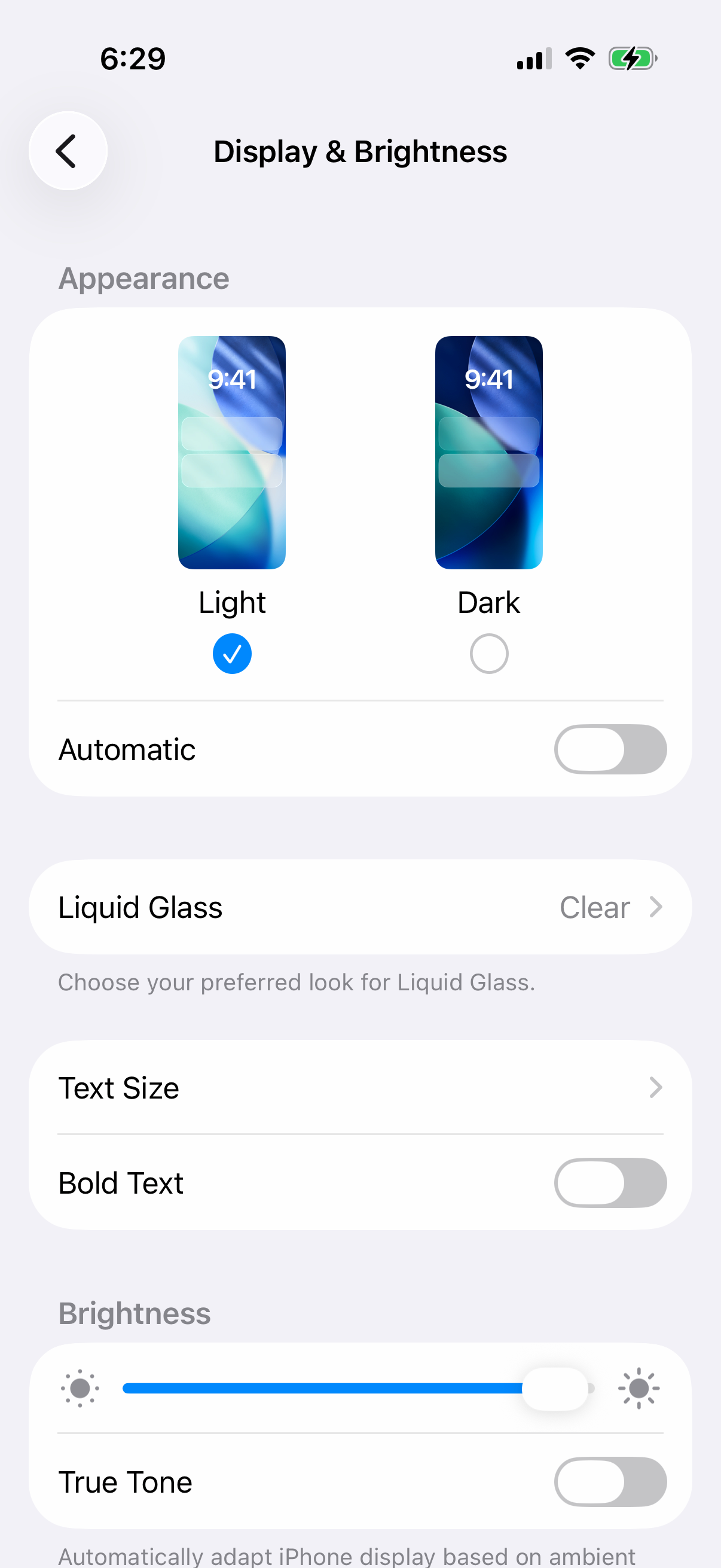
When the iPhone switches back by itself, open Settings > Display & Brightness and turn off Automatic. To keep a schedule, tap Options and change when Dark Mode starts.
On Android, open Settings > Display > Dark theme and turn off Dark theme. When Battery Saver is forcing it, go to Settings > Battery > Battery Saver > Turn off now.
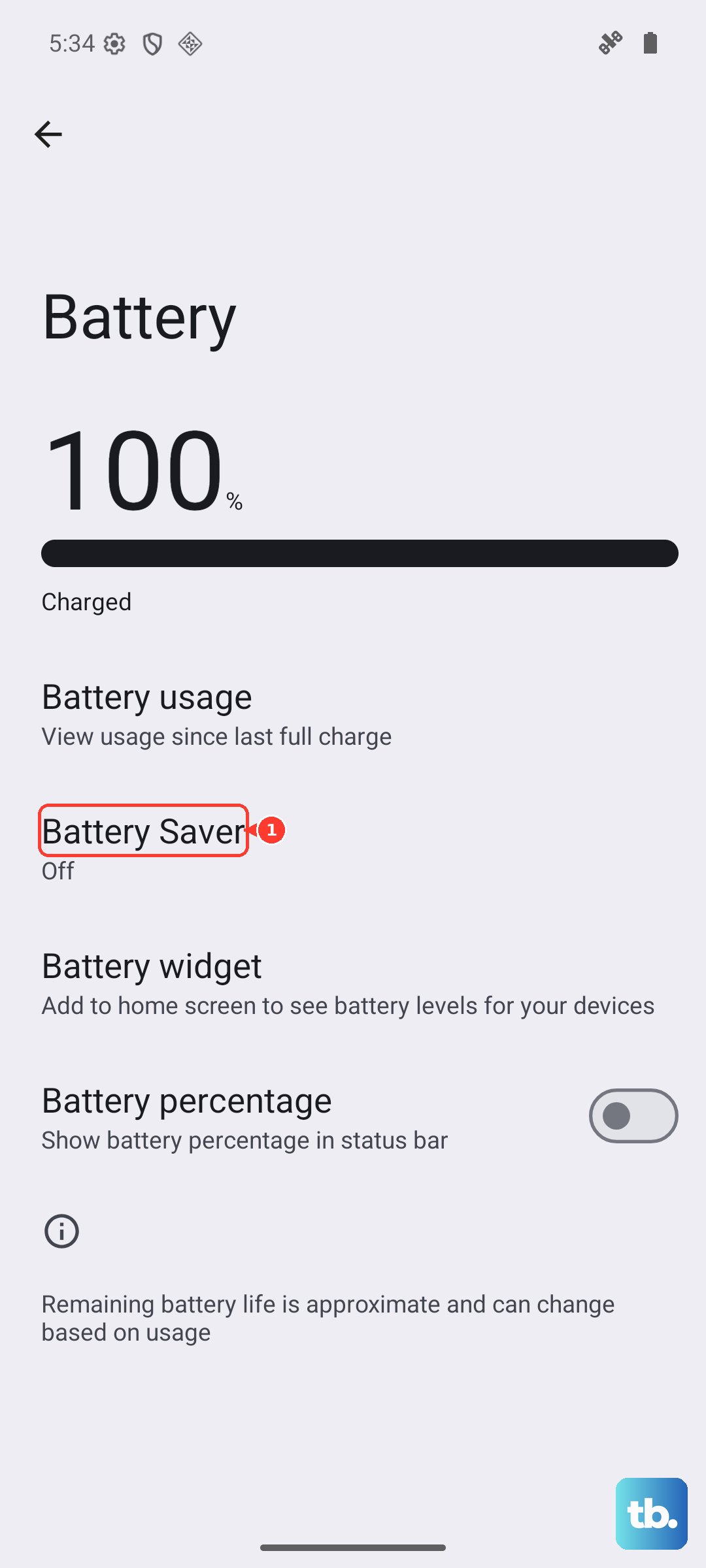
To stop Battery Saver from coming back on by schedule, open Settings > Battery > Battery Saver > Set a schedule and choose No schedule.
For wallpaper-tinted Android menus, open Settings > Wallpaper & style, then choose a different Wallpaper colors palette or pick a Basic colors option.
Fix One App With Wrong Colors
If the phone looks normal everywhere except one app, start inside that app’s own settings. Look for Theme, Display, Light, Dark, or Use device theme.
For Chrome on Android, open Chrome > More > Settings > Theme, then choose Light or System Default. Incognito also appears dark.
For YouTube on Android, tap your profile photo, then open Settings > General > Appearance and choose Use device theme, Light theme, or Dark theme. For Gmail on Android, open Menu > Settings > General settings > Theme, then choose Light, Dark, or System default.
On iPhone, open Settings > Accessibility > Per-App Settings. Tap the app name to adjust its visual settings or remove that app from the list.
If the app still shows strange colors, delete and redownload it. Deleting an app can also remove data that was stored in it, so back up or sync that data first. On iPhone, touch and hold the app, tap Remove App > Delete App > Delete, then redownload it from App Store > My Account > Apps & Purchase History > Your Apps > Not on this [device].
Restart and Update After a Sudden Glitch
Use this when the colors changed suddenly, the screen flickers, or a green tint or lines appear without a settings change. A restart clears temporary display glitches, and a software update is the next step for Pixel green tint, flicker, or lines.
On iPhone with Face ID, press and quickly release Volume Up, press and quickly release Volume Down, then press and hold the Side button until the Apple logo appears.
On iPhone 7 or iPhone 7 Plus, hold the Side button and Volume Down until the Apple logo appears.
On most Android phones, press the Power button for about 30 seconds or until the phone restarts. When the restart menu appears, tap Restart > Restart.
Update an iPhone from Settings > General > Software Update, then tap Download and Install when an update is available.
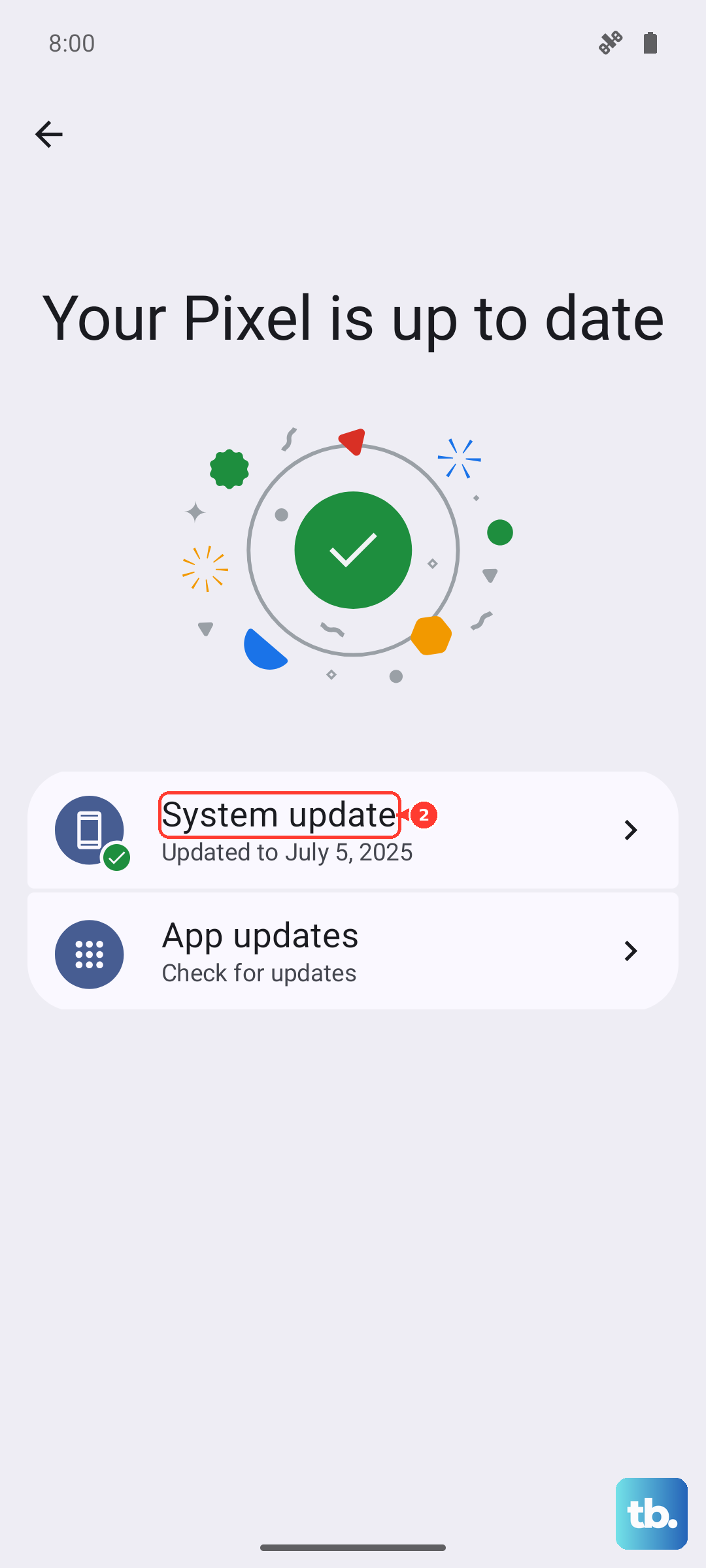
On Android, open Settings > System > Software updates and follow the onscreen instructions.
If a Pixel screen does not turn on at all, plug in the phone and press Volume Up and Power together for at least 20 seconds. If the Android robot and Start appear, press Volume Down until Power off appears, press Power, charge for at least 30 minutes, then restart. For flicker, a green tint, or lines, use Settings > System > System update instead, then contact Google for repair if the problem continues.
Reset Settings Before Erasing the Phone
Use reset options in this order.
On iPhone, open Settings > General > Transfer or Reset [device] > Reset > Reset All Settings. This does not delete photos, messages, apps, or documents.
On Samsung Galaxy, try Settings > General management > Reset > Reset accessibility settings > Reset settings > Reset when accessibility color controls are hard to find.
On Samsung Galaxy, use Settings > General management > Reset > Reset all settings > Reset settings to reset broader settings without a factory erase.
On iPhone, erase only as a last software step from Settings > General > Transfer or Reset [device] > Erase All Content and Settings > Continue. Back up first because this erases data and settings.
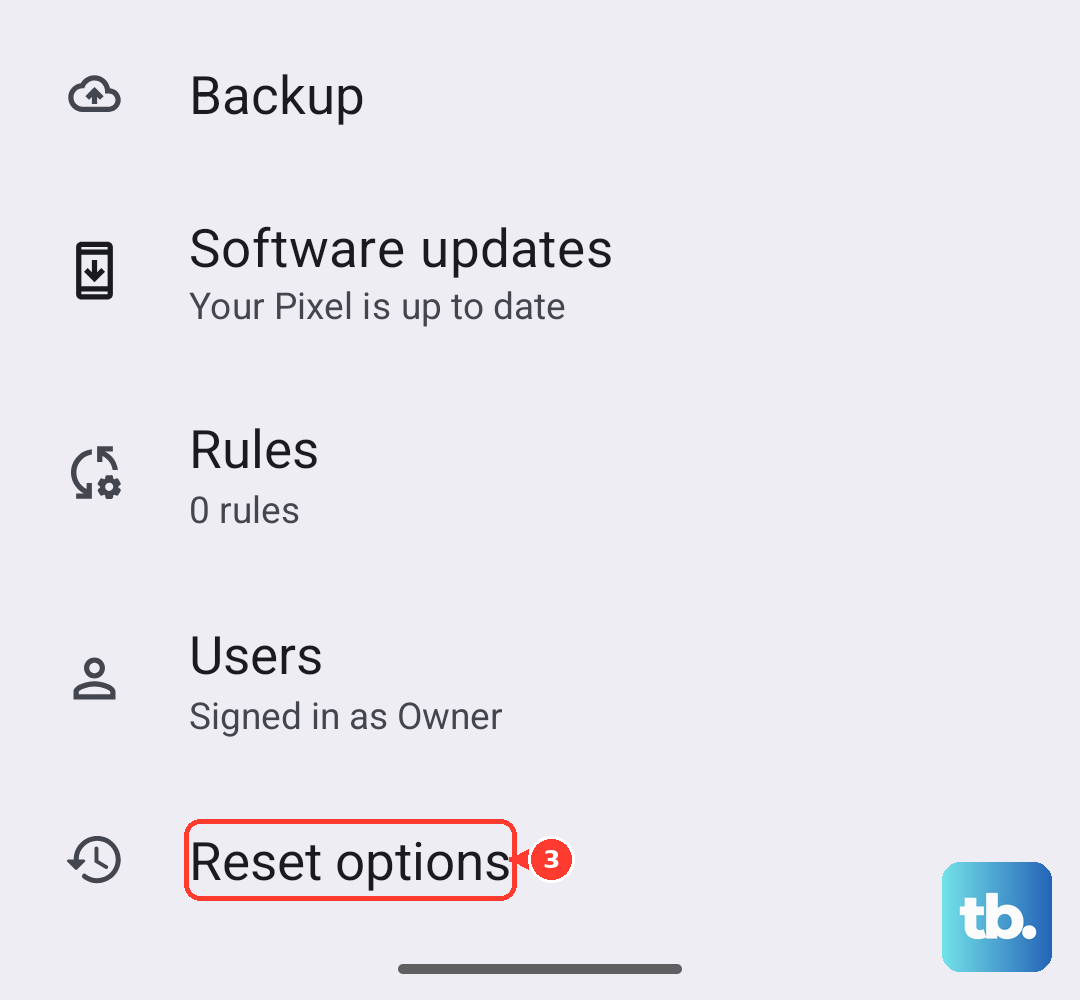
On Android, back up first, confirm the Google Account and password on the phone, then use the phone’s reset option. Many current devices use Settings > System > Reset options > Erase all data (factory reset).
On Samsung Galaxy, the full erase path is Settings > General management > Reset > Factory data reset > Reset > Delete all.
Check Work Phone Restrictions
Work, school, and kiosk phones use management profiles that control display and troubleshooting settings. On iPhone, check Settings > General > VPN & Device Management for a management profile; user-removable profiles open there and show Delete Profile.
On managed Android or Samsung phones, Safe mode, factory reset, settings changes, and system updates are sometimes restricted. Look for a work profile or device management notice, then contact the organization that manages the phone.
If the phone is not managed, or the administrator confirms no display policy is enforced, go back to the reset steps and then move to repair when the screen still shows wrong colors.
Get Service for Hardware Display Problems
This applies when the color problem stays after display settings, restart, update, reset, and restore steps, or when the phone has cracks, liquid damage, persistent lines, dead pixels, or a green tint that will not go away. Treat those symptoms like a hardware display problem.
For iPhone, use Apple Support repair or service. Apple’s computer restore reinstalls the latest software and erases the device, so back up first and turn off Find My [device] from Settings > [Your Name] > Find My before clicking Restore [device].
For Pixel, install any update from Settings > System > System update. If green tint, flicker, lines, dead pixels, cracks, or other hardware-like symptoms remain, use Google’s phone repair flow.
For Samsung Galaxy, request repair after checking Color correction, Color filter, Extra dim, Eye comfort shield, Screen mode, updates, and Safe mode.
Frequently Asked Questions
Why is my phone screen suddenly black and white?
Grayscale is on. On iPhone, turn off Color Filters or change the selected filter. On Pixel, check Bedtime mode Grayscale. On Samsung, check Vision enhancements.
Why does my phone screen look yellow at night?
A warm night tint comes from Night Shift on iPhone, Eye comfort shield on Samsung, Night Light on Pixel, or Comfort filters on newer Pixel models.
Can Battery Saver change my phone colors?
On Android, Battery Saver can force Dark theme. Turn it off from Settings > Battery > Battery Saver, then set the Battery Saver schedule to No schedule.
Should I factory reset my phone to fix messed up colors?
Use factory reset only after display settings, app settings, restart, update, and reset-settings options fail. Back up first because factory reset erases data.