A PC stuck on the motherboard screen is frozen at the logo stage before Windows finishes loading. The cause is often memory training, a connected USB device, the wrong display output, loose RAM, BIOS settings that no longer match the boot drive, or Windows startup damage. Start with the quick hardware checks, then move into BIOS and Windows Recovery only if the logo never clears.
Wait before forcing a restart
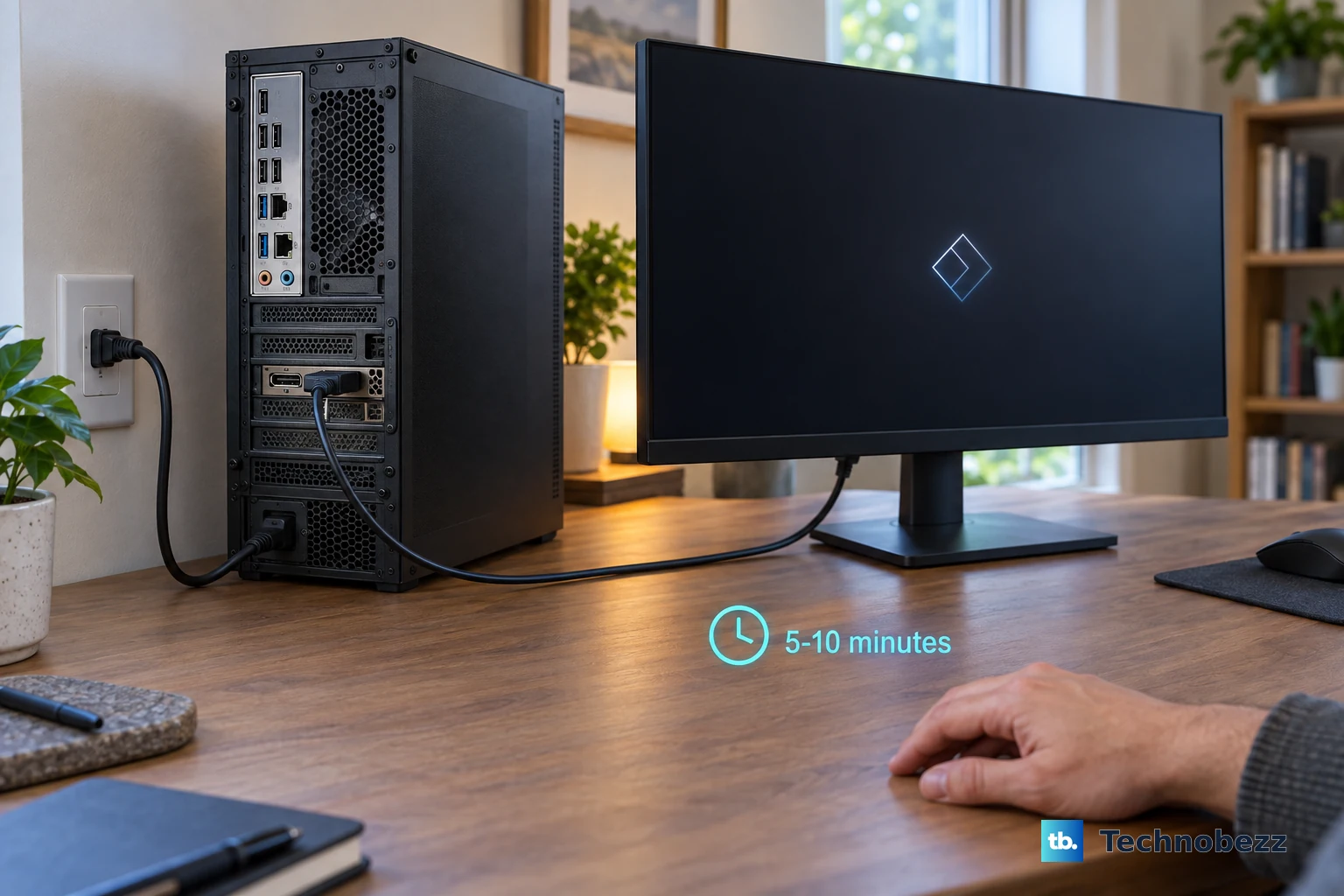
This fixes logo-screen pauses after BIOS, battery, RAM, EC, or RTC changes. Connect the PC to power and leave it on the logo screen for about 5 to 10 minutes. On some Intel Lunar Lake or later ASUS devices, watch for Working on Memory Training while the system finishes memory training.
If nothing changes after that wait, press and hold the Power button until the power indicator turns off. Wait a few seconds, then press the Power button again to restart the computer.
Remove devices that block boot
External hardware is one of the fastest causes to rule out when a PC freezes before Windows loads.
- 1.Shut the PC down completely with the Power button.
- 2.Disconnect USB drives, external hard drives, printers, optical discs, card-reader media, external monitors where applicable, docks, and other accessories.
- 3.Leave only the power cable and the display needed to see the screen connected.
- 4.Turn the PC back on with the Power button and wait for it to pass the motherboard logo.
- 5.If it boots, reconnect devices one at a time until the startup freeze returns.
Check the screen and video output
On a desktop or a laptop using an external monitor, the computer looks stuck when the display path is wrong. Confirm the monitor Power is on, then reseat the VGA, DVI, HDMI, or DisplayPort cable at both ends.
Use the monitor controls to select the input that matches the connected port, such as HDMI or DP. Try another display cable if the logo remains frozen or the screen goes blank.
Connect the monitor to another computer to confirm it shows video. If it does, move the cable back to the stuck PC and continue with the graphics checks.
Use the right graphics port
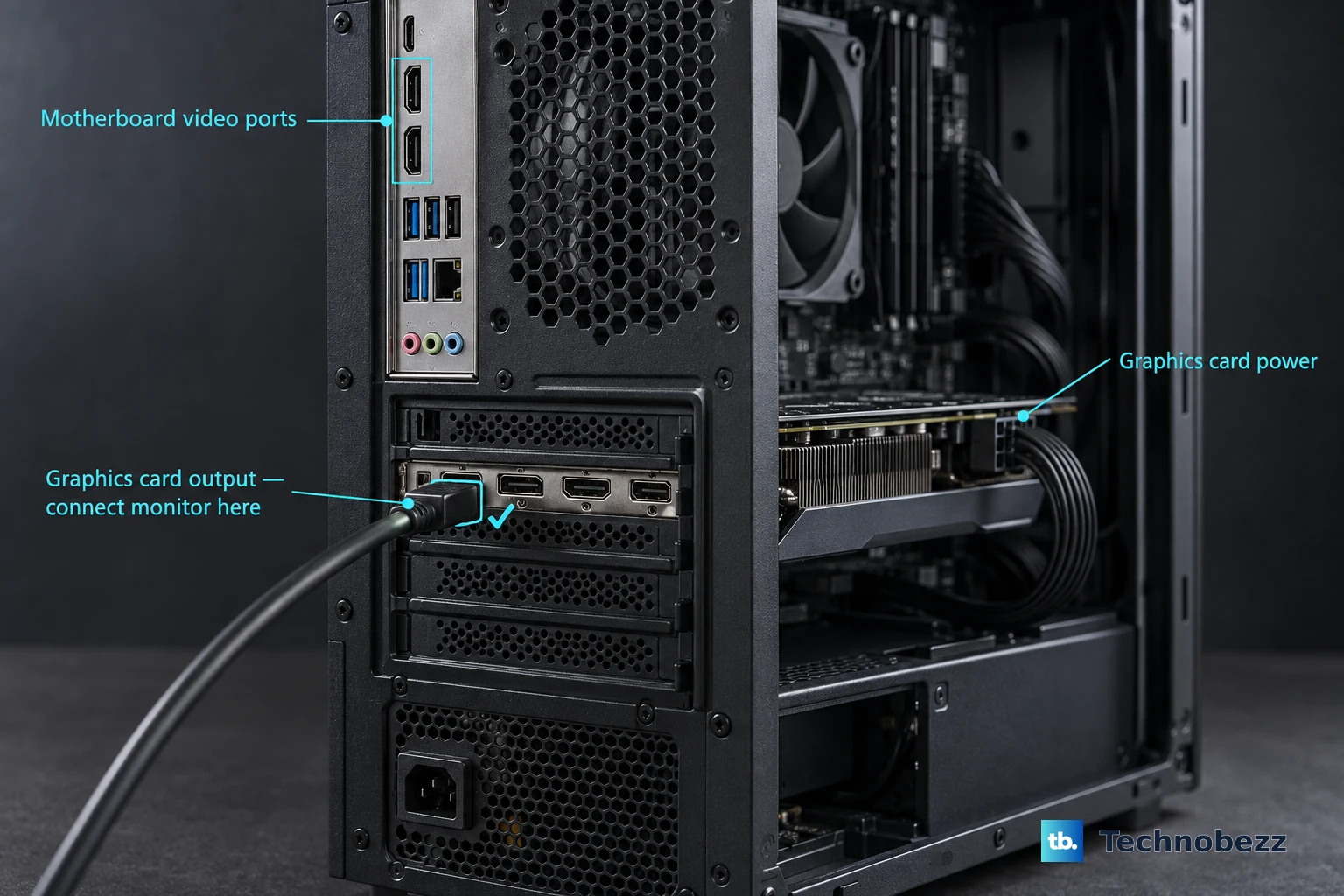
This applies to desktop PCs with both motherboard video ports and a separate graphics card. A monitor plugged into the wrong output leaves you staring at the motherboard logo or a blank screen.
If you use integrated graphics, connect the monitor to the motherboard display port. If the PC has a discrete graphics card, connect the monitor to the graphics card output.
Check that the graphics card power connector is plugged in. Reseat the graphics card firmly in its slot. ASUS states that the discrete GPU path does not require a special BIOS setting.
Reseat memory and start with less hardware
The most common hardware cause is a loose or incompatible memory module, especially after a RAM upgrade or recent work inside the PC. Power off the computer with the Power button. Unplug the power cable before opening the case or service panel.
Remove the RAM and reinstall it so each module is fully seated. If the PC has two or more memory modules, boot with one module installed. Test the other modules and slots one at a time.
On a desktop motherboard, boot with only the CPU, CPU cooling fan, one memory card, power supply, graphics card, and one monitor connected. If it starts normally, reconnect the removed hardware one item at a time.
Restore BIOS defaults and boot settings
Use this when the logo freeze started after a BIOS reset, firmware change, storage change, or failed boot-order change. The goal is to return firmware settings to a known-good state, then confirm the internal drive is first.
On a Dell PC, turn on or restart the computer and press F2 repeatedly at the Dell logo until BIOS appears. On an ASUS PC, shut down, hold F2, press the Power button, then release F2 when BIOS appears. On some older ASUS desktops, hold Del instead.
In Dell UEFI, the label depends on which setup interface the model uses. On the modern UEFI screen, choose Load Defaults, select BIOS Defaults, confirm with OK, then save and exit.
On a Dell UEFI screen with a left-hand menu, choose Restore Settings or Load Defaults, then confirm that BIOS Defaults is selected. On an older legacy BIOS, press F9, or open the Exit menu and select Restore Defaults or Load Optimal Defaults.
In ASUS BIOS after a reset, the key that loads defaults depends on the device class. On an ASUS desktop or motherboard, press F5 for Load Optimized Defaults. On an ASUS notebook, All-in-One PC, or gaming handheld, press F9 or click Default. Then press F10 to save and leave BIOS setup.
Back in BIOS, check Boot Sequence or Boot Order and put the internal hard drive or SSD first. For modern Windows installs, set the boot mode to UEFI. If the problem appeared after a BIOS reset on a Dell PC, check Secure Boot and SATA Operation.
Dell says SATA Operation must match the Windows installation, commonly AHCI or RAID On, and to switch it to the opposite setting when a storage-settings mismatch is suspected. For a current Windows 11 PC, use UEFI; use Legacy only when the existing Windows installation was made for legacy boot or the PC maker specifically directs it.
Clear CMOS when BIOS settings are corrupted
Shut down the PC and unplug the power cord. If the motherboard has a Clear CMOS or CLR_CMOS button, press it for about 5 to 10 seconds. Plug the power cord back in and turn on the computer.
When prompted on an ASUS motherboard, press F1 to enter BIOS setup. Press F5 for Load Optimized Defaults. Press F10 to save and leave BIOS setup.
If your ASUS motherboard uses CLRTC pins instead, power off and unplug the PC. Short the 2-pin CLRTC header for about 5 to 10 seconds with a metal object or jumper cap only when the exact motherboard manual supports it.
On serviceable desktops and some laptops, the vendor can allow a CMOS battery reset. For Dell systems that allow access, unplug the PC, disconnect the laptop battery if possible, disconnect the coin-cell battery, hold the Power button for 10 to 20 seconds, reconnect the battery, then set the date and time in BIOS. Only open a laptop or remove a battery when the manufacturer manual allows access.
Use Windows Recovery for startup repair
This fixes Windows startup damage after the PC gets past firmware but hangs during the handoff to Windows. If the drive is encrypted with BitLocker, have the BitLocker recovery key on hand first. Windows Recovery Environment can ask for that key before it will run tools such as Startup Repair, Startup Settings, System Restore, or Reset this PC.
Start the PC and wait for the Windows logo or manufacturer logo to appear. Press and hold the Power button until the computer shuts down. Turn it on and repeat the same interruption. Turn it on a third time.
Select Advanced options on the Automatic Repair screen. Select Troubleshoot. Select Advanced options. Select Startup Repair.
Select Restart. If Startup Repair does not fix it, return to Troubleshoot and Advanced options. Use Startup Settings to boot Safe Mode, System Restore to apply a restore point, or Uninstall Updates to remove the latest quality or feature update when the issue began after an update.
After Safe Mode opens, remove a recently installed app from Start > Settings > Apps > Installed apps, then choose More > Uninstall. For a suspect device driver, use Device Manager in Safe Mode to uninstall or roll back the driver.
Recover or reinstall Windows after repairs fail
This applies when the PC still cannot start after hardware checks, BIOS defaults, and Windows repair options. Recovery removes apps, settings, or personal files depending on the option you choose.
From Windows Recovery Environment, select Troubleshoot > Reset this PC. Choose Keep my files to preserve personal files while removing apps and settings. Choose Remove everything to wipe personal files, apps, and settings.
If the PC cannot reach recovery, create official Windows installation media on a working PC from Microsoft's Windows 11 download page. Start the stuck PC from the USB drive. Choose language and preferences. Select Next.
Choose Repair my PC to open Windows Recovery Environment. Use a clean install only when recovery options fail. In Windows 11 Setup, choose Install Windows 11. Accept the warning that files, apps, and settings will be deleted, then continue with the edition that matches the device license.
If this is a work or school PC, contact the administrator before BIOS resets, network repair, or reinstalling Windows. Managed devices can have recovery and Windows Update repair options controlled by organization policy.
Frequently Asked Questions
Why does my PC stop at the motherboard logo before Windows loads?
Common causes include memory training after hardware or firmware changes, a connected USB device, display output problems, loose RAM, changed BIOS settings, or Windows startup damage.
How long should I wait at the motherboard screen?
If the PC recently had a BIOS update, battery or CMOS disconnect, RAM replacement, EC reset, or RTC reset, wait about 5 to 10 minutes before interrupting startup.
Will clearing CMOS delete my files?
Clearing CMOS resets firmware settings such as BIOS defaults, date, time, and boot-related settings. It does not delete personal files from the internal drive.
When should I reinstall Windows?
Reinstall Windows only after hardware checks, BIOS defaults, Startup Repair, Safe Mode, System Restore, and update removal fail. A clean install can delete files, apps, and settings.