Your mouse stopped working on Windows 10, and the cause sits in one of four places: the connection, wireless power, Bluetooth, or the driver stack. Start with the fastest checks, then move into Windows settings and Device Manager when the pointer still refuses to move.
Reconnect the mouse or receiver first
Use this when a wired USB mouse or a wireless mouse with a small USB receiver suddenly stops responding. Reconnecting the device makes Windows unload and reload the device driver.
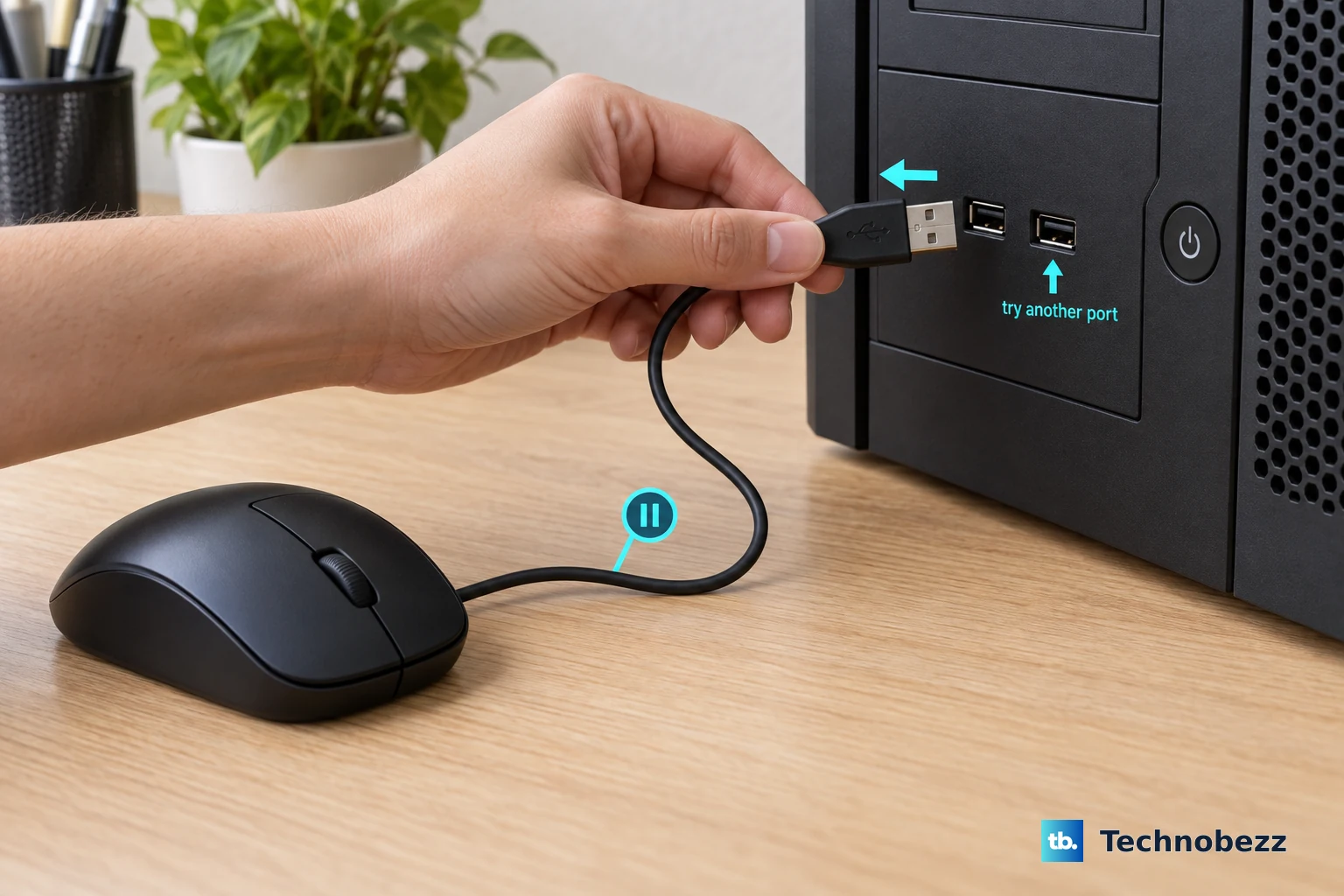
Unplug the mouse cable or USB receiver, wait a little while, then plug it back in. Give Windows a moment to detect it, then test movement, clicking, and scrolling.
Move the plug to another USB port if nothing changes. If the mouse uses a USB hub, confirm the hub has power, then remove the hub and plug the mouse or receiver directly into the PC.
Check the mouse cable, wireless receiver, and any adapter cable for damage. Replace the damaged part when the cable, receiver, or adapter shows visible wear.
Check wireless power and batteries
A wireless mouse looks dead when its own power switch is off or its batteries are not seated correctly. Press the mouse Power button, wait a few seconds, then press Power again.
Open the battery compartment and confirm the batteries sit in the correct direction. Test the mouse again after reseating them.
If it still does not work, replace the batteries. For a rechargeable mouse, connect the USB cable that came with the mouse and let it charge before testing again.
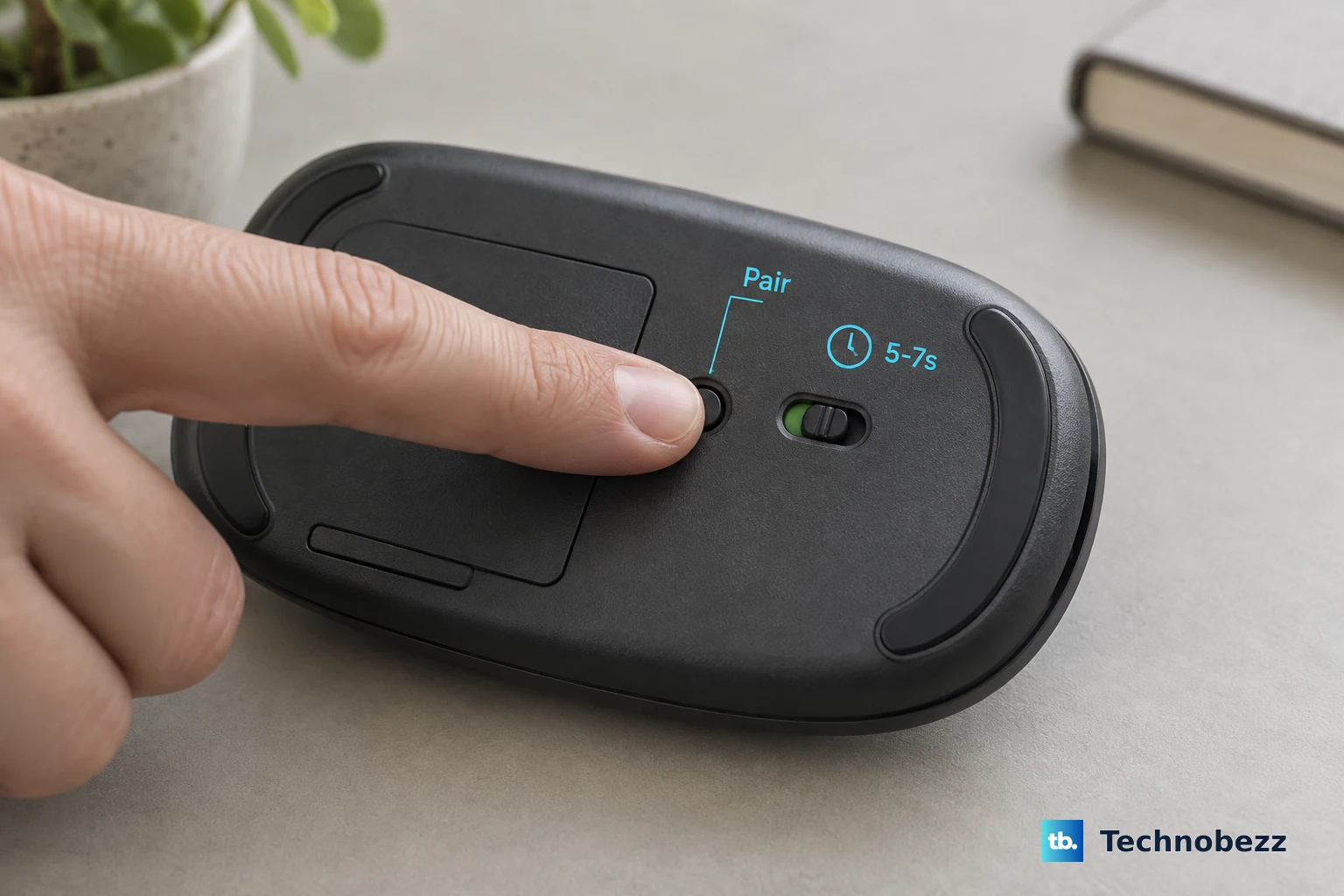
For Microsoft and Surface mice with a pairing button, press and hold Pair or the hardware pairing button for 5 to 7 seconds, then release it. A blinking light confirms power; no light means the batteries need attention before Windows troubleshooting starts.
Turn Bluetooth and Airplane mode the right way
The most common Bluetooth cause is Bluetooth being off, Airplane mode switching the wireless radios off, or the mouse sitting paired without a live connection.
Open Start > Settings > Devices > Bluetooth & other devices. Set Bluetooth to On.
You can also open Action Center from the taskbar, select Expand if needed, then select the Bluetooth tile.
Open Start > Settings > Network & Internet > Airplane mode. Turn Airplane mode off. Airplane mode on its own settles nothing: Microsoft says Windows remembers whether you had Wi-Fi or Bluetooth on the last time you used airplane mode and keeps that setting, so check the Bluetooth switch separately either way.
If the mouse is not paired yet, turn it on and make it discoverable. Open Start > Settings > Devices > Bluetooth & other devices > Add Bluetooth or other device > Bluetooth, select the mouse, follow the prompts, then select Done.
Remove and pair the Bluetooth mouse again
Try this when Windows shows the Bluetooth mouse but the pointer, clicks, or reconnection still fail. Removing the device clears the old Bluetooth pairing entry.
Open Start > Settings > Devices > Bluetooth & other devices. Under Bluetooth, select the mouse, then choose Remove device > Yes.
Put the mouse back into pairing mode. For Microsoft and Surface mice, press and hold the hardware pairing button for 5 to 7 seconds, then release it.
Add it again through Add Bluetooth or other device > Bluetooth. Choose the mouse, follow the prompts, and select Done.
If the pairing light flashes three times, the mouse is already paired with another PC. Remove it from that PC's Bluetooth devices, then pair it with the Windows 10 PC you want to use.
Fix pointer speed, clicks, and scrolling
When the mouse works but feels wrong, start with Windows mouse settings. Open Start > Settings > Devices > Mouse, then adjust Cursor speed.
Use Select your primary button to set left-click and right-click behavior. For double-click trouble, open Additional mouse options, keep Buttons selected, adjust the Double-click speed slider, then select OK.
For wheel issues, stay in Start > Settings > Devices > Mouse. Set Roll the mouse wheel to scroll, Choose how many lines to scroll each time, and Scroll inactive windows when I hover over them.
If the pointer is hard to find, open Additional mouse options > Pointer Options. Under Visibility, turn on Show location of pointer when I press the CTRL key, select OK, then press Ctrl.
Run Bluetooth troubleshooting and Windows Update
For a Bluetooth mouse that still will not behave, open Get Help, run the Bluetooth troubleshooter, and follow the fixes it gives you.
You can also use the Windows 10 Settings troubleshooter. Open Start > Settings > Update & Security > Troubleshoot, then under Find and fix other problems, select Bluetooth > Run the troubleshooter and follow the instructions.
Check for updates at Start > Settings > Update & Security > Windows Update > Check for updates. If updates are available, select Download & install, then restart when prompted.
If this method fails, use Device Manager next because the mouse, HID, USB, or Bluetooth driver needs repair.
Repair the mouse driver in Device Manager
Use Device Manager when reconnecting, batteries, Bluetooth pairing, and Windows updates have not fixed the mouse. It also shows Windows device error codes.
Type device manager in the taskbar search box and open Device Manager. Expand Mice and other pointing devices, Human Interface Devices, Universal Serial Bus controllers, or Bluetooth, right-click the problem device, choose Properties, and read Device status.
To update the driver automatically, right-click Start > Device Manager, expand Mice and other pointing devices or Human Interface Devices, right-click the mouse or HID device, then choose Update driver > Search automatically for updated driver software. Follow the prompts and select Close.
If the problem started after a driver update, open the device's Properties, select the Driver tab, choose Roll Back Driver, select a reason, choose Yes, then restart if prompted.
If the driver is corrupted, save your work, right-click the device, choose Uninstall device > Uninstall, then restart from Start > Shut down or sign out > Restart. Windows attempts to reinstall the driver after restart.
Install optional and manufacturer drivers
The most common missed driver fix is an optional Windows Update driver for the mouse, receiver, USB controller, chipset, or Bluetooth adapter.
Open Start > Settings > Update & Security > Windows Update > Advanced options. Turn on Receive updates for other Microsoft products when you update Windows, then return to Windows Update and select Check for updates.
If View optional updates appears, open it, select the relevant driver updates, then choose Download and install. Restart from Start > Shut down or sign out > Restart.
When Windows does not find a newer Bluetooth driver, download the latest Bluetooth driver from the PC manufacturer. If the download is an .exe file, run it; if it is driver files, install it through Device Manager > Bluetooth > the adapter name > Update driver > Browse my computer for driver software, select the folder, and follow the prompts.
Use companion apps and manufacturer tools
Some mouse problems come from companion software. For supported Microsoft devices, install Microsoft Mouse and Keyboard Center from the official Microsoft Download Center, then use it to view and change supported button and wheel settings.
For supported Logitech devices, download Logi Options+ from Logitech, choose Download for Windows 10 or later, install the app, then customize the supported mouse from there. Logitech says the latest Options+ needs Windows 10 with build 1903 (OS build 18363) or later. On Windows 10 1809 (OS build 17763) or earlier, download and install Options+ version 1.44 instead.
If an old companion app conflicts with current drivers or settings, remove it through Start > Settings > Apps > Apps & features, select the app, then choose Uninstall. For desktop programs that offer repair, open Control Panel > Programs > Programs and Features, right-click the mouse program, select Repair or Change, and follow the directions.
On Dell PCs, use SupportAssist, Dell Drivers & Downloads, or Dell Command | Update to check driver and firmware updates. Dell says Dell/Alienware Update should be replaced by SupportAssist or Dell's automatic driver scan after the end of 2024.
On Surface devices, open the Surface app, expand Help & support, and check update status. If updates are available, select Check for updates; for deeper checks, run Surface Repair Tool or Surface Diagnostic Toolkit.
For a work or school PC, device installation and Windows Update driver delivery are controlled by policy. Contact your IT team when the same mouse works on another computer but Windows 10 will not install or update it on the managed device.
Frequently Asked Questions
How can I use Windows 10 if the mouse is completely unusable?
Turn on Mouse Keys with Start > Settings > Ease of Access > Mouse, then enable Control your mouse with a keypad. Use the numeric keypad to move the pointer.
Why does my Bluetooth mouse pair but keep acting sluggish?
Keep the mouse charged, keep it in range, and move it away from unshielded USB devices connected to USB 3.0 ports. Close open apps if PC performance is interfering with wireless input.
Should I uninstall a Windows update to fix the mouse?
Use this only when the mouse stopped working immediately after an update. Go to Start > Settings > Update & Security > Windows Update > View your update history > Uninstall updates, select the update, then select Uninstall. Microsoft notes that some updates cannot be removed.
What should I do if Windows does not reinstall the mouse after uninstalling it?
Open Device Manager, choose Action > Scan for hardware changes, and follow any instructions. Windows will try to detect the mouse, USB, HID, or Bluetooth device again.