Your mouse won't connect to your Mac, and even opening settings is a challenge. Start with power, then follow the fixes for your Bluetooth mouse, wired mouse, or USB receiver. Use your MacBook's built-in trackpad or a USB mouse to reach settings while you troubleshoot.
Start with power and charge
Start with the check that matches your mouse.
For a Magic Mouse, move the switch underneath to off so the green indicator disappears, then turn it on so green is visible.
For a rechargeable Magic Mouse, connect it directly to your Mac with the appropriate Lightning or USB-C cable.
Turn it on, wait one minute, then disconnect the cable before using it. This also pairs the mouse automatically.
For an original Magic Mouse with replaceable batteries, replace the batteries if its power LED never illuminates, then turn it on.
For a Logitech MX Master 3S, connect its USB-C charging port to a USB power source.
Check its charge indicator, then retry the wireless connection.
If you're using Bluetooth, check the connection
Turn on Bluetooth under Apple menu > System Settings > Bluetooth. These menu names apply to macOS 13 and later.
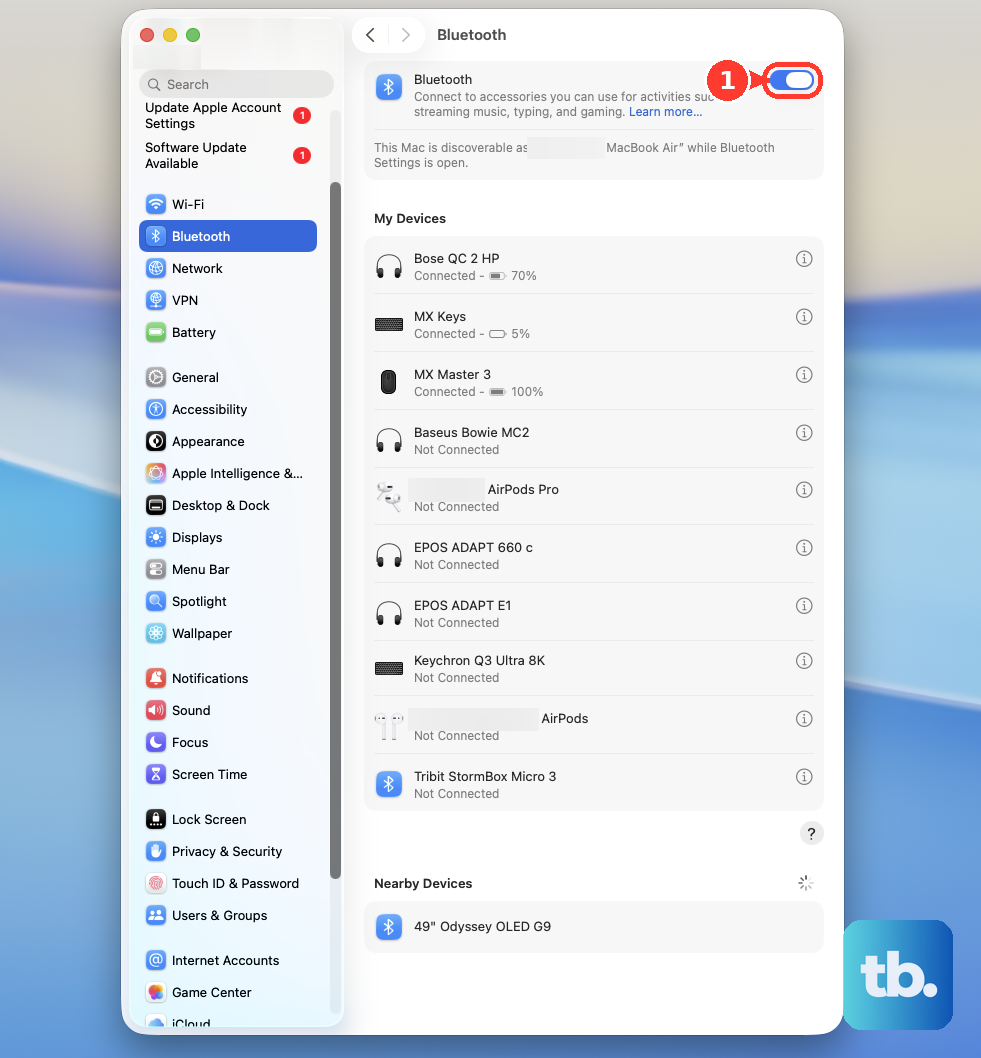
No working pointer? Press Command-Space, type Bluetooth File Exchange, and press Return. Press Return again to enable Bluetooth when prompted.
For a mouse you've already paired, select it under Control Center > Bluetooth in the menu bar. A rechargeable Magic Mouse's charge also appears here.
For a new connection, put the mouse into its manufacturer's discovery mode using the pairing controls for your exact model. Hover over the mouse in Apple menu > System Settings > Bluetooth and click Connect. Complete any displayed verification.
Give the Bluetooth pairing a fresh start
This removes the saved pairing so you can set up the connection again.
Keep a working trackpad or USB mouse available throughout these steps.
Open Apple menu > System Settings > Bluetooth.
Control-click the mouse's name and choose Forget. This removes its pairing.
Put the mouse back into discovery mode using its model's pairing controls.
Click Connect beside the mouse to pair it again.
If a Logitech Bluetooth mouse still won't connect, switch Bluetooth off in the same settings pane.
Wait approximately three seconds.
Switch Bluetooth back on.
If the connection still fails, restart the Mac through Apple menu > Restart.
Retry connecting the mouse through System Settings > Bluetooth > Connect.
For USB mice and receivers, follow the cable
Check the USB connection, then approve the accessory if your Mac asks.
- 1.Disconnect the mouse or receiver, then reconnect it securely.
- 2.Try a different port on the Mac, using a suitable adapter when required.
- 3.Connect directly to the Mac instead of through a USB or Thunderbolt hub. If you continue using a self-powered hub, connect its AC adapter.
- 4.On an Apple-silicon Mac laptop, unlock the Mac and click Allow when asked to approve the accessory. If you previously denied it, unplug and reconnect it to receive another prompt.
- 5.For closed-lid use on an Apple-silicon Mac laptop, first approve the mouse, keyboard, and display with the laptop open and accessible.
The right wireless mode and receiver matter
On a Logitech MX Master 3S, briefly press the underside Easy-Switch button to select the intended computer's channel. For a new Bluetooth pairing, hold that button for three seconds until the LED flashes rapidly. Click Connect beside the mouse in System Settings > Bluetooth.
Using a receiver? Logi Bolt mice cannot pair with Unifying receivers, and Unifying mice cannot pair with Bolt receivers. A generic USB receiver isn't an interchangeable replacement.
An MX Master 3S supports both Bluetooth and a paired Logi Bolt receiver. To pair a supported Bolt mouse with a replacement receiver, plug the receiver into the Mac. Open Logi Options+ > Add Device > Logi Bolt receiver.
Hold the mouse's connect button for three seconds. Choose CONNECT and complete the displayed verification. Other mouse models use their own pairing sequences, so follow the instructions for your exact model.
Move interference out of the way
Bring your Bluetooth mouse closer to the Mac.
Remove metal objects between the mouse and computer.
Move the mouse and Mac away from power cables, microwaves, cordless phones, and other sources of wireless interference.
Relocate nearby USB 3 devices and hubs away from the mouse and Mac, especially equipment sitting on top of the computer.
Disconnect unused USB or Thunderbolt equipment.
Move compatible Wi-Fi devices to your router's 5 GHz band to reduce nearby 2.4 GHz congestion.
Use properly shielded cables for USB 3 and Thunderbolt equipment near your wireless mouse.
When the mouse still won't connect
Check your exact mouse model's system requirements. The USB-C Magic Mouse requires macOS 15.1 or later; that minimum does not apply to every older Magic Mouse.
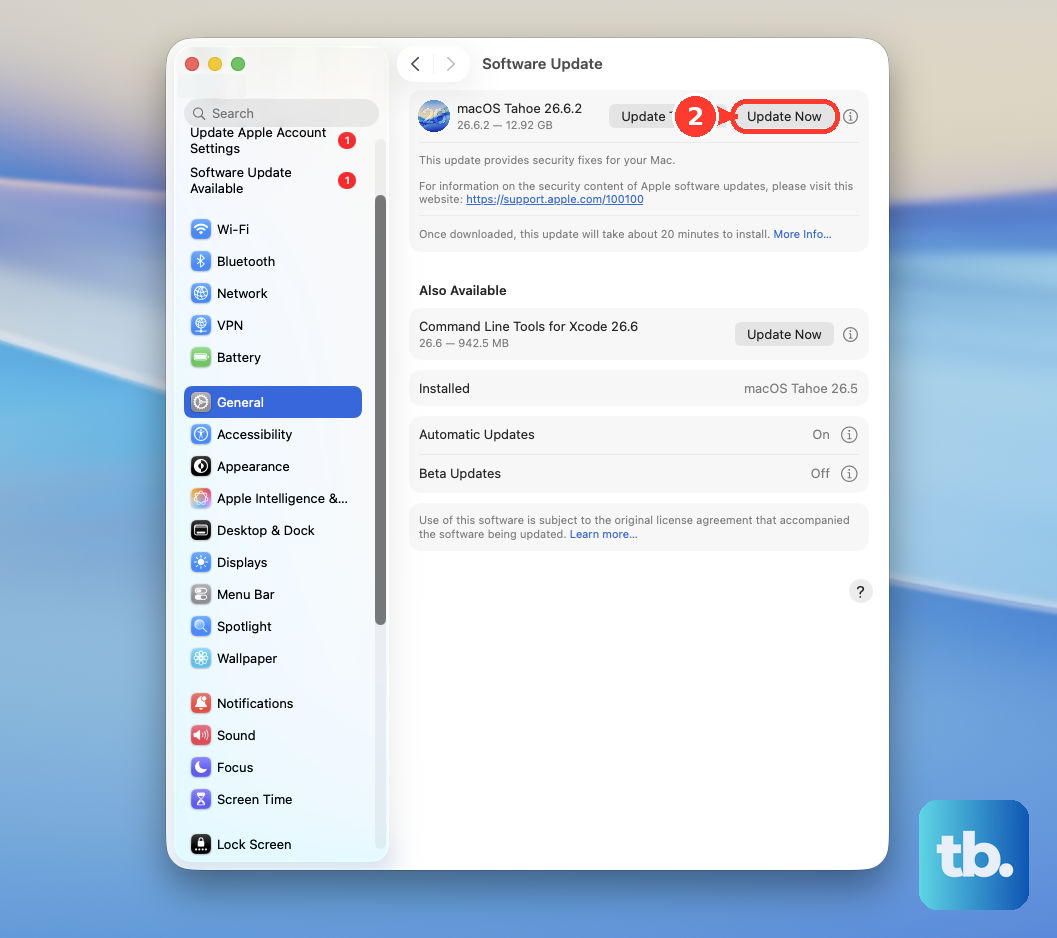
Install an offered compatible macOS update through Apple menu > System Settings > General > Software Update.
For a Logitech G mouse, test the mouse or its receiver on another compatible computer. Failure on both systems helps narrow the problem to the mouse, receiver, or cable.
If it still won't connect after the applicable checks, select Get service on Apple's Magic Mouse troubleshooting page or contact your mouse manufacturer for model-specific diagnosis and replacement options.
Frequently Asked Questions
Why does my older Magic Mouse connect to another Mac instead?
For an older Apple mouse without a charging port, check its previous Mac if the LED lights briefly without blinking. On that Mac, open System Settings > Bluetooth. Click the mouse's details button and choose Forget This Device. Turn the mouse off, then on. On the intended Mac, select Connect beside the mouse in System Settings > Bluetooth.
Why does the pointer work but Logi Options+ can't find my mouse?
A working pointer means the mouse is already connected, so start with the permissions Options+ needs to see and customize it. Enable Logi Options+ under both Accessibility and Input Monitoring in System Settings > Privacy & Security, then choose Quit & Reopen when prompted. If Options+ sticks on its loading screen, re-enable its background item under Login Items in System Settings > General. From macOS 12.4, Options+ also needs Bluetooth permission to detect a Bluetooth device that isn't actively connected to that Mac; enable Logi Options+ under System Settings > Privacy & Security > Bluetooth.
What should I do if Magic Mouse is connected but movement is erratic?
Clean the sensor underneath with a cloth or compressed air, keeping the can upright. To adjust movement speed, change Tracking speed under System Settings > Mouse > Point & Click. These steps address tracking and responsiveness.
Can a work Mac block a USB mouse or receiver?
Yes. A managed Apple-silicon Mac laptop can have an enforced accessory restriction. Ask your administrator to review accessory authorization if you cannot approve the mouse or receiver.