Your W key has stopped responding, and now typing or moving forward in a game is a struggle. Start with a quick typing test to separate an app problem from a keyboard fault. Then follow the matching fixes below, from connection checks to cleaning and repair.
Start with a typing test and a restart
This first pass targets app-specific trouble and temporary software interference.
On Windows, open Notepad. Try typing W. Compare the result with the app or game where W stopped working. If it works in Notepad, focus on that app’s controls, shortcuts, extensions, or keyboard software.
Test W by itself. Test W with the exact combination you hold during a game. Failure only during simultaneous presses calls for a key-combination check.
Save your work. Close your applications. Disconnect nonessential external devices, leaving the keyboard connected. Restart the computer.
Test W before reopening your usual apps. Reconnect one external device. Test W again before reconnecting the next device, repeating this check for each device.
Rule out the connection and keyboard hardware
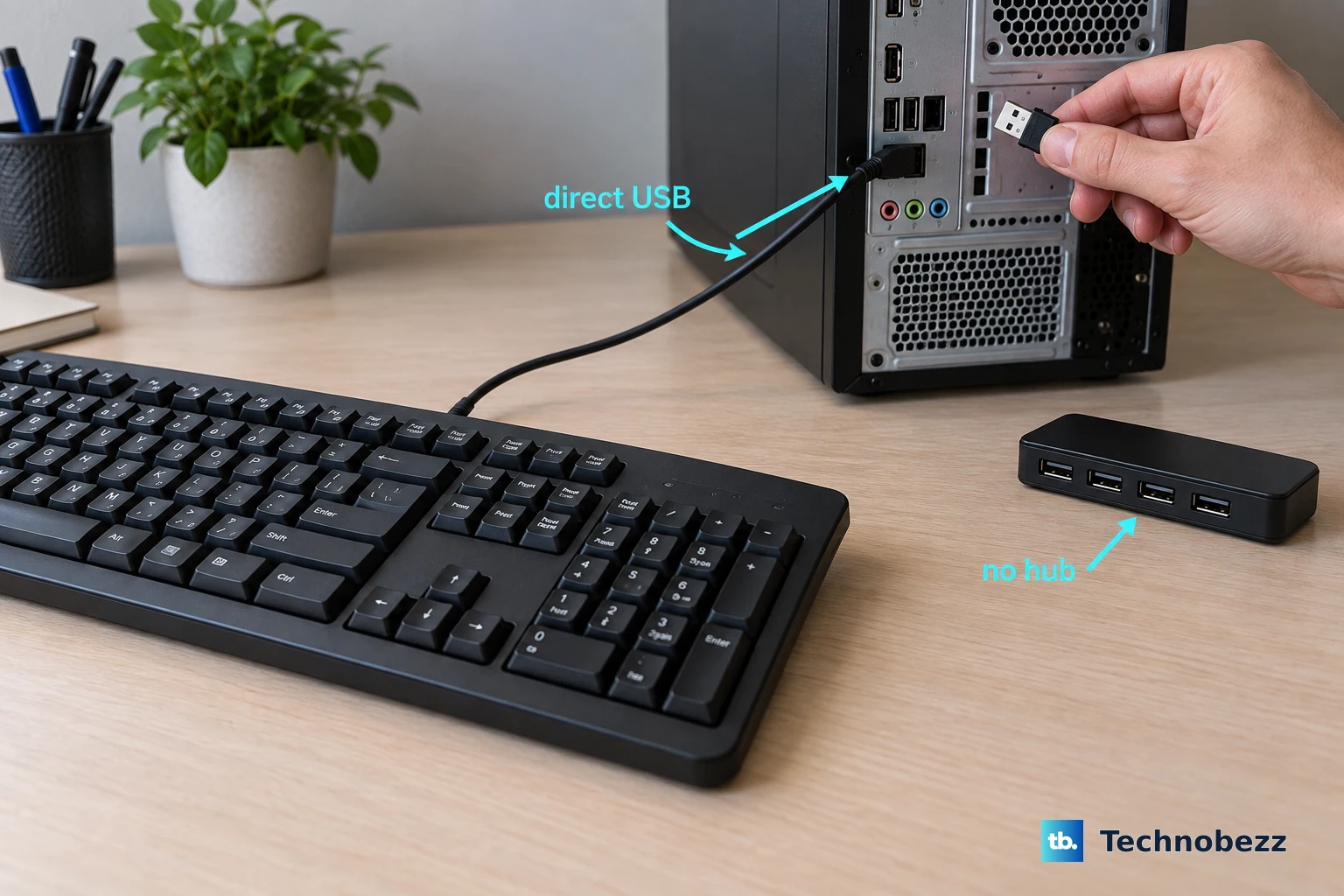
Disconnect your external USB keyboard. Reconnect it directly to the computer, bypassing any USB hub. Try another USB port. Inspect the keyboard cable for damage.
For a wireless keyboard, charge it or replace its batteries. If it uses a USB wireless receiver, unplug the receiver for about 10 seconds. Reconnect the receiver.
Connect the affected external keyboard to another computer. Test W there. If it fails on both computers, that supports a hardware diagnosis.
Try a substitute keyboard on the original computer. A working replacement also lets you keep typing while you troubleshoot. Connection checks are especially useful when several keys or the whole keyboard stop responding.
When W fails only in a game or browser
If W types normally elsewhere, check the game’s movement binding. In Fortnite, open the game menu > Settings and select the arrow-keys icon for Keyboard Controls. Assign the intended movement key; a working spare key also provides a temporary replacement for W.
For Chrome-only trouble, open More > Extensions > Manage Extensions. Turn off suspected keyboard-navigation or shortcut extensions individually, testing W after each change.
To check for a remapping conflict on Windows, close PowerToys and retest W. On a Mac, open the Karabiner-Elements menu-bar menu and select Quit Karabiner-Elements, then retest; closing its settings window leaves the remapper running. For a supported Corsair keyboard, select the keyboard in iCUE, inspect W under Key Assignments, and delete an unwanted assignment through its menu.
If W fails only during simultaneous presses, release the companion keys individually to identify the blocked combination. Change the game’s movement binding to work around that combination limit. On a Redragon model supporting WASD/arrow interchange, press Fn+W and retest W and Up Arrow; this shortcut is specific to supported models.
Clear debris around the W key
A blocked key needs physical attention. Follow your keyboard manufacturer’s cleaning instructions, and leave attached laptop keycaps in place.
For Dell keyboards covered by its cleaning instructions, turn off the computer. Use compressed air around the affected key. Retest W.
Apple specifies a separate procedure for MacBook models from 2015 onward and MacBook Pro models from 2016 onward. Hold the notebook at a 75-degree angle. Spray across the keys from left to right, keeping the air can upright and its straw about half an inch from the keyboard.
Repeat with the notebook resting on its right side. Repeat with the notebook resting on its left side.
If cleaning leaves W unresponsive, check the input settings below. If the failure also follows an external keyboard to another computer, move to repair or replacement.
Check settings when presses are ignored or changed
Check accessibility filtering when brief or repeated presses are ignored, and check the layout when W produces another character. These settings affect keyboard behavior more broadly, so one permanently dead key calls for hardware checks too.
On Windows 11, open Start > Settings > Accessibility > Keyboard. Turn off unintended Filter keys. Turn off Sticky keys if unintended modifier combinations are being latched.
If W produces the wrong character, select the input-language indicator on the taskbar. Choose your intended keyboard layout. Windows+Space also switches layouts.
On a Mac, open Apple menu > System Settings > Accessibility > Keyboard. Turn off unintended Slow Keys. If pointer control has taken over affected keys, open Accessibility > Pointer Control. Turn off Mouse Keys.
For an incorrect Mac layout, open System Settings > Keyboard > Text Input > Edit. Enable Show Input menu in menu bar. Open the Input menu. Select the intended layout.
On a Chromebook, select the time > Settings > Accessibility > Keyboard and text input. Turn off Slow keys if enabled unintentionally. Turn off Bounce keys if enabled unintentionally.
For a direct Chromebook key test, open Settings > About ChromeOS > Diagnostics. Run the keyboard test. Press W and the other keys while keeping the test window focused.
Try Windows updates and driver reinstallation
Use these steps for software trouble after the earlier checks. Driver repairs address software faults; a broken switch needs physical repair.
Open Settings > Windows Update > Check for updates. Install available updates. To check the keyboard driver, right-click Start. Open Device Manager.
Locate the affected keyboard. Choose Update driver. Use the automatic driver search, or select Browse my computer for drivers if you have the appropriate manufacturer-supplied driver package.
If updating does not help, save your work before reinstalling the keyboard device. In Device Manager, expand the keyboard’s category. Identify the affected device. Leave unrelated HID devices alone.
Right-click that keyboard. Select Uninstall device > Uninstall. Restart Windows. It attempts to reinstall the driver during startup.
If W still fails, use the other-computer or substitute-keyboard test to decide whether to request service. On a managed device running Windows 11 Enterprise, Education, IoT Enterprise, or an applicable LTSC edition, ask its administrator to inspect Keyboard Filter rules for an unintended W restriction; this feature is separate from Filter keys and is unavailable on Home or Pro.
Repair options and ways to keep typing
If W remains unresponsive after cleaning and isolation tests, contact the manufacturer for service. Apple directs notebook owners to an Apple Store or Apple Authorized Service Provider. Dell supplies replacement laptop keyboards as complete assemblies rather than individual key components.
For a detached Dell laptop keycap with a scissor mechanism, check that the mechanism is intact and secured; stop if it or the keycap is damaged. Center the keycap over it with the letter facing upward, then press gently and evenly until it clips into place. For a failed mechanical switch, confirm hot-swap support and replacement-switch compatibility before attempting replacement; soldered switches require desoldering as a separate repair task.
Need to type while you arrange a repair? On Windows 11, press Windows+Ctrl+O to open the On-Screen Keyboard, select General if only navigation keys appear, then click W. At sign-in, use Accessibility > On-Screen Keyboard.
On a Mac, select Input menu > Show Keyboard Viewer and click W; if the menu is missing, enable it through System Settings > Keyboard > Text Input > Edit > Show Input menu in menu bar. On a Chromebook, select the time > Settings > Accessibility > Keyboard and text input, enable On-screen keyboard, and click W. These are temporary typing options while the physical key awaits repair.
Frequently Asked Questions
Can I make another key type W temporarily?
Yes. In PowerToys, open Keyboard Manager > Remap a key > Add key remapping. Under Select, choose a working spare key. Under To send, choose W, then confirm with OK. Keep PowerToys running. Remapping does not work on password screens, and Microsoft advises against using Keyboard Manager for games.
Why does my Razer keyboard ignore W when I press a paired key?
On supported Razer devices, Snap Tap intentionally prioritizes the latest input between configured paired keys. In Razer Synapse 4, select your supported device under CUSTOMIZE. Inspect Snap Tap and its key pairs. If W belongs to a pair, disable the feature and retest. Snap Tap is off by default.
Should I use the old Windows Keyboard troubleshooter?
Microsoft lists the old Keyboard and Hardware and Devices troubleshooters among its deprecated MSDT tools. Keyboard is not listed as receiving a replacement Get Help troubleshooter. Skip older tutorials that present these tools as current Windows 11 fixes.
What if my Chromebook keyboard works in Guest mode?
That result points toward the affected account. Preserve your local files before removing the account. Google recommends removing and re-adding the affected local account when the keyboard works as a guest. Guest browsing is unavailable when disabled by the owner or administrator.