Your screen goes black, a game freezes, or Windows reports that the graphics driver crashed. Getting the picture back is the first job; stopping the next crash takes a separate repair. Start with the recovery shortcut below, then follow the fix that matches when the trouble began. These steps focus on Windows 11, with specific instructions for NVIDIA, AMD, and Intel graphics.
Get your screen responding again
Start here to recover a frozen display, then address recurring crashes below.
Press Windows + Ctrl + Shift + B to reset the graphics driver. A beep or brief screen flicker indicates a response; the shortcut does not resolve the underlying cause of repeated crashes.
If the screen stays black, check the monitor's power and cable connections. Test another display cable or monitor to check for a connection problem that resembles a driver crash. On a laptop, disconnect external displays and unnecessary peripherals.
If the picture is going to the wrong screen, press Windows + P, then P and Enter to change the display mode. If the computer cannot respond normally, hold its power button for 20 seconds. Microsoft's blank-screen guidance specifies this recovery action; unsaved work is at risk.
If a blank screen still blocks driver repairs, reach Windows Recovery Environment first: hold the power button for 10 seconds to force a shutdown, then repeat that two or three times until Windows enters Recovery Mode. Select Troubleshoot > Advanced Options > Startup Settings > Restart in Windows Recovery Environment. Press F5 for Safe Mode with Networking. This provides a diagnostic environment for updating, removing, or rolling back the graphics driver.
Roll back a driver update that started the crashes
If the crashes began immediately after a driver update, return to the previous driver first. You need administrator access and a previous driver retained by Windows.
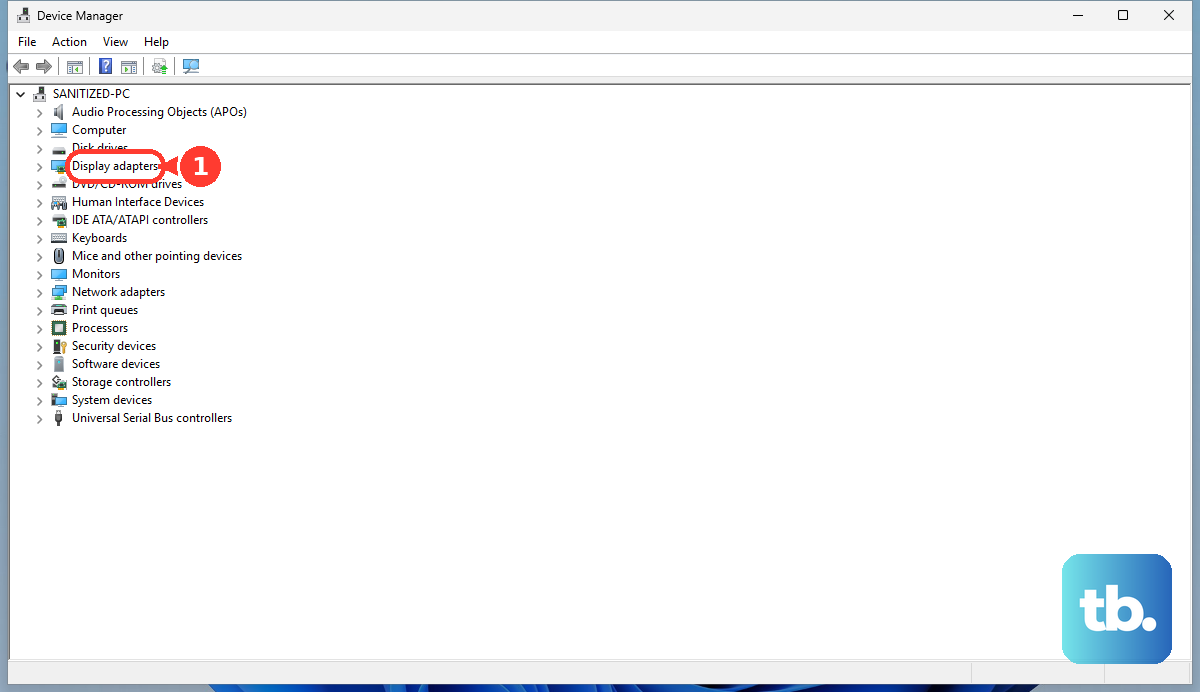
Open Device Manager from the right-click menu on Start. Expand Display adapters. Open Properties from your GPU's right-click menu. Select the Driver tab.
Select Roll Back Driver. Choose the reason for rolling back. Confirm the rollback. Restart if Windows requests it.
If Roll Back Driver is unavailable on an NVIDIA system, obtain a previous compatible package from NVIDIA's driver download page. Check its supported products and release information before installation.
Bring Windows and your graphics driver up to date
Windows components also contribute to graphics instability. If the problem did not begin with a driver update, install the available Windows fixes first.
Select Check for updates under Start > Settings > Windows Update. Install applicable updates. Restart your PC after installation.
Open Settings > Windows Update > Advanced options > Optional updates. Optional drivers are not installed automatically. Select the applicable graphics driver if one is offered. Choose Download and install.
Restart after the driver installation finishes. For a manufacturer download, obtain a package matching your GPU, Windows version, and architecture. On systems using Intel graphics, check your computer manufacturer's support page for your exact model first. Intel recommends this because generic drivers do not include every manufacturer's customizations.
For NVIDIA graphics, select your GPU and operating system on NVIDIA's driver page. AMD provides a product selector and an Auto-Detect and Install tool on its Drivers and Support page. Intel packages are available through the Intel Download Center.
If the graphics driver keeps crashing after these updates, reinstall the graphics device next.
Reinstall the graphics device
Use Windows' built-in reinstall procedure before moving to a vendor cleanup.
- 1.Save your work.
- 2.Open Device Manager from the right-click menu on Start.
- 3.Expand Display adapters.
- 4.Right-click the affected GPU and select Uninstall device.
- 5.Select Uninstall to confirm.
- 6.Restart your PC. Windows attempts to reinstall the driver; install the appropriate manufacturer package if it does not.
Clean out persistent driver trouble
Leftover driver components and existing graphics settings are the targets of a more thorough cleanup. Download the compatible graphics package for your system before beginning the procedure for your GPU below.
For NVIDIA, select Run as administrator from the downloaded installer's right-click menu. Select Custom (Advanced) during setup. Enable Perform a clean installation.
Complete the installation. Reboot your PC.
For AMD, run AMD Cleanup Utility. It removes AMD graphics and audio drivers while leaving AMD chipset drivers installed. Choose Yes when the utility offers to restart into Safe Mode. AMD recommends Safe Mode for best results.
Confirm cleanup with OK. Select Finish when cleanup completes. Restart the computer. Install your intended AMD graphics package.
For Intel, run the compatible downloaded graphics installer. Accept the license agreement.
Select Execute a clean installation if the installer includes that checkbox. This resets Intel graphics settings and clears the shader cache. Choose Start. Restart when requested.
If Intel's standard cleanup fails, follow Intel's Display Driver Uninstaller instructions. DDU is third-party software, and Intel documents it as a further troubleshooting option.
Return GPU tuning to its defaults
On supported NVIDIA systems, open NVIDIA App > System > Advanced > Debug Mode. Enable Debug Mode to temporarily remove factory or manual GPU overclocking. The alternative path is NVIDIA Control Panel > Help > Debug Mode. Retest the game or application that was crashing.
For Radeon GPUs with tuning controls, search for Tuning in AMD Software. Open Performance Tuning. Select the affected GPU.
Choose Default under its tuning controls to undo overclocking or undervolting. Check game-specific tuning profiles for custom settings as well. Run the affected application again. Use default tuning as a diagnostic test; the result alone does not establish whether the driver is defective.
Test graphics acceleration when one browser triggers the crash
If crashes happen only in a browser, test its graphics acceleration. In Chrome, turn off Settings > System > Use graphics acceleration when available. In Edge, turn off Use graphics acceleration when available under Settings > System and performance.
Restart the affected browser after changing the setting. MSI recommends this test for browser display abnormalities on its notebooks because it bypasses the affected acceleration path.
For Firefox, open Settings and find Performance. Clear Use recommended performance settings. Clear Use hardware acceleration when available. Quit Firefox completely.
Reopen it to test the change.
Repair Windows if driver fixes do not hold
If driver repairs leave Windows unstable, check its system files before reinstalling the current Windows version. Open Command Prompt using Run as administrator.
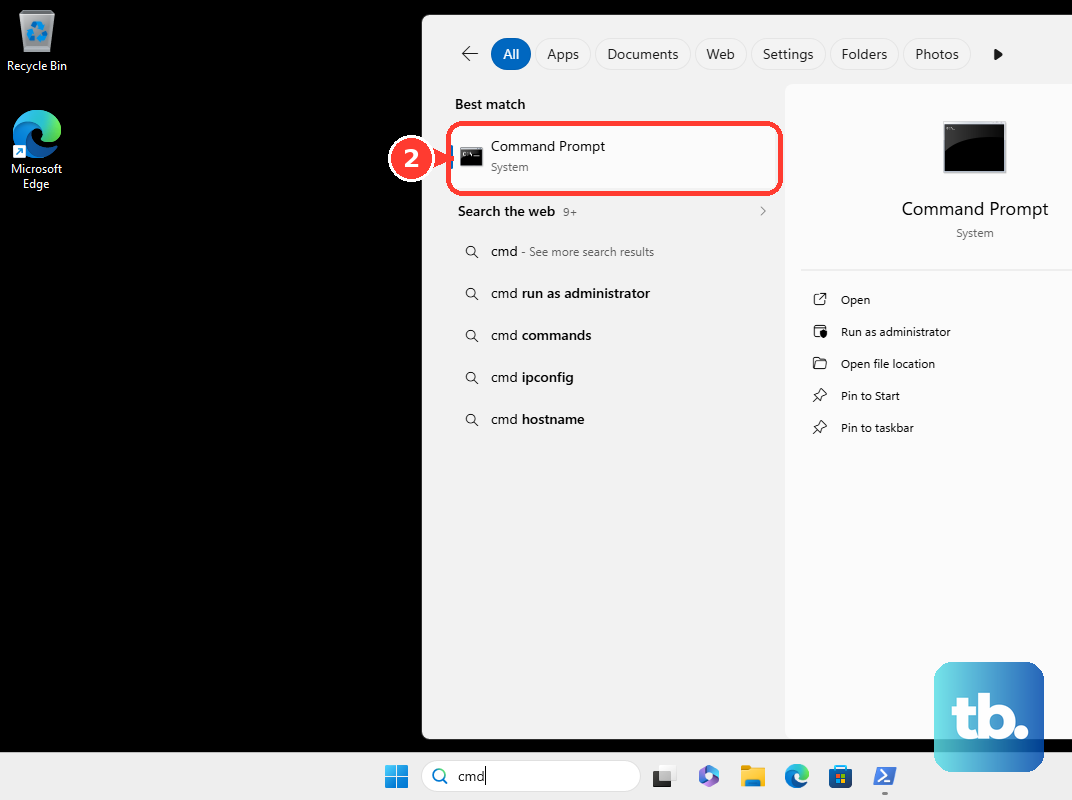
Run DISM.exe /Online /Cleanup-image /Restorehealth. After it completes successfully, run sfc /scannow and let the check finish.
If Windows remains unstable, open Settings > System > Recovery. Select Reinstall now under Fix problems using Windows Update. This repair retains files, apps, and settings. It requires Windows 11 22H2 or later with the necessary servicing updates; availability also depends on whether an organization manages the device's updates.
Confirm the repair. Restart after completion. If these repairs fail to stop the crashes, check cooling and run hardware diagnostics next.
Check heat and hardware when crashes continue
Overheating contributes to instability during demanding graphics work. Shut down your PC before inspecting its cooling.
Disconnect power. Inspect the vents according to your computer's service manual. Clear dust with compressed air as the manual directs. Provide unobstructed ventilation, as Dell recommends when troubleshooting overheating.
Close unnecessary applications when you resume testing. Lower the affected game's resolution or graphics settings if overheating occurs. The menu depends on the game; reducing the load does not repair faulty hardware.
On a supported Dell PC, restart the computer. Repeatedly press F12 at the Dell logo. Select Diagnostics.
Follow the diagnostic prompts. Record any error and validation codes for Dell support.
For a serviceable desktop, ask the manufacturer or a technician to check GPU seating, required power connections, power-supply capacity, and suspected component faults. Internal checks require disconnected power and the exact service manual; laptop procedures are model-specific.
Frequently Asked Questions
Does uninstalling NVIDIA App clean out the graphics driver?
No. Uninstalling NVIDIA App removes the companion application and is a separate procedure from graphics-driver cleanup. To test whether the app is involved, open Settings > Apps > Installed Apps, open NVIDIA App's three-dot menu, select Uninstall, and retest the affected workload.
Should I change TdrDelay to stop graphics driver crashes?
No. Microsoft says end users should not manipulate TdrDelay, TdrDdiDelay, or other TDR registry keys. These controls are for driver development and testing.
How do I update graphics drivers on a Mac?
Open Apple menu > System Settings > General > Software Update and install the offered compatible updates. This updates Apple's managed software stack. For continuing failures, use Apple's Mac Safe Mode or Apple Diagnostics procedures.
Can switching NVIDIA Game Ready drivers to Studio drivers fix crashes?
Studio is an alternative driver branch, not a guaranteed crash fix. In NVIDIA App, open Drivers and use the upper-right driver-type dropdown to choose Game Ready or Studio. Check the package's listed fixes before choosing a branch.