A slow Windows 10 computer usually traces back to overloaded apps, crowded storage, startup clutter, missing updates, malware, or settings that spend resources in the background. Start with the quickest checks, then move through cleanup, startup control, browser fixes, and deeper repair. The steps below use Microsoft-supported Windows paths and account for Windows 10's free-support end date of October 14, 2025.
1. Restart and spot what is using the PC
Select Start, then Power, then Restart.
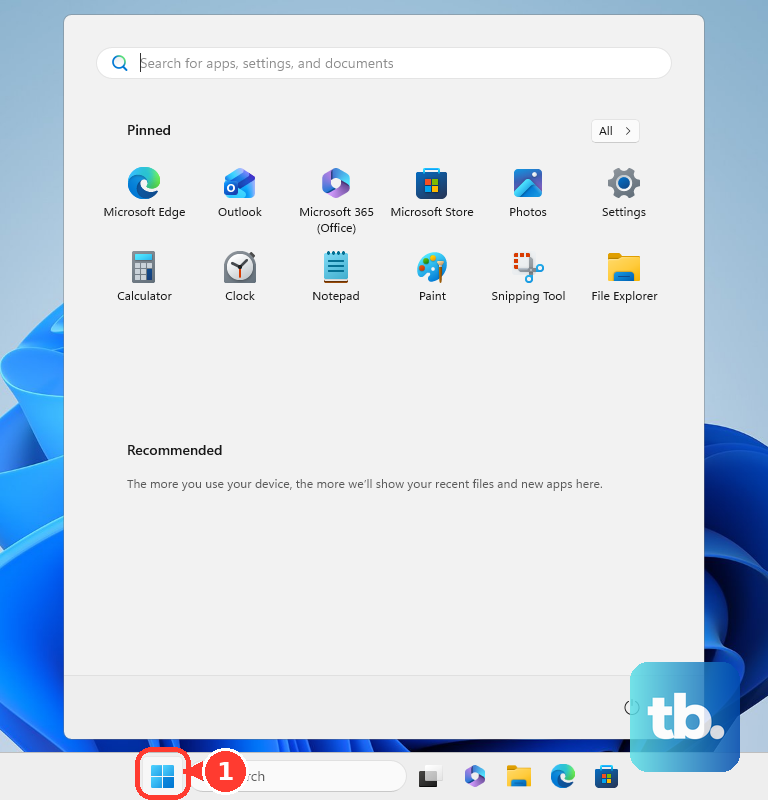
After Windows restarts, open only the apps you need.
Close apps and browser tabs when you are done with them.
Press Ctrl + Shift + Esc to open Task Manager.
Open the Processes tab and look for apps using heavy resources.
Right-click an app you are not using, then close it or end it.
Check the Performance and Startup apps tabs for components using high resources.
If the computer speeds up after this, active programs or browser tabs were the cause.
2. Install Windows updates and available drivers
Select Start, then Settings.
Open Update & Security.
Select Windows Update.
Select Check for updates.
When Windows lists updates, select Download & install.
For optional driver updates, select View Optional updates, then Download & install.
For an eligible Windows 10 version 22H2 PC that meets Windows 11 requirements, use the Windows 11 upgrade offered in Windows Update and follow the on-screen prompts.
For the official Windows 11 Installation Assistant route, open Microsoft's Windows 11 download page. This route is for x64 PCs only, because Installation Assistant does not run on Arm-based PCs, and the PC needs Windows 10 version 2004 or higher, 9 GB of free disk space, and an administrator account.
Select Download Now under Windows 11 Installation Assistant, run the download, select Accept and Install, then select Restart Now when prompted.
On an Arm-based PC, skip this tool and wait for the upgrade to be offered in Windows Update.
3. Scan for malware with Windows Security
Malware slows a Windows 10 PC before ordinary cleanup has a chance to help.
Open Start > Settings > Update & security > Windows Security > Virus & threat protection, then choose Quick scan under Current threats.
Let the scan finish before judging the rest of the fixes.
4. Free up space on the drive
This fixes slowdowns tied to low storage and excess temporary files.
Select Start, then Settings, then System, then Storage.
Turn on Storage Sense.
Select Configure Storage Sense or run it now.
Under Free up space now, select Clean now.
To remove temporary files manually, open Start, then Settings, then System, then Storage, then Temporary files.
Check the file types you want to remove, then select Remove files.
For Disk Cleanup, type Disk Cleanup in the taskbar search box, select Disk Cleanup, choose the drive, select file types, then select OK and Delete files.
To include system files in Disk Cleanup, select Clean up system files, then continue with OK and Delete files.
5. Remove big files and unused apps
Select File Explorer from the taskbar and open the folder where you keep large files.
Select the View tab, then Details.
Right-click open space, select Sort by, then Size.
Delete files you no longer need, or connect a USB drive, SD card, or external drive and move files there.
To move files, select them, open the Home tab, choose Move to, select Choose location, pick the external storage, then select Move.
Empty the Recycle Bin after deleting files.
To uninstall unused apps, open Start, then Settings, then Apps, then Apps & features.
Select the app, choose Uninstall, then select Uninstall again when prompted.
To save new personal files somewhere else, open Start, then Settings, then System, then Storage, then Change where new content is saved, and choose a drive from each drop-down menu.
To reduce local OneDrive storage use, turn on Files On-Demand in OneDrive settings.
Clear the largest personal files before removing small apps, because that usually returns usable drive space faster.
6. Cut startup and background activity
Startup clutter makes Windows 10 slow immediately after sign-in.
Open Start > Settings > Apps > Startup, then set apps you do not need at startup to Off.
For Microsoft Store background apps, open Start > Settings > Privacy > Background apps, then turn individual apps off or turn Let apps run in the background off.
Desktop apps do not appear in that background-apps list, so control them from each app's own settings.
7. Tune visuals and power settings
Select Start, type Adjust the appearance and performance of Windows, then open it.
On the Visual Effects tab, select Adjust for best performance.
To use a faster power plan on a PC where it is available, select Start, then Settings, then System, then Power & sleep.
Under Related settings, select Additional power settings.
Open Show additional plans, then select High performance.
On supported Surface devices, select the battery icon on the taskbar and move the Power Mode slider to Better performance or Best performance.
For a Surface that slows down while hot or low on battery, move it to a cooler spot, wait five minutes, plug it in when power is available, and close memory-intensive apps such as streaming video or games for a few minutes.
8. Fix browser tabs and restart behavior
In Microsoft Edge, select Settings and more, then Settings, then System and performance, then Performance.
Make sure Automatically put tabs to sleep is on.
Open Put inactive tabs to sleep after a set time and choose a time.
To keep a site awake, go to Always keep these sites active, select Add site, enter the full URL, then select Add.
To check heavy tabs, go to Settings and more, then More tools, then Performance.
When Edge lists a resource-heavy tab, select the 3 dots next to it, then choose Sleep tab or Close tab.
To stop restartable apps from reopening after sign-in, open Start, then Settings, then Accounts, then Sign-in options.
Turn off Automatically save my restartable apps and restart them when I sign in.
To reduce resource use with Edge energy saver, open Settings and more, then Settings, then System and performance, then Performance, and turn Enable energy saver on.
If energy saver makes browsing slower, use the same Performance page and turn Enable energy saver off.
On Windows devices, Edge energy saver follows Windows Battery Saver behavior by default.
9. Use deeper repair when Windows is still slow
Optimize drives by selecting Start, typing Defragment and Optimize Drives, opening it, selecting the drive, then choosing Optimize.
To isolate a third-party startup or service issue, sign in to the computer as an administrator, select Search, type msconfig, then open System Configuration.
Select the Services tab, select Hide all Microsoft services, select Disable all, then select Apply.
Open the Startup tab, select Open Task Manager, open the Startup apps tab, select each enabled startup item, choose Disable, close Task Manager, then restart as directed.
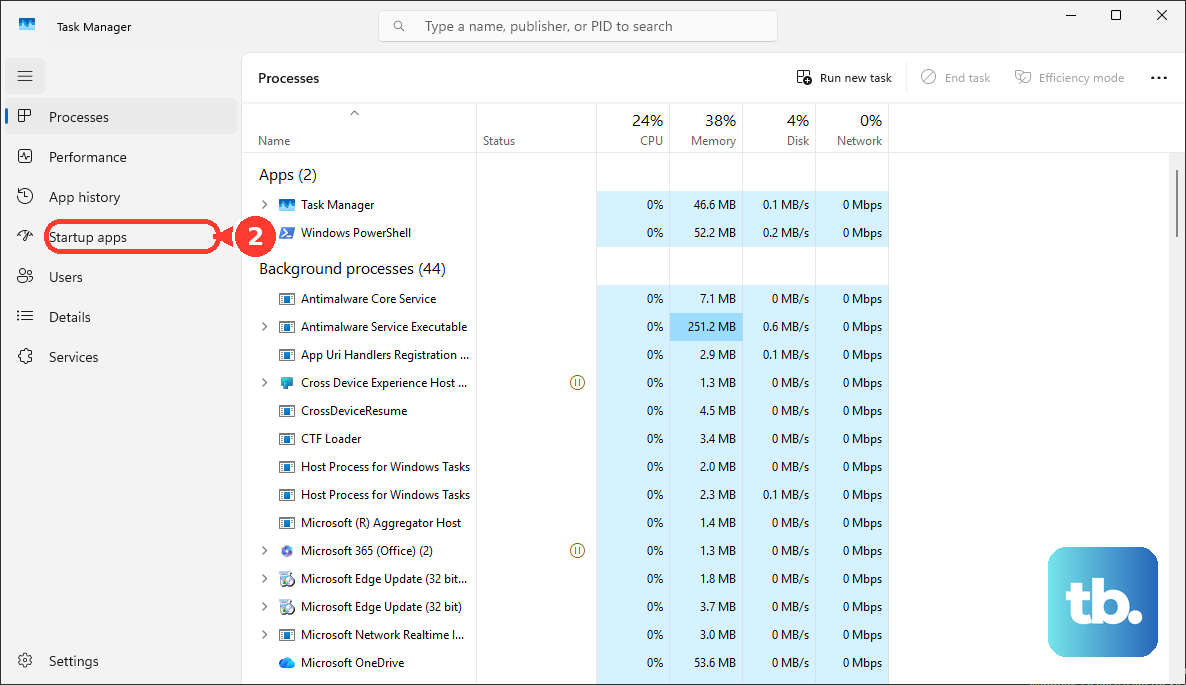
After a clean boot identifies the cause, re-enable services and startup items.
Check PC Health Check by searching the taskbar for PC Health Check and opening it.
When it is missing, install it from Microsoft's PC Health Check link, then use Open Windows Update, Manage storage settings, See battery saving tips, and the startup-time review surfaces.
On a Surface, open the Surface app, expand Help & support, check update status, then select Check for updates when updates are available.
For a last-resort reset, back up your files first, then open Start, then Settings, then Update & Security, then Recovery.
Under Reset this PC, select Get started.
Choose Keep my files or Remove everything, choose Cloud download or Local reinstall, then follow the on-screen instructions.
Do not use old Delivery Optimization bypass tweaks as a speed fix; Microsoft marks Bypass download mode as deprecated on Windows 11 and directs administrators to current Download Mode options.
Frequently Asked Questions
Why is my Windows 10 computer slow after restarting?
Open Task Manager with Ctrl + Shift + Esc and check Processes, Performance, and Startup apps. Those tabs show whether an app, startup item, or background component is using heavy resources after sign-in.
Does freeing up disk space make Windows 10 faster?
Freeing space helps when the slowdown comes from low storage or temporary files. Use Storage Sense, Temporary files, Disk Cleanup, and large-file cleanup before deeper repair.
Should I reset Windows 10 to fix a slow PC?
Use Reset this PC as the last repair step after updates, malware scanning, storage cleanup, startup changes, browser fixes, and performance settings. Back up files first, then choose Keep my files or Remove everything.
Is Windows 10 still supported?
Free Windows 10 updates ended on October 14, 2025. Windows 10 PCs continue to function, but eligible PCs should upgrade to Windows 11, enroll in Windows 10 ESU when staying on Windows 10, or replace unsupported hardware.