A blue or black stop code screen means Windows hit a stop code error and restarted to protect the PC. The color depends on your Windows version: Windows 11 version 23H2 and older show a blue screen, and version 24H2 and later show a black one. If your computer keeps blue screening, start with the fixes that remove the most common triggers: a one-off crash, new hardware, bad drivers, low storage, broken updates, or failing memory.
These steps use current Windows 11 paths. Windows 10 reached the end of free support on October 14, 2025, so older Windows 10 paths are legacy.
Restart once and watch for the stop code
Use this first when the PC blue screened once, restarted normally, and has not crashed again. A single stop code does not always point to a lasting problem.
Open Start.
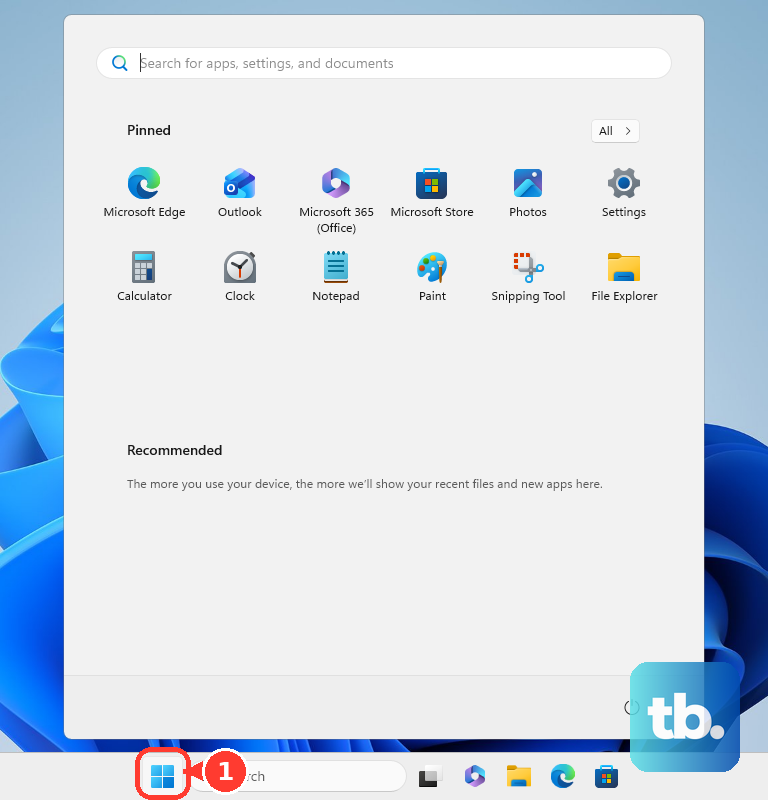
Select Power.
Choose Restart.
Use the computer normally afterward. Leave drivers, apps, and recovery settings alone unless the blue screen comes back.
If the crash repeats, write down the stop code shown on the blue screen. That code tells you where to focus next: memory, storage, a driver, or startup repair.
Remove new hardware and external devices
This fixes blue screens that started after plugging in or installing something new.
Shut down the PC completely.
Disconnect newly added hardware and external devices, including external drives, printers, memory cards, external optical drives, dongles, or recently replaced storage or RAM.
Turn the computer back on with only the essentials connected.
Reconnect one device at a time.
Restart after each device. The device that brings the crash back is the trigger.
Boot into Safe Mode when Windows keeps crashing
Open Settings, go to System, choose Recovery, then select Restart now under Advanced startup.
At the sign-in screen, hold Shift while selecting Power and Restart.
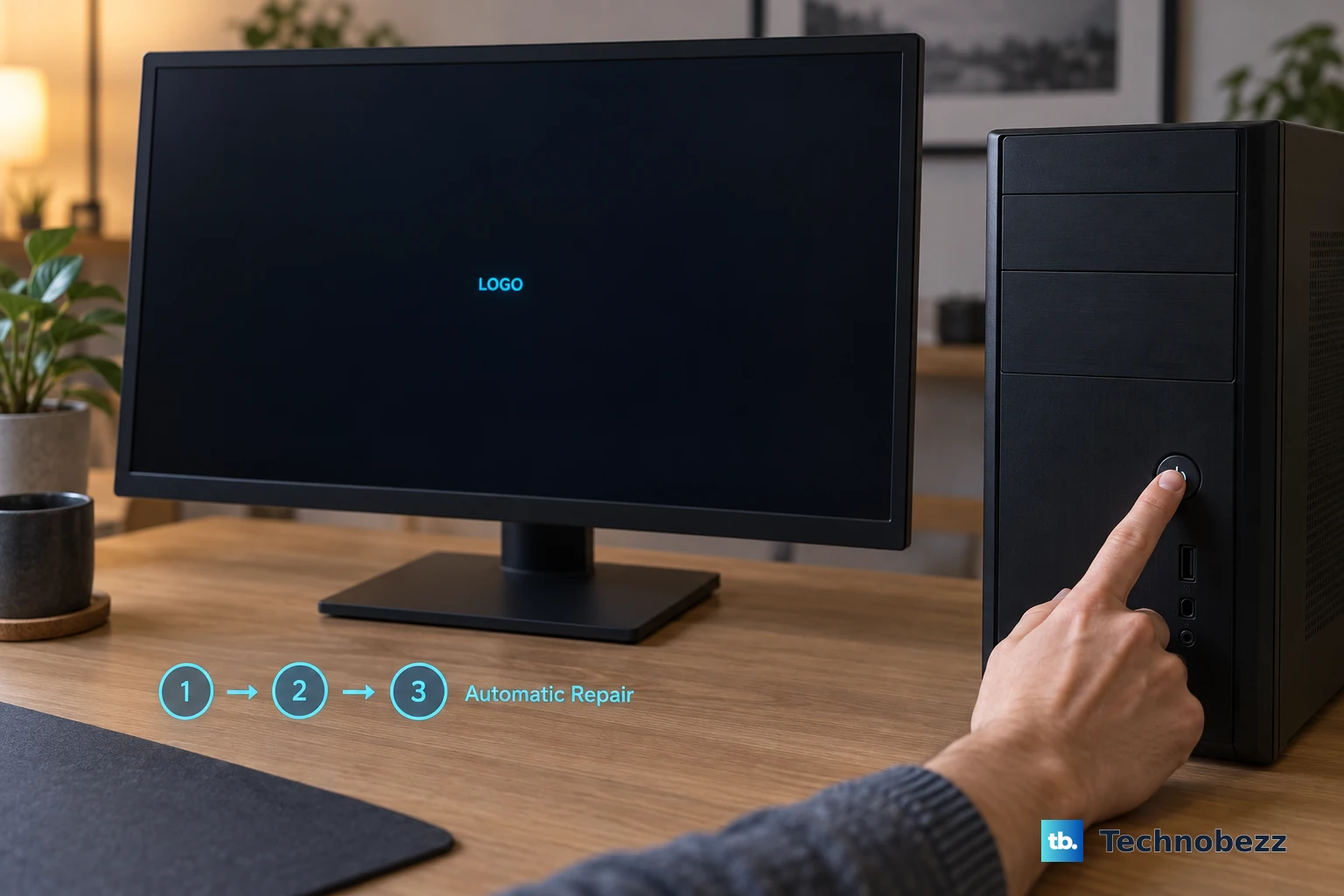
When Windows will not boot, start the device and wait for the Windows logo or manufacturer logo.
Hold the power button until the device shuts down.
Repeat that forced shutdown once.
Turn it on a third time and choose Advanced options from Automatic Repair.
In Windows Recovery Environment, select Troubleshoot, then Advanced options, then Startup Settings, then Restart.
On Startup Settings, choose 4 for Enable Safe Mode or 5 for Safe Mode with Networking.
Use Safe Mode to remove recent apps, roll back drivers, or run repair steps when normal Windows crashes too quickly.
Update Windows and fix drivers
Blue screens often trace back to driver problems after a device, graphics, storage, or system driver changes.
Open Start, go to Settings, select Windows Update, then choose Check for updates. Install available updates, then restart.
For driver updates supplied through Windows Update, open Start, go to Settings, select Windows Update, then Advanced options. Turn Receive updates for other Microsoft products on, open Optional updates, select available driver updates, choose Download and install, then restart.
To update one device manually, right-click Start and open Device Manager. Expand the device category, right-click the device, choose Update driver, then select Search automatically for updated driver software. If Windows offers Search for updated drivers on Windows update, select it.
If the blue screens began right after a driver update, return to Device Manager, open the device Properties, select the Driver tab, then choose Roll Back Driver. That button appears only when Windows still has the previous driver available.
If updating and rollback both fail, uninstall the device from Device Manager, select Uninstall device, then restart from Start and Shut down or sign out. Windows attempts to reinstall the driver during restart.
If this method fails, download the correct driver only from the PC maker or hardware maker. Install it through Device Manager using Update driver, Browse my computer for drivers, Browse, OK, and Next.
Uninstall apps that appeared before the crashes
This fixes blue screens that started after installing a new app, driver utility, or third-party security app.
Open Start.
Go to Settings.
Select Apps.
Choose Installed apps.
Find the app you installed shortly before the blue screens started.
Select More.
Choose Uninstall.
Follow the on-screen instructions.
If the app offers repair options, select the app, open Advanced options, and try Repair first.
If the problem continues, use Reset.
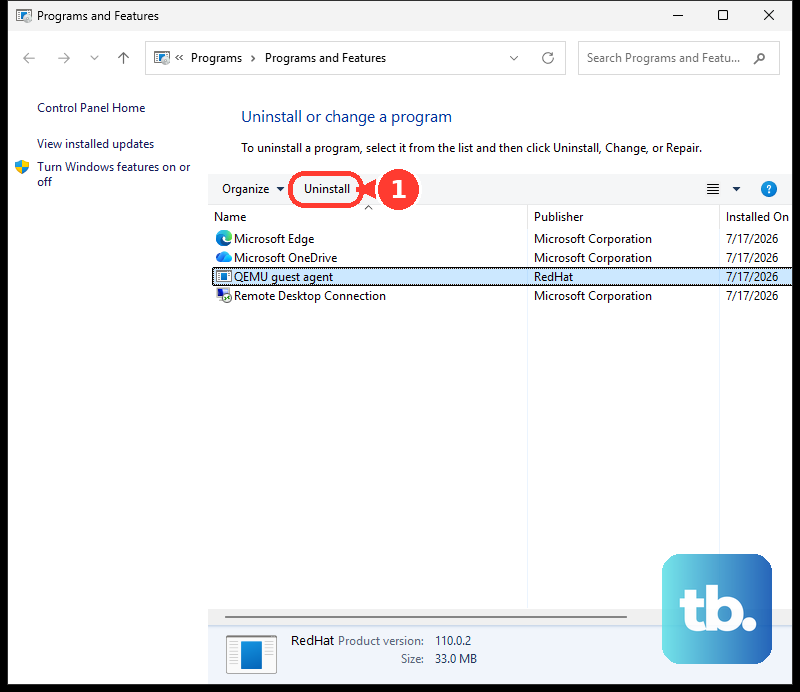
When an app will not uninstall from Settings, search the taskbar for Control Panel, then open Programs and Programs and Features. Right-click the program, choose Uninstall or Uninstall/Change, and follow the prompts.
Free space and repair Windows system files
Windows needs free space to operate and install updates. Microsoft recommends keeping roughly 10% to 15% free space available.
Open Start, go to Settings, choose System, then open Storage. Turn on Storage Sense, then select Cleanup recommendations. Review the suggested files and choose Clean up.
If Windows Update is failing, open Start, go to Settings, select System, then Troubleshoot, then Other troubleshooters. Under Most frequent, choose Run next to Windows Update, restart when it finishes, then return to Windows Update and select Check for updates.
For possible system file damage, open an elevated Command Prompt. Type DISM.exe /Online /Cleanup-image /Restorehealth and press Enter, and wait for it to finish. Then type sfc /scannow and press Enter. Leave the window open until verification reaches 100%.
Check memory and built in hardware diagnostics
Use these checks when the crash returns after software fixes, or when the stop code points toward memory.
- 1.Save your work, close apps, press Windows + R, enter mdsched, choose OK, then select Restart now and check for problems (recommended).
- 2.For a longer memory test, press F1 on the Windows Memory Diagnostic screen, set Test Mix to Extended with the arrow keys, then press F10.
- 3.After Windows starts again, right-click Start, open Event Viewer, then go to Event Viewer (Local), Application and Services Logs, Microsoft, Windows, MemoryDiagnostics-Results, and Debug to view results.
- 4.On a Dell PC, turn it on, press F12 repeatedly at the Dell logo, choose Diagnostics, and record the error code, validation code, and Service Tag if a test fails.
- 5.On supported ASUS PCs, open MyASUS, select System Diagnosis, run All under Customized diagnosis, then run Blue screen error if no hardware issue is found.
- 6.On Lenovo PCs, use Lenovo Diagnostic Solutions and choose the recommended hardware diagnostic path for your model.
Repair startup or undo a bad update
The most common cause here is a crash loop that began after Windows changed something during startup or an update.
Open Windows Recovery Environment using Settings, the Shift plus Restart method, or the forced Automatic Repair startup method described above.
Choose Troubleshoot, then Advanced options, then Startup Repair, then Restart. Windows may ask for your BitLocker recovery key before it continues.
If the blue screens began after an update, open Settings, go to Windows Update, select Update history, then choose Uninstall updates under Related settings. Select the update and choose Uninstall.
When Windows will not stay open long enough, use Windows Recovery Environment instead. Select Troubleshoot, then Advanced options, then Uninstall Updates, and choose Uninstall latest quality update or Uninstall latest feature update. Some updates cannot be uninstalled.
Use restore or reset as the last repair
Use these options when the blue screens keep coming back after driver, app, update, storage, and hardware checks. They change more of Windows, so treat them as last repairs before a clean reinstall.
Try Point-in-time restore first when your PC offers it, because it gives a more comprehensive recovery. Use System Restore when Point-in-time restore is unavailable, or when you need a restore point older than its 72 hour retention window. Open Control Panel, choose Recovery, select Open System Restore, choose Next, pick a restore point, optionally select Scan for affected programs, then choose Next and Finish. From Windows Recovery Environment, use Troubleshoot, Advanced options, and System Restore.
On Windows 11 systems with Point-in-time restore available, open Settings, System, Recovery, then Point-in-time restore to view or edit the feature. Only local administrators can view or change Point-in-time restore settings, so sign in as an administrator or supply administrator credentials. From Windows Recovery Environment, choose Troubleshoot, then Point-in-time restore, enter the BitLocker recovery key if prompted, select a restore point, then choose Continue and Restore.
On Windows 11 version 22H2 or later with the February 2024 optional update or a later update installed, use Fix problems using Windows Update before resetting. The option does not appear on work or school PCs whose updates are managed by an organization. Open Settings, go to System, select Recovery, then choose Reinstall now. This reinstalls the current Windows version while preserving apps, files, and settings.
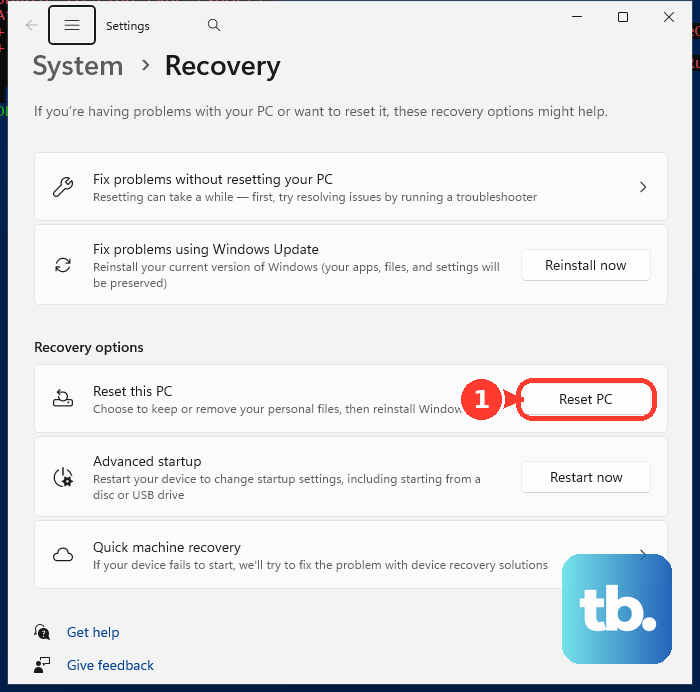
If that is not available or does not work, open Settings, go to System, select Recovery, then choose Reset PC under Recovery options. From Windows Recovery Environment, choose Troubleshoot, then Reset this PC. Follow the reset options carefully.
A full reinstall from Windows 11 installation media is the final option. Create installation media on a working PC, start the broken PC from that media, select your language and keyboard settings, choose Install Windows 11, confirm that files, apps, and settings will be deleted, and continue setup. If Windows was already activated and asks for a product key, choose I don't have a product key.
Older guides that rely on repeatedly pressing F8 for Safe Mode or opening legacy MSDT troubleshooters are outdated for current Windows 11 troubleshooting. Use Windows Recovery Environment, Startup Settings, Settings troubleshooters, and the Get Help app.
For work or school computers, your organization controls some recovery, driver, update, and reset options. If Windows asks for a BitLocker recovery key, use the Microsoft account recovery key page for a personal PC or the work or school account recovery key page for an organization device; contact IT when the key is not available to you.
Frequently Asked Questions
Why is my computer blue screening again and again?
Repeated blue screens usually point to a recurring trigger: newly connected hardware, a bad or recently changed driver, a problematic app, a Windows update issue, low free space, file system trouble, or memory errors.
Can I ignore one blue screen?
Yes. If Windows restarts normally and the stop code does not return, restart once and keep using the PC normally.
What should I do if Windows blue screens before I can sign in?
Open Windows Recovery Environment. Hold Shift while choosing Power and Restart from the sign-in screen, or force Automatic Repair by interrupting startup twice and turning the PC on a third time.
Will Reset this PC delete everything?
Reset this PC asks you to choose reset options before it proceeds. A clean reinstall from Windows 11 installation media deletes personal files, apps, OEM customizations, and settings changes.