A Windows 11 update can leave your computer slow at startup, sluggish when opening apps, or busy in the background long after the restart. Start with the fixes that finish update work and clear the biggest bottlenecks. Then move through drivers, storage, startup load, sync activity, and recovery options.
Finish pending Windows update work
This fixes update work that is stuck halfway or waiting for a restart.
Open Start, go to Settings, then select Windows Update.
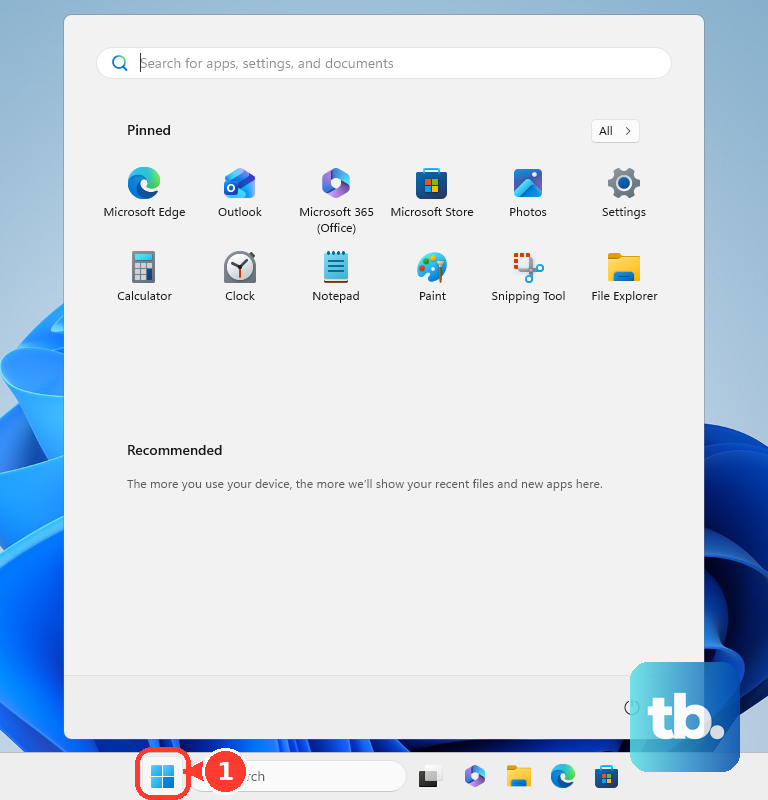
Select Check for updates.
If updates appear, select Download & install.
When Windows asks for a restart, open Start, select Power, then choose Update and restart or Update and shut down.
Install optional driver updates
Use this when the slowdown started right after the update and hardware feels off, such as laggy graphics, slow Wi-Fi, or poor touchpad response. Windows shows optional drivers only when they match your device.
Open Start, then go to Settings, Windows Update, and Advanced options.
Turn Receive updates for other Microsoft products on.
Under Additional options, select Optional updates.
Select the listed updates, then choose Download & install.
Right-click Start, then select Shutdown or sign out and Restart.
Run the Windows Update troubleshooter
Windows 11 includes repair tools for update installation and servicing problems. Start with the automated Windows Update flow in Get Help.
Open the Get Help app from the Windows Update troubleshooter link, describe the update problem, and follow the guided flow.
You can also open Start, go to Settings, System, Troubleshoot, and Other troubleshooters. Locate Windows Update, select Run, then follow the on-screen instructions.
Free up storage on the system drive
Open Start, then go to Settings, System, and Storage.
Select Storage Sense, then choose Run Storage Sense now.
Return to Storage, open Cleanup recommendations, and review Temporary files, Large or unused files, Files synced to the cloud, and Unused apps.
Select the items you want to remove.
Select Clean up for each section you are clearing.
To remove old upgrade files, open Temporary files, check Previous Windows Installation(s), and select Remove files.
Only remove Previous Windows Installation(s) after you decide against using Go back to return to the previous Windows version.
Cut down startup apps
Microsoft lists too many startup apps running in the background among the causes of a slow PC, and that load shows up hardest right after a post-update reboot.
Press Ctrl + Shift + Esc to open Task Manager.
Select Startup apps.
Right-click an app you do not need to launch with Windows, then select Disable.
On the Processes tab, right-click an app you are not using, then close or end it.
For an app that keeps running in the background, open Start, go to Settings, Apps, and Installed apps.
Select More options, choose Advanced options, then set Let this app run in the background to Never.
Change performance settings
Use these settings to make Windows feel lighter after the update.
- 1.Open Start, type Adjust the appearance and performance of Windows, open it, choose the Visual Effects tab, then select Adjust for best performance.
- 2.Go to Start, Settings, System, and Power & battery, then set Power mode to Best performance.
- 3.Open Start, type Defragment and Optimize Drives, open it, select your drive, then select Optimize.
- 4.Open Start, go to Settings, Privacy & security, Windows Security, and Virus & threat protection, then select Quick scan.
Pause OneDrive or browser background load
Right-click the OneDrive icon on the taskbar.
Select Pause syncing, then choose 2 hours, 8 hours, or 24 hours.
To restart syncing later, press the Windows key, type OneDrive, and select the OneDrive app.
To reduce local disk use from synced files, open File Explorer, right-click a OneDrive file or folder, and select Free up space.
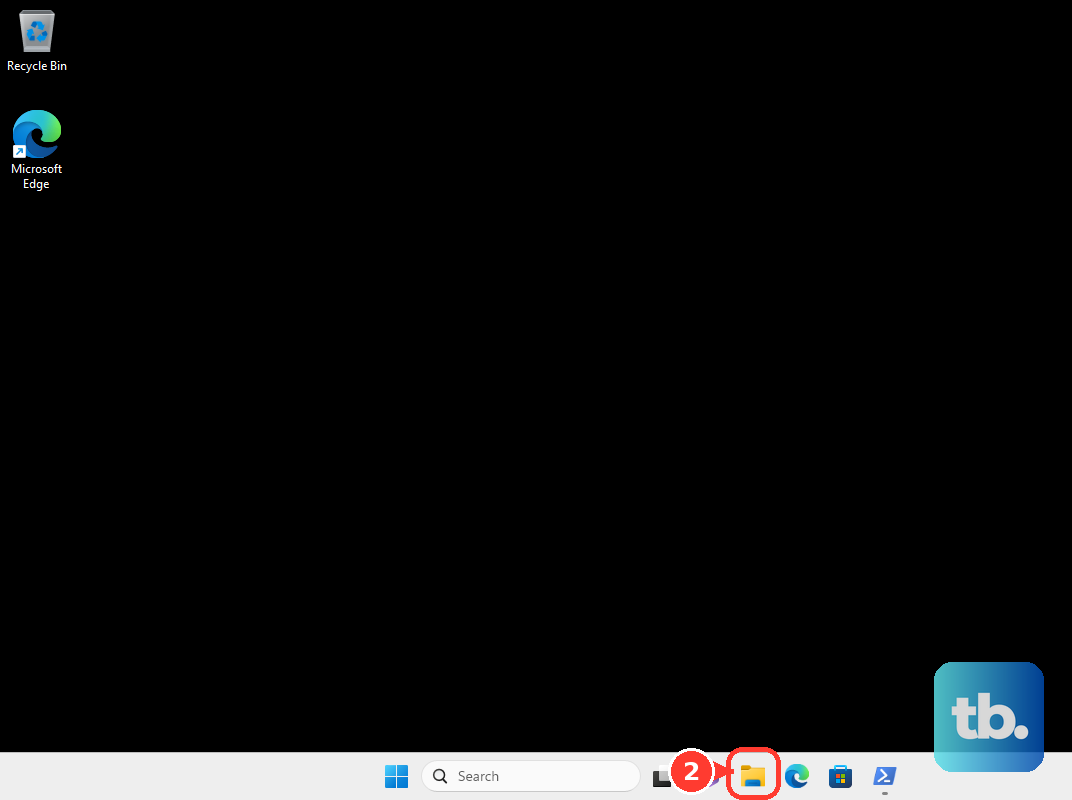
In Microsoft Edge, open Settings and more, then Settings, System and performance, and Performance.
Turn Automatically put tabs to sleep on.
Choose a time under Put inactive tabs to sleep after a set time.
If Edge installed apps are starting with Windows, open edge://apps, select Details on the app card, and turn off Auto-start on device login.
These changes are easy to reverse, so try them before removing apps or rolling back updates.
Undo a bad update carefully
Use this when the slowdown clearly began after one Windows update and the earlier fixes did not help. Repair the current Windows version before removing a security update.
Open Start, go to Settings, System, and Recovery.
Under Fix problems using Windows Update, select Reinstall now. This repair needs Windows 11 with the 2022 annual update plus the February 2024 optional update or later, and Microsoft does not offer it on devices whose updates are managed by an organization, so skip to the next step if you do not see it.
Choose whether to allow automatic restart 15 minutes after installation completes, then select OK.
To remove an update from Windows, open Start, go to Settings, Windows Update, Update history, and Uninstall updates.
Select the update, then select Uninstall.
If the slowdown followed a major version upgrade, open Settings, System, and Recovery.
Select Go back when that option appears; it usually appears only within 10 days and only while the required upgrade files remain.
Do not use wusa /uninstall for current combined Windows 11 servicing stack and cumulative update packages. Use Uninstall updates, Windows Recovery Environment, or advanced DISM /Remove-Package removal when package removal is supported.
Use restore or reset only as a last resort
This fixes deeper Windows problems when normal performance steps do not bring the PC back.
Microsoft says to try Point-in-time restore first where it is available, because it gives a more complete recovery. It is already on by default on unmanaged Windows 11 PCs, and its restore points are kept for 72 hours. To check it, open Settings, go to System and Recovery, select Point-in-time restore, choose View or edit, select Yes at User Account Control, then set the toggle to On.
Use System Restore when Point-in-time restore is not available, or when you need to go back further than 72 hours.
Open Control Panel, select Recovery, then choose Open System Restore.
Select Next.
Choose a restore point.
Select Scan for affected programs if you want to review affected apps and drivers.
Select Next, then choose Finish.
If Windows will not load normally, use Windows Recovery Environment, then select Troubleshoot, Advanced options, and System Restore.
In that same environment you can instead select Troubleshoot and Point-in-time restore, enter your BitLocker recovery key if prompted, choose a restore point, select Continue, then confirm and select Restore.
For a full reset, open Settings, System, and Recovery.
Under Recovery options, select Reset PC.
Choose Keep my files or Remove everything, then follow the on-screen instructions.
On a work or school PC, ask IT before changing recovery, update rollback, or repair settings controlled by your organization.
Frequently Asked Questions
Why is my computer slow after a Windows 11 update?
Common causes include pending update work, optional drivers waiting to install, low disk space, startup apps, background app activity, OneDrive syncing, or a specific update that needs repair or removal.
Should I delete Previous Windows Installation(s)?
Only delete it after you decide against returning to the previous Windows version. Removing it frees space, but it prevents using Go back.
Can I pause Windows updates after a bad update?
Yes. In Windows 11, go to Settings, then Windows Update, and use the Pause updates control to pick a date. The pause is temporary and lasts up to 35 days from the current date.
Will Reset this PC delete my files?
Reset this PC offers choices such as Keep my files or Remove everything. Back up important files first because apps and settings are removed depending on the option you select.