A computer audio jack that stops working usually comes down to a loose plug, the wrong output device, muted app audio, blocked microphone access, or a driver problem. Start with the fastest physical checks, then move through the sound settings that control where audio plays and records.
Start with the plug and speakers
This fixes loose plugs, unpowered speakers, low hardware volume, and a bad headset or port.
Push the 3.5 mm plug fully into the jack that matches the device. Headphones and speakers go in the Headphone, Line-out, or Speaker jack, and a separate external microphone goes in the Microphone or Mic In jack. A headphone plug does not work in a microphone jack.
Plug a single-connector headset into a combo Headset jack, which carries the headphone and microphone signals together. On desktops, Line Out is typically green and Mic In is typically pink. Jack layouts vary by model, so check your model's user manual when the panel has several jacks.
Turn powered speakers on and connect them to power.
Raise the hardware volume on the headphones, headset, or speakers.
Test a different headset or speaker in the same jack.
Try another jack or port on the computer, including the rear jack on a desktop when the front jack fails.
Pick the right Windows output
On Windows 11, open Start, then Settings, then System, then Sound. Under Output, select the headphones or speakers connected to the audio jack, clear Mute, and raise the volume slider.
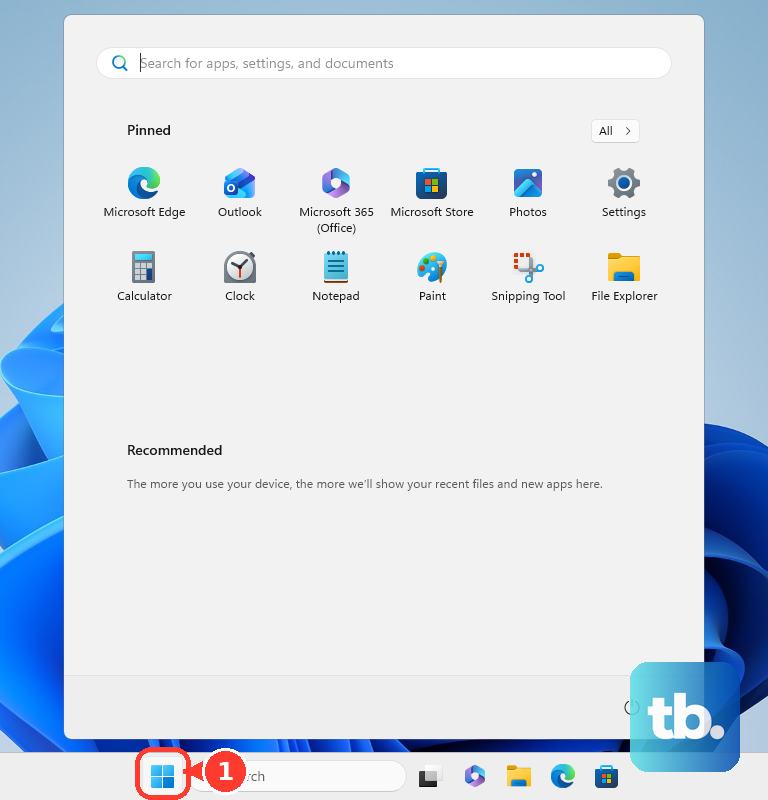
For the faster route, right-click or select and hold the Speakers icon on the taskbar. Select the arrow beside the speaker volume slider, then choose the wired headphones or speakers.
When apps keep playing through another device, set the jack device as the default. Go to Start, then Settings, then System, then Sound, then More sound settings, then Playback, right-click the device, and choose Set as default.
Use Windows tools for missing or app-only sound
When Windows does not show the jack or one app stays silent, check these controls next.
Open Start, then Settings, then System, then Troubleshoot, then Other troubleshooters, go to Audio, and select Run.
Run the automated Audio troubleshooter in the Get Help app when Windows sends you there.
Open Start, then Settings, then System, then Sound, then Volume mixer, and check the affected app under Apps.
Set the correct Output device for the app, then raise its volume and clear mute.
Open Device Manager, expand Sound, video and game controllers, and choose Enable device when that option appears.
If the device is missing, select View, then Show hidden devices, then Action, then Scan for hardware changes.
Turn off enhancements and change the format
This fixes quiet, distorted, crackling, or silent wired audio caused by processing or format problems.
Open Start, then Settings, then System, then Sound.
Under Output, select the audio device connected to the jack.
Select Audio enhancements and turn enhancements off.
Test the headphones or speakers again.
For distorted or crackling sound, select Advanced, then choose a different option under Default format.
Play audio again after changing the format.
Refresh the Windows audio driver
Start driver repair with Windows Update. Open Start, then Settings, then Windows Update, select Check for updates, install available updates, and restart your PC.
Next, use Device Manager. Open Device Manager, expand Sound, video and game controllers, right-click the audio device, then select Update driver, then Search automatically for drivers.
For a corrupted driver, reinstall it from Device Manager. Right-click the audio device, select Uninstall device, confirm the uninstall, and restart your PC so Windows reinstalls the audio driver automatically.
For model-specific drivers, use the PC or sound-card maker's support site. Dell, HP, Lenovo, and ASUS provide driver download pages where you identify your exact model and install the listed audio driver for that Windows version.
Check Realtek jack detection on supported PCs
This method applies to Windows PCs that include Realtek Audio Console, including current ASUS Realtek systems. Use it when the computer does not react after you plug into the jack.
Type Realtek Audio Console in desktop search and open the app.
Select Device advanced settings, then turn Enable Jack detection when device is plugged in on.
Plug the device into the audio jack, select the correct audio device when prompted, then click OK.
On ASUS motherboard systems, open Realtek Audio Console AP, click Device advanced settings, and confirm that Front Speaker Out or Headphone is detected for the jack you are using.
Skip older Realtek HD Audio Manager connector-retasking instructions. Current verified ASUS guidance uses Realtek Audio Console and Device advanced settings.
Fix headset microphone access
If headphones play sound but the headset microphone does not record, permissions are the next place to check.
On Windows 11, open Start, then Settings, then Privacy & security, then Microphone, and turn on Microphone access.
Turn on Let apps access your microphone, then allow the apps that need the headset mic.
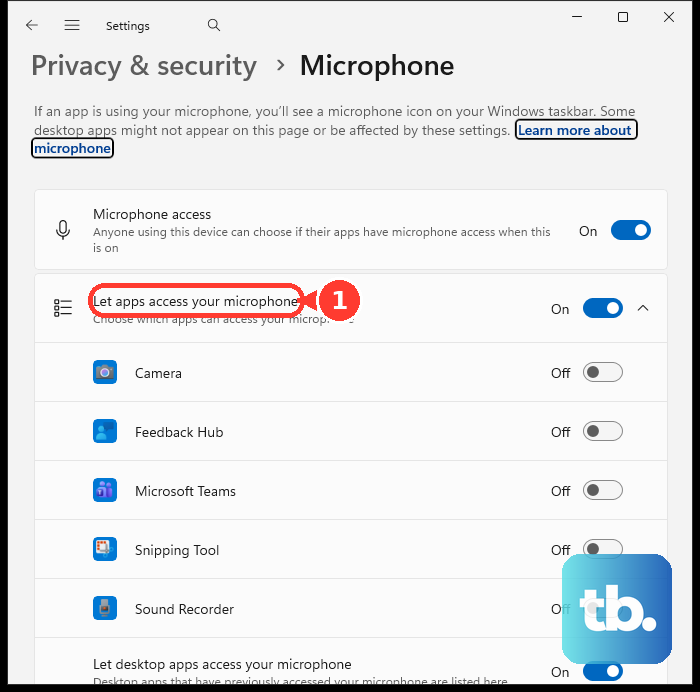
Turn on Let desktop apps access your microphone for desktop apps.
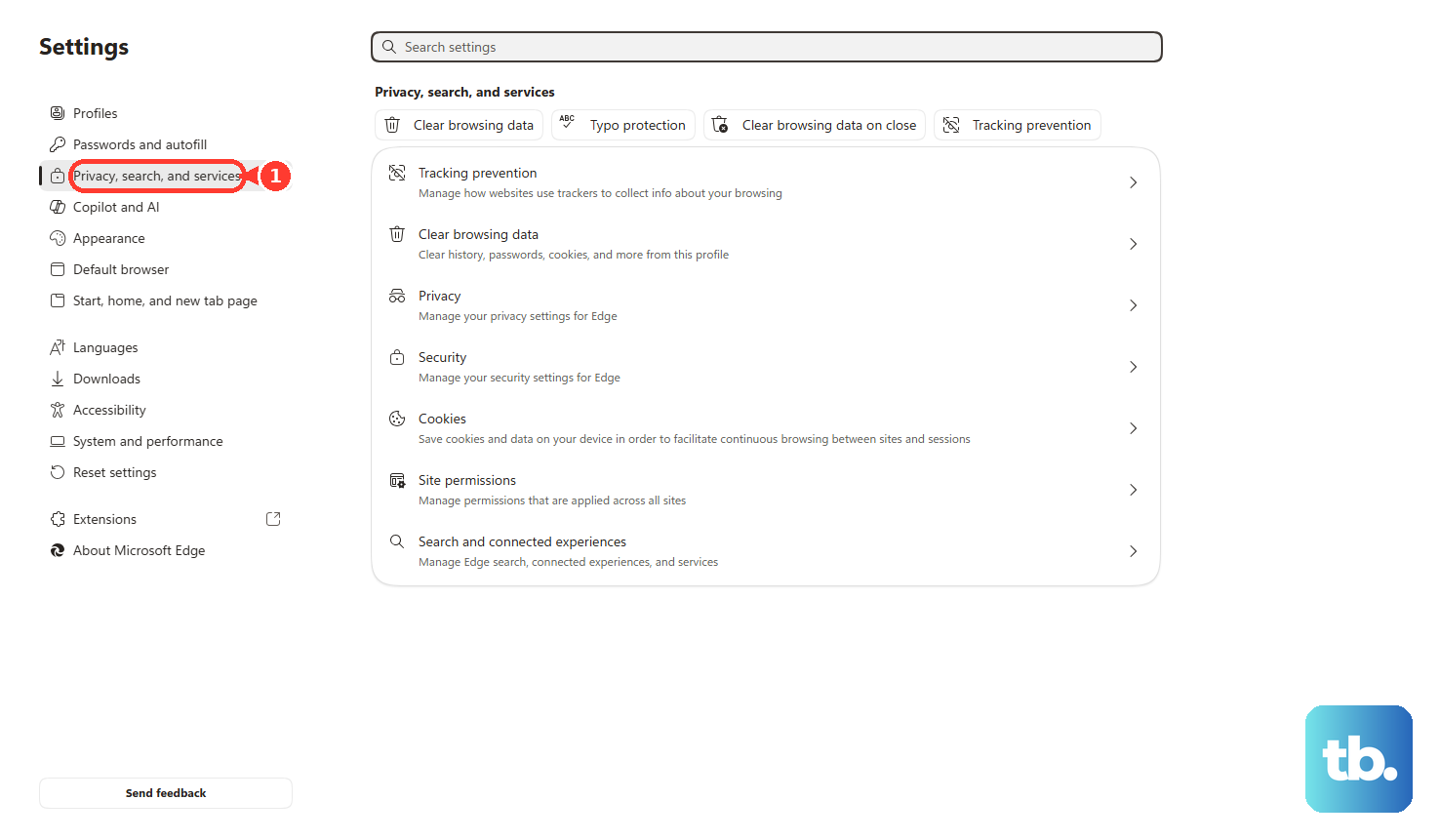
In Microsoft Edge, allow the microphone when the site asks, or change the saved choice under Settings and more, then Settings, then Privacy, search, and services, then Site Permissions, then All sites.
In Chrome, open Settings, then Privacy and security, then Site settings, then Microphone, and allow the site that needs the mic.
In Firefox, use the site's permission prompt, or open Settings, then Privacy & Security, then Permissions, then Microphone, then Settings, choose the site permission, and select Save Changes.
Set sound correctly on Mac
Open Apple menu, then System Settings, then Sound.
Click Output, then select Headphones for a device plugged into the computer's sound port.
Adjust Output volume, clear Mute, and adjust Balance.
Use the Mac volume keys, Control Center, the Sound menu bar control, or the app's own volume control to raise sound.
For a wired headset microphone or supported external input device, click Input in Sound and select the device you want to use.
To allow an app or website to use the mic, open Apple menu, then System Settings, then Privacy & Security, then Microphone, and enable the app or website.
For high-sample-rate playback issues, connect the device, open Audio MIDI Setup in Applications, then Utilities, select External Headphones, and choose a sample rate from Format.
The built-in high-quality hardware DAC that handles sample rates up to 96 kHz is limited to iMac introduced in 2023 or later, MacBook Air introduced in 2022 or later, MacBook Pro introduced in 2021 or later, Mac mini introduced in 2023 or later, Mac Studio introduced in 2022 or later, and Mac Pro introduced in 2023.
Tip: match the sample rate to the source material for the best result.
Run Ubuntu and work device checks
On Ubuntu, open the Activities overview, type Sound, click Sound, select the correct Output Device under Output, and click Test. For one silent app, check Volume Levels and make sure the app is not muted.
If Ubuntu shows no audio device, open Terminal from Activities and run lspci to identify the sound card. Install the correct driver for that hardware type when the driver is not installed.
On work or school computers, administrators control microphone access, browser microphone prompts, and audio device installation. Ask your IT team to check device or microphone restrictions.
If this method fails, test the headset or speakers on another computer and test another wired audio device on this computer. When the same jack fails with multiple working devices, focus on the computer's audio jack, audio hardware, or model-specific driver path.
Frequently Asked Questions
Why does sound still come from my laptop speakers when headphones are plugged in?
Windows or macOS is using the built-in speakers as the output device. Select the wired headphones in system sound output settings, then set them as the default playback device on Windows when apps keep choosing another output.
Why do my headphones work but the microphone does not?
Output and microphone input are controlled separately. Check microphone privacy access, allow the app or website to use the microphone, and choose the correct input device in Windows, macOS, or the meeting app.
Should I download an audio driver from a third-party driver site?
Use Windows Update first, then Device Manager, then the official support page for your PC or sound-card maker. The verified repair path uses official manufacturer driver sources.
Is Windows 10 handled the same way?
Many sound settings are similar, but Windows 10 consumer support ended on October 14, 2025. Current consumer troubleshooting should follow Windows 11 paths when available.