The name on your Windows sign-in screen doesn't always match your login username or Microsoft account email. The quickest way to find your Windows username is to run whoami, which identifies the account running your current session. Start there for your Windows login name, use Settings for your account email, or use Microsoft's recovery page if you cannot sign in.
Find your current username with whoami
This identifies your Windows login account on Windows 11 and Windows 10 outside S mode.
Press Windows+R to open Run under your own account. Administrator elevation is unnecessary; using another administrator's credentials identifies that administrator instead.
Enter cmd and press Enter to open Command Prompt.
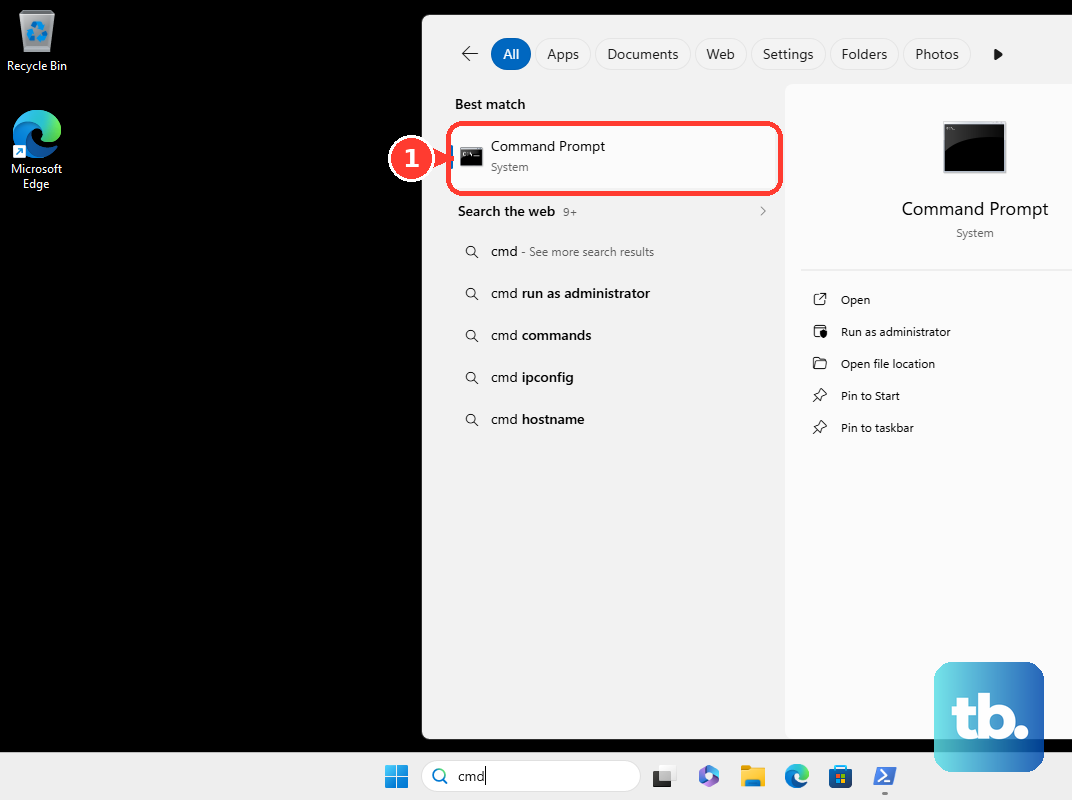
Run whoami by typing it and pressing Enter. It works with local, Microsoft-account-connected, and organizational accounts.
Read the result as COMPUTERNAME\username or DOMAIN\username. The part after the backslash is your username; the part before it identifies the computer or domain.
In S mode, use Settings to inspect your displayed account identity with the method below. Microsoft lists Command Prompt and PowerShell as blocked in Windows 10 in S mode, and Windows 11 in S mode doesn't support some developer tools.
Check your account name and email in Settings
Settings answers a different question: which account identity and account type does Windows display? For a Microsoft account, the associated email identifies the online account. A displayed full name does not establish your short Windows username.
Press Windows+I to open Settings.
Select Accounts.
Open Your info.
Read the displayed account identity and account type.
If Settings shows a full name or email when you need the short Windows username, run whoami in Command Prompt outside S mode.
Read the username in Command Prompt
Use this alternative for the username without its computer or domain prefix on Windows 11 or Windows 10 outside S mode.
- 1.Press Windows+R to open Run.
- 2.Enter
cmdand press Enter. - 3.Run
echo %USERNAME%and read the returned username. - 4.For the computer or domain qualifier too, run
echo %USERDOMAIN%\%USERNAME%. - 5.Confirm an unexpected result with
whoami. The echo commands read environment variables, whose values can be overridden. - 6.If you are using PowerShell, run
$env:USERNAMEinstead. This also reads an environment value; the percent-sign syntax above belongs to Command Prompt.
Resolve names that do not match
A common cause of confusion is comparing a display name or profile-folder name with the actual Windows login username.
Run whoami in Command Prompt to identify the account running your session. Names shown in Start, on the sign-in screen, and in Settings are not reliable substitutes for that login identity.
Run net user in Command Prompt to list local account usernames. This list does not identify which account is currently signed in.
Run net user "accountname", replacing accountname with the local account you want to inspect.
Compare its User name and Full Name fields to distinguish the account username from its full name.
Treat a path such as C:\Users\foldername as a clue only. A profile folder can retain an old name after account changes, so its name does not establish your present username.
Identify a work or school account
Use this method when you need an organization's short domain username or email-style sign-in identifier. A connected work account does not necessarily identify the account used to sign in to Windows.
Run whoami in Command Prompt under your own account to read your current Windows identity.
For an Active Directory account, run whoami /upn to request its user principal name, normally formatted as [email protected]. This lookup requires a corresponding directory identity; it is not a dependable lookup for local or personal Microsoft accounts.
If the command fails and you need your organization's sign-in identifier, ask your IT team to provide it.
Recover a Microsoft account name before signing in
This helps you recognize a forgotten Microsoft account address, not a local Windows username.
Inspect the selected account's name on the Windows sign-in screen. A display name alone does not establish the short login username.
On another computer or phone, open Microsoft's username recovery page.
Enter a security-contact email address or phone number associated with your Microsoft account.
Request the security code.
Enter the code you receive.
Select Next to view the masked username hint Microsoft returns.
Use that hint to recognize your Microsoft account address.
Once you are signed in to Windows, run whoami in Command Prompt if you also need the Windows login username, provided the PC is outside S mode.
Frequently Asked Questions
Can PowerShell show my Windows login identity directly?
Yes. In an open PowerShell session outside S mode, run [System.Security.Principal.WindowsIdentity]::GetCurrent().Name. It returns the Windows security identity of the account running the command, including its computer or domain qualifier.
Can I check my Microsoft account's email aliases from another device?
Yes. In a browser signed in to the relevant Microsoft account, open https://account.live.com/names/manage to read its associated email aliases. These identify the online Microsoft account, not its local Windows username.
Does a console-user lookup identify my Remote Desktop account?
No. The PowerShell command (Get-CimInstance Win32_ComputerSystem).UserName reports the user signed in at the physical console. For the account running your command in a Remote Desktop session, use whoami.
Do I need to install anything or reset my password to find my username?
No. The username checks here require no download, installation, password reset, account removal, or profile deletion.