Your PC is asking for a 48-digit BitLocker recovery key, and you cannot get into Windows without it. If the key was backed up to your Microsoft account, you can retrieve it from another phone, tablet, or computer. Start with the direct lookup below, then check the other accounts and backup locations if yours comes up empty.
Find your key on the Microsoft account recovery page
On another device, open Microsoft’s recovery-key page. The full address is account.microsoft.com/devices/recoverykey, and no download or installation is required.
Sign in to the Microsoft account holding your backup. Match the first eight characters of the recovery key ID on the locked PC with the corresponding Key ID in your account.
Enter the associated 48-digit recovery key on the locked PC. The key ID identifies the backup; it is not the number that unlocks the drive.
This works for Windows 11 and Windows 10, including Home PCs using Device Encryption, when the key was previously backed up to that account. If no matching key appears, check the recovery-screen account hint and the account of whoever originally configured or encrypted the PC. Both routes are below.
Reach the same keys through your device dashboard
Open account.microsoft.com and sign in to your personal Microsoft account. Select Devices and choose the affected device.
Select View details, then choose Manage recovery keys. Complete identity verification if prompted. Match Key ID with the recovery key ID on the locked PC. Enter the associated 48-digit recovery key on that PC, and use the key ID to distinguish between backups when your account contains several keys.
Use the account hint to identify the right sign-in
The recovery-screen hint identifies the Microsoft account holding your key.
Read the account hint on the BitLocker recovery screen. Windows 11 version 24H2 and later displays this hint when the recovery password was saved to a Microsoft account.
Open Microsoft’s recovery-key page on another device and sign in to the account indicated by the hint. Match the listed Key ID with the recovery key ID on your locked PC. Enter the corresponding 48-digit key on the locked PC.
Check the account of whoever set up your PC
If someone else originally configured the device or enabled BitLocker, check their Microsoft account for the backup. An empty key page in your own account does not rule out a backup in theirs.
Ask that person to open Microsoft’s recovery-key page and sign in to their Microsoft account. Ask them to match the saved Key ID with the recovery key ID on your locked PC. Enter the associated 48-digit recovery key on the locked PC.
Restore account access when you cannot sign in
Open Microsoft’s sign-in helper and enter the account’s email address or mobile number. Follow the account-access instructions the helper provides. Once you can sign in, return to Microsoft’s recovery-key page. The sign-in helper addresses account access; it does not generate a BitLocker recovery key.
Look for a saved file, printout, or USB backup
A previously saved recovery-key text file on another drive or device is readable in a text editor such as Notepad. Match its identifier with the recovery key ID on the locked PC before entering its 48-digit number.
A file manually stored in OneDrive’s Personal Vault is available through OneDrive on the web or the OneDrive app for Windows, Android, or iOS after sign-in and identity verification. On a Mac, use OneDrive in a browser, because the Mac app doesn’t support Personal Vault. Open the saved file inside Personal Vault. Automatic Microsoft account backups are accessed through the recovery-key page; they do not imply that a OneDrive file exists.
A printed backup belongs among the papers saved when encryption was activated. Match its printed identifier with the recovery key ID on the PC before entering the associated number.
Connect a previously created recovery USB drive to the locked PC. Follow the instructions shown on that PC. If the USB backup is a text file, read it on another device instead.
Retrieve a work or school account backup
This retrieves keys stored with your organization, subject to its access permissions. On another device, open the work or school recovery-key portal. Sign in with your work or school account.
Select Devices, expand the affected device, and select View BitLocker Keys. Match the key ID with the recovery key ID on the locked PC. Enter the matching recovery key on that PC. Contact IT if your organization’s permissions prevent you from viewing the key.
Save an account backup while Windows is accessible
For future retrieval, use this route while Windows and the drive remain accessible; the full Manage BitLocker interface is available on Windows 11 and Windows 10 Pro, Enterprise, and Education editions.
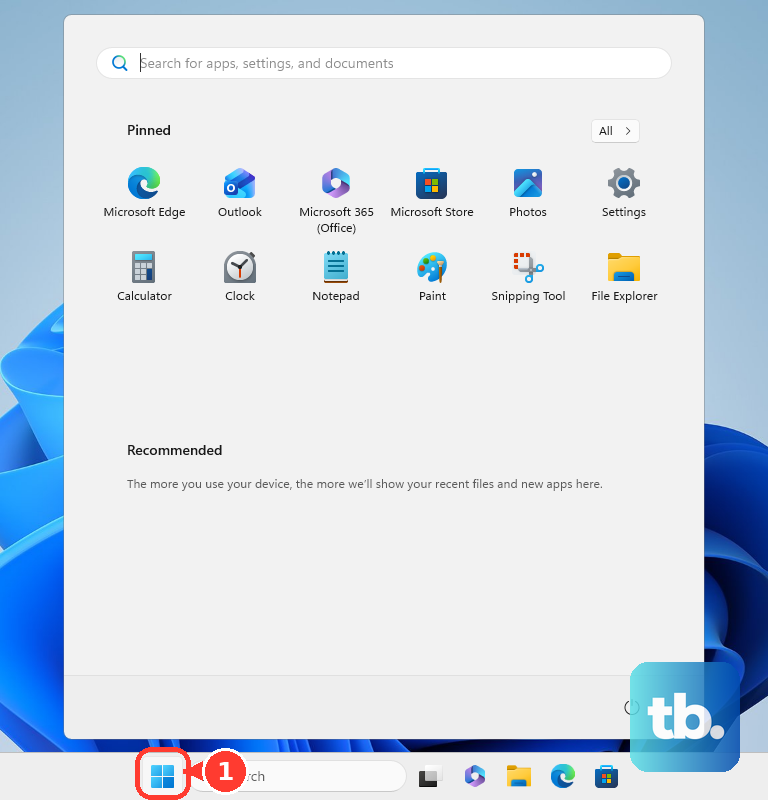
- 1.Open Start and search for BitLocker.
- 2.Select Manage BitLocker.
- 3.Beside the relevant drive, select Back up your recovery key.
- 4.Choose Save to your Microsoft Account. On a PC managed by your work or school, this option may read Save to your Azure AD account instead; that saves the key with your organization rather than your personal Microsoft account.
- 5.Select Finish.
- 6.Check Microsoft’s recovery-key page to confirm the backup is in your account. For a work or school backup, check the work or school recovery-key portal or contact IT instead.
Understand your options when no backup turns up
Your Microsoft account can return a key only if a backup was saved there. Uploading an existing key requires access to the PC and drive, so the backup steps above cannot recover an already locked drive without its key.
Microsoft Support cannot recreate a lost recovery key. Disabling encryption, uninstalling software, and resetting Windows are not key-finding methods.
If account lookup still fails, check the original setup person’s account and any saved file, printout, or USB backup. If no backup exists and the change that triggered recovery cannot be undone, Microsoft’s remaining route is to reset the device, which removes files.
Frequently Asked Questions
Does Device Encryption save the recovery key automatically?
On an eligible PC, first setup or sign-in with a Microsoft account automatically associates the Device Encryption recovery key with that account. Retrieve it through that account’s recovery-key page.
Can Command Prompt or PowerShell retrieve the key from my personal Microsoft account?
No. With appropriate permissions, these tools can display an existing recovery-password protector for an accessible drive. They do not query personal Microsoft account backups or bypass a locked drive.
Can I retrieve my work PC’s key through Company Portal?
Yes, for an organization-encrypted Windows device enrolled in Intune, with permission to view its key. Sign in at https://portal.manage.microsoft.com and select Devices, the locked PC, Get recovery key, then Show recovery key. The key disappears after five minutes and can be displayed again.