Finding someone on WhatsApp starts with a match WhatsApp can actually use: a saved phone number, exact username, QR code, shared group, business listing, or channel. If the person is not showing up, the fix is usually a cleaner contact entry, the right permission, or a different lookup method. Start with contacts first, then move through the options that do not require saving a number.
Start with your phone contacts
Install or update WhatsApp from the official WhatsApp download page before you troubleshoot contact discovery.
Save the person in your phone's Contacts app with the full phone number, including the country code for international numbers.
Open WhatsApp and go to Chats.
Tap New chat, then search for the saved name or select the contact from the list.
If the number belongs to a WhatsApp account, open the chat from the result.
Tip: if the person uses a phone number from another country, save it in full international format so WhatsApp can match it.
Search inside WhatsApp
Use WhatsApp search when you already have a saved contact, phone number, or exact username.
- 1.Open WhatsApp, go to Chats, and tap New chat.
- 2.Tap the search bar.
- 3.Enter the person's name, phone number, or exact username.
- 4.Tap the matching result to start a chat or call.
Fix missing contacts on Android
A common cause is that WhatsApp does not have permission to read your contacts.
Open Android Settings.
Go to Apps, choose WhatsApp, open Permissions, tap Contacts, and choose Allow.
On some Android phones, use Settings, then Security & Privacy, Privacy, Permission manager, Contacts, WhatsApp, and Allow.
Reopen WhatsApp, go to Chats, tap New chat, and search for the person again.
Set iPhone contact access correctly
On iPhone, WhatsApp shows only the contacts that iOS allows it to access. Open Settings, go to Privacy & Security, tap Contacts, choose WhatsApp, and select the contacts access level.
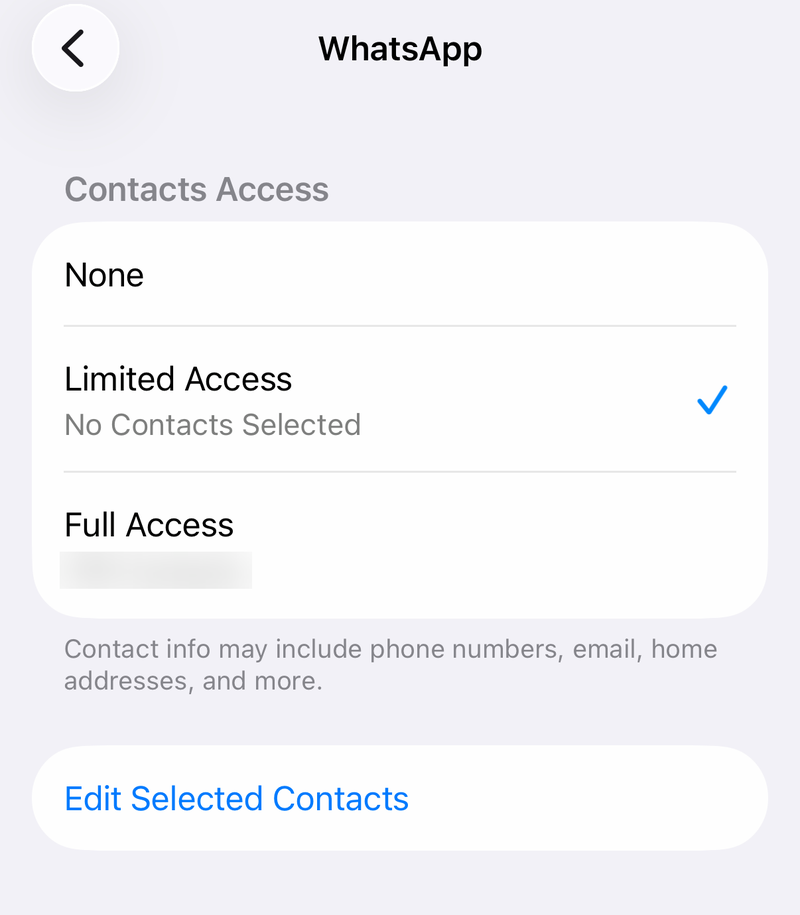
If you use Limited Access, tap Edit Selected Contacts, select the people you want WhatsApp to see, then tap Done.
If this method fails, save the person again with the full phone number and country code, then search from Chats and New chat.
Add someone without leaving WhatsApp
You can create a new contact inside WhatsApp. Open Chats, tap New chat, choose New contact, enter the person's name and phone number, then tap Save on Android or Done on iPhone.
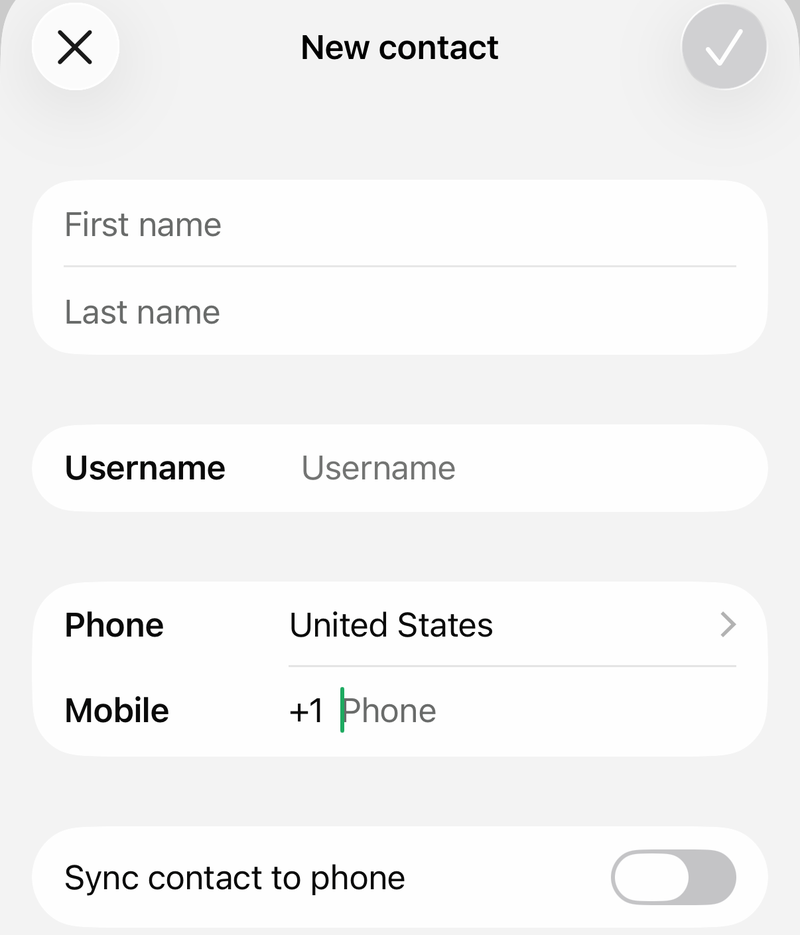
For international numbers, include the country code. After WhatsApp saves the contact, select that contact to start chatting.
WhatsApp Web and Windows desktop also support adding contacts through WhatsApp's contact-management flow. Use that option when you are already working from a linked computer.
Find someone by username
Usernames are rolling out gradually, so the feature might not be available to you yet. Username search works when the other person has a username and you know their full, exact username, because WhatsApp has no searchable username directory. It lets you contact someone without saving a phone number.
Some people protect their username with a username key. If they have one, WhatsApp asks for it the first time you contact them, and you can't reach them by username without it, so ask for the key along with the username. You don't need the key if you already have their phone number saved, you've chatted before, you share a group, you scanned their QR code, or they messaged you first.
Open WhatsApp and tap New chat in Chats, or the new call button in Calls.
Tap the search bar, type the exact username, and tap the result to start a chat or call. If WhatsApp asks for a username key, enter it to continue.
To add a username from a group, open the group chat, tap the group name, choose More, tap Add members, type the username, and tap the person's name. On iPhone, then tap Add. On Android, tapping the name adds them. If WhatsApp asks for their username key, enter it to continue.
Scan a WhatsApp QR code
Use a QR code when you are with the person or they sent you an image of their WhatsApp QR code.
On Android, open WhatsApp, tap More options, open Settings, and tap the QR Code next to your name.
Choose Scan code, hold your device over the code, then tap Add to contacts.
On iPhone, open WhatsApp Settings or your profile picture, tap the QR code button, choose Scan code, scan the code, and add the contact.
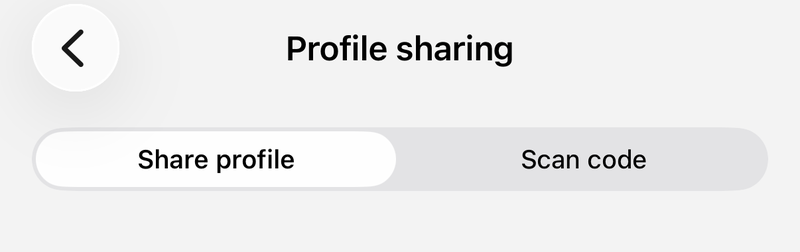
You can also open Camera in WhatsApp to scan a WhatsApp QR code, or use the gallery or photos icon in the QR scanner to scan a saved QR image.
Use Click to Chat when you know the number
Open a browser or compatible app.
Type https://wa.me/ followed by the full phone number in international format.
Leave out plus signs, brackets, zero prefixes, and dashes.
Use a format like https://wa.me/15551234567, then open the link to start the WhatsApp chat.
The number must belong to an active WhatsApp account for this to work.
Tip: Click to Chat is the cleanest option when you know the number but do not want to save it first.
Check groups, web, channels, and businesses
Shared groups can reveal people already in the same conversation. Open the group chat, tap the group name, scroll to the members section or tap the member count below the group picture, then tap a member to view available profile or contact actions.
WhatsApp Web and Desktop can search your existing contacts and chats after you link your account, but new contacts from your phone's address book can only be found on your primary phone. Go to web.whatsapp.com or open WhatsApp Desktop, then link from Android through More options, Linked devices, and Link a device, or from iPhone through Settings or your profile picture, Linked devices, and Link device.
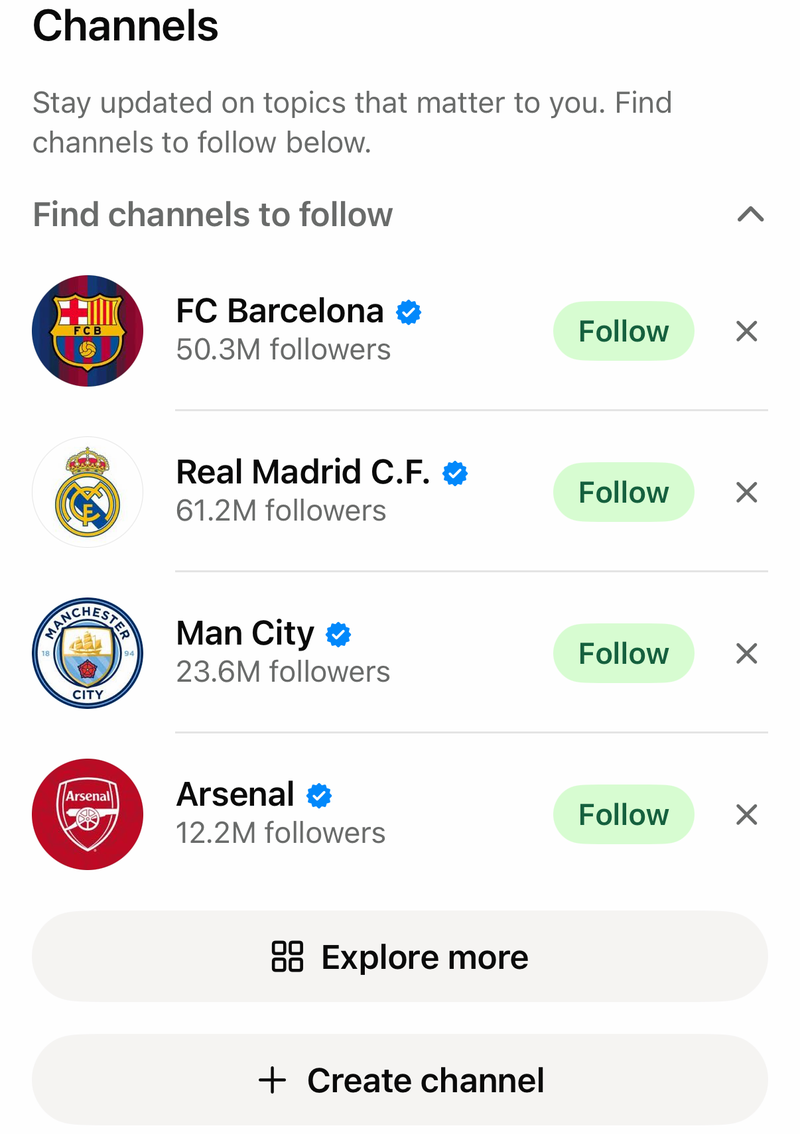
For creators, organizations, and businesses, use Updates, then Explore or Find channels to follow, and tap Follow next to a channel. WhatsApp currently offers business search and the WhatsApp Business directory only in Brazil.
If a phone contact is not on WhatsApp, go to Chats, tap New chat, scroll to Invite to WhatsApp, and tap Invite next to the contact. Then send the invite link. On Android, tap the Invite by SMS icon.
Frequently Asked Questions
Can I find someone on WhatsApp by name only?
Only when WhatsApp can match that name to a saved contact, username, channel, business listing, or shared group member. WhatsApp does not offer a general people search for arbitrary real names.
Why can't I find someone after saving their number?
Check that the number includes the correct country code and that WhatsApp has permission to access your contacts. On iPhone with Limited Access, make sure that specific contact is selected.
Can I message someone on WhatsApp without saving their number?
Yes. Use https://wa.me/ followed by the full international number, with no plus sign, brackets, zero prefixes, or dashes. The number must be registered on WhatsApp.
Can work or school phones block WhatsApp contacts?
Yes. Managed iPhones, iPads, Android work profiles, and managed Android devices can restrict whether WhatsApp sees work or managed contacts. Contact the device administrator if personal settings do not fix it.