Windows can send sound to the wrong place when speakers, headphones, HDMI or DisplayPort audio, a USB DAC, and Bluetooth audio are all available. The fastest fix is to choose the right playback device in Windows 11, then check app audio, Bluetooth pairing, drivers, and meeting settings when sound still does not land where it should. Windows 10 paths are now legacy after October 14, 2025, so use the Windows 11 routes below for current PCs.
Pick the main Windows output
Open Start > Settings > System > Sound.
Under Output, open Choose where to play sound with the down arrow.
Select the speakers, headphones, HDMI or DisplayPort audio, USB DAC, or Bluetooth audio device you want Windows to use.
Use this path first when every Windows sound is coming from the wrong speaker.
Use the taskbar sound switcher
This fixes quick output changes when more than one playback device is connected.
Select and hold or right-click the Speakers icon on the taskbar.
Select the arrow to the right of the speaker volume slider.
Pick the connected audio device from the list; the arrow tooltip says Select a sound output.
Send one app to another device
When system sounds work but one app is silent or playing through the wrong speaker, open Start > Settings > System > Sound, then choose Volume mixer.
Under Apps, choose the correct Output device for the affected app. That changes the app without moving every Windows sound to the same speaker.
Use this for a browser, music app, game, or meeting app that ignores the main Windows output.
Bring back a disabled device
Open Start > Settings > System > Sound.
Under Advanced, select More sound settings.
Open the Playback tab.
Select the playback device, then select Properties.
Next to Device usage, choose Use this device (enable) to show it again or Don't use this device (disable) to stop using it.
Right-click the playback device and select Set as default when you want it to be the default device in the classic Sound panel.
This is the current Windows 11 route to the classic playback controls.
Find a missing output device
The most common cause is that Windows cannot detect the device because it is disconnected, not discoverable, or not paired.
Turn on the Bluetooth device and make it discoverable with its pairing button, switch, case button, or manufacturer instructions.
For wired speakers, USB audio devices, HDMI or DisplayPort monitors, docks, and 3.5 mm headphones, connect or reseat the cable.
Check Start > Settings > System > Sound > Output.
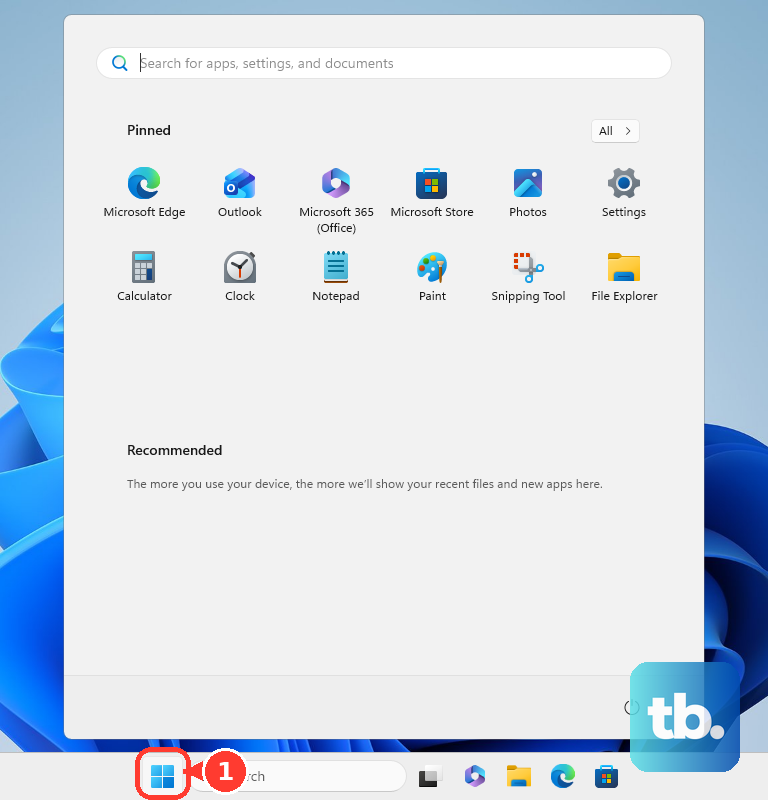
If it still is not listed, select Start, type Device Manager, and select Device Manager.
Expand Sound, video and game controllers, then right-click the audio device and choose Enable device when that option appears.
When the hardware is hidden, use View > Show hidden devices, then Action > Scan for hardware changes.
For a device that appears but does not work correctly, right-click it and select Update driver > Search automatically for drivers.
To reinstall the driver, choose Uninstall device, confirm, and restart the PC.
Open Start > Settings > Windows Update, select Check for updates, install available updates, and restart when Windows asks.
For a missing or non-working output after that, search Start for Get Help and run the automated Audio troubleshooter.
Reset Bluetooth headphones or speakers
Open Start > Settings > Bluetooth & devices.
Find your Bluetooth speaker, earbuds, headset, soundbar, or receiver in the device list.
Select More options (...).
Choose Remove device.
Select Add device.
Choose the Bluetooth audio device from the list after it appears.
Return to Start > Settings > System > Sound and pick it under Output.
A clean pair helps when Bluetooth shows as connected but no sound comes through.
Tune sound features for the device
For quality settings, effects, or spatial audio, open Start > Settings > System > Sound, then select the playback device under Output. Use Audio enhancements, Output settings, Format, or Spatial sound for that selected device.
To turn on Windows Sonic for supported headphones, choose the playback device under Output devices, select Device Properties, choose Windows Sonic for Headphones under Spatial sound, then select Apply when Windows shows it.
If changing these settings does not help, switch back to another connected playback device in Output, then update or reinstall the driver for a device that is malfunctioning or incorrectly detected.
Check apps, browsers, and managed PCs
The most common cause is that the meeting app, browser, or remote session is using its own audio route instead of the Windows output you selected.
In Microsoft Teams, open Settings and more > Settings > Devices. Select Manage devices to connect or disconnect audio devices, then choose the connected speaker from Audio > Audio settings > Speaker.
During a Teams meeting, select the dropdown arrow next to Mic, then select More audio settings. On the pre-join screen, choose an audio source such as Computer audio, then use Audio settings before joining.
In Zoom, open the desktop app, click your profile picture, choose Settings, then open Audio. Under Speaker, choose the speaker, use Test speaker, or adjust Output Volume.
During a Zoom meeting, click the upward arrow beside Mute/Unmute, then choose another speaker or open Audio settings.
In Google Meet, open Settings > Audio and choose the speakers for the meeting. During a meeting, use More options > Settings > Audio, then choose Speakers.
In Chrome, site sound is controlled under More > Settings > Privacy and security > Site settings > Additional content settings > Sound.
To cast tab audio instead, play sound in a tab, select Media control, choose Cast to a device, and pick the device. This controls site permission or casting, not the normal Windows playback-device picker.
On school or work-managed PCs, administrators can prevent unauthorized USB, Bluetooth, or virtual audio devices from installing. Some Teams audio settings can also be unavailable because of organizer or IT admin policies.
In Windows App remote sessions on Windows, local devices and audio are redirected by default where allowed, while audio redirection is generally admin-configured.
Older Windows 10 guides may tell you to right-click the Volume icon and open Sounds or Playback devices. On current Windows 11, use Start > Settings > System > Sound, More sound settings > Playback, or the taskbar output arrow instead.
Frequently Asked Questions
Can Windows send one app to headphones and everything else to speakers?
Yes. In Windows 11, open Start > Settings > System > Sound > Volume mixer, then choose the app's Output device under Apps.
Why do my Bluetooth headphones connect but play no sound?
Pick them under Windows Sound output first. If that fails, remove the device in Bluetooth & devices, pair it again, then check Windows Update or run the Get Help Audio troubleshooter.
Can Zoom, Teams, or Google Meet use a different speaker than Windows?
Yes. Each app has its own audio settings. Teams uses Settings and more > Settings > Devices, Zoom uses Settings > Audio, and Google Meet uses Settings > Audio.
What happens when I disable a playback device?
In More sound settings > Playback > Properties, Device usage can be set to Don't use this device (disable). Use this device (enable) turns that playback endpoint back on.