Need to find About your PC settings without digging through every Windows menu? Windows puts the basics on one main About page, then keeps deeper hardware, storage, and account details in a few other built-in places. Start with the fastest route, then use the extra tools only when you need more detail.
Open the About Page First
Right-click Start and select Settings. Choose System, then open About.
Read Device specifications for the PC details. Read Windows specifications for the Windows edition, version, and related Windows details. For most people searching for about pc or about your PC, this is the page you want.
Search Again From Settings
The most common cause is that Windows Search does not return the exact settings result you expected. Open Settings with Windows key + I. Use the Settings search box and type about or about my PC, then select the matching About settings result.
You can also select Search on the taskbar, type about your PC or about my PC, and select About your PC or System > About.
On Copilot+ PCs, Windows 11 Settings search can use AI-powered suggestions, so natural phrases may bring up the right page as the feature rolls out.
Jump Straight to About
Use this when you already know you need the About page and want to skip the Settings clicks. Press Windows key + Pause. On Windows 11, that opens Settings to System > About. On Windows 10, the same shortcut opens the System Properties dialog box instead, so use ms-settings:about there if you want the About page.
Another fast route is to open ms-settings:about. That launches the same About settings page directly.
Check Windows Version Only
If you only need the Windows version or build, use winver instead of hunting through full PC specs.
Select the taskbar Search box, type winver, then select winver from the results.
You can also press Windows key + R, type winver, and press Enter.
The About Windows dialog shows Windows version and build information, but it is not a full hardware-specs screen.
Get Deeper Specs
Type msinfo32 in the Windows search box, then right-click System Information. Select Run as administrator and review System Summary. Open Hardware Resources, Components, and Software Environment when you need more detail.
In Safe Mode, hardware information can be limited, so check again after starting Windows normally.
Look Up Graphics and Sound
For display, graphics, sound, BIOS, memory, processor, and DirectX details, the built-in DirectX Diagnostic Tool is often the quickest place to look.
Enter dxdiag in the taskbar Search box, select dxdiag, open the System tab, and read System Information. Select Save All Information... when you need to export a report.
If this method fails, use System Information with msinfo32 for a broader PC report.
Find Live Hardware and Storage
This fixes the gap where the About page tells you what the PC is, but not how its hardware and storage are behaving right now.
Right-click Start and select Task Manager, or press Ctrl + Shift + Esc. Open Performance, then select CPU, Memory, Disk, Wi-Fi, or GPU to review hardware and performance details.
Select File Explorer from the taskbar, then select This PC on the left. Read the available space under Devices and drives.
Run Command Tools for Reports
Use these when you need version details or a copyable report for support.
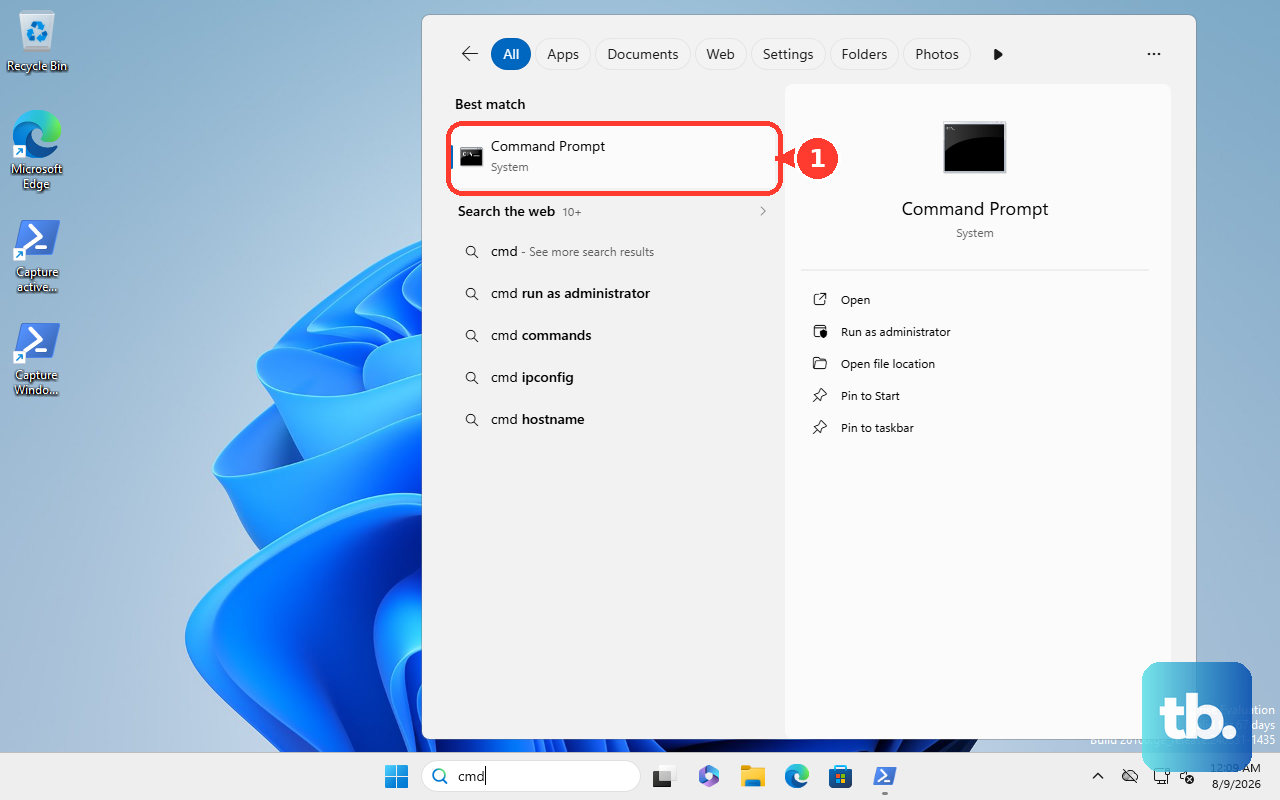
- 1.Open Command Prompt or PowerShell.
- 2.Run systeminfo | findstr /B /C:"OS Name" /B /C:"OS Version" to show Windows name and version details.
- 3.Run systeminfo in Command Prompt for a fuller system report.
- 4.Run Get-ComputerInfo in PowerShell for computer information properties.
- 5.Run Get-ComputerInfo -Property "*version" when you only want version-related properties.
Review Account and Managed PC Details
For devices tied to your personal Microsoft account, go to account.microsoft.com/devices and sign in. You can review devices attached to the account, and Windows 11 devices are automatically added when you sign in.
For a work or school account, sign in to your account, open the My Account page, select Devices from the left navigation pane, and review connected-device information. These pages help identify account-linked devices, but they are not a replacement for the local About page.
Older guides may tell you to open the Control Panel System page for this job. Use Microsoft’s current consumer path instead: Settings > System > About.
If this method fails or the About page is missing on a work or school PC, contact your organization because managed device settings can be hidden by policy.
Frequently Asked Questions
Can I use System Information from Run instead of Search?
Yes. Press Windows key + R, type msinfo32, and press Enter. Then review System Summary, Hardware Resources, Components, and Software Environment.
Can I export my PC details from System Information?
Yes. Open an elevated Command Prompt, then use msinfo32 with /nfo or /report followed by a file path to save a System Information report.
Where do I check security hardware details?
On Windows 11, open Settings, go to Privacy & security, select Windows Security, then Device security. On Windows 10, the path is Settings > Update & Security > Windows Security > Device security. Either way, you can skip Settings entirely and search for Windows Security in the Start menu, then select Device security. Windows shows hardware security capability details where your device supports them.
Can Copilot show my PC specs?
On Windows devices where PC insights is available, open the Copilot app, ask a device question, and choose Allow for this session or Always allow for similar requests when prompted.