
Factory resetting your Samsung Galaxy S26+ is the most definitive way to clear out software gremlins or prepare it for a new owner. It completely erases all your apps, photos, settings, and personal files, returning the phone to the state it was in when you first took it out of the box. I'd only recommend this after trying simpler fixes, but when you need it, here's how to do it correctly for your specific model.
Back Up Everything Before You Start
Your first and most critical step is to secure your data. On your Galaxy S26+, head to Settings > Accounts and backup. From here, you can back up to Samsung Cloud or to your Google Account. For a more comprehensive local backup, use the Samsung Smart Switch app to save everything to your computer or a microSD card.
Double-check that your photos and videos are syncing to Google Photos or Samsung Gallery Cloud. Once you confirm your backups are complete and recent, you can proceed. A factory reset is permanent, and there's no undo button.
Sign Out of Samsung and Google Accounts
To avoid getting locked out by Factory Reset Protection (FRP), you need to remove your main accounts. Go to Settings > Accounts and backup > Manage accounts. Tap on your Samsung account, then select Remove account. Do the same for your primary Google Account.
This step is crucial. If you reset the phone without removing these accounts, you'll be prompted for the previous owner's login credentials during setup, which obviously you won't have if you're the one who just reset it.
Perform the Reset from Within Settings
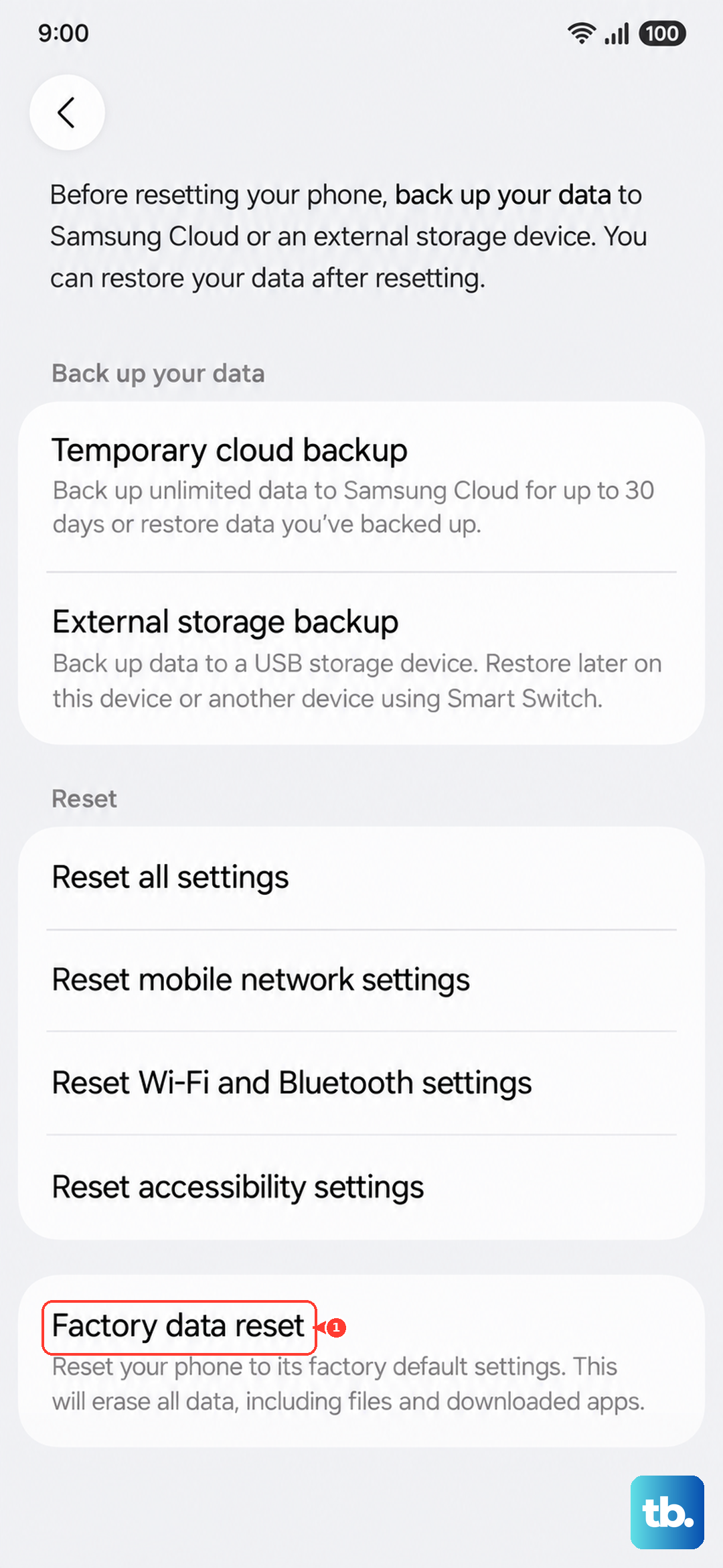
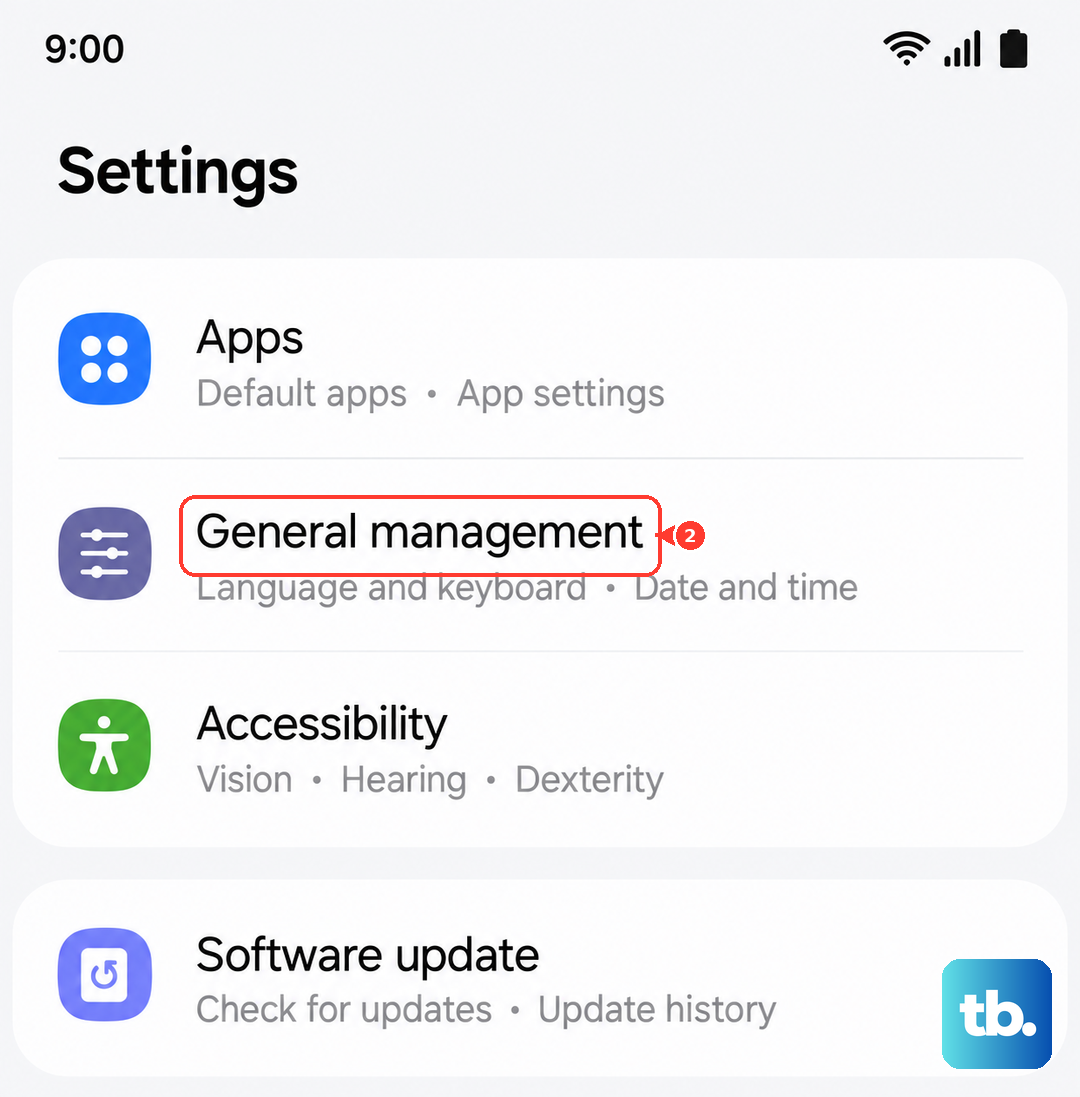
This is the standard method when your phone is functioning. Open Settings and go to General management > Reset > Factory data reset. You'll see a detailed list of everything that will be deleted, including apps, accounts, and files.
Scroll down and tap Reset. On the final warning screen, tap Delete all. You'll need to enter your device's PIN, pattern, or password to authorize the process. The phone will then restart and begin wiping itself, which can take several minutes. When it's done, you'll see the initial One UI setup screen.
Use Recovery Mode If the Phone Won't Boot
If your S26+ is frozen, stuck in a boot loop, or won't turn on normally, you can force a reset through recovery mode. First, ensure the phone is off. Press and hold the Volume Up button and the Side/Power button simultaneously.
Release both buttons when you see the Samsung logo, and you'll enter the Android Recovery menu. Use the Volume Down button to highlight Wipe data/factory reset, then press the Power button to select it. Confirm by selecting Factory data reset on the next screen. Once it finishes, choose Reboot system now.
Consider a Less Drastic Reset First
For issues like Wi-Fi dropping, Bluetooth pairing problems, or general sluggishness, a full factory reset might be overkill. Your S26+ offers targeted resets that can help. Go to Settings > General management > Reset.
Here you'll find options to Reset network settings, which clears all Wi-Fi and Bluetooth connections, and Reset accessibility settings. Another useful tool is Reset app preferences, which resets permissions and default apps without deleting any data.
Setting Up Your Phone After the Reset
After the reset completes, you'll walk through the standard Android setup. Connect to a Wi-Fi network and sign back into your Google and Samsung accounts. When prompted, choose to restore from a backup. If you used Samsung Cloud or Google Drive, you can select the most recent backup to reinstall your apps and settings.
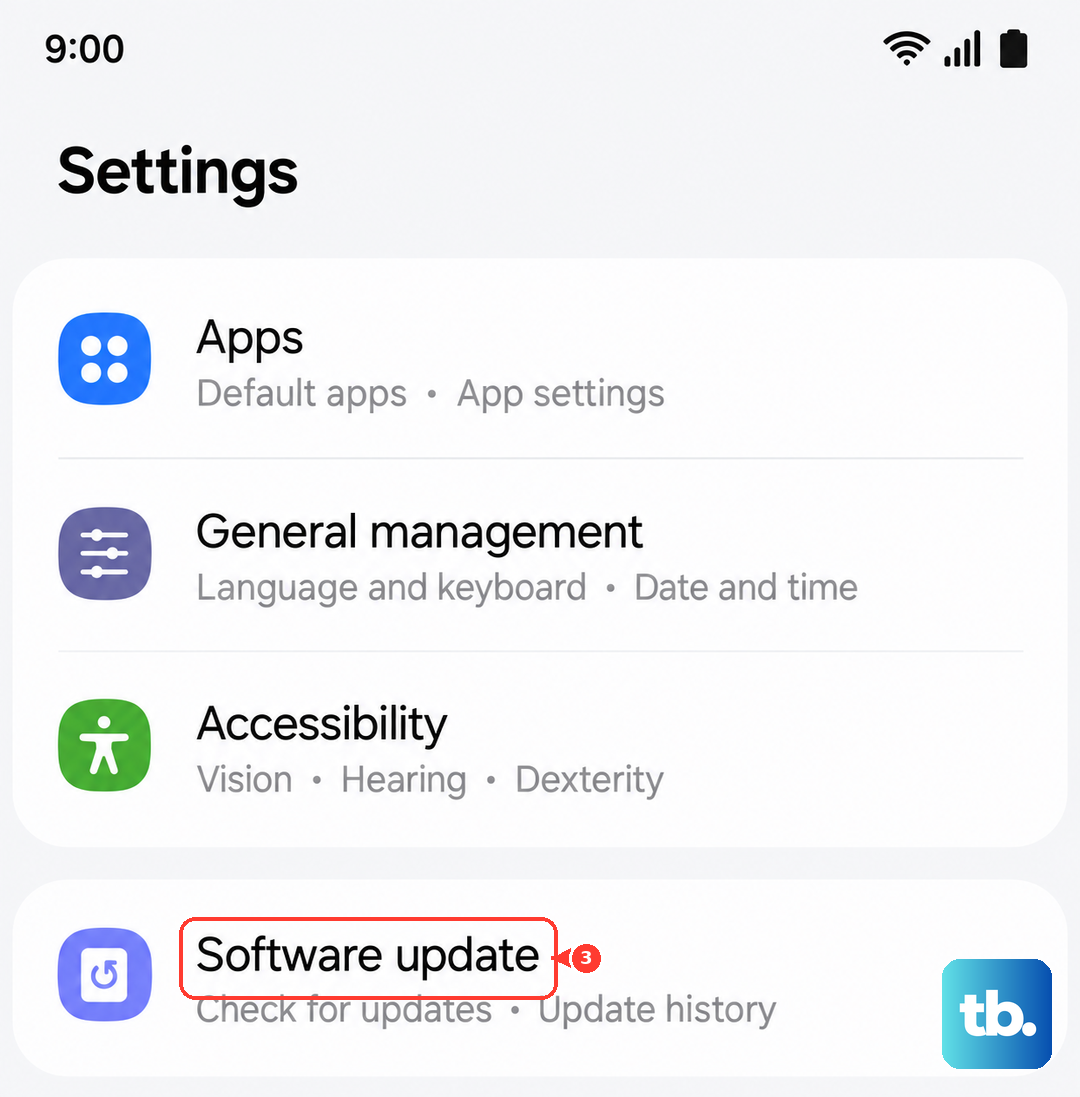
Since this is a 2026 device running One UI 8.5, check for software updates immediately after setup by going to Settings > Software update. Installing the latest patch can resolve early software bugs that might have prompted the reset in the first place.
When a Factory Reset Makes Sense
Use this option if you're experiencing persistent, unexplainable crashes, severe battery drain that diagnostics can't pinpoint, or if you're preparing to sell or donate the phone. It's also a last resort for removing stubborn malware. For general slowness or app crashes, try clearing the system cache from recovery mode first, as it's a non-destructive step that often helps.
If you're resetting due to a "moisture detected" warning that won't go away, a factory reset sometimes clears the erroneous software flag, though physically ensuring the USB-C port is completely dry is the first thing to try.