
Factory resetting your Samsung Galaxy A55 is the most complete way to wipe it clean. It's a big step, but it's the right one when you're passing the phone to someone else, dealing with software glitches that won't quit, or just want a completely fresh start with One UI. Doing it correctly ensures you don't lose anything important and that the process goes smoothly.
Your First Step is a Full Backup
Before you even think about the reset button, secure your data. On your A55, head to Settings > Accounts and backup. From here, you can back up to Samsung Cloud or to your Google Account. I'd recommend checking both to see what each service is set to save.
For the most thorough backup, especially for things like your home screen layout and call logs, use Samsung's Smart Switch app. You can back up directly to a microSD card if you have one, or to a computer. Double-check that your photos are safely in Google Photos or another cloud service you use.
Sign Out of Samsung and Google
This is a critical step that's easy to miss. You need to remove your main accounts to disable Factory Reset Protection (FRP). Go to Settings > Accounts and backup > Manage accounts. Tap on your Samsung account, then tap Remove account. Do the same for your primary Google account.
If you skip this, after the reset, the phone will ask for the login credentials of the last Google account that was on it. Without those, the phone is locked, which is a security feature but a big hassle if you're the one selling it.
Perform the Reset from Within Settings
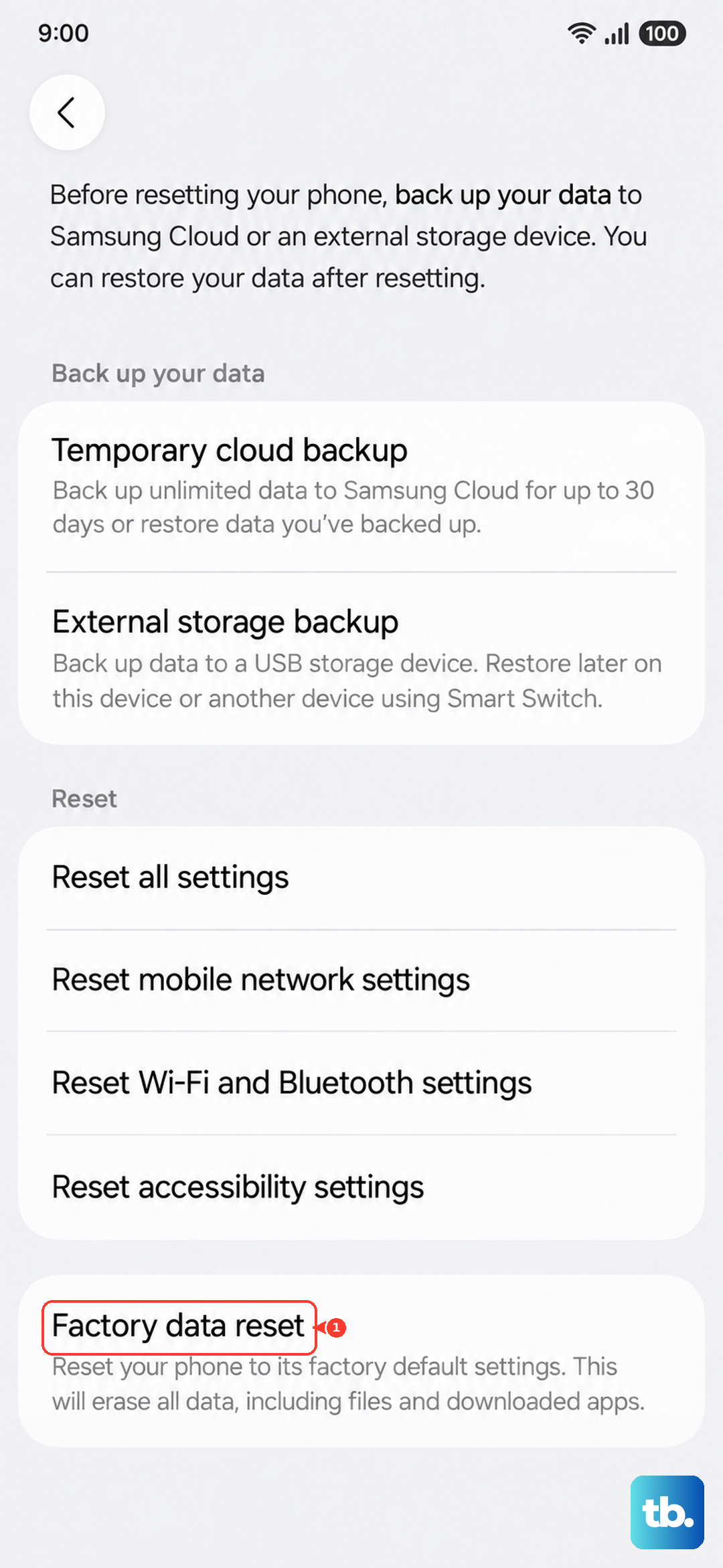
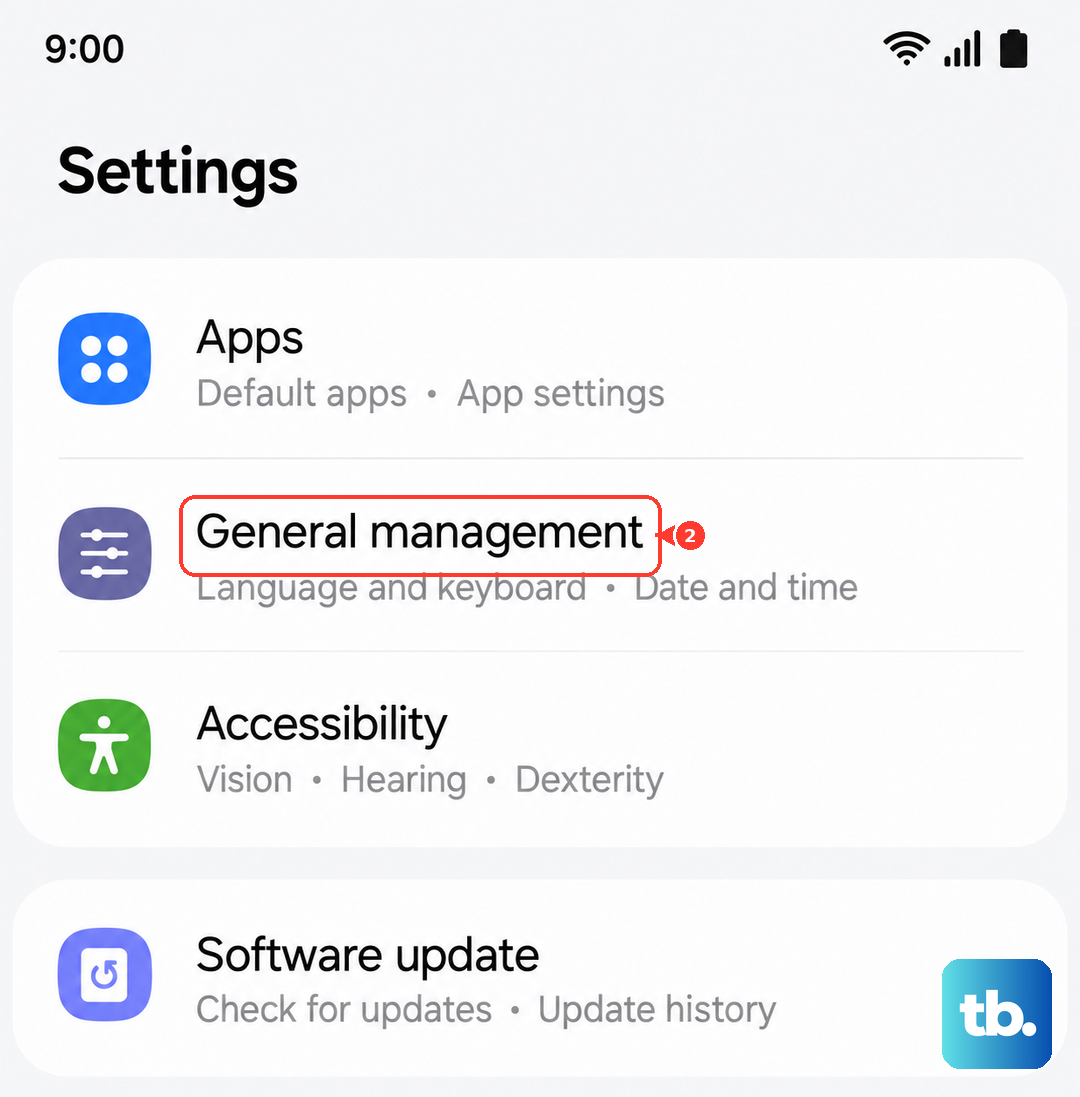
This is the standard method when your phone is working normally. Open Settings and go to General management > Reset > Factory data reset. You'll see a final screen listing everything that will be erased, including apps, accounts, and all personal files.
Scroll down and tap the blue Reset button. On the next screen, tap Delete all. The phone will ask for your PIN, pattern, or password one last time for verification. Once you enter it, the reset process begins and the phone will restart on its own, eventually landing on the initial setup screen.
Using Recovery Mode for a Reset
If your Galaxy A55 is frozen, stuck in a boot loop, or won't start normally, you can force a reset through recovery mode. First, make sure the phone is powered off. Now, press and hold the Volume Up button and the Side key (power button) at the same time.
Let go of both buttons when you see the Samsung logo appear. You'll then boot into the Android Recovery menu. Use the Volume Down button to highlight Wipe data/factory reset, then press the Side key to select it. On the next screen, use Volume Down to select Factory data reset and confirm. When it's done, select Reboot system now.
Consider a Less Drastic Reset First
A full factory reset isn't always necessary. Your A55 has options for targeted resets that can solve specific problems. Go to Settings > General management > Reset. Here, you'll find Reset network settings, which fixes Wi-Fi and Bluetooth issues, and Reset accessibility settings.
There's also an option to Reset all settings. This one reverts all your preferences (like ringtones, notifications, and display settings) back to default without touching your apps or personal files. It's a great middle-ground step if your phone is acting up.
Setting Up After the Reset
Once the reset is complete, you'll be greeted by the familiar "Hi there" setup screen. Follow the prompts to select your language and connect to a Wi-Fi network. You'll eventually reach the step where you can restore your data.
If you made a backup with Samsung Cloud or Google Drive, you can choose to restore it here. This will reinstall your apps and bring back your settings, depending on what you chose to back up. The process can take a while if you have a lot of data to download.
When a Factory Reset is the Right Call
I recommend a factory reset for a few specific situations. The most common is preparing the phone for sale or trade-in, as it protects your privacy. It's also a valid last resort for persistent software problems like severe battery drain, constant app crashes, or general sluggishness that survives other fixes.
For performance hiccups or after a major OS update, try clearing the system cache first. You can do this from the same recovery mode menu by selecting Wipe cache partition. It's non-destructive and often solves minor glitches without the nuclear option.