Your iPhone is connected to Wi-Fi, but that alone doesn’t turn on carrier Wi-Fi Calling. You need a supporting carrier, eligible service, and a working Wi-Fi connection. Here’s where to find the switch, finish activation, and check that it’s working.
Turn on Wi-Fi Calling in Settings
Start with the built-in switch. Open Settings > Cellular > Wi-Fi Calling.
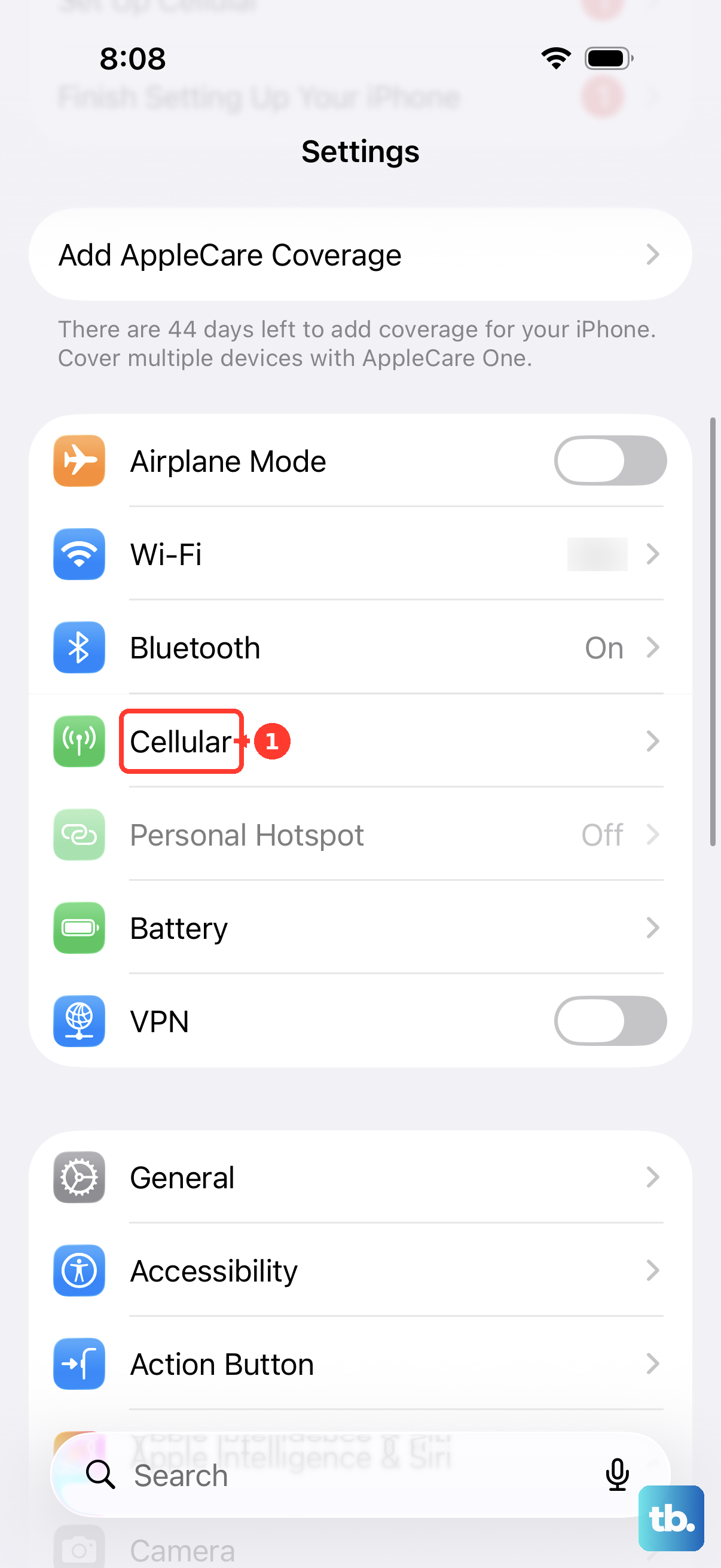
Turn on Wi-Fi Calling on This iPhone. Some Apple and carrier instructions call the same switch Wi-Fi Calling on This Phone. Then tap Enable.
Complete your carrier’s activation prompts, including an emergency address when requested. For carriers that require registration, flipping the switch is only part of setup.
If you can’t reach the switch through this path, select your Dual SIM line as described below or try the Phone settings route.
Enable each line on a Dual SIM iPhone
Using two cellular lines? Wi-Fi Calling needs to be enabled separately for each one, and each line needs support from its carrier.
Open Settings > Cellular, then select the line you want under SIMs. Open Wi-Fi Calling and turn on Wi-Fi Calling on This iPhone. Tap Enable, then complete that carrier’s activation prompts. Repeat the process for your other eligible line to enable Wi-Fi Calling on both.
Find the switch through Phone settings
This alternate route gets you to the switch on iOS 18 and later.
Open Settings > Apps > Phone > Wi-Fi Calling. Stay inside Settings; this isn’t in the Phone app’s dialer. The direct Phone entry in older instructions belongs to iOS 17 and earlier, and available options depend on your carrier.
Select the line you want to activate if a line selection appears. Then turn on Wi-Fi Calling on This iPhone and complete the activation prompts.
Confirm that Wi-Fi Calling is active
Open Control Center after completing activation. Look for Wi-Fi beside your carrier’s name. That label confirms carrier Wi-Fi Calling is active.
Don’t use an ordinary Wi-Fi connection or a successful FaceTime or WhatsApp call as your confirmation; neither establishes that carrier Wi-Fi Calling is enabled.
Finish your carrier’s emergency address registration
The switch is on, but carrier registration still needs to be completed when required. These US carrier examples cover the address setup; screens and confirmation labels vary by carrier.
For AT&T, enter your Emergency 911 Address when prompted during activation. Select Verify address. To change the address later, select Update Emergency Address on the Wi-Fi Calling screen.
For T-Mobile, sign in to T-Mobile.com. Open Account > Profile Settings, then choose the relevant line from Select Line. Open E911 Address for that line. If the page shows Line Settings first, open it to reach E911 Address.
Enter the address where you primarily use that line. Select Save changes. Turn on Wi-Fi Calling on This iPhone through Settings > Cellular > Wi-Fi Calling afterward. Saving an address on your account doesn’t replace the iPhone switch.
If activation still fails after registration, check the carrier and network requirements below.
Resolve carrier and network activation blocks
Verizon requires initial activation while connected to its network in the United States, acceptance of its service terms, and confirmation of a US emergency address. Complete those prompts through Settings > Cellular > Wi-Fi Calling. Initial activation cannot be completed after you leave the country.
For T-Mobile troubleshooting, open T-Life > Manage on the affected iPhone. Select your device.
Choose Troubleshoot this device. Select the problem. Wait for the checks to finish, then follow the recommendations, which can include turning on Wi-Fi Calling.
If your network blocks AT&T Wi-Fi Calling, ask the router administrator or internet provider to allow IPSec pass-through, UDP ports 500 and 4500, TCP port 143, and the domains in AT&T’s network requirements. This resolves network access restrictions; carrier registration and the iPhone switch are still required.
Frequently Asked Questions
Do I need to install an app to enable Wi-Fi Calling?
No. The iPhone’s built-in settings handle activation. T-Mobile’s optional T-Life app handles account tasks and troubleshooting and requires iOS 17 or later.
Can I use Wi-Fi Calling on my iPad or Apple Watch too?
Yes, with compatible devices and supporting service. Use the same Apple Account for iCloud and FaceTime. On your iPhone, open Settings > Cellular, select the line if needed, and open Calls on Other Devices. Turn on Allow Calls on Other Devices, then enable the desired devices under Allow Calls On. On iPad, open Settings > Apps > FaceTime and enable Calls from iPhone. Apple says Wi-Fi Calling is enabled automatically for a compatible paired Apple Watch.
Can other Apple devices make calls when my iPhone is off?
Yes, with carrier support for independent Wi-Fi Calling. In the iPhone’s Wi-Fi Calling settings, turn on Add Wi-Fi Calling For Other Devices if available. Eligible devices must use the same Apple Account for iCloud and FaceTime. On Mac, open FaceTime > Settings > General and enable Calls from iPhone. If Upgrade to Wi-Fi Calling appears, click it and complete the prompts.