The Steam Overlay gives you Steam’s in-game interface without leaving your game. When it is off, Shift + Tab does nothing, controller buttons may open another panel, or Steam features never appear. Start with the main Steam setting, then check the game, shortcut, controller, and launcher settings that usually block it.
Turn on the Steam Overlay for all games
This fixes the main Steam setting when the overlay is disabled across your library.
Open the Steam desktop client.
Click Steam in the top-left corner.
Open Settings.
Select In-game.
Turn on Enable the Steam Overlay while in-game.
Launch a supported game through Steam.
Press Shift + Tab while the game is running.
Enable the overlay for just one game
Steam also has a per-game overlay switch. Use this when the global setting is on but the overlay fails in one title.
Open your Library, choose the game, open Properties..., select General, and check Enable the Steam Overlay while in-game.
Start the game from Steam after changing the setting. The overlay works only when the game is launched through Steam and supports the overlay.
If this method fails, check the shortcut next, then look for another launcher overlay taking priority.
Check the Steam Overlay shortcut
The default Steam Overlay shortcut is Shift + Tab. Open the game from Steam, then press Shift + Tab while the game is running.
To check it, open Steam, go to Settings, then choose In-game. Use Steam Overlay shortcut keys to verify or change the key combination.
Pick a different shortcut if another app or in-game command already uses Shift + Tab. Relaunch the game before testing the new shortcut.
Open the overlay with a controller
Start the game from Steam with Enable the Steam Overlay while in-game turned on.
Press the Steam button on a Steam Controller.
Press the controller Guide or Home button if Steam is handling that controller.
Use Shift + Tab if the controller button opens something else.
For TV setups, enter Big Picture Mode from the top-right corner of Steam, then launch the game from there.
Big Picture mode is supported on Windows 10 or newer, macOS 12 or later, and Linux machines using up-to-date Ubuntu.
Add a non-Steam game
Add the app to your Steam Library first, then launch it through Steam.
- 1.Open the Steam desktop client.
- 2.Click Games.
- 3.Choose Add a Non-Steam Game to My Library.
- 4.Select the game or app, or use Browse.
- 5.Click Add Selected Programs.
- 6.Launch it from Steam and test Shift + Tab.
Use Steam Deck or Gaming Mode
On Steam Deck LCD, Steam Deck OLED, and Steam Machine or Gaming Mode surfaces, open the game or app from Steam first. Steam’s in-game interface depends on the game or app running through Steam.
While the game is open, press the Steam button. That opens Steam’s in-game interface and lets you switch between Steam panels.
If the interface does not appear in that app, test another game in your library. Overlay support can vary by app.
Stop another launcher from blocking Steam
This fixes games where EA app, Ubisoft Connect, Epic Games Launcher, or another launcher opens before the game starts.
Launch the game from Steam once.
Confirm whether another launcher opens before the game.
Open that launcher’s Settings menu.
Disable that launcher’s overlay option. In the EA app, open Settings, select Application, and turn off In-game overlay. In Ubisoft Connect, open Settings, select Interface, and clear Enable in-game overlay for supported games. The Epic Games Launcher has no matching switch. Epic states its Epic Online Services overlay is built into the game itself and cannot be turned off from the launcher, so check that game’s own support if its overlay blocks Steam.
Close the game and launcher completely.
Relaunch the game from Steam.
Press Shift + Tab again.
Fix the controller button opening Xbox Game Bar
The most common cause on Windows is Xbox Game Bar taking the controller button before Steam can use it.
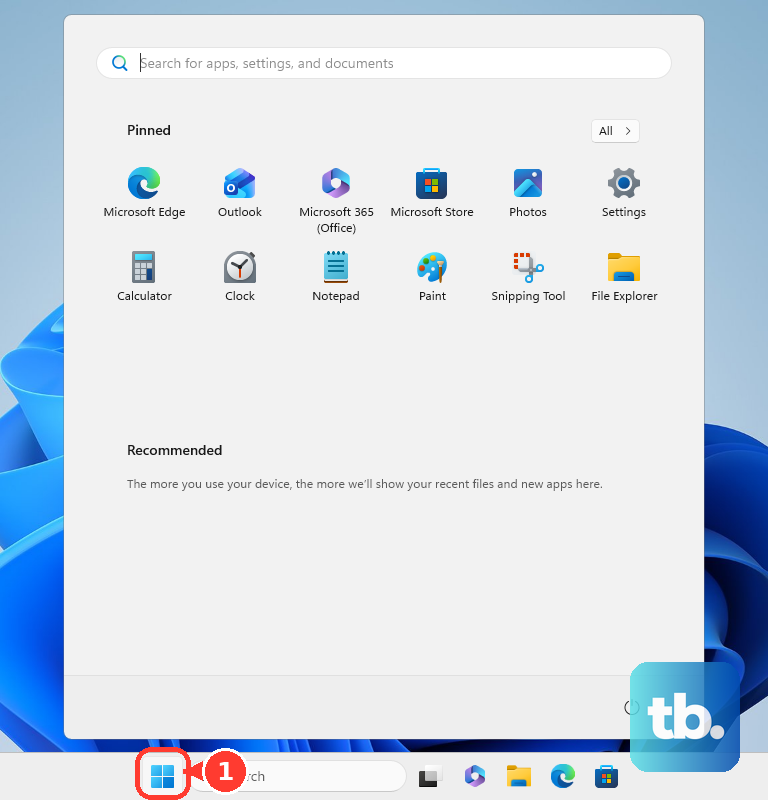
Open Start, then go to Settings, Gaming, and Game Bar. Turn off Open Xbox Game Bar using this button on a controller.
Launch the game from Steam again. Press the controller Guide or Home button, or use Shift + Tab instead.
Repair Steam when the overlay still will not appear
Reinstall Steam over the existing installation after the Steam setting, game setting, shortcut, controller, and launcher checks are done.
- 1.Open the official Steam download page.
- 2.Click Install Steam.
- 3.Run the Steam installer.
- 4.Install Steam to the same location where Steam is already installed.
- 5.Open Steam, launch the game, and test Shift + Tab.
Frequently Asked Questions
What is the default Steam Overlay shortcut?
The default shortcut is Shift + Tab. You can check or change it in Steam > Settings > In-game under Steam Overlay shortcut keys.
Why is the Steam Overlay enabled but not working in one game?
Check that game’s Library properties and make sure Enable the Steam Overlay while in-game is turned on under General. Also make sure you launched the game through Steam.
Can I use Steam Overlay with non-Steam games?
Yes. Add the game with Games > Add a Non-Steam Game to My Library, then launch it from Steam. Overlay availability can still vary by game, launcher, rendering technology, and whether Steam can hook the app.
Does Steam Overlay work on Steam Deck?
Yes. In Gaming or Deck mode, launch the game or app through Steam, then press the Steam button to bring up Steam’s in-game interface.
Why do some guides say Enable Steam Community In-Game?
That is the older name for the setting. In the current Steam client, use Enable the Steam Overlay while in-game.
Can I enable Steam Overlay from the Steam mobile app or a browser?
No current consumer setting enables the Steam Overlay from the Steam mobile app, a browser-only portal, a voice assistant, or an AI assistant. Use the Steam desktop client, Steam Deck, or Gaming Mode interface instead.