Lenovo updates can mean drivers, firmware, UEFI BIOS, Windows updates, or Lenovo app updates. Start with the tool that matches what you are trying to update, and you can avoid the wrong download page or an older Lenovo app that no longer handles updates.
For most personal Lenovo laptops and desktops, Lenovo Vantage is the fastest place to begin. If that does not find what you need, use Lenovo Support, Windows Update, or the model-specific manual download path below.
Use Lenovo Vantage first
Open Lenovo Vantage on your Windows 11 or Windows 10 Lenovo PC.
If it is not installed, get Lenovo Vantage from Lenovo's Vantage page or from the Microsoft Store.
In Lenovo Vantage, open System Update.
Select Check for Updates.
Install all available updates, or choose the specific updates you want Lenovo Vantage to install.
Restart your PC when Lenovo Vantage asks you to restart.
Tip: keep the laptop plugged in while firmware or BIOS-related updates install.
Run Lenovo updates from the support site
This fixes cases where Lenovo Vantage is missing, not finding anything, or you want Lenovo's website to scan your PC.
Go to Lenovo PC Support.
Select your Lenovo product, or use the site to detect it.
Open Drivers & Software.
Choose Automatic Update.
Select Scan Now.
Install Lenovo Service Bridge when Lenovo Support prompts you to do that.
Return to the scan and follow the prompts to download and install the detected updates.
Download a specific Lenovo driver manually
Manual downloads make sense when you already know the exact Lenovo model and the driver, BIOS, or software package you need. This is also the right route for docks, monitors, tablets, and accessories that have model-specific downloads on Lenovo PC Support.
Open Lenovo PC Support and enter or select your Lenovo product.
Go to Drivers & Software, then open Manual Update.
Choose Select Drivers and pick the package that matches your operating system.
Download the package.
Run its installer or follow the instructions included with that Lenovo download.
Let Windows Update handle the basics
Windows Update is the regular path for Windows system updates, security patches, Windows components, and some device drivers on Lenovo PCs.
One Windows 10 caveat: Microsoft ended support for Windows 10 on October 14, 2025, so a Windows 10 Lenovo PC no longer receives free security updates unless it is enrolled in Microsoft's Extended Security Updates program. Windows Update still runs the steps below, but plan an upgrade to Windows 11 if your Lenovo hardware is eligible.
On Windows 11, open Start, then go to Settings, Windows Update, and Check for updates.
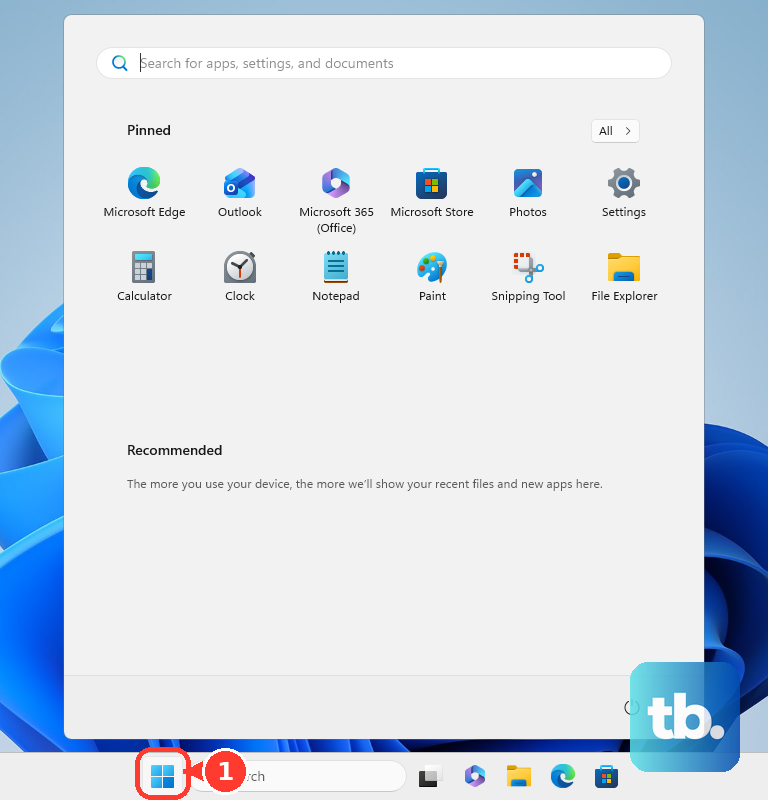
On Windows 10, open Start, then go to Settings, Update & Security, Windows Update, and Check for updates.
Select Download & install for available updates, then restart if Windows asks.
For driver updates that Windows does not install automatically on Windows 11, open Advanced options, then under Additional options select Optional updates, then Driver updates. Select the driver updates you want and choose Download & install.
On Windows 10, open Advanced options and turn on Receive updates for other Microsoft products when you update Windows, return to Windows Update, and select Check for updates. When View optional updates appears, select it, open Driver updates, pick the drivers you want, and choose Download and install.
If Windows Update does not find the Lenovo update you need, try Lenovo Vantage or Lenovo PC Support instead.
Keep Lenovo apps current through Microsoft Store
Lenovo Vantage, Lenovo Commercial Vantage, and other Lenovo Store apps can be updated through the Microsoft Store when they were installed from there.
Open Microsoft Store, select Library, then choose Get updates. Windows checks your Store apps and installs available app updates.
To keep Store apps updated automatically, open Microsoft Store, select your profile photo, go to Store Settings, and turn App updates on.
Skip Lenovo Companion, Lenovo Settings, and Lenovo Account Portal for current update workflows. Lenovo Vantage replaced those older apps.
Use Lenovo System Update on supported PCs
This fixes update workflows on Lenovo-supported desktops, notebooks, and workstations where the standalone Lenovo System Update utility is the right tool.
Go to Lenovo's Lenovo System Update download page.
Download Lenovo System Update.
Install the utility on your Windows 11 or Windows 10 Lenovo PC.
Launch it from Start, All apps, Lenovo, Lenovo System Update.
Select Next.
Choose the applicable packages.
Download and install them.
Restart your PC if Lenovo System Update asks you to restart.
Install a Lenovo BIOS update carefully
Go to Lenovo Support and enter your product name, serial number, or machine type.
Open Drivers & Software, then choose Manual Update.
Select BIOS/UEFI.
Download the BIOS flash package for your exact model and Windows version to the Windows desktop.
Right-click the BIOS flash package and choose Run as administrator.
Follow the prompts and restart only when the update tells you to restart.
Tip: use only the BIOS package for your exact Lenovo model, because BIOS update steps and precautions vary by model.
What changes on work or school Lenovo PCs
Work and school Lenovo computers can be managed differently from personal laptops. Your organization can use Lenovo Commercial Vantage, Lenovo System Update, approved update sources, or scheduled update rules.
On a business-class Lenovo PC, open Lenovo Commercial Vantage, then go to Device, System Update, and CHECK FOR UPDATES. Follow the on-screen instructions to download and install packages.
If update settings are locked or updates arrive on a schedule, contact your employer or school IT team before removing tools or forcing updates manually.
Fix a bad Lenovo update
A driver update can be rolled back when Windows still has the previous driver available. Right-click Start, open Device Manager, expand the device category, right-click the device, then open Properties.
Go to Driver, choose Roll Back Driver, pick a reason, select Yes, and restart if Windows asks.
If rollback is not available, use Device Manager, Properties, Driver, and Uninstall Device or Uninstall, then restart or use Action and Scan for hardware changes.
If the problem came from a Windows-delivered update, open Start, Settings, Windows Update, Update history, and Uninstall updates; if Windows will not start, use Windows Recovery Environment, Troubleshoot, Advanced options, and Uninstall Updates.
Frequently Asked Questions
What is the best app for Lenovo updates on a personal PC?
For most consumer Lenovo Windows 11 and Windows 10 PCs, Lenovo Vantage is the best first stop because it checks Lenovo-provided driver, firmware, UEFI BIOS, and software updates for your model.
Do I need Lenovo Service Bridge?
You only need Lenovo Service Bridge when Lenovo Support asks for it during automatic product detection or update scanning on the support website.
Can Windows Update replace Lenovo Vantage?
No. Windows Update handles Windows updates, security patches, Windows components, and some drivers, while Lenovo Vantage checks Lenovo's own update catalog for your device.
Should I use Lenovo Companion for updates?
No. Lenovo Vantage replaced Lenovo Companion, Lenovo Settings, and Lenovo Account Portal, so use Lenovo Vantage for current consumer Lenovo update workflows.