The Razer mouse app is Razer Synapse, and the current path is Synapse 4 on Windows or Razer Synapse for Mac on supported Apple silicon Macs. If it will not install, open, or detect your mouse, start with the correct app and then move through the fixes Razer supports now.
Download the right Razer mouse app first
Start here so you are working with the current software for your device.
- 1.Open the Razer Synapse 4 download page at razer.com/synapse-4.
- 2.Choose Download for Windows for Windows 10 64-bit (x64) or Windows 11 64-bit.
- 3.Choose Download for Mac for the Mac preview on Apple silicon Macs running macOS 15 Sequoia and above.
- 4.Open the Razer Synapse 4 supported devices page, use Search by name or model no., and click Find.
- 5.Open Razer Synapse Web at synapse.razer.com in Chrome, Edge, or Opera when your supported device works with the browser version.
Install Razer Synapse on Windows
Run the Razer Synapse 4 installer you downloaded from Razer.
Click Yes when User Account Control asks for permission.
Click CONTINUE to accept the Razer Software License Agreement.
Click INSTALL.
Skip or accept the additional app suggestions shown by the installer.
Log in with your Razer ID; Synapse 4 launches automatically after installation.
Let the installer handle the upgrade because installing the new applications uninstalls Razer Synapse 3.
Set up Synapse for Mac
Razer’s Mac support path is Razer Synapse for Mac on Apple silicon Macs. Razer’s public download page lists the Mac preview for macOS 15 Sequoia and above, while its support page lists macOS Ventura 13 and above.
Download the Razer Synapse for Mac installer and double-click it.
Click Continue, click Continue again, then click Agree.
Click Continue, then click Install for the default location or Customize to choose another drive.
Enter your password or use your fingerprint when macOS asks.
When prompted, click Open System Settings and enable both driver extensions under Settings > General > Login Items & Extensions > Driver Extensions.
Launch the app from the Razer Synapse for Mac icon.
If setup finishes and the mouse still is not detected, use the connection and permissions checks next.
Fix a mouse Synapse does not detect
Use this when Synapse opens but your Razer mouse is missing from the app. First, confirm the mouse is listed on Razer’s Synapse 4 supported devices page; Razer says an unsupported device is incompatible with Synapse and does not need Synapse to work.
On Windows, plug the mouse directly into the computer instead of a USB hub.
Restart the PC when this is the first time you installed the Razer device or you just finished an update.
Run a Synapse repair when the mouse remains missing after the restart.
Turn off Windows Compatibility Mode for Razer Synapse.
On Mac, connect the Razer device to a USB-C hub and allow the required Synapse for Mac system permissions.
Force quit Razer Synapse for Mac and relaunch it when the mouse still does not appear.
Repair Synapse from Windows settings
The most common supported repair path is Windows Installed apps.
Click Start and search for Add or remove programs.
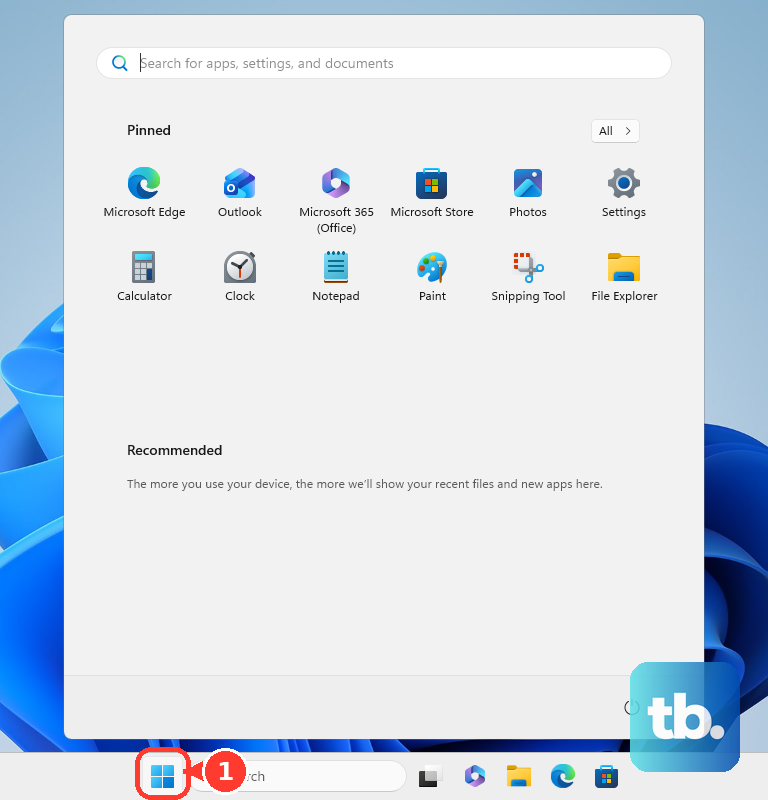
Find Razer Synapse, click the three-dot menu beside it, and select Modify.
Click Yes at the User Account Control prompt.
In the Razer Gaming Software window, click REPAIR.
Wait for REPAIR COMPLETE; Razer Synapse launches automatically after the repair finishes.
Fix crashes and launch failures
This fixes Synapse when it crashes, will not open, or stops running because sign-in or security software is blocking the app.
Right-click the Razer Synapse icon in the system tray and click Log In.
Click LOG IN.
Enter your email address and password, then click LOG IN again.
Run Razer Synapse as administrator when it still will not start correctly.
Check your antivirus and make sure RazerAppEngine is not blocked.
Open Task Manager and check RazerAppEngine CPU consumption under Processes.
On Mac, open Launchpad, search for Razer, launch the app, and sign in.
Open Activity Monitor and check RazerAppEngine CPU consumption when the Mac app still fails to start.
Turn off Compatibility Mode
This method applies on Windows 10 and later when device detection or launch problems are tied to Compatibility Mode. Synapse 4 runs normally without that setting.
Right-click the Razer Synapse 4 program icon and select Properties.
Open the Compatibility tab.
Clear Run this program in compatibility mode.
Click Apply, then click OK.
Restart Razer Synapse 4 and check the mouse again.
Clean reinstall Synapse when fixes do not stick
A clean reinstall is the last normal consumer fix for recurring Synapse software issues, detection problems, or performance errors. Back up profiles first when you need to keep them.
Right-click the Razer Synapse 4 icon in the system tray and select Exit All Apps.
Open Settings, go to Apps, then open Installed apps.
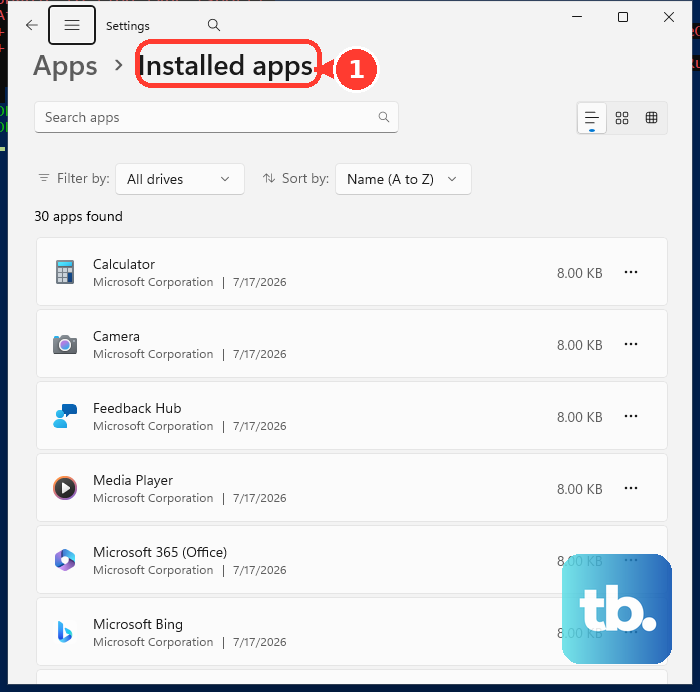
Search for Razer, click the ellipsis icon, and select Uninstall.
Click Yes when User Account Control appears.
In RAZER GAMING SOFTWARE, open the ellipsis icon in INSTALLED APPS.
Click Uninstall All, then click UNINSTALL.
Disconnect non-essential Razer devices, run Windows System File Checker, update Windows, restart, then install the latest Razer Synapse 4 from Razer’s download page.
On Mac, open Finder, go to Applications, open the Razer folder, double-click Razer Uninstaller.app, and follow the uninstall dialog before reinstalling.
If a clean reinstall does not fix detection, update the mouse firmware for your exact model and repeat the detection checks.
Skip older Synapse advice
Open old Synapse instructions only to identify legacy devices, not to fix a current setup. Razer says Synapse 3 stopped receiving updates and cloud services on February 3, 2026, and recommends Synapse 4.
Use Razer Synapse 2.0 only when your older device appears on Razer’s Synapse 2.0 supported devices page.
If your PC is managed by work or school, admin rights, firewall rules, antivirus settings, or system restrictions can block Synapse or RazerAppEngine.
Ask your IT administrator to allow the current Razer app instead of installing older Synapse versions.
Frequently Asked Questions
What is the Razer mouse app called?
The current Razer mouse app is Razer Synapse 4 on Windows. On supported Apple silicon Macs, Razer offers Razer Synapse for Mac.
Do I need Synapse for every Razer mouse?
No. Razer says that if a device is not supported by Synapse, it is incompatible with Synapse and does not need Synapse to work.
Can I use the Razer mouse app without installing it?
Yes. Razer Synapse Web is available at synapse.razer.com in supported Chromium-based browsers such as Chrome, Edge, and Opera, with device support limited to the models Razer lists.
Should I install Synapse 3 instead of Synapse 4?
Use Synapse 4 for current setups. Razer says Synapse 3 stopped receiving updates and cloud services on February 3, 2026, though existing Synapse 3 installs can still configure installed devices.