Turning off Norton's protection or removing its icon leaves the software installed. To delete Norton from your computer, start with Windows Settings or Norton Uninstaller on Mac. If Windows removal gets stuck, use Norton 360 Remover, then handle any separate apps, browser extensions, and subscription renewal.
Delete Norton through Windows Settings
On Windows 11, open Start > Settings > Apps > Installed apps. Find Norton 360 and open its More (…) menu. The product name varies by installation. Select Uninstall.
On Windows 10, use Start > Settings > Apps > Apps & features > Norton 360 > Uninstall. Complete Norton's removal prompts. Restart your computer to finish.
If Settings cannot remove Norton, try the Control Panel route below. If that also fails, move on to Norton 360 Remover.
On a Mac, use Norton Uninstaller
Close Norton, then in Finder, choose Go > Applications. Open Norton Uninstaller. Select Continue.
Enter your Mac administrator password, then click Install Helper. After removal finishes, authenticate again. Select OK.
Click Finish. The final Continue option opens an optional survey, so choose Finish when you are done.
When Windows Settings cannot remove Norton
A failed uninstall through Settings leaves Norton installed. Close Norton before trying the Control Panel route. Press Windows + R to open Run, enter appwiz.cpl, and press Enter.
Select Norton 360 in the program list. Choose Remove or Uninstall, depending on the label displayed. Select Yes, then click Next to proceed with removal.
Close your other programs after removal finishes. Restart the computer.
Use Norton 360 Remover for a stubborn installation
Norton 360 Remover removes current Norton device security on Windows when a standard uninstall fails. Remove Norton Family first if it is installed, using the separate-app instructions below. Download Norton 360 Remover from Norton's official download page.
Press Ctrl + J to open your browser's downloads list. Open the downloaded Norton_360_remover file. Select Remove. The Reinstall option is for installing Norton again after removal.
Click Uninstall. Select Restart Now. If removal still fails, or you have forgotten the Norton settings password, save your open work before using the Safe Mode procedure below. This removal deletes customized settings and associated product data.
Open Norton_360_remover again. Under Reboot to Safe mode, select Reboot. Click Restart now.
When the tool launches, select Remove. Choose Uninstall. Select Restart now to finish.
Separate Norton apps need separate removal
Norton 360 Remover leaves Norton Private Browser installed. Norton Family also needs its own uninstall, completed before you run the removal tool.
For Norton Family on Windows, press Windows + R to open Run, enter appwiz.cpl, and press Enter. Select Norton Family, choose Remove or Uninstall, then select Yes. Enter the parent's Norton Family email address and password, select OK, then Next, and restart after removal.
For Norton Private Browser on Windows, open the same appwiz.cpl program list, select Norton Private Browser, and choose Remove or Uninstall. Approve Yes if prompted. Browsing data is deleted by default, so clear Also delete your browsing data to retain it before selecting Uninstall.
Standalone Norton VPN is separate from the VPN feature inside Norton 360. On Windows, open the appwiz.cpl program list and select Norton VPN > Uninstall/Change. Follow its uninstaller's prompts.
Clear Norton extensions from your browser
Use these steps when Norton extensions remain in your browser or control Chrome's search, home page, or new-tab settings. Removing a settings-controlling extension in Chrome restores the previous settings.
In Chrome, open More (…) > Extensions > Manage extensions. Select Remove on the Norton extension. Click Remove again to confirm. Repeat for each Norton extension and each browser profile that contains one.
In Edge, open Extensions. Open More actions (…) beside the Norton extension. Select Remove from Microsoft Edge. Confirm with Remove.
In Firefox, open Menu (≡) > Extensions and themes > Extensions. Where the middle option is labeled Add-ons and themes, select that instead.
Open the Norton extension's three-dot menu. Select Remove. Confirm removal if Firefox requests it.
In Safari, open Safari > Settings > Extensions. Select the Norton extension.
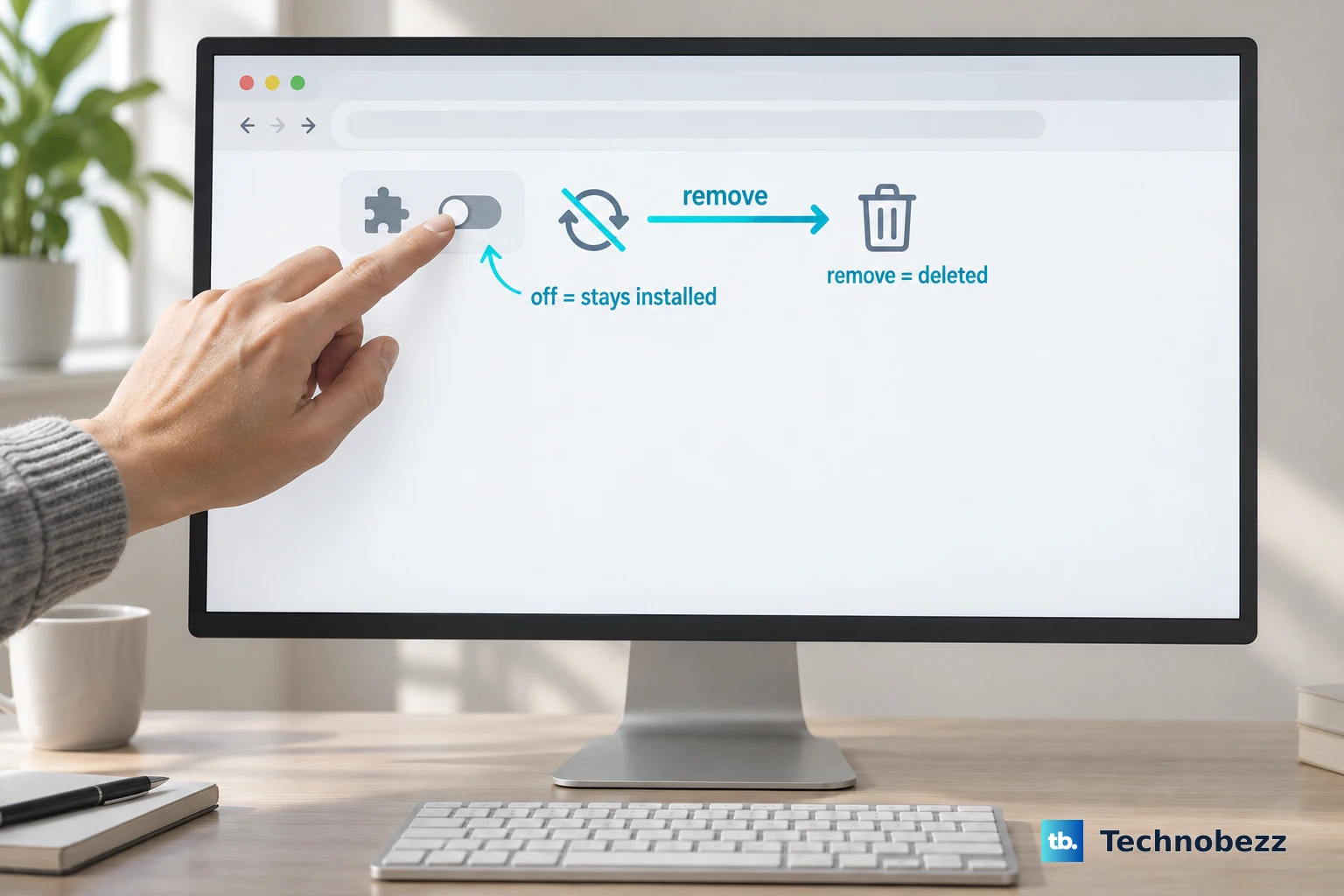
Click Uninstall. Complete any request to remove the extension's containing application. An extension's toggle only disables it and leaves it installed.
Stop renewal if you are leaving Norton
Canceling renewal stops future automatic renewal; uninstalling Norton does not cancel it. For a subscription billed through a store, manage renewal through that billing store.
For a subscription whose renewal Norton manages, sign in to your Norton account. Open My Account > My Subscriptions. Beside your plan, select Cancel Subscription Renewal, or follow Manage Renewal > Plan Renewal > Unsubscribe.
Choose a reason for canceling. Select Next. Click No thanks, cancel my subscription.
Select Next. Wait for confirmation that renewal has been canceled.
Frequently Asked Questions
Does removing a device from my Norton account uninstall Norton?
No. Removing the device deactivates its Norton services and frees the license. You still need to uninstall the application on the computer. Offline devices receive the account change when they reconnect.
Does uninstalling Norton delete my account and personal data?
No. Account and personal-data deletion requires a separate request. In your Norton account, open My Account > Privacy Options > Delete My Data, select Continue, enter the emailed verification code, and select Confirm. Active subscriptions, open support or restoration cases, and retention obligations are possible barriers to deletion.
Why do older instructions mention Norton Remove and Reinstall?
The older tool's support page now redirects to Norton 360 Remover. Follow the current tool's Remove > Uninstall workflow.
Does Norton still support Safe Web in Safari?
Norton announced in August 2026 that it is ending support for the Norton Safe Web app for Safari and its Safari extension, which belong to the same suite, and recommends removing the app. Safe Web remains supported in Chrome, Edge, and Firefox. Removing the standalone Mac app also removes its Safari extension and leaves Norton 360 installed.