Deleting Facebook gets confusing because the same phrase can mean deleting your account, removing the app, or clearing a shortcut. The right path depends on what you want gone: the Facebook profile itself, the installed app, or only a saved icon.
Start with account deletion when you want Facebook gone permanently. Use the device sections when you only want Facebook off a phone, tablet, or computer.
Delete your Facebook account in the app
Use this method when you want to permanently delete your Facebook profile from an iPhone, iPad, Android phone, or Facebook Lite. This is the main Facebook app path through Meta's Accounts Center.
Open Facebook and tap Menu. Go to Settings & privacy, then Settings. Tap See more in Accounts Center.
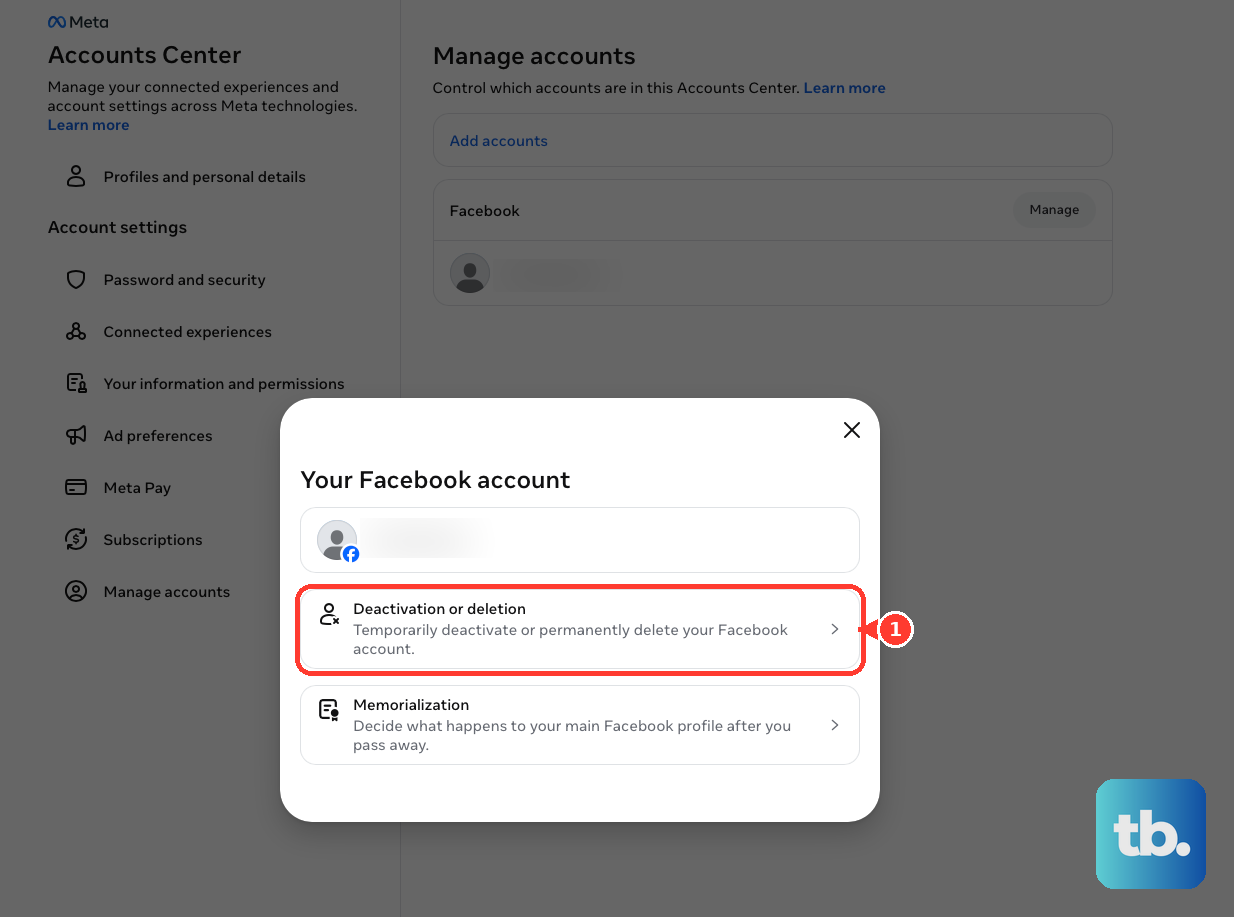
Open Personal details, then choose Account ownership and control. Select Deactivation or deletion. Choose the Facebook profile you want to remove, then select Delete account. Tap Continue and follow Facebook's prompts to confirm.
Delete your Facebook account from a browser
On desktop or mobile web, use Facebook's Accounts Center path.
- 1.Go to facebook.com and open your profile picture or menu.
- 2.Choose Settings & privacy, then Settings.
- 3.Open Accounts Center. What you open next depends on which layout you see.
- 4.If you see Accounts, open Personal details, then select Account ownership and control, then Deactivation or deletion.
- 5.If you see Manage account instead, choose Manage accounts, select Manage next to the account type you want to delete, then choose Deactivation or deletion.
- 6.Choose the Facebook profile, select Delete account, then choose Continue and follow the prompts.
Use Facebook's direct delete page
When the menus are hard to find, open https://www.facebook.com/help/delete_account while signed in to the Facebook account you want to delete. Choose the Facebook profile or account when Facebook asks. Select Delete account, then choose Continue and complete the confirmation prompts.
If this method fails, open Accounts Center from the Facebook app or facebook.com and delete the profile from Deactivation or deletion.
Deactivate Facebook instead of deleting it
Choose deactivation when you want to hide your Facebook profile without permanently deleting it. It uses the same Accounts Center area, but keeps the account from being erased.
In the Facebook app or on facebook.com, open Settings & privacy. Go to Settings, then Accounts Center. Open Personal details.
Choose Account ownership and control, then Deactivation or deletion. Select the Facebook profile and choose Deactivate account. Tap Continue and follow Facebook's prompts.
Remove extra Facebook profiles or Accounts Center links
If your Meta account has more than one Facebook profile, choose the exact action before you confirm.
- 1.To delete or deactivate an additional Facebook profile, open Settings & privacy, Settings, Accounts Center, Personal details, Account ownership and control, then Deactivation or deletion.
- 2.Select the additional Facebook profile, then choose Deactivate profile or Delete profile.
- 3.Tap Continue and follow the prompts.
- 4.To remove a Facebook account or profile from Meta Accounts Center without deleting it, open Accounts Center, then Accounts or Manage accounts.
- 5.Select Remove next to the Facebook account or profile, then choose Remove account and follow the prompts.
Take Facebook off your iPhone or iPad
This fixes the installed Facebook app on iPhone or iPad, not the Facebook account.
On the Home Screen, touch and hold Facebook. Tap Remove App, choose Delete App, then tap Delete to confirm.
If Facebook is not on the Home Screen, open the App Library. Touch and hold Facebook. Choose Delete App, then tap Delete.
Fix iPhone when Delete App is missing
Screen Time restrictions are the usual reason an iPhone or iPad does not show the delete option. Open Settings, then Screen Time.
Go to Content & Privacy Restrictions. Open iTunes & App Store Purchases, then Deleting Apps. Set Deleting Apps to Allow. Delete Facebook again from the Home Screen or App Library.
If this method fails, check Settings, General, then VPN & Device Management. If a Mobile Device Management profile is listed, contact the organization that manages the iPhone or iPad.
Uninstall Facebook from Android
Open Google Play Store. Tap your profile icon, then open Manage apps & devices. Choose Manage, select Facebook, then tap Uninstall.
On a Samsung Galaxy, open the Apps screen. Touch and hold Facebook, choose Uninstall, then tap Uninstall again.
If Facebook was preinstalled and cannot be uninstalled, open Settings, then Apps, then Facebook. Tap Disable, then Disable app. Samsung only lets you disable some preinstalled apps, so this button is not always there.
When Disable is unavailable, hide Facebook instead. On the Apps screen, tap the More icon, tap Settings, choose Hide apps on Home and Apps screens, select Facebook, then tap Done. Choosing Remove from an Android Home screen only removes the shortcut, so use Uninstall when you want Facebook off the device.
Remove Facebook from computers and web apps
The most common cause of confusion on computers is that Facebook is an installed app, a browser web app, or just a shortcut.
On Windows, open Start, then All apps, find Facebook, right-click or press and hold it, then choose Uninstall.
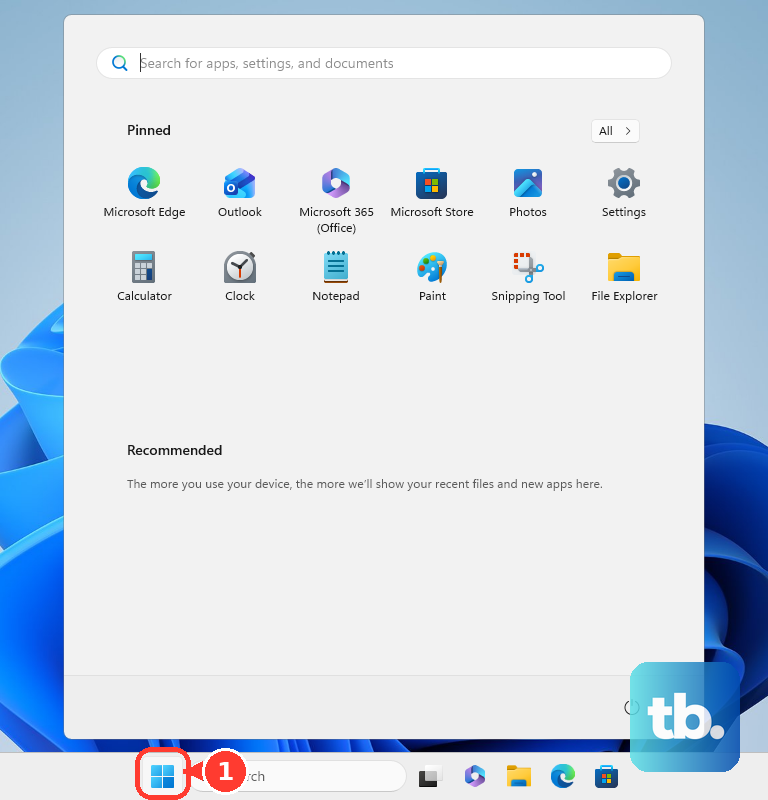
You can also open Start, then Settings, then Apps, then Installed apps, find Facebook, open More, and choose Uninstall.
On Mac, quit the Facebook app first. Open Finder, then Applications. Run an included uninstaller when one exists, or drag Facebook to Trash and empty the Trash.
For a Safari web app on Mac, open Finder, then Go, then Home, then Applications, and drag the Facebook web app to Trash.
For a Microsoft Edge web app, open edge://apps, choose Details on the Facebook app card, select Uninstall, optionally delete app history and data, then choose Uninstall again.
Frequently Asked Questions
Does deleting the Facebook app delete my account?
No. Removing the app only deletes Facebook from that device. To delete your account, use Accounts Center and choose Delete account.
Can I remove Facebook from Meta Accounts Center without deleting it?
Yes. Open Accounts Center, then Accounts or Manage accounts, select Remove next to the Facebook account or profile, and choose Remove account.
Why does my Android phone only show Remove for Facebook?
Remove takes the icon off the Home screen. Use Uninstall to remove the app, or Disable on supported Samsung Galaxy devices when Facebook was preinstalled.
Can I reinstall Facebook after deleting the app?
Yes. Reinstall it from the App Store on iPhone and iPad, Google Play on Android, or the Microsoft Store on Windows where available.