Your Downloads folder is full, but clearing the browser’s download list leaves the files sitting on your computer. To reclaim that space, delete the files themselves, then empty the Recycle Bin or Trash. Start with the steps for your computer below, or use your browser to find a download saved somewhere else.
Delete downloads on Windows
Press Windows+E to open File Explorer.
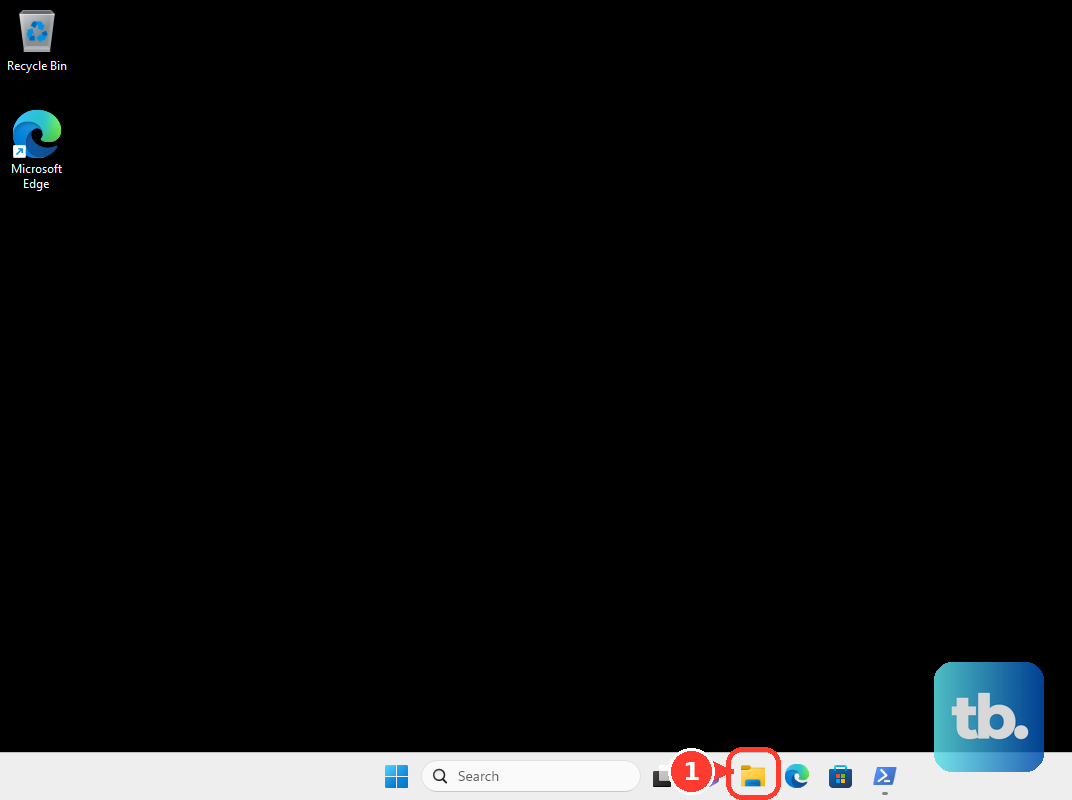
Open Downloads, or the folder you chose when saving the files.
Select the files you no longer need. Ctrl-click selects separate files, Shift-click selects a range, and Ctrl+A selects everything when the file list has focus.
Press Delete to move the selected files from your local drive to the Recycle Bin.
Review your selection before pressing Delete, especially after selecting the entire folder’s contents.
On a Mac, start in Finder
In Finder, choose Go > Downloads, or open Downloads from the Dock. For files saved elsewhere, open their actual destination folder.
Select your unwanted downloads. Command-A selects everything in the file list.
Press Command-Delete to move the selection to Trash. Dragging the selected files onto Trash in the Dock does the same thing.
If a locked item blocks deletion, try clearing Locked in that item’s File > Get Info window before retrying.
Find a download saved somewhere else
Your browser’s download entry points you to a file saved outside the usual folder.
In Chrome, open the Download tray to the right of the address bar, where recently downloaded files appear.
Choose Show in Folder, which appears when you point to the filename.
Delete the revealed file through your computer’s file manager.
In Firefox, open Downloads from the menu.
Choose Show in Folder, or Show In Finder on a Mac, beside the completed download.
Delete the revealed file through the file manager.
For Firefox’s direct deletion option, right-click the download entry, or Control-click it on a Mac.
Choose Delete to remove the actual file from disk.
In Safari, click Show Downloads near the upper-right corner.
Click the magnifying glass beside the filename to reveal it in Finder. Moving a file after downloading can break Safari’s link to its location.
Press Command-Delete to move the revealed file to Trash.
If deleting files has not freed up space
Downloads sitting in the Recycle Bin or Trash still occupy storage until you remove them from there.
On Windows, review the contents of the Recycle Bin. Emptying it removes everything stored there, including files other than downloads.
Empty the Recycle Bin to release that space.
On a Mac, choose Finder > Empty Trash. This also affects all trashed files, not just downloads.
Confirm with Empty Trash.
To permanently remove just one trashed download on a Mac, open Trash.
Control-click the item to open its menu.
Choose Delete Immediately.
Confirm with Delete.
An empty browser download list does not mean the files are gone. Chrome’s Remove, Firefox’s Remove From History and Clear Downloads, Edge’s Clear all download history, and Safari’s Clear remove records while leaving the downloaded files on your computer.
To compare the sizes of your Windows downloads, open Downloads in File Explorer.
Choose View > Details.
Right-click an empty area to open the folder’s context menu.
Choose Sort by > Size before deciding which files to delete.
Clear downloads on Chromebook or Ubuntu
On a Chromebook, open Launcher > Files. Shift+Alt+M also opens Files.
Choose Downloads under My files.
Select the unwanted files.
Click Trash at the upper right.
On Ubuntu Desktop, open the Downloads folder in Files.
Select the items you want to remove.
Press Delete to move them to Trash.
Right-click Trash to open its menu.
Choose Empty Trash when you are ready to permanently remove its contents.
Review any permanent-deletion confirmation carefully before proceeding.
Let Windows clean up older downloads automatically
Storage Sense clears downloads based on how long it has been since you opened them.
Open Start > Settings > System > Storage.
Turn on Storage Sense. Enabling it alone does not turn on Downloads cleanup.
Open the Storage Sense settings.
Set the schedule under Run Storage Sense.
Choose an interval under Delete files in my Downloads folder if they haven't been opened for more than:. Base your choice on how long you need to keep files you have not opened.
Keep cloud files while removing local copies
Cloud services have separate controls for removing a downloaded copy while keeping the original online. These controls apply to files managed by that service, not arbitrary files in your Downloads folder.
For OneDrive on Windows, open the OneDrive folder in File Explorer. Right-click the downloaded file or folder and choose Free up space to make it online-only while retaining it in OneDrive.
For iCloud Drive on a Mac, open Finder > iCloud Drive. Control-click the downloaded item and choose Remove Download to remove the local copy while keeping the file in iCloud.
For Dropbox, open the Dropbox folder in File Explorer or Finder. Right-click the files or folders and choose Make online-only. The cloud copies remain, and local placeholders use a small amount of space.
Frequently Asked Questions
Does deleting a downloaded installer uninstall the app?
No. The installer and the installed application are separate. On Windows 11, open Start > Settings > Apps > Installed apps. Choose More > Uninstall beside the app. Follow its uninstaller. Delete the unwanted installer file separately.
Can I delete Windows downloads without sending them to the Recycle Bin?
Yes. Select the files in File Explorer. Press Shift+Delete to bypass the Recycle Bin. Review your selection first; permanent deletion is not a guarantee of forensic secure erasure.
Can my Mac automatically remove old downloads?
Finder can automatically remove items after they have been in Trash for 30 days. Open Finder > Settings > Advanced. Enable Remove items from the Trash after 30 days. You must first move unwanted downloads to Trash; this setting does not select files in Downloads.
How do I clear Chrome’s download history without deleting my files?
Open More > Delete browsing data. Choose the time range. Select Download history. Clear any other categories you want to preserve. Click Delete data. The downloaded files remain on your computer.