Two-monitor setup fails when the computer has no supported video path to the second screen, the display is not detected, or the desktop is set to the wrong mode.
The fix is to connect each screen through supported hardware, open the right display settings, then choose whether the monitors mirror or extend the desktop.
1. Start with the cables and ports
This fixes a setup where the second monitor has no supported connection path.
- 1.Check the ports on the computer, dock, and monitors. Supported port types in vendor guidance include HDMI, DisplayPort, USB-C, Thunderbolt, DVI, and VGA.
- 2.Connect one cable from the computer or dock to the first monitor.
- 3.Connect a separate cable from the computer or dock to the second monitor.
- 4.Use an adapter when the ports do not match, such as DisplayPort to HDMI.
- 5.Turn on both monitors and select the matching input on each display.
- 6.Open the computer's display settings and choose whether to detect, arrange, duplicate, or extend the screens.
2. Arrange two monitors in Windows 11
Connect both monitors directly to the PC or through a compatible dock.
Open Start > Settings > System > Display.
Select Identify to match each numbered display to the physical monitor on your desk.
Drag the display boxes into the same left-right or top-bottom order as the monitors, then select Apply.
Open Multiple displays and select Detect if one connected screen is missing.
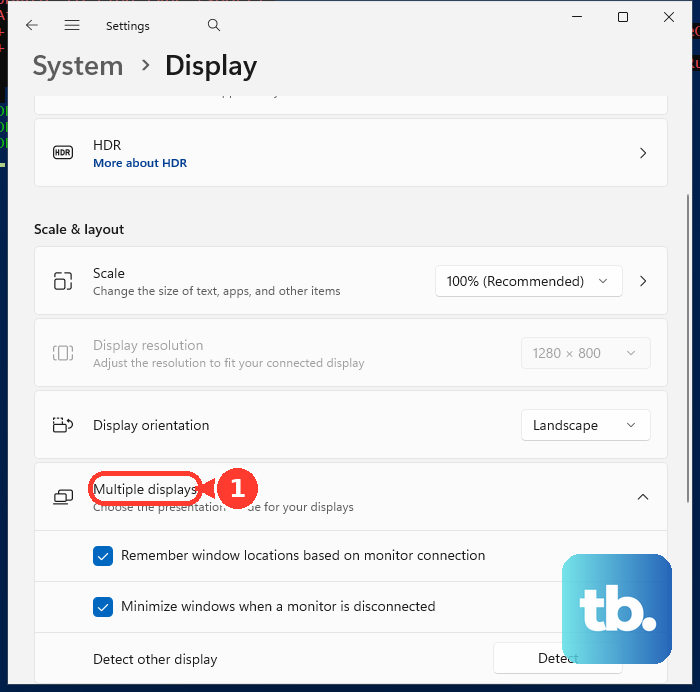
Press Windows logo key + P, then choose Duplicate, Extend, PC screen only, or Second screen only.
Choose Extend when you want separate desktop space on each monitor.
3. Connect two displays on a Mac
Open Apple menu > System Settings, click Help in the menu bar, choose your Mac's specifications, then review Display Support or Video Support.
Next, Connect the displays with the Mac's video ports, cables, and adapters.
Open Apple menu > System Settings > Displays.
Click the display name, open the Use as pop-up menu, and choose the display mode.
To detect a screen manually, stay in Displays, hold Option, and click Detect Displays.
Press Command + Brightness Down to turn video mirroring on or off when more than one display is connected.
4. Add a dock when ports run out
This fixes laptops that need more supported monitor outputs than the built-in ports provide.
Connect the docking station's power adapter.
Confirm the laptop supports the dock connection, such as Thunderbolt or USB-C with DisplayPort alternate mode.
Connect the dock to the laptop with its Thunderbolt or USB cable.
Connect the monitors to the dock using HDMI, DisplayPort, or USB-C.
Open the computer's display settings and arrange, duplicate, or extend the monitors.
5. Cast to a wireless display on Windows
For a Miracast adapter, plug the adapter into the display's HDMI port, press Windows logo key + K, then select the adapter in Cast.
The settings route is Start > Settings > System > Display > Multiple displays > Connect.
On Windows 11 version 22H2 and later, project to another Windows PC through the Wireless Display app.
6. Daisy chain monitors or duplicate with a splitter
This fixes the mix-up between an extended desktop and the same picture on two screens.
For an extended setup, use a computer and monitors that support DisplayPort 1.2 MST, USB-C with DisplayPort alternate mode, or Thunderbolt 3 or later.
Connect the computer to the primary monitor.
Then connect the primary monitor to the secondary monitor.
On older Dell monitors, enable MST in the monitor's on-screen menu.
Open display settings and arrange the screens.
Use an HDMI splitter only when both displays should show the same computer output. A basic HDMI splitter does not create two independent desktops.
7. Configure Chromebook or Ubuntu displays
On a Chromebook, connect the monitor or dock, then open time > Settings > Device > Displays to mirror the built-in display or adjust the external screens.
Chromebook external monitor support is set by the model, and Google says compatible Chromebooks can connect up to one to three external monitors.
On Ubuntu Desktop, connect the monitor, open Activities > Displays, drag the displays into position, choose Primary Display, then select Apply and Keep Changes.
With two screens, Ubuntu offers Join Displays for an extended desktop and Mirror for the same content on both displays.
8. Fix a monitor that is not showing
Make sure the monitor is powered on and set to the correct input.
On Windows 11, open Start > Settings > System > Display > Multiple displays > Detect.
On Mac, open Apple menu > System Settings > Displays, hold Option, then click Detect Displays.
On a Mac laptop with Apple silicon, unlock the Mac and click Allow when a new USB or Thunderbolt accessory prompt appears.
For NVIDIA graphics on Windows, open NVIDIA Control Panel, select Set up Multiple Displays, check the inactive display, then click Apply.
For AMD graphics on Windows, right-click the desktop, choose Display Settings, open the Multiple Displays menu, then select Apply and Keep changes.
9. Check special cases before buying hardware
This fixes purchases that cannot deliver the monitor setup you expect.
For a Mac, check Apple menu > System Settings > Help > your Mac's specifications > Display Support or Video Support before buying a dock or adapter.
Use Thunderbolt for extended daisy chaining on macOS. macOS does not support extended daisy chaining over DisplayPort or USB-C MST.
For a DisplayLink dock or adapter on macOS, install DisplayLink Manager, open Finder > Applications > DisplayLink Manager, then open Apple menu > System Settings > Privacy & Security > Screen & System Audio Recording and turn on DisplayLink Manager. On older macOS versions the same setting is listed as Screen Recording. Select Quit & Reopen if macOS prompts you to restart the app.
For a WiGig dock, confirm the Windows PC supports WiGig at Settings > Network & Internet > Airplane mode, then press Windows logo key + K and select the dock.
For a managed Windows PC or supervised Mac, check with the administrator when wireless projection or USB and Thunderbolt accessories are blocked by policy.
Skip iMac target display mode for current setups. Apple documents it only for specific older iMac and Mac combinations, and it does not support Boot Camp or Windows.
Frequently Asked Questions
Can I connect two monitors with one HDMI port?
Yes, but a basic HDMI splitter duplicates the same picture on both displays. For two independent desktops, use another supported video output, a compatible dock, DisplayPort or USB-C daisy chaining, Thunderbolt, or another supported display method.
Should I choose Duplicate or Extend?
Choose Duplicate when both monitors should show the same content. Choose Extend when each monitor should have its own desktop space for moving windows between screens.
Why does my second monitor show the same thing as the first?
The computer is using mirror or duplicate mode, or the setup uses a splitter that duplicates one signal. On Windows, press Windows logo key + P and choose Extend. On Mac, open Displays settings and change the Use as option.
Can a Chromebook use two external monitors?
Yes, on supported models. Google says external monitor support is set by the Chromebook model, and compatible Chromebooks can connect up to one to three external monitors, often through a compatible docking station.