Your Apple keyboard is switched on, but your Mac still isn’t responding when you type. Start with the connection method for your model: a cable automatically pairs a rechargeable Magic Keyboard, while older battery-powered keyboards use Bluetooth settings. If pairing gets stuck, the connection fixes below cover what to do next.
Pair a Magic Keyboard with its cable
A cable automatically pairs a compatible rechargeable Magic Keyboard for wireless use.
If the keyboard came with that Mac, switch it on so green is visible. It is already paired and connects automatically.
For a keyboard that needs pairing, connect it to your Mac using the appropriate USB-C, USB-C to Lightning, or Lightning to USB cable.
Slide the keyboard’s power switch on so green is visible.
Open Apple menu > System Settings > Bluetooth to check the connection.
Unplug the cable to use the keyboard wirelessly.
Connect through Bluetooth without a cable
Turn on the keyboard to begin wireless pairing. For an older Apple Wireless Keyboard with replaceable batteries, wait for its LED to blink: that signals it is discoverable. Setting up an earlier Apple Wireless Keyboard also needs a wired or wireless mouse or trackpad already connected to your Mac; on a Mac laptop, you can use its built-in trackpad during setup.
Open Apple menu > System Settings > Bluetooth. Turn Bluetooth on if it is off.
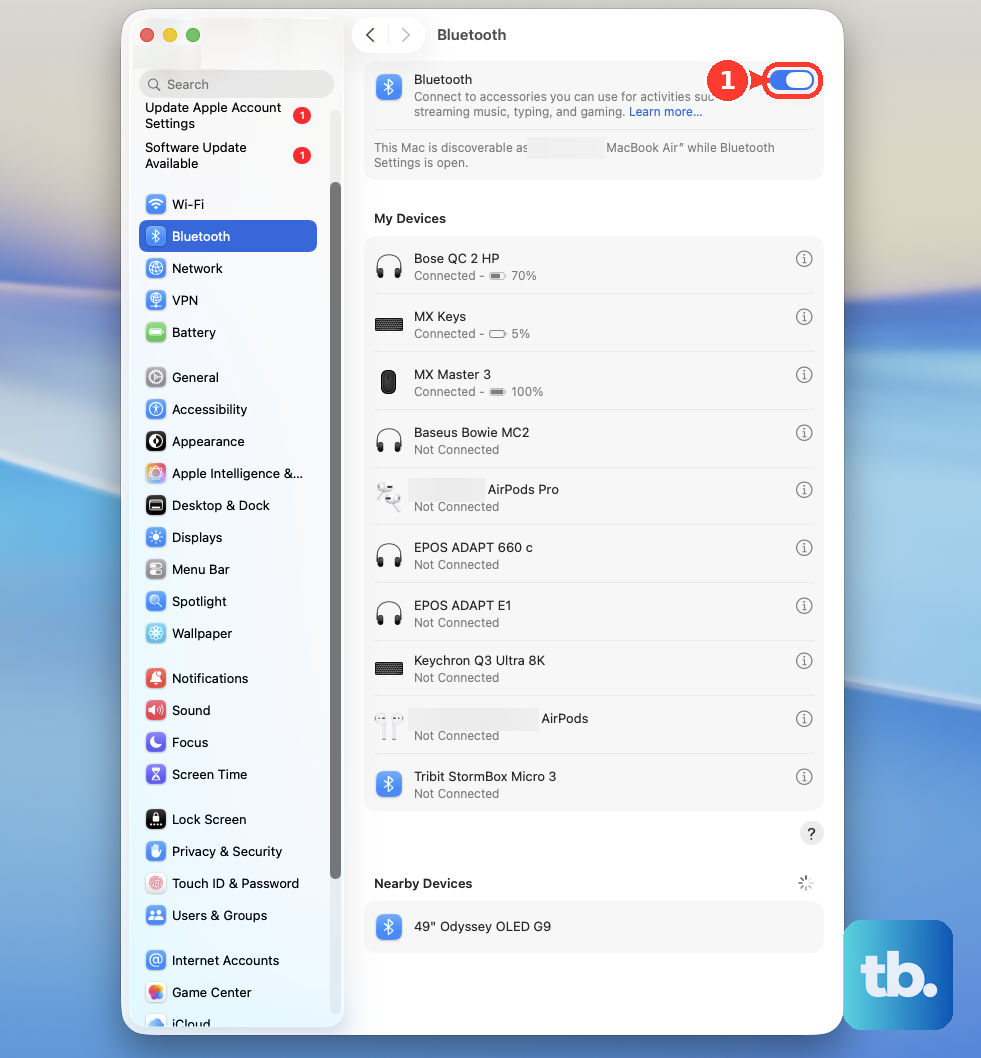
Click Connect beside the keyboard. Complete any confirmation prompt using the keyboard you are pairing. If a passcode appears, type it on that keyboard and press Return.
Already paired this keyboard? Open Control Center in the menu bar, open Bluetooth, and select the keyboard when it is listed.
Release a keyboard connected to another Mac
An existing connection to another Mac blocks discovery on an older Apple Wireless Keyboard.
Check the keyboard’s LED when you turn it on. If it lights briefly without blinking, check its connection on the previous Mac.
On that Mac, open System Settings > Bluetooth.
Click the keyboard’s Show Detail button.
Select Forget This Device to remove its pairing with that Mac.
Switch the keyboard off.
Turn it back on.
Pair it with the destination Mac using the Bluetooth procedure above, or the cable procedure for a rechargeable Magic Keyboard.
Keep the keyboard connected by USB
To use a rechargeable Magic Keyboard as a wired keyboard, connect its included cable to your Mac. Use an appropriate adapter if the connectors differ.
Switch the keyboard on.
Leave the cable connected while you type. Communication now uses the cable instead of Bluetooth.
For an existing wired Apple USB keyboard, insert its USB connector fully into a compatible Mac port, using an appropriate adapter when necessary.
On an Apple-silicon Mac laptop, unlock the Mac before connecting the accessory.
Click Allow when the accessory connection alert appears. A denied accessory can still charge while its data connection is blocked, so charging alone does not confirm a working keyboard connection.
If the wired keyboard is unresponsive, disconnect it.
Reconnect it to the Mac.
If it still does not respond, try another compatible Mac port.
Restore a keyboard that will not connect
Try these connection fixes in order.
- 1.Open Apple menu > System Settings > Bluetooth and turn Bluetooth on if it is off.
- 2.Switch the keyboard off. On Magic Keyboard, use the rear switch. On an older Apple Wireless Keyboard, hold the right-side power button until the LED goes out.
- 3.Turn the keyboard back on using its switch or power button.
- 4.For a rechargeable model, connect the appropriate cable to your Mac, wait one minute, then disconnect it to retry wireless operation.
- 5.If it still will not reconnect, open System Settings > Bluetooth, Control-click the keyboard’s name, and choose Forget. Repeat the pairing procedure above. Forgetting removes automatic reconnection until you pair the keyboard again.
Set up Touch ID after connecting
Confirm that your Magic Keyboard with Touch ID is connected to a compatible Apple-silicon Mac. The USB-C model requires macOS 15.1 or later.
Open Apple menu > System Settings > Touch ID & Password.
Click Add Fingerprint.
Enter your Mac account password.
Follow the fingerprint enrollment prompts.
If setup requests physical confirmation, complete the action shown: press the Mac’s power button twice or authenticate with a fingerprint already enrolled on that Mac.
Set up fingerprints separately from basic typing, and remember that the keyboard supports a secure Touch ID pairing with only one Mac at a time.
Frequently Asked Questions
Does a USB-C Magic Keyboard work with an Intel Mac?
The USB-C Magic Keyboard without Touch ID supports compatible Intel and Apple-silicon Macs running macOS 15.1 or later. The USB-C Magic Keyboard with Touch ID requires an Apple-silicon Mac running macOS 15.1 or later.
Can I connect a Magic Keyboard for iPad directly to my Mac?
Its USB-C port carries power, not data, so that port cannot provide a wired keyboard connection to your Mac. Apple supports typing with an iPad-attached keyboard during a Sidecar session on compatible devices.
How can I enable Bluetooth without a working mouse?
With a functioning built-in or connected keyboard, press Command-Space. Type Bluetooth File Exchange. Press Return or Enter to open it. Press Return or Enter again to enable Bluetooth.
Do I need to download software to pair an Apple keyboard?
No. Standard pairing uses a cable or the Mac’s Bluetooth settings and requires no downloaded utility.