Connecting AirPods to your MacBook gets confusing when your case doesn't have the button you're looking for. The pairing gesture depends on your model. Here's how to pair yours, reconnect them later, and fix sound that still comes from the MacBook speakers.
Pair your AirPods with the MacBook
Start here to set up a Bluetooth connection between your earbuds and MacBook.
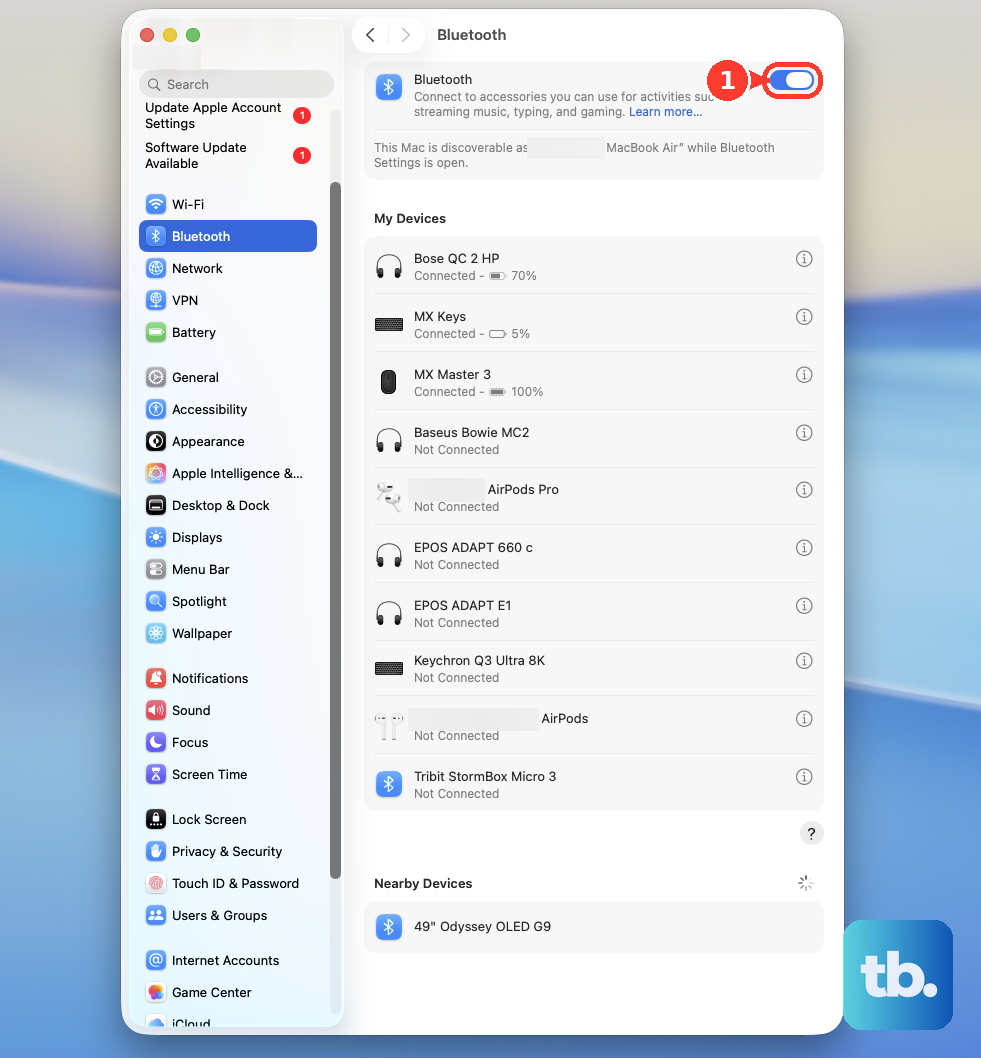
Open Apple menu > System Settings > Bluetooth.
Turn on Bluetooth.
Put both earbuds in their charging case.
Open the lid.
For AirPods 1, 2, or 3, or AirPods Pro 1 or 2, hold the rear setup button for about five seconds until the light flashes white.
For AirPods 4, AirPods 5, or AirPods Pro 3, double-tap the front of the case until the light flashes white instead.
Click Connect beside your AirPods under Nearby Devices in the Bluetooth device list.
Set up AirPods Max over Bluetooth
AirPods Max enter pairing mode with the headphones' listening mode button.
- 1.Open Apple menu > System Settings > Bluetooth.
- 2.Turn on Bluetooth.
- 3.Hold the listening mode button until the light flashes white.
- 4.Under Nearby Devices, click Connect beside your AirPods Max.
Reconnect AirPods you've already set up
Wear your AirPods near the MacBook.
Click Control Center in the menu bar.
Open Bluetooth.
Select your AirPods to connect.
If they aren't available and you originally set them up on an iPhone or iPad, sign your Mac into the same Apple Account. On a signed-out Mac, open Apple menu > System Settings > Sign in.
Enter the Apple Account email address or phone number and password used on that iPhone or iPad.
Complete account verification when prompted.
Tip: Previously paired AirPods also have a Connect button that appears when you hover over their name in System Settings > Bluetooth.
Update macOS for newer AirPods
Check compatibility if you're pairing newer earbuds: AirPods 4 require macOS Sequoia or later, AirPods 5 require Golden Gate or later, and AirPods Pro 3 require Tahoe or later.
For older models, the minimums are Mojave 10.14.4 for AirPods 2, Monterey for AirPods 3, Catalina 10.15.1 for AirPods Pro 1, Ventura for AirPods Pro 2 with a Lightning case, and Sonoma for AirPods Pro 2 with a USB-C case.
Open Apple menu > System Settings > General > Software Update.
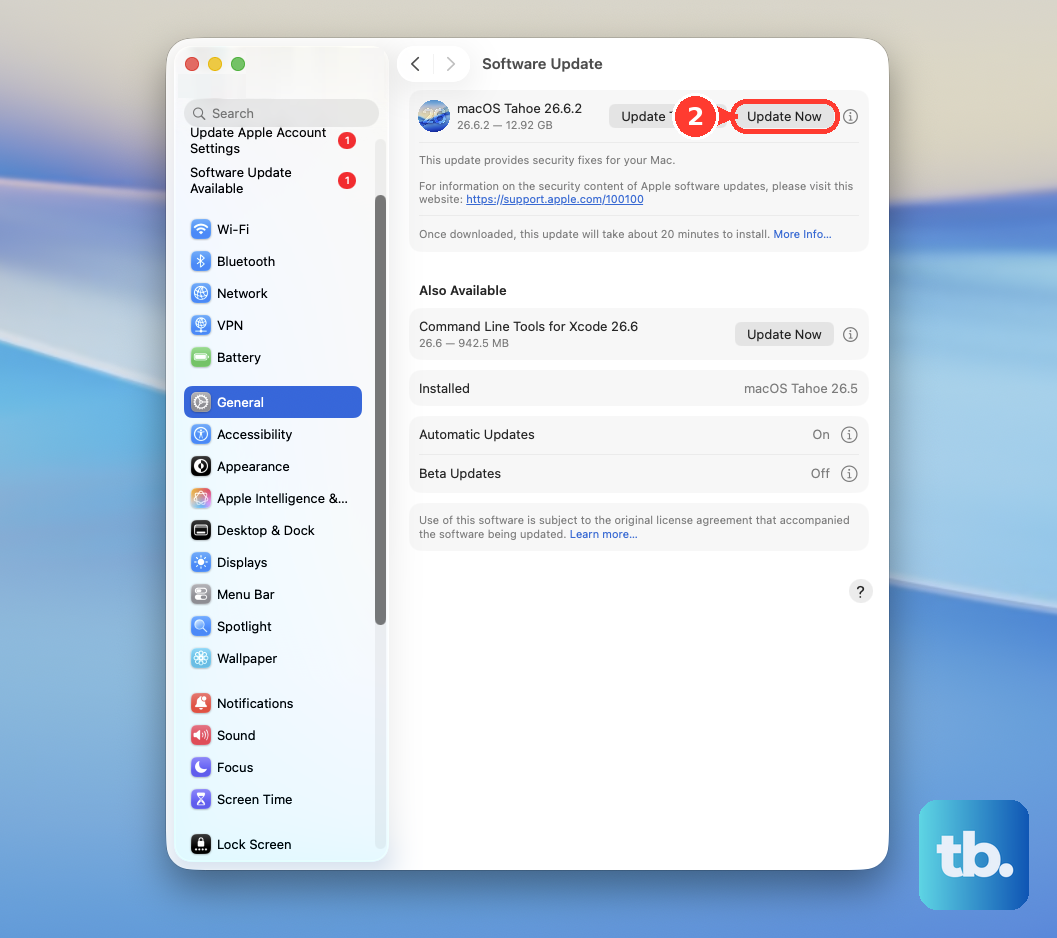
Install an offered update or upgrade that's compatible with your MacBook.
Send sound to your AirPods
Connected, but still hearing the MacBook speakers? Select your AirPods as the audio output.
Open Apple menu > System Settings > Sound.
Click Output.
Select your AirPods for playback.
To use their microphone too, click Input.
Select your AirPods as the input device.
For a quicker playback change with AirPods or AirPods Pro, open Control Center > Sound.
Select your earbuds as the output device.
Keep automatic switching under control
Automatic switching lets compatible AirPods move to MacBook audio on macOS Sequoia or later. It requires the same Apple Account on your devices, two-factor authentication, and automatic connection enabled.
Update your devices to compatible current software.
Sign each device into the same Apple Account with two-factor authentication.
Wear your AirPods near the MacBook.
Start listening on the Mac to use automatic switching.
To limit switching instead, connect your AirPods through Control Center > Bluetooth.
Open System Settings.
Click your AirPods' name in the sidebar.
If Connect to This Mac isn't visible, open Audio & Routing.
Set Connect to This Mac to When Last Connected to This Mac.
If an iPhone keeps taking the connection, first connect the AirPods to that phone through Settings > Bluetooth.
Tap More Info beside the AirPods.
Open Connect to This iPhone.
Select When Last Connected to This iPhone.
If automatic switching still doesn't bring audio to your MacBook, select your AirPods in Control Center > Bluetooth to connect manually.
Retry a connection that won't work
Check that both earbuds charge before trying again.
Open System Settings > Bluetooth.
Turn on Bluetooth if it's off.
Put both earbuds in their charging case.
Close the lid for 15 seconds.
Reopen the lid.
Repeat the pairing button or front gesture for your model from the first section.
Click Connect beside the AirPods.
If an existing pairing still fails, open System Settings > Bluetooth.
Control-click your AirPods' name.
Choose Forget.
Pair them again using the matching steps above.
For AirPods Max, charge the headphones to at least 50 percent before restarting them.
Hold the listening mode button and Digital Crown until the light flashes amber.
Release both buttons.
Open System Settings > Bluetooth.
Click Connect beside your AirPods Max to retry.
Tip: Forgetting your AirPods removes the pairing, so you'll need to pair them again before using them.
Frequently Asked Questions
How do I choose AirPods for FaceTime calls?
With your AirPods connected to the Mac, open FaceTime's Video menu and choose them as the microphone or audio output device. Choose Use System Setting to follow your Mac's audio selections.
Can I connect AirPods Max to a MacBook with a cable?
Yes. AirPods Max 1 with USB-C and AirPods Max 2 support USB-C audio on macOS 15.4 or later. Update macOS and the headphones' firmware, then connect them with a USB-C to USB-C cable. Keep Bluetooth enabled for Siri, Spatial Audio, and audio calls.
Will resetting used AirPods remove the previous owner's Apple Account?
No. Resetting alone does not remove Find My Lock. The previous owner must remove the AirPods from their account using Find My or iCloud Find Devices before you set them up with your account.
Why can't I change Bluetooth settings on my work MacBook?
Managed work or school Macs support a restriction that blocks Bluetooth setting changes. Ask your administrator to review Allow Bluetooth modification and permit the changes needed to connect your AirPods.