Your wireless keyboard is on, but your iPad still isn't finding it. For a compatible Bluetooth keyboard, the connection starts with pairing mode and Settings > Bluetooth. Here's how to connect it, handle a pairing code, and get a previously paired keyboard working again.
Connect your keyboard through Bluetooth
Use this method for a compatible Bluetooth keyboard, including Apple's standalone Magic Keyboard. Apple's Magic Keyboard case for iPad uses the Smart Connector, covered below.
For the standalone Magic Keyboard USB-C, charge it before pairing. This model requires iPadOS 14.5 or later; check compatibility separately for other variants.
Turn on or open the keyboard, following its model's instructions.
Put it into the manufacturer's discovery or pairing mode. Use the instructions for your exact model, because there is no universal pairing shortcut.
Keep the keyboard near your iPad, within about 33 feet or 10 meters.
On the iPad, open Settings > Bluetooth.
Turn Bluetooth on.
Tap your keyboard's name in the device list.
Complete any passcode prompt using the steps below.
Enter the pairing code on your keyboard
If your iPad displays a pairing code, enter it on the physical keyboard you're connecting.
- 1.Select the keyboard in Settings > Bluetooth.
- 2.Read the code displayed on your iPad. Logitech K480 generates a new code for each connection, so use the one on screen.
- 3.Type that code on the wireless keyboard.
- 4.Press Return or Enter to complete pairing.
Put a multi-device keyboard into pairing mode
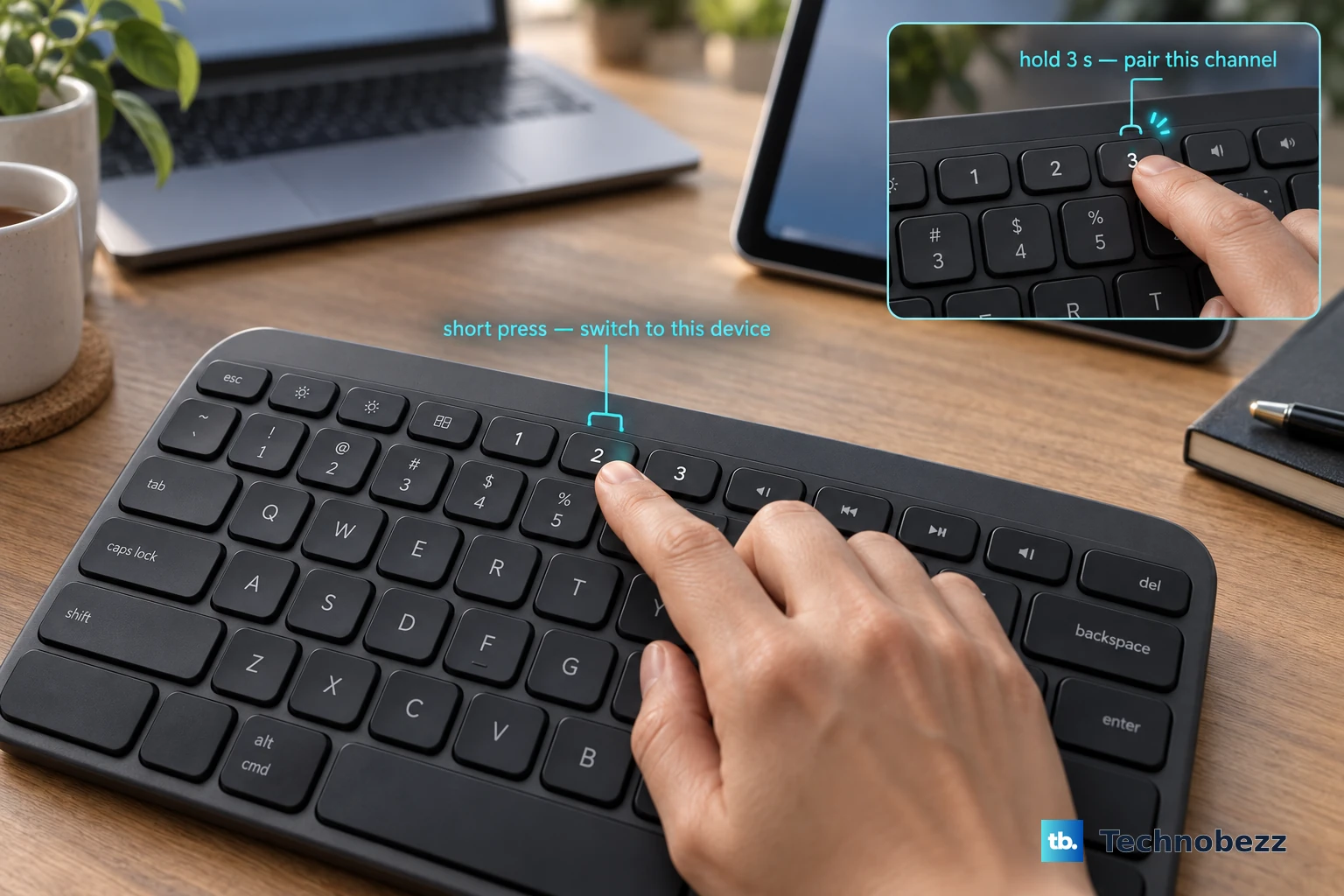
Check the device channel before pairing. On a keyboard with multiple saved-device channels, choosing a separate channel preserves its existing pairing with a computer or phone.
For Logitech MX Keys Mini, turn the keyboard on.
Hold your chosen Easy-Switch button for three seconds, until its light flashes rapidly.
Select the keyboard in Settings > Bluetooth on your iPad.
For a new Logitech Keys-To-Go 2, remove the insulation tab from the battery tray. Channel 1 enters discovery mode automatically for three minutes, with a rapidly flashing white light.
Select Keys-To-Go 2 in the iPad's Settings > Bluetooth.
To return to an iPad already paired with Keys-To-Go 2, briefly press its assigned Easy-Switch button. A short press switches connections; holding the button for three seconds starts a new pairing.
For Keychron models covered by its Bluetooth support instructions, move the connection switch to Bluetooth.
Hold fn + 1 until the indicator repeatedly flashes. On K6 and K12, use fn1 + Q instead. These shortcuts apply to those models, not every Keychron keyboard.
Select the keyboard in Settings > Bluetooth.
For Plugable BT-KEY3XL, unfold the keyboard.
Press Fn + 1 to select Bluetooth mode.
Press Fn + C to start pairing.
Select the keyboard in the iPad's Settings > Bluetooth.
If the keyboard still doesn't appear, try the power and connection checks below. For a different model, follow its own pairing instructions before retrying.
Restore power and release another connection
These checks address depleted batteries and connections to another device.
Move the keyboard close to your iPad.
Turn the keyboard off.
Turn it back on.
Charge it fully, or replace depleted batteries on a model with replaceable batteries.
If it connects to another device instead, unpair it from that device. On a keyboard with multiple saved-device channels, select a separate channel instead.
Put the keyboard back into discovery mode.
Select it again in Settings > Bluetooth on your iPad.
For an already-connected Satechi Slim EX1, press any key to wake it. This model sleeps after a period of inactivity and reconnects when awakened.
Remove an old pairing and connect again
If the keyboard previously worked but now won't connect, remove its saved pairing and start fresh.
- 1.Open Settings > Bluetooth.
- 2.Tap the information button beside the keyboard's name.
- 3.Tap Forget This Device, then confirm with Forget Device.
- 4.Put the keyboard back into discovery or pairing mode.
- 5.Select the keyboard in the Bluetooth device list and complete any code prompt.
- 6.If the connection still fails, turn Bluetooth off and back on in Settings > Bluetooth, then retry pairing. This fully switches Bluetooth off; the control in Control Center temporarily disconnects accessories.
Attach an iPad keyboard case
Apple's Magic Keyboard for iPad, Magic Keyboard Folio, Smart Keyboard, and Smart Keyboard Folio use the Smart Connector. These cases don't need Bluetooth pairing, but each must match your iPad.
Find your model under Settings > General > About > Model Name.
Match its model, size, and generation against the keyboard's compatibility list.
For Magic Keyboard for iPad, place the keyboard on a flat surface with its hinge away from you and the Apple logo facing up.
Open the lid.
Adjust its angle.
Attach the compatible iPad magnetically, aligning its rear cameras with the cutout. The keyboard needs no power switch or separate charging.
For Magic Keyboard Folio, attach the back panel with its microfiber side facing the iPad.
Connect the keyboard to the Smart Connector on the iPad's edge.
Adjust the rear stand for typing.
For Smart Keyboard Folio, align its connector with the three magnetic contacts on the iPad's back.
Fold it into typing position.
For Smart Keyboard, connect it to the iPad's side Smart Connector.
Fold the cover into a triangle.
Seat the iPad in the groove above the number keys.
If a compatible keyboard case isn't recognized, disconnect it.
Clean both Smart Connector contact surfaces with a soft, lint-free cloth.
Remove any interfering case or cover.
Unlock the iPad.
Reattach the keyboard.
If it still isn't recognized, restart the iPad.
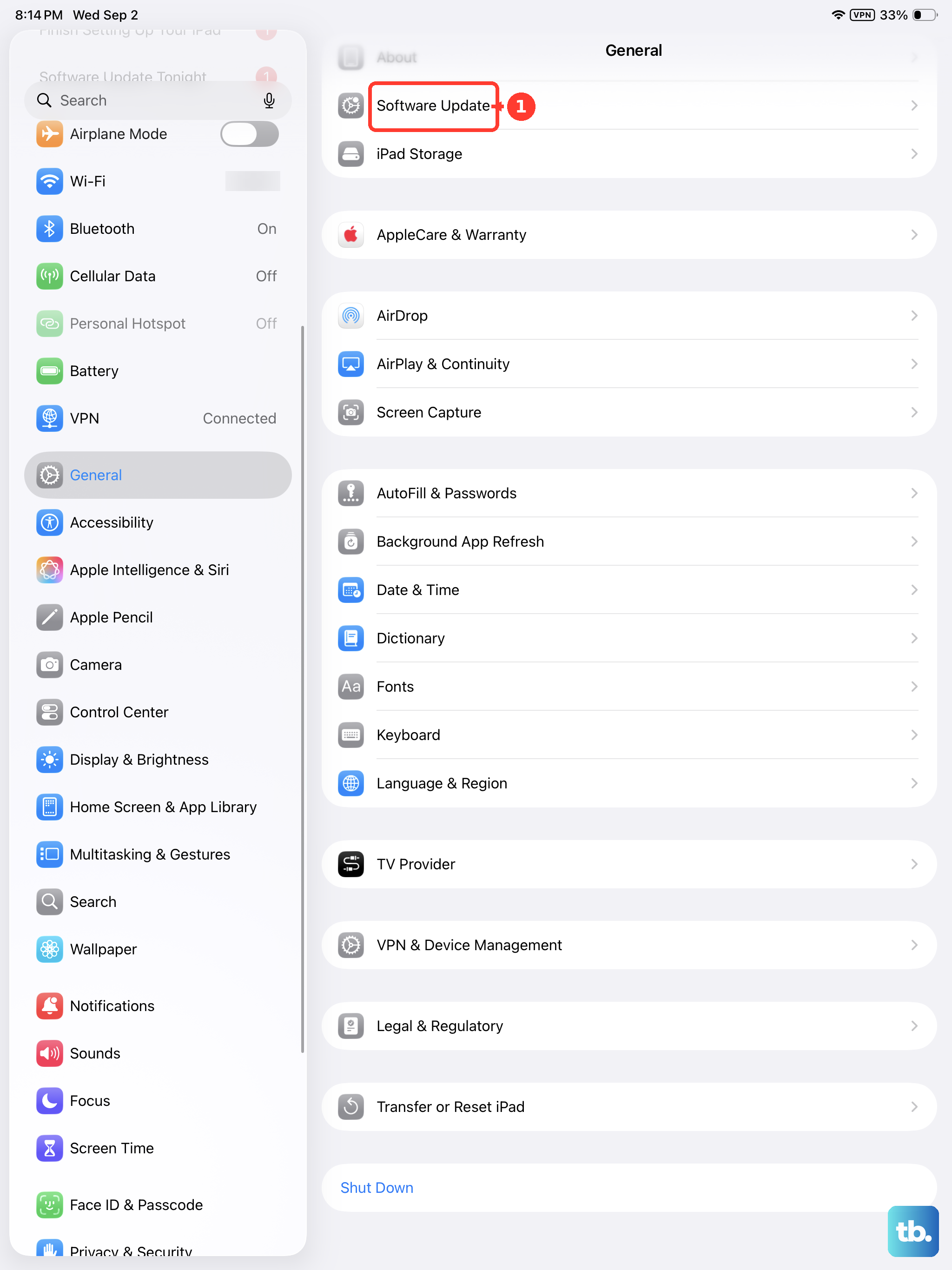
Check for an iPadOS update under Settings > General > Software Update. Magic Keyboard for iPad Air requires iPadOS 18.3 or later.
Check support before using a USB receiver
A USB receiver needs explicit support for your iPad. Satechi Slim EX1 supports its supplied USB-C receiver on the USB-C iPad Pro and iPad Air models listed by Satechi. That compatibility doesn't extend to every wireless receiver.
For a compatible Slim EX1 setup, charge the keyboard, turn it on, and select the appropriate operating-system mode. Insert its supplied USB-C receiver into your unlocked iPad.
Press FN + R, using the key with the USB-dongle icon, to activate the receiver channel. This connection doesn't use the iPad's Bluetooth device list.
If the receiver isn't recognized, disconnect it, unlock the iPad, and reconnect it. Review permissions under Settings > Privacy & Security > Wired Accessories. The default is Automatically Allow When Unlocked.
Frequently Asked Questions
Do I need an app to type with a Bluetooth keyboard on my iPad?
No. Ordinary typing doesn't require a companion app. If your keyboard uses an app for additional features, enable that app's Bluetooth access under Settings > Privacy & Security > Bluetooth. This permission is separate from the main Bluetooth switch.
Can I connect a wireless keyboard with its charging cable instead?
Only if the keyboard supports USB data mode. For Plugable BT-KEY3XL on a USB-C iPad, connect the included USB cable through an appropriate adapter, then press Fn + 2 to select USB mode. A charging port doesn't establish wired typing support; Satechi Slim EX1's USB-C port is charging-only.
Can I use my Mac's keyboard on my iPad without pairing it again?
Yes. Universal Control lets supported Mac and iPad models share the Mac's keyboard while the iPad runs its own apps. It requires macOS 12.4 or later, iPadOS 15.4 or later, the same Apple Account with two-factor authentication, and Wi-Fi, Bluetooth, and Handoff enabled. Keep the devices within 10 meters with both screens unlocked.
Why can't I change Bluetooth settings on my school or work iPad?
Supervised iPads support an organizational restriction that blocks Bluetooth changes. Ask your school or workplace administrator to review Modify Bluetooth settings and permit changes if appropriate. There is no universal consumer menu for changing the organization's policy.