You want to clear Steam’s cache, but you also want your installed games to stay put. Steam’s built-in download-cache control does exactly that. Here’s where to find it on Windows, Linux, Mac, and Steam Deck, including how to reach it from Big Picture mode.
Clear the download cache on Windows or Linux
Start in the Steam desktop app, where clearing the download cache leaves installed games unaffected.
These steps apply to the current Steam desktop client on 64-bit Windows 10 and Windows 11, as well as supported Linux systems. The cache control is part of Steam, so you do not need to download an installer to use it.
Select Steam > Settings.
Select Downloads.
Find the Clear Download Cache row and click Clear Cache.
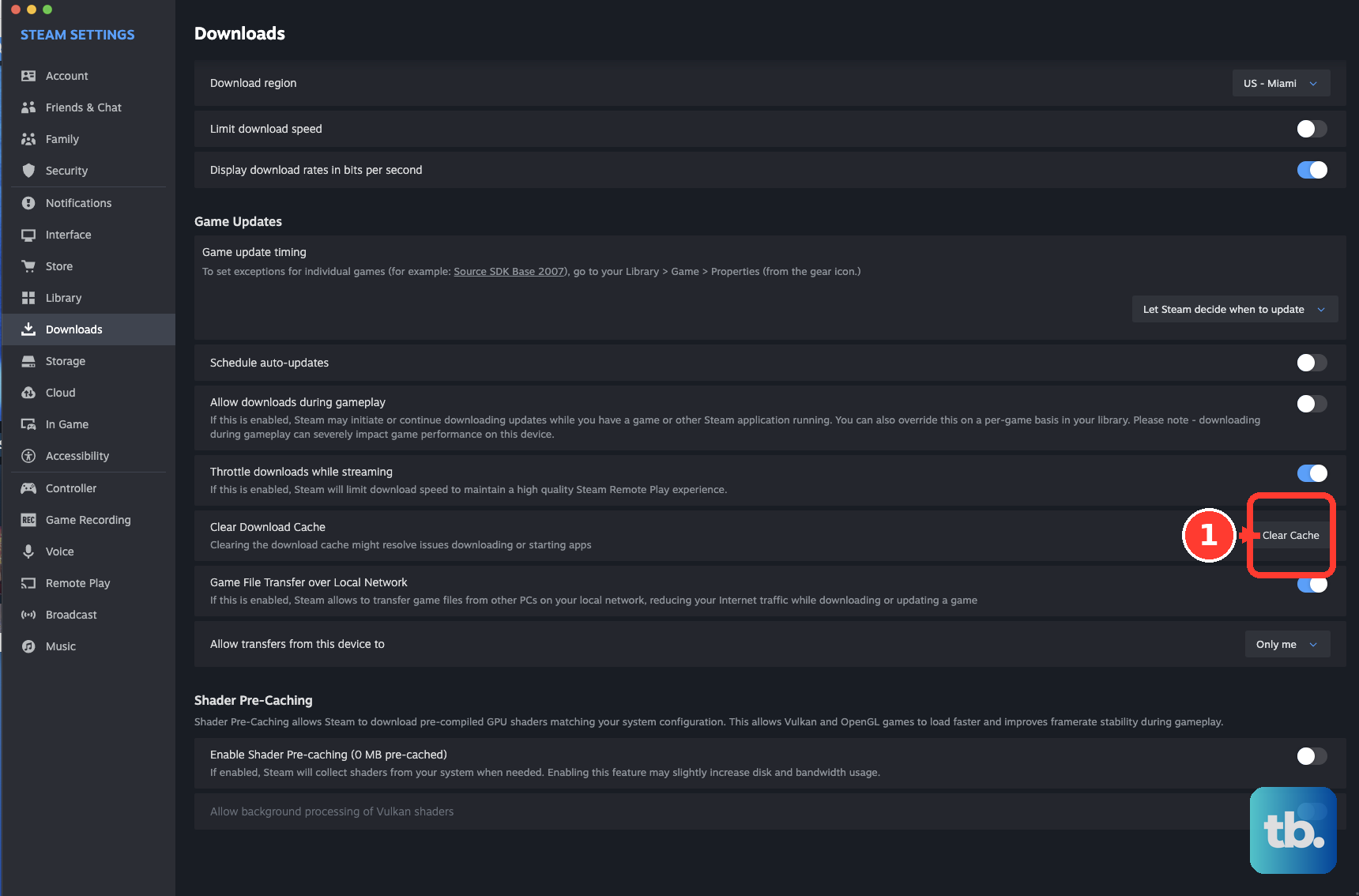
Select Confirm to clear the cache and restart Steam.
Sign in again if prompted.
The restart is part of the cache-clearing process. Your installed games remain installed after the reset, even if Steam asks you to log in again.
On a Mac, start with Preferences
Open the Steam desktop app.
Choose Steam > Preferences.
Select Downloads.
Click Clear Cache beside Clear Download Cache.
The row names the type of cache you are clearing, while the button starts the reset. This is the same download-cache operation available in the Windows and Linux desktop client.
Select Confirm to let Steam restart.
Sign in again if prompted.
Have your Steam login details ready before confirming the reset.
Use Desktop Mode on Steam Deck
On Steam Deck LCD or OLED, Desktop Mode gives you access to the same download-cache control.
This route applies to both models running current SteamOS. Once you open Steam in Desktop Mode, the cache-clearing steps follow the desktop client’s settings.
Press STEAM, then select Power > Switch to Desktop.
Open the desktop Steam client.
Select Steam > Settings > Downloads.
Click Clear Cache in the Clear Download Cache row.
Select Confirm to let Steam restart.
Sign in again if prompted.
Select Return to Gaming Mode on the desktop.
If clearing the cache does not resolve your download or installation problem, continue with Steam Support’s download and installation troubleshooting.
Reach the control from Big Picture mode
Big Picture mode has a different interface, so reaching the desktop cache control starts with leaving that mode.
You can use this route on supported Windows, macOS, and Linux computers. After leaving Big Picture mode, use the settings entry for your operating system.
Select Menu > Power > Exit Big Picture Mode.
In the desktop client, open Steam > Settings > Downloads. On a Mac, use Preferences instead of Settings.
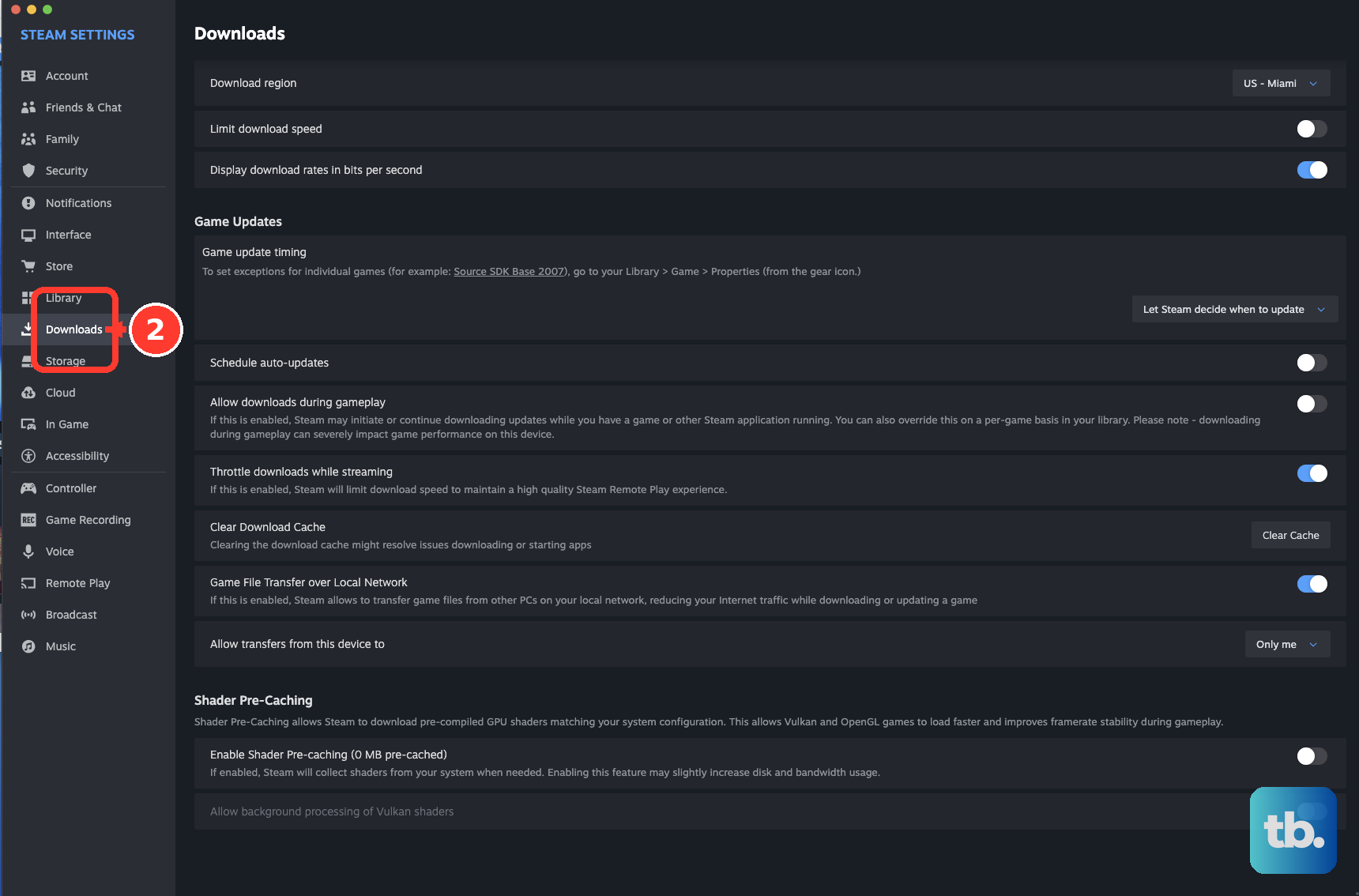
Click Clear Cache in the Clear Download Cache row.
Select Confirm to let Steam restart.
Sign in again if prompted.
Skip shortcuts that clear different data
For a download-cache reset that keeps your games installed, stick with the built-in control.
Use Steam > Settings > Downloads, or Preferences on Mac. Clearing a phone app’s cache or a browser’s cache affects different local data.
Choose Clear Cache to clear Steam’s download cache while leaving installed games unaffected.
Keep full removal out of a cache-only reset. Uninstalling Steam on Windows removes its installation directory and game content within it. The built-in cache procedure requires neither removal nor a fresh Steam download.
On a Mac, deleting the entire Steam folder inside Application Support removes local Steam data and the games stored there. Use the download-cache control when you want those installed games to stay in place.
A SteamOS factory reset clears all local data, including games. Wiping or re-imaging a SteamOS device also removes device data, so those recovery operations go beyond clearing the download cache.
Frequently Asked Questions
Does verifying game files replace clearing the download cache?
No. Valve lists clearing the download cache and verifying the integrity of game files as separate troubleshooting steps.
Can I follow these steps on 32-bit Windows?
These Windows steps cover the current Steam client on 64-bit Windows 10 and Windows 11. Valve ended support for 32-bit Windows in January 2026.
Do I need to uninstall Steam on Linux to clear the download cache?
No. On Linux, use Steam > Settings > Downloads and select Clear Cache, then Confirm. Valve says this does not affect your installed games, though you will need to sign in to Steam again.
Does reinstalling Steam while keeping steamapps guarantee a clean download cache?
No. Preserving steamapps can retain download-related content. Valve does not identify that reinstall procedure as equivalent to using Clear Cache.