
Your Xiaomi 15 is a powerful phone, but over time, temporary cached data from apps and the system can build up. This can lead to sluggish performance, occasional UI glitches in HyperOS 2, or just a general feeling that things aren't as snappy as they used to be. A good cache cleanup can often solve these issues without touching your personal files.
Clear App Cache for Specific Apps
This is the most direct way to target apps that are acting up or taking too much space. Head to Settings > Apps > Manage apps. Find and tap on the app you want to clean, then select Storage usage. Here, you'll see the Clear cache button.
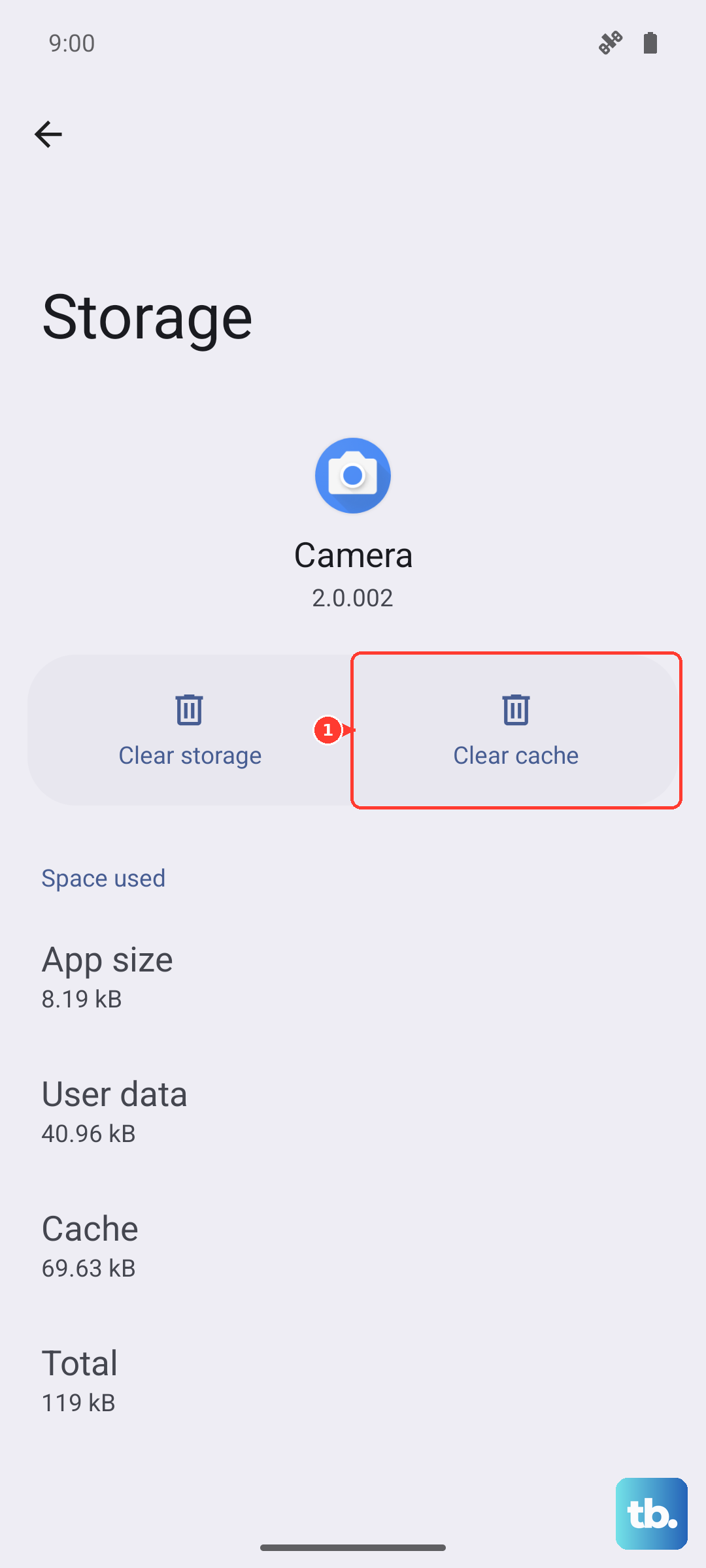
Tapping it removes temporary files the app has stored, like thumbnails or offline data. It won't delete your login information or saved preferences. I'd focus on browsers, social media apps, and games first, as they tend to accumulate the largest caches.
Use the Built-in Security Cleaner
Xiaomi includes a handy tool for this. Open the Security app on your phone. Look for the Cleaner or Boost speed option. The app will scan for junk files, residual files from uninstalled apps, and system cache.
You can review what it finds and tap to clean it all with one button. It's a quick way to free up a surprising amount of space and can help smooth out minor performance hiccups.
Clear Your Browser Cache
If you use Chrome, open the app and tap the three dots in the top right. Go to Settings > Privacy and security > Clear browsing data. Under the Basic tab, make sure Cached images and files is selected.
Choose your time range (like "All time") and tap Clear data. This clears stored website data to help pages load fresh. Remember, this won't log you out of sites unless you also clear cookies and site data.
Wipe the System Cache Partition
This is a deeper clean for system-level cached data, which is different from app cache. It's a great step if you're experiencing persistent lag or glitches, especially after a HyperOS update. First, power your Xiaomi 15 completely off.
Press and hold the Power button and the Volume Up button together until the Mi logo appears, then release. You'll boot into the Recovery menu. Use the volume buttons to navigate to Wipe data and press the power button to select it. Then, choose Wipe cache and confirm. This process is safe and doesn't touch your photos, messages, or apps.
Manage Storage and Large Files
Go to Settings > Storage to get a complete breakdown of what's filling your phone. Tap on categories like Images, Videos, and Audio to see the largest files. This is where you can manually delete old downloads, duplicate photos, or videos you no longer need.
Also, check the storage used by individual apps here. If a game like Genshin Impact is taking 20GB, you know its cache and data are the primary culprits, and you can clear it from this menu as well.
Disable System Recommendations and Ads
While not a cache issue, the system ads and recommendations in some Xiaomi apps can feel like clutter and use background resources. To turn them off, go to Settings > Passwords & security > Privacy > Special permissions.
Look for Show over other apps or Modify system settings and find apps like "MSA" or "MiuiDaemon". You can revoke these permissions. Also, within apps like the Downloads app or File Manager, look in their settings menus for toggles to turn off "Recommendations" or "Get suggestions".
Restart Your Phone Regularly
It sounds simple, but a restart clears the phone's active memory (RAM) and temporary system caches. Given that the Snapdragon 8 Elite can run warm under load, a reboot can help it cool down and reset any background processes that might be stuck.
Just hold the power button and tap restart. Making this a weekly habit is an easy way to keep things running smoothly without any deep cleaning.
Use Google Files for a Second Opinion
For a comprehensive clean-up, the "Files by Google" app from the Play Store is excellent. Once installed, open it and tap the Clean button on the bottom left. It will scan for junk files, duplicate files, large old files, and unused apps.
It often finds things the built-in cleaner might miss and gives you granular control over what to delete. It's a great free tool to run every couple of months to keep your storage in check.