
Your Galaxy Z Fold 7 pushes Android 15 hard, especially when you're juggling three apps on the main screen or flipping between the cover display. Temporary files build up fast, causing lag or weird behavior. Clearing the cache is the simplest way to shake things loose without losing any personal data.
A quick restart clears temporary glitches
Before diving into menus, try a forced restart. Press and hold Volume down and the Side button simultaneously for about 10 seconds. The Z Fold 7 will restart on its own. This clears the system RAM and flushes out the minor glitches that make things feel sluggish.
Go through your apps one by one
Open Settings and tap Apps. Scroll through your list and pick any app that seems to be eating up space. On the app's info page, tap Storage and then Clear cache.
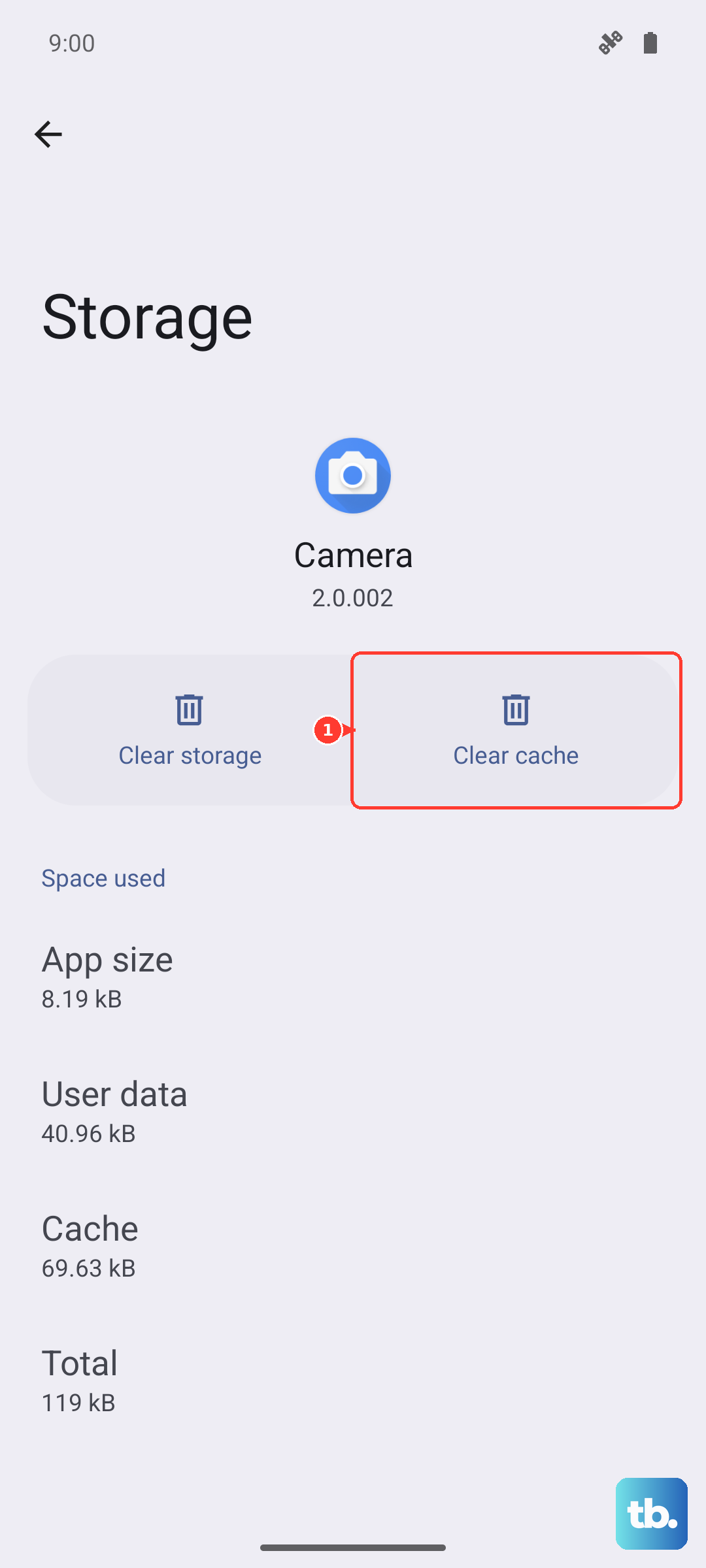
I'd focus on the heavy hitters like Samsung Internet, Chrome, Google Photos, and your social media apps. You won't lose any sign-ins, downloads, or personal data by doing this, it just removes the temporary junk.
The system cache can hold onto corrupted files
If your phone freezes or stutters after a recent software update, the system partition cache might need a reset. Power down the Z Fold 7 completely. Connect it to a PC via USB-C, then press and hold Volume Up + Power to enter Recovery mode.
Use the volume buttons to navigate to Wipe cache partition and press the Side button to confirm. Let it finish, then reboot the phone. This is completely safe and won't touch your apps, photos, or settings.
Device Care handles the bulk cleanup
Samsung's built-in Device Care tool is the fastest way to clean up everything at once. Go to Settings > Battery and device care > Storage. Tap Clean now and it will automatically wipe temporary files and cached data across all your apps. The whole process takes about 30 seconds.
Is your battery draining oddly?
Some Galaxy Z Fold 7 units have reported charging quirks, like the battery stopping at 45% or draining unevenly. If your battery stats look off, a cache partition wipe can sometimes recalibrate the battery management system. After wiping the cache, let the battery drain completely, then charge it to 100% without interruption.
A dusty port can cause charging and data issues
The USB-C port on the Z Fold 7 collects pocket lint surprisingly fast. If your phone is charging slowly, stopping at a certain percentage, or not connecting to a PC, shine a light inside the port. Gently clean it out with compressed air or a plastic toothpick. Don't use a metal tool, as you can damage the pins inside.
Stick to Samsung or USB PD PPS certified cables and adapters
The Z Fold 7 supports up to 25W wired charging. For the best results, use a certified Samsung adapter or a USB PD PPS charger. Cheap cables cause slow charging and unnecessary heat, which can degrade your battery over time.