
Your Redmi Note 13 Pro uses cached data to make apps load faster, but over time, this temporary storage can build up and cause slowdowns or storage warnings. A good cleanup can often bring back that snappy feel.
Clear Individual App Cache
Open Settings and tap on Apps. You'll see a list of all your installed applications. Tap on any app, then select Storage usage. Here, you'll find the Clear cache button.
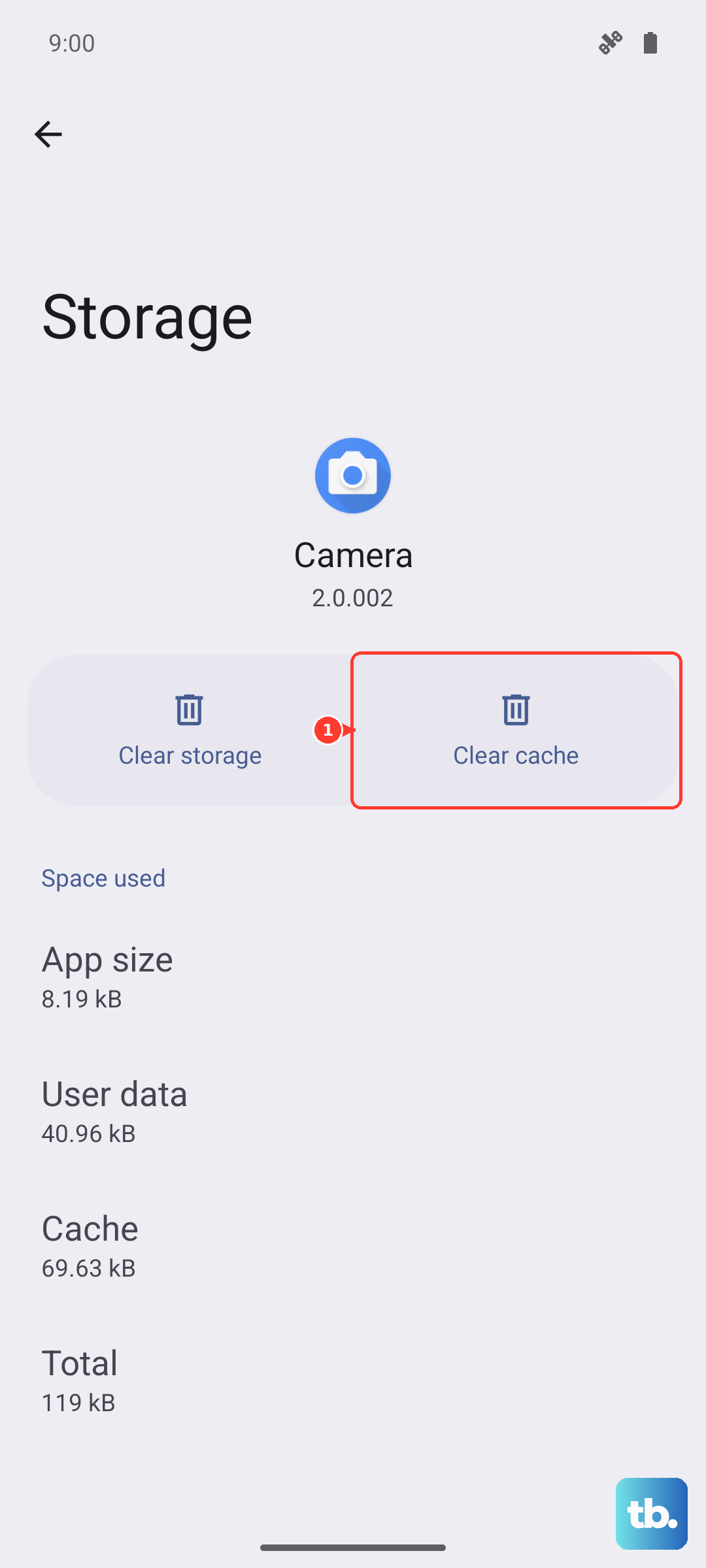
This is the safest method, as it only removes temporary files. Your login info and personal data within the app stay untouched. I'd start with apps like Chrome, Instagram, YouTube, and any games you play often, as they tend to accumulate the largest caches.
Use the Security App's Cleaner
Xiaomi includes a handy tool right in the Security app. Open it and tap on the Cleaner icon (it usually looks like a broom). The app will scan for cache files, residual files from uninstalled apps, and other junk.
You can review what it finds before tapping to clean it all. This is also where you can disable MIUI's promotional ads. Look for a settings gear within the Cleaner or Security app to turn off recommendations.
Clear Your Browser Cache in Chrome
If you use Chrome, open the app and tap the three dots in the top right. Go to History > Clear browsing data. On the next screen, make sure Cached images and files is selected.
You can choose a time range, but "All time" gives the most thorough clean. Tap Clear data. Remember, this won't log you out of websites unless you also clear cookies and site data.
Wipe the System Cache Partition
For deeper system-level cache, you can boot into recovery mode. First, power off your Redmi Note 13 Pro completely. Once it's off, press and hold the Power and Volume Up buttons together until the Mi logo appears, then release.
Use the volume buttons to navigate to Wipe data and press the power button to select. Here, choose Wipe cache specifically. This clears system update caches and can fix odd glitches without touching your personal files or apps.
Manage Storage with Files by Google
For a powerful, free tool, install Files by Google from the Play Store. Open it and tap the Clean button on the bottom left. It excels at finding duplicate files, large old downloads, and app cache that other cleaners might miss.
It gives you granular control over what to delete. I find it's especially good for clearing out "Other" storage, which can get bloated on MIUI.
Clear Old Messages and Downloads
Don't forget your Messages app. Long conversations, especially group chats full of photos and videos, can take up gigabytes. Go through and delete old threads you don't need.
Also, check your Downloads folder. You can find it in the My Files app. It's easy for APK files, documents, and images from months ago to pile up unnoticed.
Restart Your Phone Regularly
A simple restart clears the phone's active memory (RAM) and flushes some temporary caches. Just hold the Power button and tap restart. Doing this once a week helps prevent minor software hiccups from becoming persistent lag.
If the phone is completely unresponsive, a force restart is your next step. Press and hold the Power button for about 15 seconds until you feel it vibrate and restart.
Check Detailed Storage Breakdown
Go to Settings > Storage. This gives you a clear picture of what's filling your 256GB or 512GB. Tap on each category like Apps, Images, and Videos.
For photos, consider using Google Photos to back them up to the cloud. Once backed up, you can use its "Free up space" feature to remove the local copies from your phone, saving a significant amount of storage.