
Your iPhone Air stores temporary files, cached data, and leftover junk that eats into your storage over time. When space gets tight or apps start acting slow, clearing the cache can make a real difference. Here's how to free up that space.
Clear Safari Cache
Safari tends to hoard the most cache data. Open Settings > Safari and tap Clear History and Website Data. Confirm the action and you're done. This wipes your browsing history, cookies, and cached website files, and you'll need to log back into any sites you were signed into.
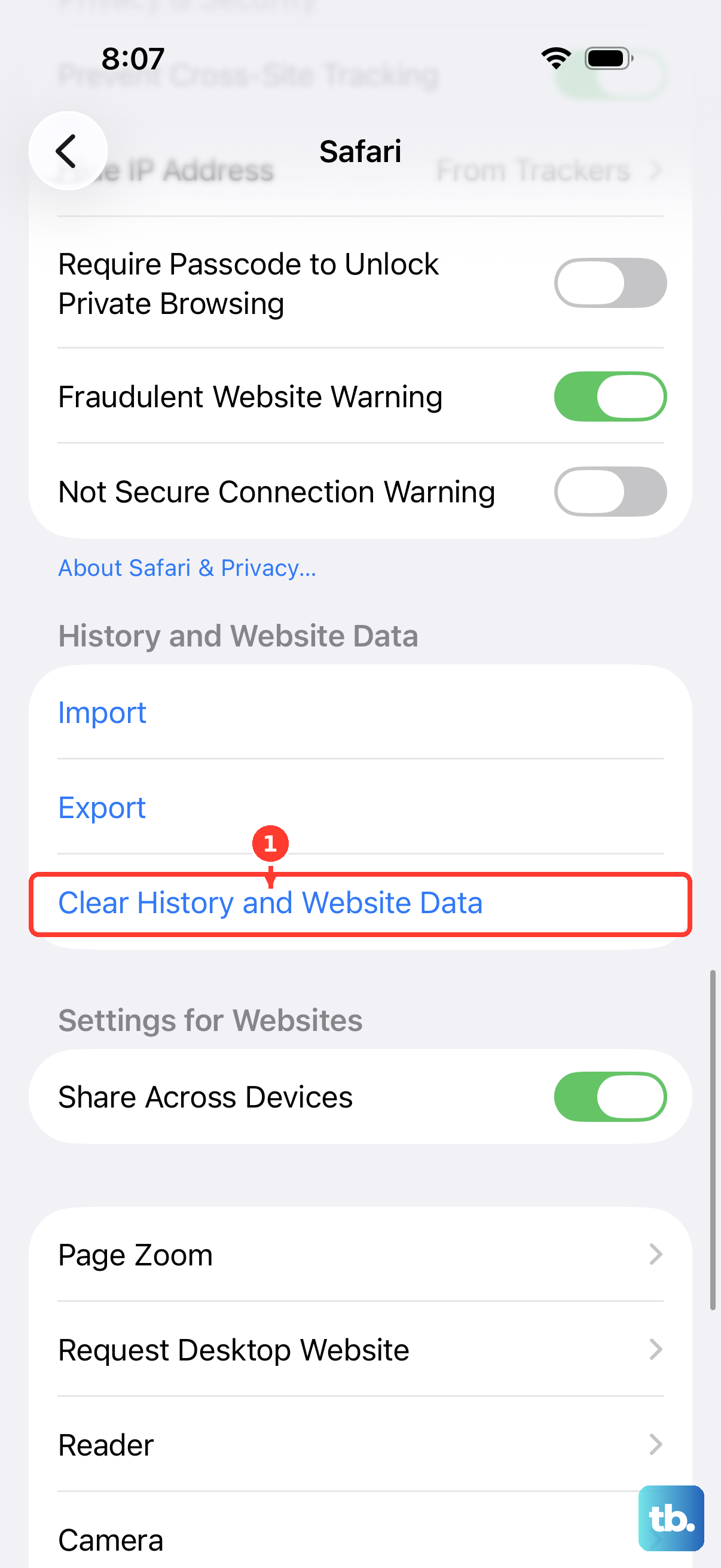
If you'd rather keep your history, go to Settings > Safari > Advanced > Website Data and tap Remove All Website Data. This clears cached files without touching your browsing history. It's a gentler option when you only want to clear the temporary stuff.
Offload Apps to Clear Cached Data
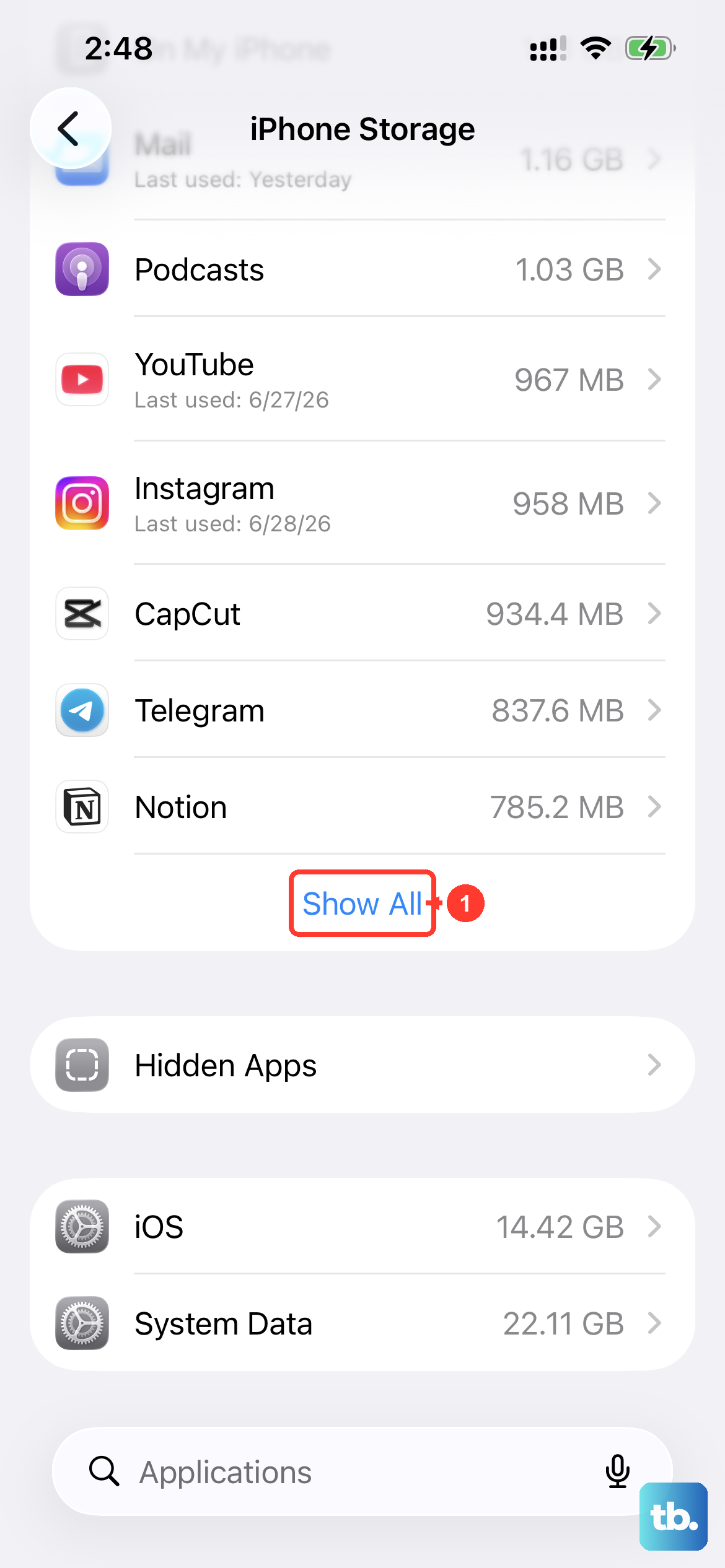
iOS 26 doesn't include a universal "clear cache" button for individual apps, but offloading works just as well. Head to Settings > General > iPhone Storage. Tap any app on the list to see how much space it's using. Then tap Offload App to delete the app while keeping its documents and settings. Reinstall it from the App Store and the cached data will be gone, but your login info and preferences stay intact.
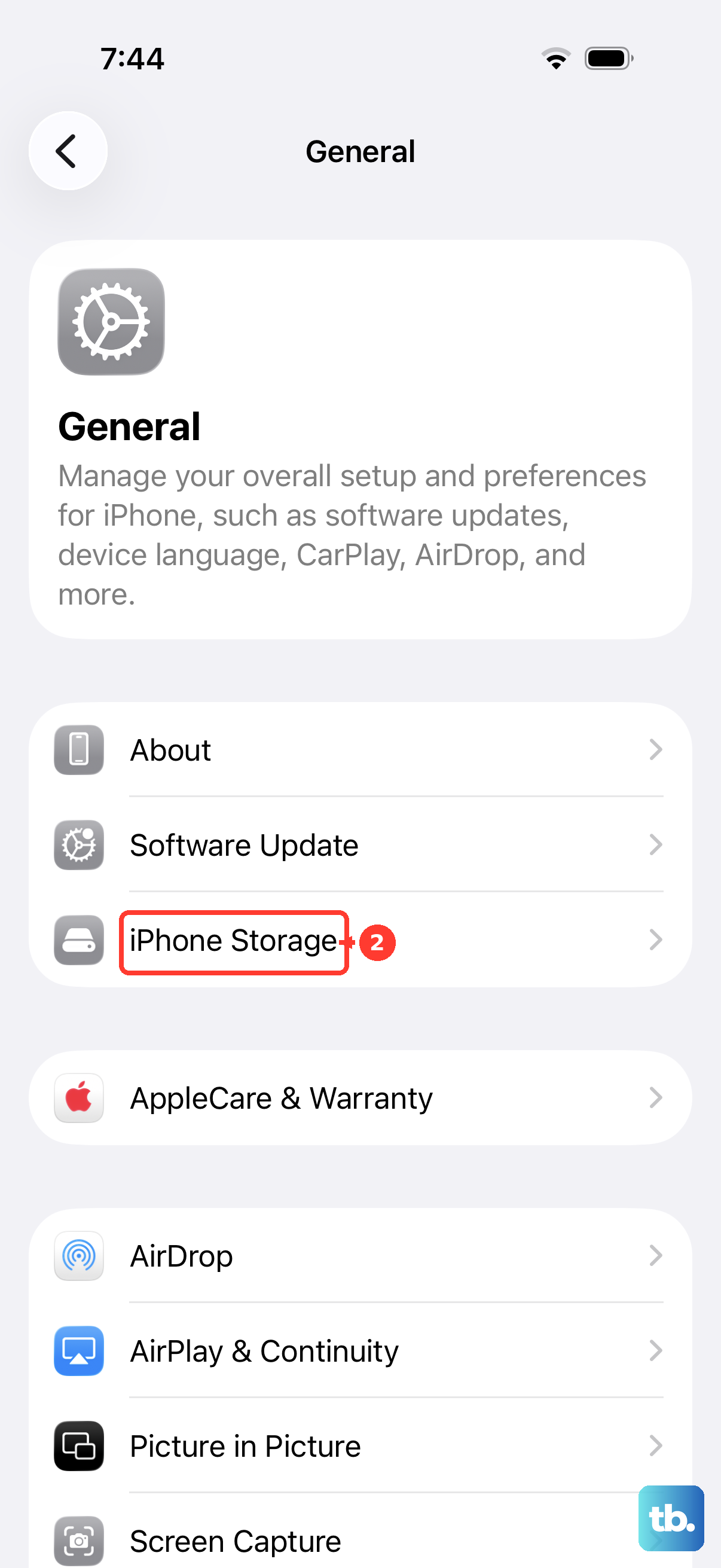
This is especially useful for social media and streaming apps that cache video previews, images, and other content. In my experience, sites like Instagram and TikTok can eat up hundreds of megabytes over a few weeks of regular use.
Delete and Reinstall Apps for a Deeper Clean
For the most thorough clean, delete the app entirely and start fresh. Press and hold the app icon on your home screen, tap Remove App, then Delete App. Download it again from the App Store afterward. This removes everything, cached data, downloaded content, stored files, and you'll need to sign in from scratch and set up your preferences again.
Apps like Facebook, YouTube, and Twitter tend to accumulate the most junk over time. A clean reinstall every few months can keep them running smoothly on your iPhone Air.
Clear Messages Cache and Attachments
The Messages app can silently take up gigabytes with photos, videos, GIFs, and stickers. Go to Settings > General > iPhone Storage > Messages and you'll see a breakdown of what's eating space. Tap into each category, large attachments first, and delete anything you don't need.
You can also set messages to auto-delete after a set period. Go to Settings > Messages > Keep Messages and change it from Forever to 30 Days or 1 Year. This prevents future buildup without any manual work.
Free Up Storage with Automatic Tools
Open Settings > General > iPhone Storage and check the recommendations at the top. iOS suggests things like Offload Unused Apps, which automatically removes apps you haven't used in a while while keeping their documents. You'll also see prompts to review large attachments and empty the recently deleted photo album. These built-in tools are worth enabling to keep storage clean without remembering to do it manually.
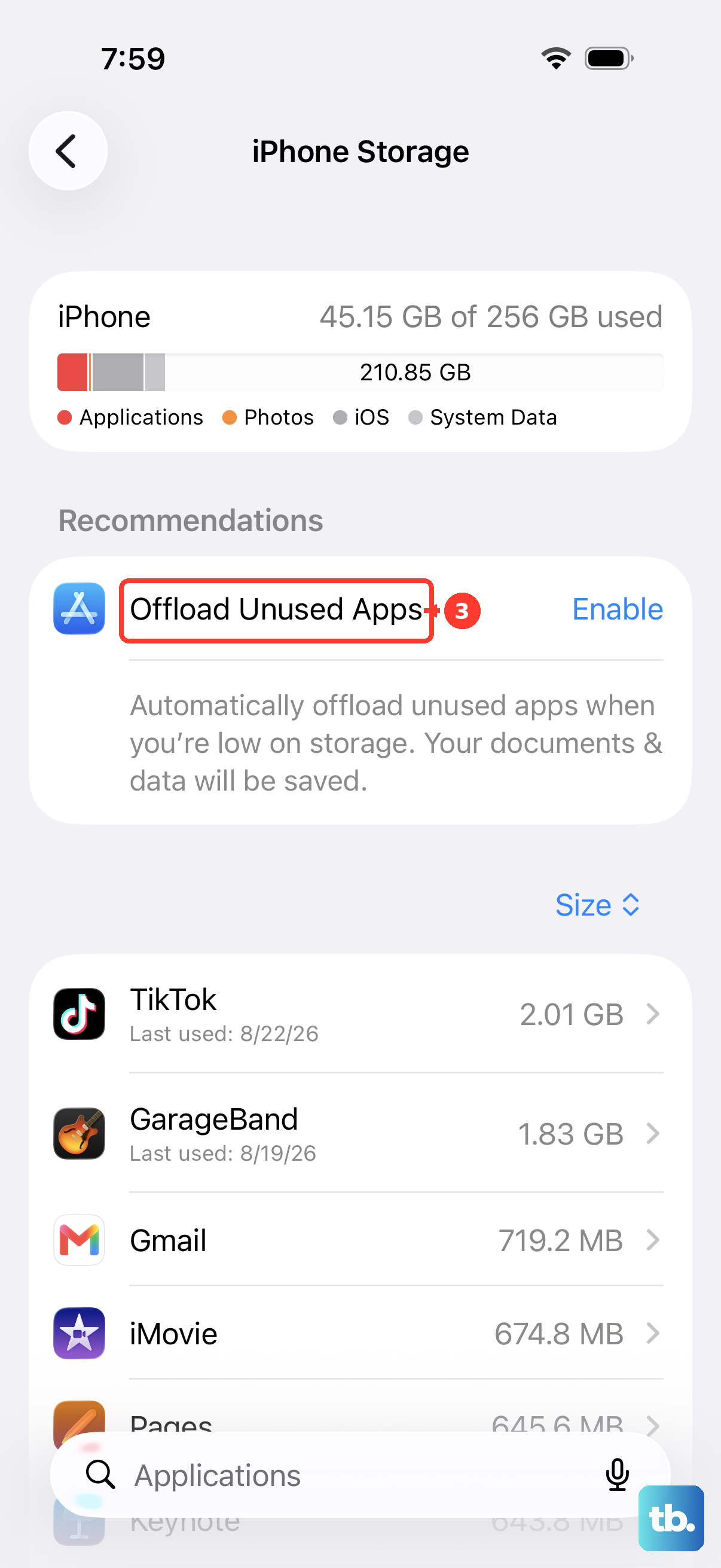
The Offload Unused Apps toggle is especially handy on the iPhone Air if you tend to download apps for one-time use and forget about them.
Restart Your iPhone Air to Clear System Cache
A simple restart clears temporary system files, frees up RAM, and can fix minor glitches that don't show up as obvious errors. Hold the Side button and either Volume button until the power slider appears. Slide to power off, wait about 30 seconds, then hold the Side button to turn it back on. Doing this once a week keeps things running smoothly.
If your iPhone Air becomes unresponsive, which can happen after the battery drains completely, you might need a force restart. Quickly press and release the Volume Up button, then quickly press and release the Volume Down button, then press and hold the Side button until the Apple logo appears. This clears deeper system caches and is a safe first step when the phone is acting up.
Clear DNS Cache If Sites Load Slowly
If websites are loading slowly or timing out, the DNS cache might be stale. The fastest fix is toggling Airplane Mode. Swipe into Control Center, tap the Airplane Mode icon to turn it on, wait 10 seconds, then tap it again to turn it off. This forces your iPhone Air to re-resolve website addresses and flushes the DNS cache.
A restart does the same thing, but the Airplane Mode toggle is quicker when you're in the middle of browsing.