A full computer blocks updates, slows file work, and leaves no room for new downloads. The safest cleanup starts with the storage tools built into Windows, macOS, ChromeOS, and your browser.
Use the storage screen first, then remove large files, unused apps, synced cloud copies, and browser data. The steps below stick to current vendor-documented cleanup paths and skip outdated advice.
Start with the built-in storage screen
On Windows, open Start > Settings > System > Storage. Turn Storage Sense on, then open Storage Sense to choose how often it runs and how it handles Recycle Bin, Downloads, and cloud-content cleanup.
For a one-time cleanup on Windows, go to Start > Settings > System > Storage > Cleanup recommendations. Review Temporary files, Large or unused files, Files synced to the cloud, and Unused apps, then select items and choose Clean up for each section.
On a Mac, open Apple menu > System Settings > General > Storage. Use the recommendations there, including Store in iCloud, Optimize Storage, and Empty Trash automatically.
Clear out large personal files
Downloads, videos, photos, installers, backups, books, and movies are the personal-file areas to check before touching anything deeper.
- 1.On Windows, open File Explorer > This PC, then open Videos, Music, Pictures, Downloads, or another folder that stores large files.
- 2.Select View > Details, right-click an empty area, choose Sort by > Size, then delete files you no longer need.
- 3.To keep files off the computer, connect a USB drive or SD card, select the files, choose Cut, then choose Paste on the external device.
- 4.On a Mac, open Apple menu > System Settings > General > Storage, open a category with its Info button, then delete files, apps, books, movies, backups, or other items you no longer need.
- 5.Empty Recycle Bin on Windows or Trash on Mac after deleting files, because the space returns after the bin is emptied.

Remove apps you no longer use
This fixes wasted space from apps, games, and classic desktop programs you no longer need.
On Windows, open Start > All apps.
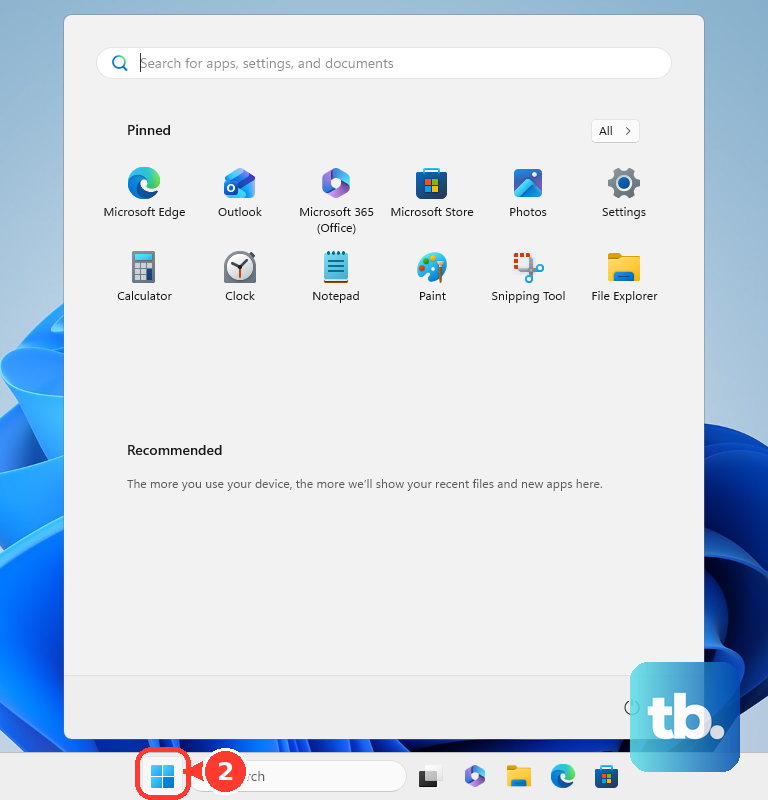
Find the app, right-click it, then select Uninstall.
For another Windows route, open Start > Settings > Apps > Installed apps.
Choose More next to the app, then select Uninstall.
When a classic Windows desktop program needs Control Panel, search for Control Panel and open Programs > Programs and Features.
Right-click the program, then choose Uninstall or Uninstall/Change.
On a Mac, open Finder > Applications.
Run Uninstall [App] or [App] Uninstaller when the app provides one.
Otherwise, drag the app to Trash or choose File > Move to Trash.
Finish with Finder > Empty Trash.
Free space after a Windows upgrade
Use this method when a Windows PC recently received a major upgrade and still stores a previous Windows version. The Previous version of Windows option appears only within 10 days after the upgrade.
Open Start > Settings > System > Storage > Temporary files.
Select Previous version of Windows when it is listed.
Select Remove files.
If the PC does not have Storage Sense, type disk cleanup in the taskbar search box.
Select Disk Cleanup.
Select the drive, then choose OK.
Select the file types to remove.
Choose Clean up system files when system files are part of the cleanup.
Select OK > Delete files.
Move cloud files off the computer
In OneDrive on Windows, use Files On-Demand so cloud files appear in File Explorer without taking local disk space.
For OneDrive files already stored locally, right-click the file or folder in File Explorer and select Free up space.
To clean OneDrive cloud quota, sign in to OneDrive and select the Storage used link in the lower left.
Review the largest files, then delete what you do not need or choose Empty your recycle bin.
On a Mac with iCloud Drive, open Apple menu > System Settings, select your name, then choose iCloud > Drive or iCloud Drive.
Turn on Sync this Mac, the switch that enables iCloud Drive in current macOS. Older macOS versions label the same switch iCloud Drive.
Turn on Desktop & Documents Folders.
Use Remove Download on files you want to keep in iCloud without storing locally.
For photos on Mac, open Photos > Settings > iCloud, select iCloud Photos, then choose Optimize Mac Storage.
Cloud cleanup helps most when large synced files already sit on the computer.
Clean browser data when websites feel heavy
Browser data grows through cached files, cookies, site data, and history. Clear data from the browser you use every day.
In Chrome, open More > Delete browsing data, choose a time range, select the data types, then choose Delete data. You can also type Delete browsing data in the address bar and select the action chip.
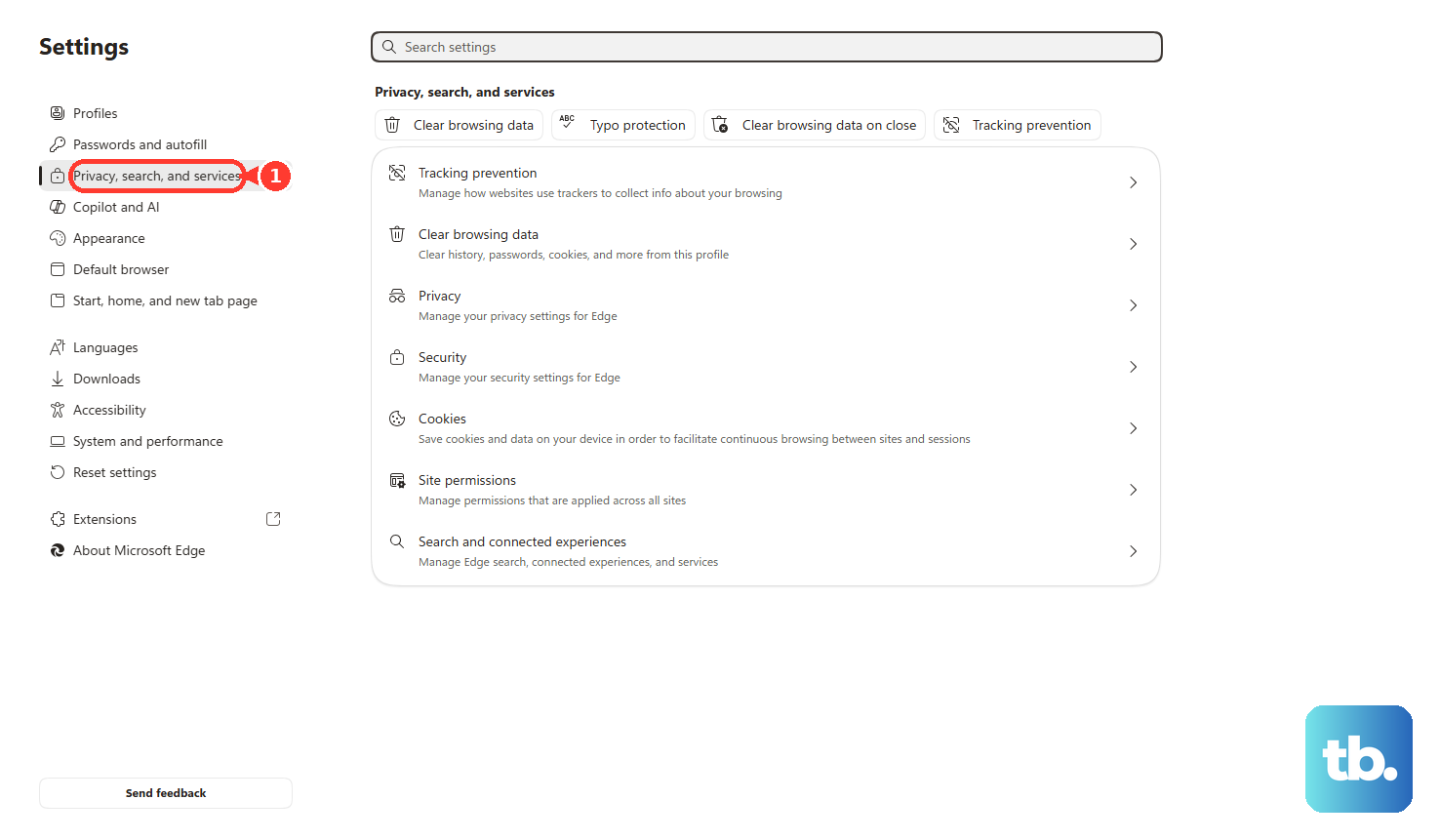
In Microsoft Edge, open Settings and more > Settings > Privacy, search, and services > Clear browsing data > Choose what to clear, choose the time range and data types, then select Clear now.
In Safari on Mac, open Safari > Settings > Privacy > Manage Website Data, select websites, then click Remove or Remove All. To clear history, use History > Clear History and choose how far back to clear.
In Firefox, open Menu > Settings > Privacy & Security, then use Clear Data or Clear browsing data. Select cached files, cookies, or site data, then confirm the cleanup.
Make a Chromebook less crowded
This fixes local Chromebook clutter from downloads, apps, and extensions.
Open the Files app.
Delete files you no longer need from My files or Downloads.
Move files to Google Drive when you want to keep them without relying on local storage.
Open the Launcher.
Right-click an app, choose Uninstall or Remove from Chrome, then confirm with Uninstall.
To remove extensions, open Chrome and choose More > More tools > Extensions.
Next to the extension, select Remove, then confirm Remove.
Check for unusual storage growth
The most common cause is buildup from downloads, temporary files, apps, synced cloud files, and browser data.
After you clear those areas, watch whether free space disappears again quickly.
On Windows, open Windows Security and run a virus scan and cleanup when malware is suspected or storage is being consumed unexpectedly.
On a Mac, start up in Safe Mode to clear certain system caches that macOS recreates as needed.
Restart normally to leave Safe Mode.
For a work or school computer, some storage settings are controlled by the organization. Use the cleanup options you can access, then contact the administrator for managed Storage Sense or OneDrive policy settings.
Skip outdated cleanup advice
Older Windows guides point to Internet Explorer temporary files. Internet Explorer 11 support ended on June 15, 2022, and Microsoft recommends Microsoft Edge instead, so use the Microsoft Edge cleanup path above for current browsing data.
wsreset.exe is one piece of old advice that is not outdated. Microsoft still documents it for both Windows 11 and Windows 10, but only for one specific case: a low disk space message caused by Microsoft Store .appx files filling the Temp folder. Press the Windows logo key + R, type wsreset.exe, then select OK. For routine cleanup, stay with Storage Sense, Cleanup recommendations, and Temporary files.
Microsoft also lists drive compression for gaining extra room for important Windows updates. Open File Explorer > This PC, right-click the OS drive, open Properties > General, select Compress this drive to save disk space, then choose Apply > OK.
Frequently Asked Questions
Can I automate cleanup on Windows?
Yes. Turn on Storage Sense from Start > Settings > System > Storage, then configure its cadence and cleanup rules for Recycle Bin, Downloads, and cloud content.
Why did deleting files not free space right away?
Windows and macOS keep deleted files in Recycle Bin or Trash until you empty them. Emptying that bin is the step that returns the storage.
Does cloud cleanup change local storage or account storage?
Online-only OneDrive and iCloud files free local disk space. Deleting files from OneDrive web storage affects cloud quota, and synced files follow the service behavior.
What should I avoid when following old cleanup tutorials?
Do not use Internet Explorer cleanup as a current path. Internet Explorer 11 support ended on June 15, 2022; use current browser cleanup tools such as Microsoft Edge instead.